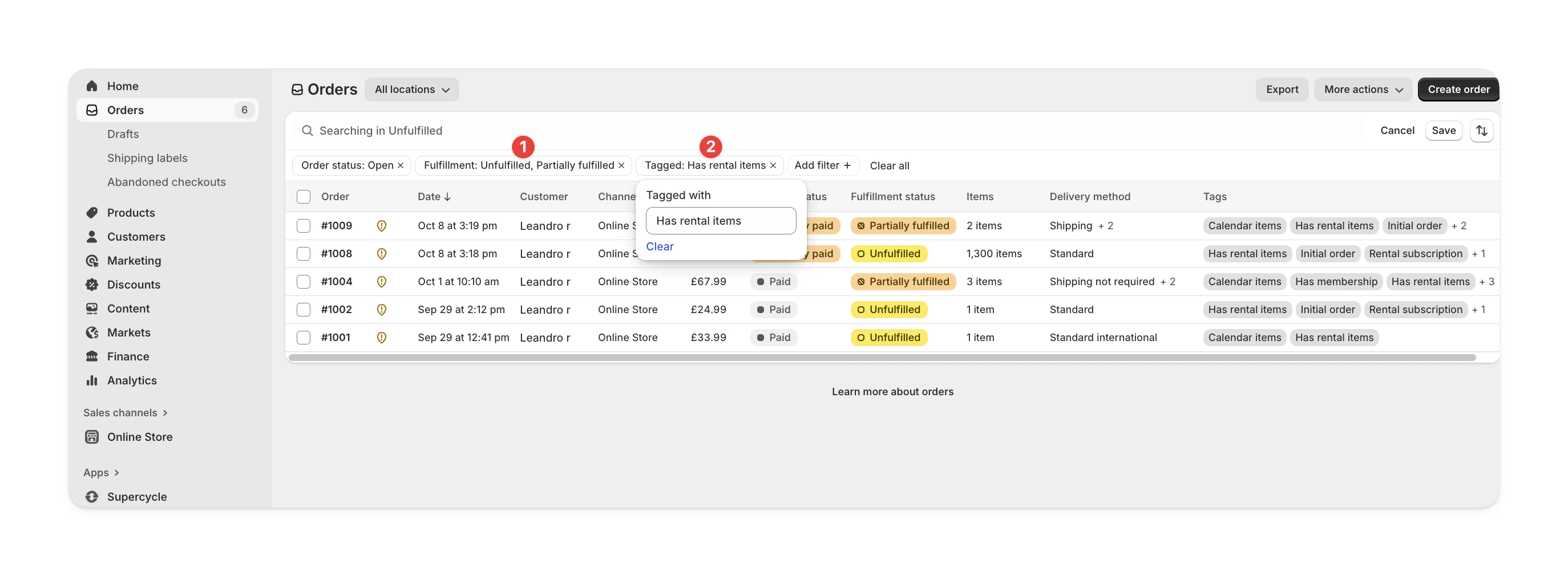
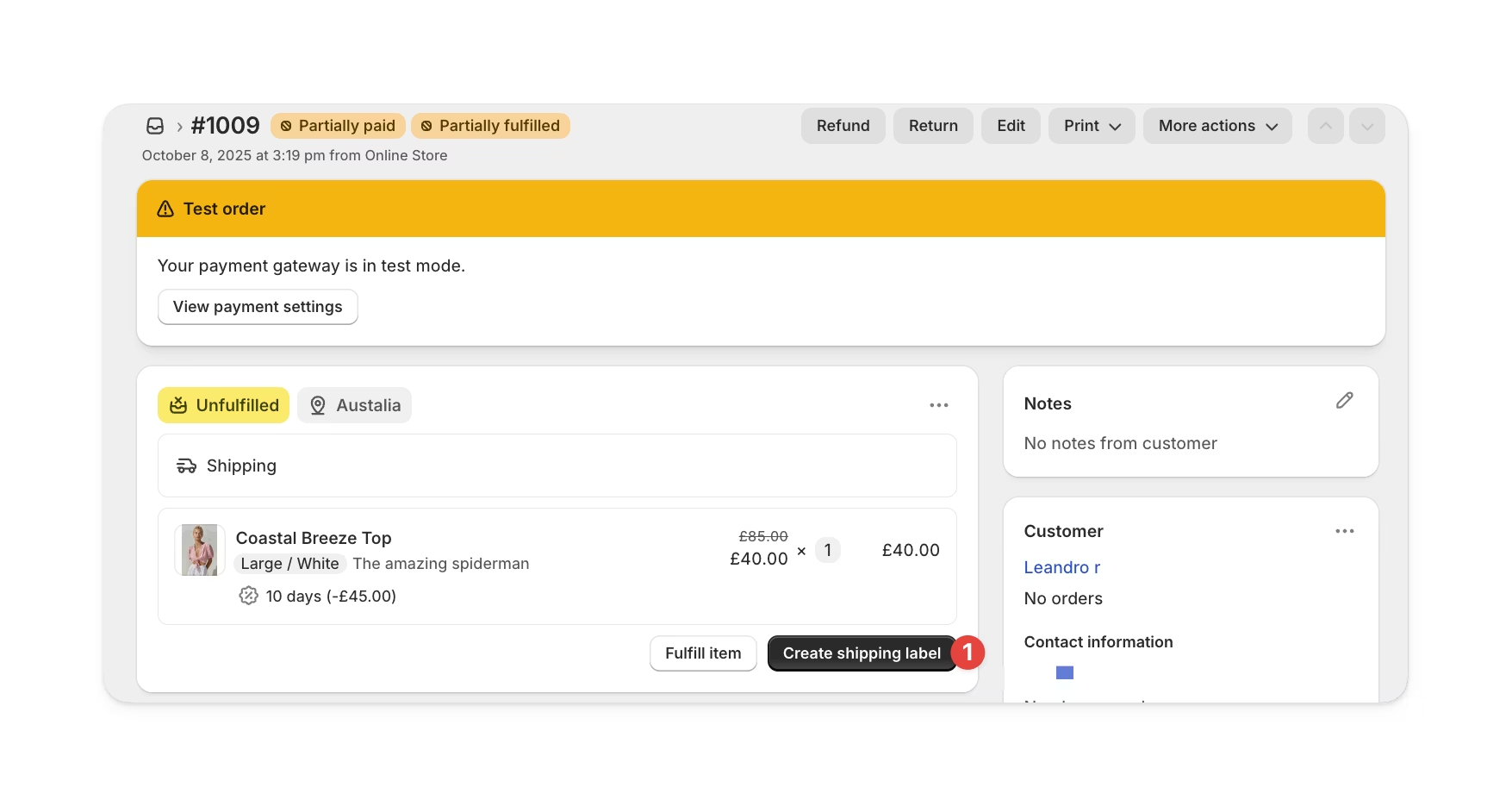
Find the cycles due out today, print their labels, and fulfill them in Shopify
Every cycle belongs to a Shopify order, and one order can hold several cycles. Fulfilling a cycle means fulfilling that order: when Shopify records the fulfillment, Supercycle sets the cycle to Fulfilled and moves it onto its return leg.
The Fulfill column on the Cycles table shows when each cycle needs to go out. The date comes from the customer’s Arrive by date and your logistics buffers, so a day’s work is the cycles due today.The fulfillment itself happens in Shopify, which is where the shipping label, the tracking number, and the customer’s shipment email live. Marking cycles as fulfilled in Supercycle records the date on the cycle but leaves the Shopify order untouched, so use it to correct history rather than to ship.
Fulfilling the Shopify order is what fulfills its cycles. When the order is fulfilled in Shopify, Supercycle sets each of its cycles to Fulfilled.
From the admin
Marking cycles as fulfilled on the Cycles table updates the cycles in Supercycle only. It doesn’t fulfill the Shopify order, so fulfill the order in Shopify as well.