Turn on the Supercycle Engine app embed, add the Methods app block, and style them to match your theme
Supercycle adds rental and resale options to your storefront through the Supercycle Engine app embed and app blocks in your theme. You set both up in Shopify’s theme editor, from Themes.
Supercycle works with Online Store 2.0 themes. On an older theme you’ll likely need a developer to add the blocks.
Supercycle’s storefront features are app blocks, so you place them where you want them in your templates. At a minimum, add the Methods app block to your product template: it shows the rental and resale options and drives your theme’s Add to cart button. For the block’s settings, see Methods app block.
The Methods style section of the Supercycle Engine app embed controls how the Methods block looks on product pages and how requirement pages look when customers follow links from checkout or their account: contract lists, contract signing, and ID verification at <your_proxy_url>/contracts, <your_proxy_url>/contracts/sign, and <your_proxy_url>/identity_verification. Headings and body copy on those pages inherit your theme’s typography. Buttons use the embed’s Button class setting, button by default, so they match the rest of your storefront.
1
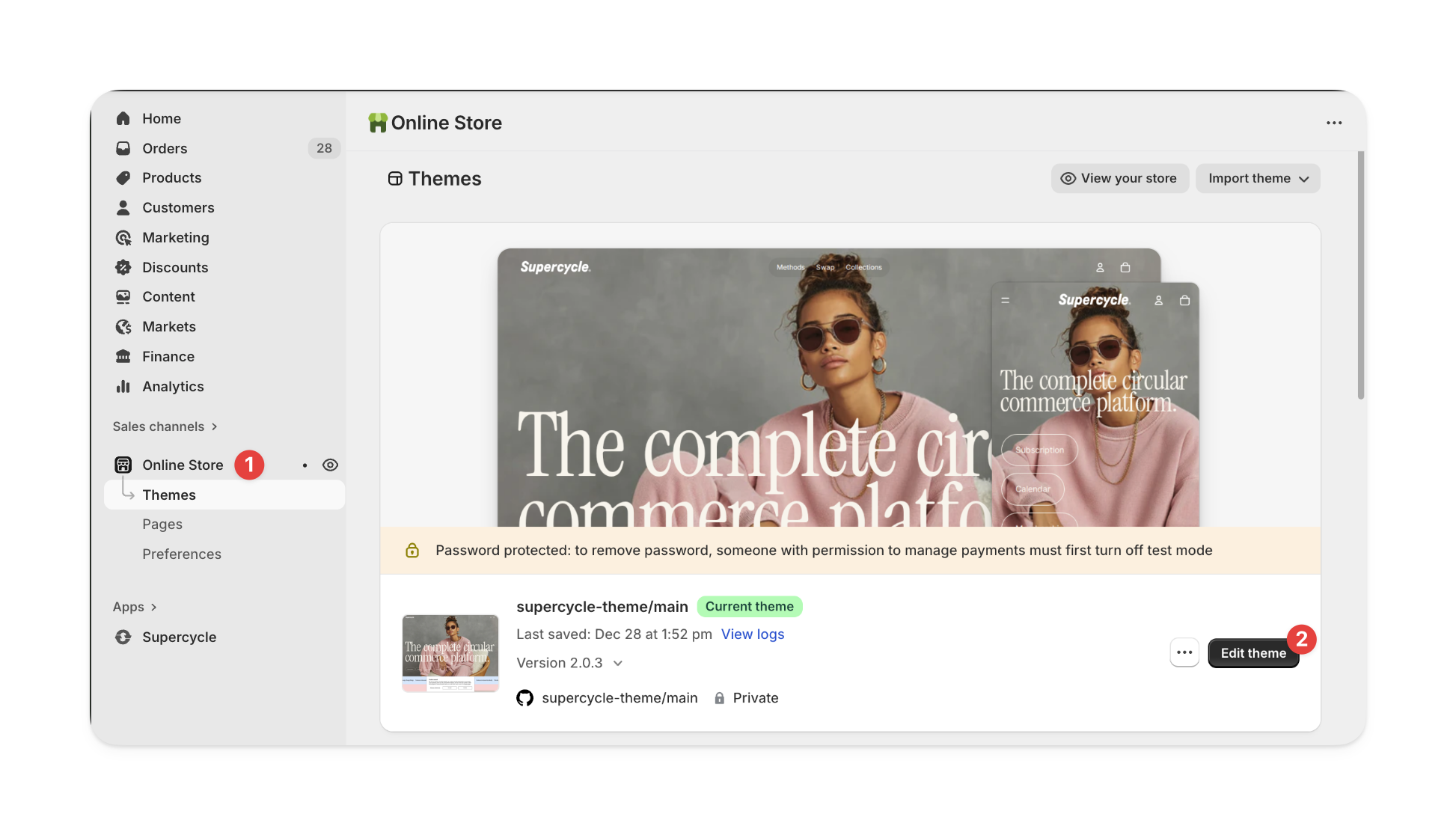
Open the theme editor
On Themes, select Customize on the theme you want to edit.
2
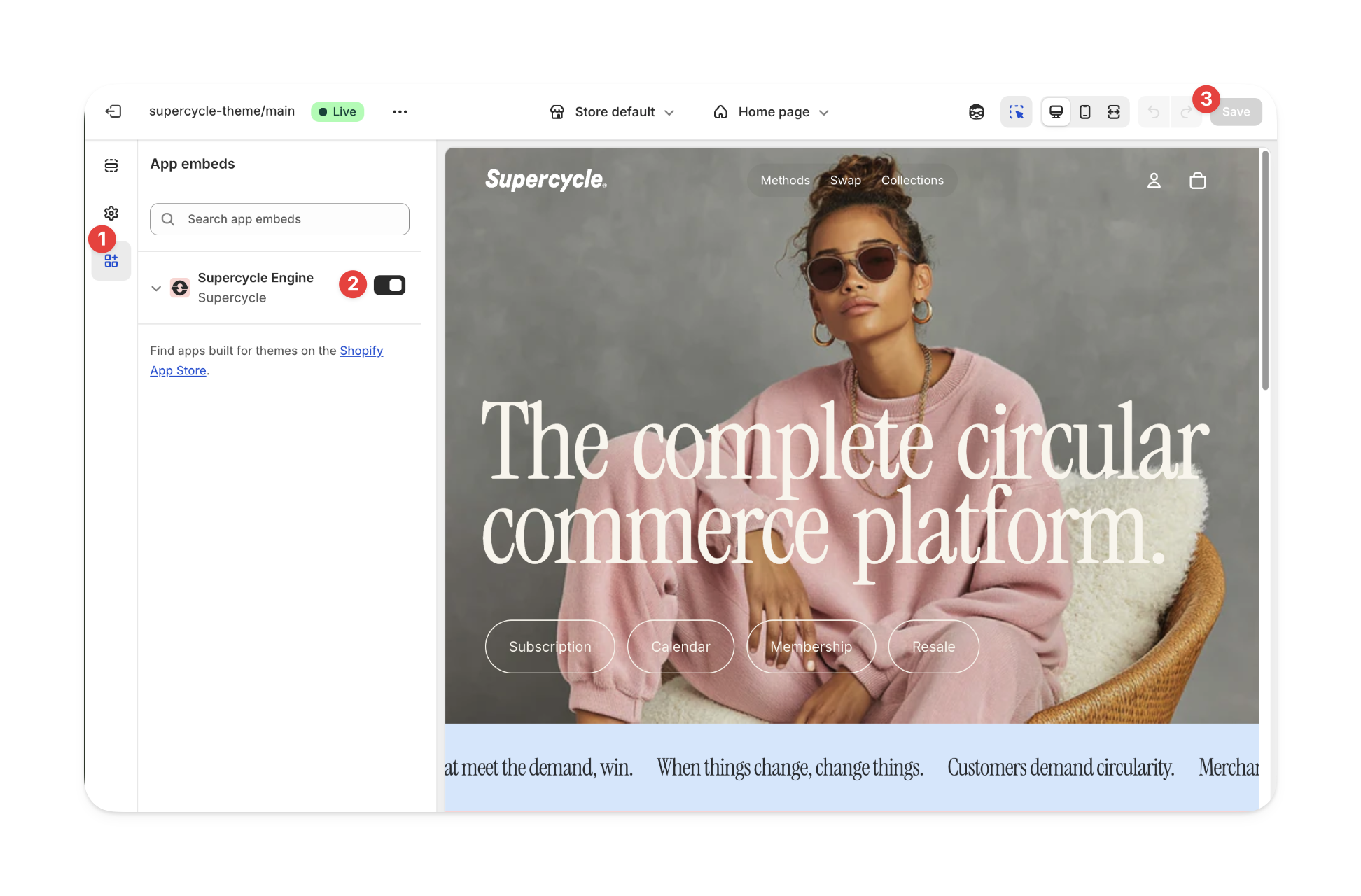
Open the Supercycle Engine settings
In the left panel, select App embeds, then select Supercycle Engine to expand its settings.
3
Adjust Methods style
Under Methods style, set the colors, border radius, and Button class. The same values apply to Methods blocks and requirement pages.
I added the Methods block to my product page but don't see an add to cart button. How do I add it?
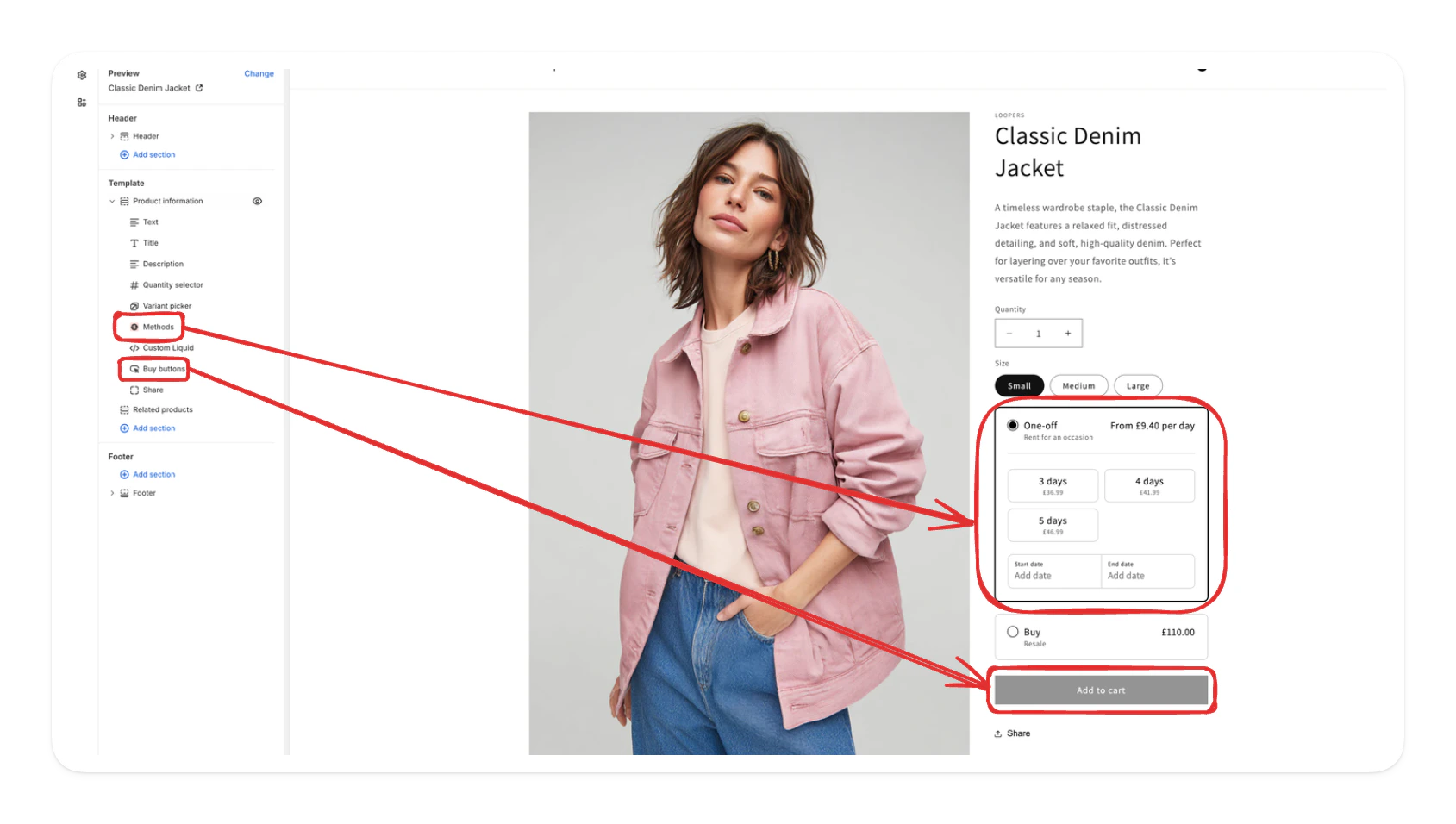
The Methods app block uses your theme’s own Add to cart button rather than adding one. Make sure the Buy buttons block is in your product template, and remove any dynamic checkout buttons such as Buy now.
The Methods block and the theme's Buy buttons block in the product template
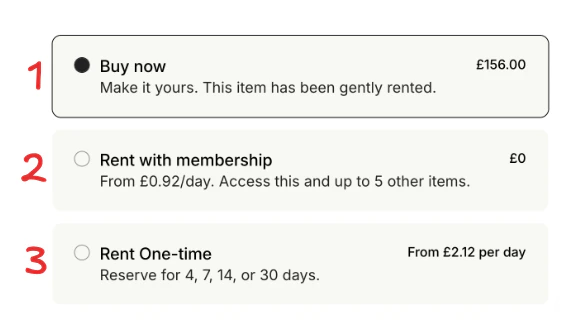
Can I change the order of methods on the product page?
Yes. Set the display order with custom CSS in your theme, using the order property on each method’s class:
Why it happens. The Methods app block controls your theme’s Add to cart button and keeps it disabled until the selection is complete: a method option with valid dates, stock for those dates, and every required terms row ticked.How to fix it. Check that the product has an active method with at least one option, that the dates picked are available, and that any terms rows are ticked. If the button stays disabled with a valid selection, contact support from the app with the product URL and a screenshot of the product page.
App blocks don't show up in the theme editor
Why it happens. The Supercycle Engine app embed is off, or the theme doesn’t support app blocks in that template.How to fix it. Turn on the app embed under App embeds and reload the theme editor. If the blocks still don’t appear, contact support from the app with your theme name and the template you’re editing.
Was this page helpful?
{"docsConfig":{"theme":"palm","$schema":"https://mintlify.com/docs.json","name":"Supercycle","colors":{"primary":"#202603","light":"#fdfcf9"},"logo":{"light":"https://mintcdn.com/supercycle/9BH4Gg5JlBQlZw4Y/images/logo/logomark-dark.svg?fit=max\u0026auto=format\u0026n=9BH4Gg5JlBQlZw4Y\u0026q=85\u0026s=d6437ea9f2e8ec9c993ffe8ec5f33e9c","dark":"https://mintcdn.com/supercycle/MQo9aD2E2itRN0QR/images/logo/logomark-light.svg?fit=max\u0026auto=format\u0026n=MQo9aD2E2itRN0QR\u0026q=85\u0026s=f3a3f69852fb3c2046cfa6ac33c0351f","href":"https://supercycle.com"},"favicon":"https://mintcdn.com/supercycle/XbKBsdX_PulItpyX/favicon.svg?fit=max\u0026auto=format\u0026n=XbKBsdX_PulItpyX\u0026q=85\u0026s=bba422965531eadf58aa44de92ecc6f1","background":{"color":{"light":"#fcfaf4","dark":"#12130b"}},"navbar":{"primary":{"type":"button","label":"Book a demo","href":"https://www.supercycle.com/pages/book/"}},"footer":{"socials":{"github":"https://github.com/madesuper","linkedin":"https://www.linkedin.com/company/supercycle-commerce"},"links":[{"items":[{"label":"Status","href":"https://status.supercycle.com/"}]}]},"search":{"prompt":"Ask any question on Supercycle..."},"fonts":{"heading":{"family":"Geist","weight":500},"body":{"family":"Geist","weight":400}},"integrations":{"gtm":{"tagId":"GTM-W9RVXLZV"}},"styling":{"latex":false},"navigation":{"pages":[]}},"deployment":{"deploymentMetadataValue":{"subdomain":"supercycle","hasAudioNarration":false,"actualSubdomain":"supercycle","customDomains":["docs.supercycle.com"],"gitSource":{"type":"github","owner":"madesuper","repo":"supercycle-docs","deployBranch":"main","contentDirectory":"","isPrivate":false,"mountPath":"","label":""},"chroma":{"liveDeploymentHistoryId":"6ae3695e9757c0f6dff49311","collectionId":"19f99fea-2f91-4ace-b809-606603ae309e","schemaVersion":"v3","latestBuiltDeploymentHistoryId":"6ae3695e9757c0f6dff49311"},"feedback":{"edits":false,"issues":false,"thumbs":true,"agentFeedback":true},"entitlements":{"AI_CHAT":{"status":"ENABLED"}},"buildId":"6ae3695e9757c0f6dff49311","clientVersion":"0.0.4021","searchFilterCounts":[{"language":"default","tag":"Documentation","count":105},{"language":"default","tag":"Manage","count":54},{"language":"default","tag":"API","count":50},{"language":"default","tag":"Admin API","count":44},{"language":"default","tag":"Configuration","count":24},{"language":"default","tag":"Products","count":16},{"language":"default","tag":"Developers","count":14},{"language":"default","tag":"Agent and MCP","count":13},{"language":"default","tag":"Cycles","count":13},{"language":"default","tag":"Methods","count":13}]},"assistantConfig":{"enableStarterQuestions":true,"enableContextualStarterQuestions":true,"deflection":{"enabled":true,"email":"support@supercycle.com","showHelpButton":true}},"basePath":"","hasChatPermissions":true,"hasWebMcpPermissions":false,"toggles":[{"name":"kill-isr","enabled":true,"variant":{"name":"disabled","enabled":false,"feature_enabled":true},"impressionData":false},{"name":"agent-mintlify-slack","enabled":true,"variant":{"name":"disabled","enabled":false,"feature_enabled":true},"impressionData":false},{"name":"agent-integrations-settings","enabled":true,"variant":{"name":"disabled","enabled":false,"feature_enabled":true},"impressionData":false},{"name":"automations-pr-grouping","enabled":true,"variant":{"name":"disabled","enabled":false,"feature_enabled":true},"impressionData":false},{"name":"custom-prefix","enabled":true,"variant":{"name":"disabled","enabled":false,"feature_enabled":true},"impressionData":false},{"name":"analytics-v7","enabled":true,"variant":{"name":"disabled","enabled":false,"feature_enabled":true},"impressionData":false},{"name":"user-flows-analytics","enabled":true,"variant":{"name":"disabled","enabled":false,"feature_enabled":true},"impressionData":false},{"name":"no-publish-flow","enabled":true,"variant":{"name":"disabled","enabled":false,"feature_enabled":true},"impressionData":false},{"name":"workos-onboarding","enabled":true,"variant":{"name":"disabled","enabled":false,"feature_enabled":true},"impressionData":false},{"name":"llms-txt-v2","enabled":true,"variant":{"name":"disabled","enabled":false,"feature_enabled":true},"impressionData":false},{"name":"snapshot-serving-live","enabled":true,"variant":{"name":"disabled","enabled":false,"feature_enabled":true},"impressionData":false},{"name":"stripTemperatureMiddleware","enabled":true,"variant":{"name":"disabled","enabled":false,"feature_enabled":true},"impressionData":false},{"name":"per-site-search-delta","enabled":true,"variant":{"name":"disabled","enabled":false,"feature_enabled":true},"impressionData":false},{"name":"support-platform-pylon-zendesk","enabled":true,"variant":{"name":"disabled","enabled":false,"feature_enabled":true},"impressionData":false},{"name":"snapshot-serving","enabled":true,"variant":{"name":"disabled","enabled":false,"feature_enabled":true},"impressionData":false},{"name":"instant-rollback","enabled":true,"variant":{"name":"disabled","enabled":false,"feature_enabled":true},"impressionData":false},{"name":"granular-notifications-server","enabled":true,"variant":{"name":"disabled","enabled":false,"feature_enabled":true},"impressionData":false},{"name":"granular-notifications","enabled":true,"variant":{"name":"disabled","enabled":false,"feature_enabled":true},"impressionData":false},{"name":"editor-private-page-search","enabled":true,"variant":{"name":"disabled","enabled":false,"feature_enabled":true},"impressionData":false},{"name":"automations-fable","enabled":true,"variant":{"name":"disabled","enabled":false,"feature_enabled":true},"impressionData":false},{"name":"fixed-ai-action-pricing","enabled":true,"variant":{"name":"disabled","enabled":false,"feature_enabled":true},"impressionData":false},{"name":"automation-resolve-merge-conflict","enabled":true,"variant":{"name":"disabled","enabled":false,"feature_enabled":true},"impressionData":false},{"name":"scoped-publishing","enabled":true,"variant":{"name":"disabled","enabled":false,"feature_enabled":true},"impressionData":false},{"name":"mintql","enabled":true,"variant":{"name":"disabled","enabled":false,"feature_enabled":true},"impressionData":false},{"name":"page-level-analytics","enabled":true,"variant":{"name":"disabled","enabled":false,"feature_enabled":true},"impressionData":false},{"name":"editor-version-history-v2","enabled":true,"variant":{"name":"disabled","enabled":false,"feature_enabled":true},"impressionData":false},{"name":"billing-page-v2","enabled":true,"variant":{"name":"disabled","enabled":false,"feature_enabled":true},"impressionData":false},{"name":"workspace-projects","enabled":true,"variant":{"name":"disabled","enabled":false,"feature_enabled":true},"impressionData":false},{"name":"assistant-v5","enabled":true,"variant":{"name":"disabled","enabled":false,"feature_enabled":true},"impressionData":false},{"name":"byok-sep-25","enabled":true,"variant":{"name":"disabled","enabled":false,"feature_enabled":true},"impressionData":false},{"name":"fork-pr-previews","enabled":true,"variant":{"name":"disabled","enabled":false,"feature_enabled":true},"impressionData":false},{"name":"revalidation-jwt","enabled":true,"variant":{"name":"disabled","enabled":false,"feature_enabled":true},"impressionData":false},{"name":"vite-origin","enabled":true,"variant":{"name":"disabled","enabled":false,"feature_enabled":true},"impressionData":false},{"name":"billing-updated-9-15","enabled":true,"variant":{"name":"disabled","enabled":false,"feature_enabled":true},"impressionData":false},{"name":"workos-sso-scim","enabled":true,"variant":{"name":"disabled","enabled":false,"feature_enabled":true},"impressionData":false},{"name":"hobby-abuse-scan","enabled":true,"variant":{"name":"disabled","enabled":false,"feature_enabled":true},"impressionData":false},{"name":"dashboard-inbox","enabled":true,"variant":{"name":"disabled","enabled":false,"feature_enabled":true},"impressionData":false},{"name":"workos-signup","enabled":true,"variant":{"name":"disabled","enabled":false,"feature_enabled":true},"impressionData":false},{"name":"workos-enabled","enabled":true,"variant":{"name":"disabled","enabled":false,"feature_enabled":true},"impressionData":false}],"googleFontsInlined":true},"customCss":[{"filePath":"style.css","content":"/* cyrillic-ext */\n@font-face {\n font-family: 'Geist Mono';\n font-style: normal;\n font-weight: 400;\n font-display: swap;\n src: url(/_mintlify/assets/fonts/google/s/geistmono/v6/or3nQ6H-1_WfwkMZI_qYFrodmgPn.woff2) format('woff2');\n unicode-range: U+0460-052F, U+1C80-1C8A, U+20B4, U+2DE0-2DFF, U+A640-A69F, U+FE2E-FE2F;\n}\n/* cyrillic */\n@font-face {\n font-family: 'Geist Mono';\n font-style: normal;\n font-weight: 400;\n font-display: swap;\n src: url(/_mintlify/assets/fonts/google/s/geistmono/v6/or3nQ6H-1_WfwkMZI_qYFrMdmgPn.woff2) format('woff2');\n unicode-range: U+0301, U+0400-045F, U+0490-0491, U+04B0-04B1, U+2116;\n}\n/* symbols2 */\n@font-face {\n font-family: 'Geist Mono';\n font-style: normal;\n font-weight: 400;\n font-display: swap;\n src: url(/_mintlify/assets/fonts/google/s/geistmono/v6/or3nQ6H-1_WfwkMZI_qYFg08vz7ehw.woff2) format('woff2');\n unicode-range: U+2000-2001, U+2004-2008, U+200A, U+23B8-23BD, U+2500-259F;\n}\n/* vietnamese */\n@font-face {\n font-family: 'Geist Mono';\n font-style: normal;\n font-weight: 400;\n font-display: swap;\n src: url(/_mintlify/assets/fonts/google/s/geistmono/v6/or3nQ6H-1_WfwkMZI_qYFrgdmgPn.woff2) format('woff2');\n unicode-range: U+0102-0103, U+0110-0111, U+0128-0129, U+0168-0169, U+01A0-01A1, U+01AF-01B0, U+0300-0301, U+0303-0304, U+0308-0309, U+0323, U+0329, U+1EA0-1EF9, U+20AB;\n}\n/* latin-ext */\n@font-face {\n font-family: 'Geist Mono';\n font-style: normal;\n font-weight: 400;\n font-display: swap;\n src: url(/_mintlify/assets/fonts/google/s/geistmono/v6/or3nQ6H-1_WfwkMZI_qYFrkdmgPn.woff2) format('woff2');\n unicode-range: U+0100-02BA, U+02BD-02C5, U+02C7-02CC, U+02CE-02D7, U+02DD-02FF, U+0304, U+0308, U+0329, U+1D00-1DBF, U+1E00-1E9F, U+1EF2-1EFF, U+2020, U+20A0-20AB, U+20AD-20C4, U+2113, U+2C60-2C7F, U+A720-A7FF;\n}\n/* latin */\n@font-face {\n font-family: 'Geist Mono';\n font-style: normal;\n font-weight: 400;\n font-display: swap;\n src: url(/_mintlify/assets/fonts/google/s/geistmono/v6/or3nQ6H-1_WfwkMZI_qYFrcdmg.woff2) format('woff2');\n unicode-range: U+0000-00FF, U+0131, U+0152-0153, U+02BB-02BC, U+02C6, U+02DA, U+02DC, U+0304, U+0308, U+0329, U+2000-206F, U+20AC, U+2122, U+2191, U+2193, U+2212, U+2215, U+FEFF, U+FFFD;\n}\n/* cyrillic-ext */\n@font-face {\n font-family: 'Geist Mono';\n font-style: normal;\n font-weight: 500;\n font-display: swap;\n src: url(/_mintlify/assets/fonts/google/s/geistmono/v6/or3nQ6H-1_WfwkMZI_qYFrodmgPn.woff2) format('woff2');\n unicode-range: U+0460-052F, U+1C80-1C8A, U+20B4, U+2DE0-2DFF, U+A640-A69F, U+FE2E-FE2F;\n}\n/* cyrillic */\n@font-face {\n font-family: 'Geist Mono';\n font-style: normal;\n font-weight: 500;\n font-display: swap;\n src: url(/_mintlify/assets/fonts/google/s/geistmono/v6/or3nQ6H-1_WfwkMZI_qYFrMdmgPn.woff2) format('woff2');\n unicode-range: U+0301, U+0400-045F, U+0490-0491, U+04B0-04B1, U+2116;\n}\n/* symbols2 */\n@font-face {\n font-family: 'Geist Mono';\n font-style: normal;\n font-weight: 500;\n font-display: swap;\n src: url(/_mintlify/assets/fonts/google/s/geistmono/v6/or3nQ6H-1_WfwkMZI_qYFg08vz7ehw.woff2) format('woff2');\n unicode-range: U+2000-2001, U+2004-2008, U+200A, U+23B8-23BD, U+2500-259F;\n}\n/* vietnamese */\n@font-face {\n font-family: 'Geist Mono';\n font-style: normal;\n font-weight: 500;\n font-display: swap;\n src: url(/_mintlify/assets/fonts/google/s/geistmono/v6/or3nQ6H-1_WfwkMZI_qYFrgdmgPn.woff2) format('woff2');\n unicode-range: U+0102-0103, U+0110-0111, U+0128-0129, U+0168-0169, U+01A0-01A1, U+01AF-01B0, U+0300-0301, U+0303-0304, U+0308-0309, U+0323, U+0329, U+1EA0-1EF9, U+20AB;\n}\n/* latin-ext */\n@font-face {\n font-family: 'Geist Mono';\n font-style: normal;\n font-weight: 500;\n font-display: swap;\n src: url(/_mintlify/assets/fonts/google/s/geistmono/v6/or3nQ6H-1_WfwkMZI_qYFrkdmgPn.woff2) format('woff2');\n unicode-range: U+0100-02BA, U+02BD-02C5, U+02C7-02CC, U+02CE-02D7, U+02DD-02FF, U+0304, U+0308, U+0329, U+1D00-1DBF, U+1E00-1E9F, U+1EF2-1EFF, U+2020, U+20A0-20AB, U+20AD-20C4, U+2113, U+2C60-2C7F, U+A720-A7FF;\n}\n/* latin */\n@font-face {\n font-family: 'Geist Mono';\n font-style: normal;\n font-weight: 500;\n font-display: swap;\n src: url(/_mintlify/assets/fonts/google/s/geistmono/v6/or3nQ6H-1_WfwkMZI_qYFrcdmg.woff2) format('woff2');\n unicode-range: U+0000-00FF, U+0131, U+0152-0153, U+02BB-02BC, U+02C6, U+02DA, U+02DC, U+0304, U+0308, U+0329, U+2000-206F, U+20AC, U+2122, U+2191, U+2193, U+2212, U+2215, U+FEFF, U+FFFD;\n}\nhtml:root{--brand-dark:#202603;--brand-dark-hover:#303807;--brand-green:#08b27d;--brand-cream:#fcfaf4;--brand-warm:#faf6ef;--brand-warm-dark:#f1ede7;--brand-white:#ffffff;--thread-blush:#fedad9;--thread-sky:#dcebf8;--brand-muted:color-mix(in srgb, var(--brand-dark) 60%, transparent);--brand-tint-5:color-mix(in srgb, var(--brand-dark) 5%, transparent);--brand-tint-10:color-mix(in srgb, var(--brand-dark) 10%, transparent);--brand-tint-25:color-mix(in srgb, var(--brand-dark) 25%, transparent);--font-label:\"Geist Mono\", ui-monospace, monospace;--font-code:ui-monospace, \"SF Mono\", Menlo, Consolas, monospace;--transition-fast:150ms ease;--gray-50:250 246 239;--gray-100:241 237 231;--gray-200:230 225 216;--gray-300:214 208 196;--gray-400:168 163 150;--gray-500:120 123 99;--gray-600:98 102 75;--gray-700:76 80 51;--gray-800:54 59 27;--gray-900:32 38 3;--gray-950:32 38 3}html.dark:root{--brand-dark:#fdfcf9;--brand-dark-hover:#ffffff;--brand-cream:#12130b;--brand-warm:#1c1d15;--brand-warm-dark:#2a2b20;--brand-white:#1c1d15;--thread-blush:#4f2e34;--thread-sky:#243040;--gray-50:253 252 249;--gray-100:241 237 231;--gray-200:217 215 207;--gray-300:189 187 178;--gray-400:154 153 144;--gray-500:120 121 102;--gray-600:90 91 76;--gray-700:61 62 49;--gray-800:42 43 32;--gray-900:28 29 21;--gray-950:18 19 11}html{-webkit-font-smoothing:antialiased;-moz-osx-font-smoothing:grayscale}body{color:var(--brand-dark);background-color:var(--brand-cream)}#content p:not(.not-prose *){line-height:1.6;text-wrap:pretty}#content h2:not(.not-prose *),#content h3:not(.not-prose *),#content h4:not(.not-prose *){font-weight:600;letter-spacing:-.02em;color:var(--brand-dark)}#content a:not(.card):not([class*=rounded]):not(.not-prose *){color:var(--brand-dark);font-weight:500;border-bottom:0;text-decoration:underline;text-underline-offset:.15em;text-decoration-color:var(--brand-tint-25);transition:text-decoration-color var(--transition-fast)}#content a:not(.card):not([class*=rounded]):not(.not-prose *):hover{text-decoration-color:var(--brand-dark)}#content strong:not(.not-prose *){font-weight:500;color:var(--brand-dark)}#content th:not(.not-prose *),#sidebar-title,#table-of-contents>button,.eyebrow{font-family:var(--font-label);font-size:.75rem;font-weight:500;line-height:1rem;letter-spacing:.05em;text-transform:uppercase;color:var(--brand-muted)}#header{padding-top:2.5rem;padding-bottom:2rem;border-bottom:1px solid var(--brand-warm-dark);margin-bottom:.5rem}#header .eyebrow{height:auto;margin-bottom:.75rem}#content-area:has(#content[data-page-href$=\"/index\"]) #header .eyebrow{display:none}#page-title{font-weight:500;font-size:2.35rem;line-height:1.05;letter-spacing:-.05em;color:var(--brand-dark);text-wrap:balance}@media (min-width:768px){#page-title{font-size:3rem}}main#content-container:has(#content[data-page-href$=\"/index\"]),main#content-container:has(#content[data-page-href$=\"/index\"])>*{position:relative}main#content-container:has(#content[data-page-href$=\"/index\"])::before{content:\"\";position:absolute;inset:0 0 auto;height:32rem;pointer-events:none;opacity:.45;background:linear-gradient(to bottom,var(--brand-cream) 10%,var(--thread-blush) 48%,var(--thread-sky) 68%,transparent 100%)}#content-area:has(#content[data-page-href$=\"/index\"]) #header{padding-top:4rem;padding-bottom:3rem;border-bottom:0}@media (min-width:768px){#content-area:has(#content[data-page-href$=\"/index\"]) #page-title{font-size:3.5rem}}#header .prose{font-size:1rem;line-height:1.6;color:var(--brand-muted);margin-top:1rem;text-wrap:pretty}#header #page-context-menu{position:absolute;right:0;top:0}#navbar .bg-gray-950\\/\\[0\\.03\\]{background-color:transparent;border-bottom-color:var(--brand-warm-dark)}#navbar .bg-background-light,#navbar .dark\\:bg-background-dark{background-color:var(--brand-cream)}#navbar #search-bar-entry{border-radius:9999px;background-color:var(--brand-warm);box-shadow:none;border:1px solid var(--brand-warm-dark);color:var(--brand-muted);transition:border-color var(--transition-fast),background-color var(--transition-fast)}#navbar #search-bar-entry:hover{border-color:var(--brand-tint-25);background-color:var(--brand-white)}@media (min-width:1024px){#navbar #topbar-cta-button a,#navbar .navbar-link a{display:inline-flex;align-items:center;justify-content:center;height:2rem;border-radius:9999px;font-weight:500;line-height:1}#navbar .navbar-link a{font-size:.875rem;transition:background-color var(--transition-fast),color var(--transition-fast);color:var(--brand-muted);background-color:transparent;padding:0 .75rem}#navbar #topbar-cta-button a{padding:0 1rem;background-color:var(--brand-dark);color:var(--brand-cream);font-size:.75rem;transition:background-color var(--transition-fast),scale var(--transition-fast)}#navbar .navbar-link a:hover{color:var(--brand-dark);background-color:var(--brand-tint-5)}#navbar #topbar-cta-button a:active{scale:.97}#navbar #topbar-cta-button a:hover{background-color:var(--brand-dark-hover)}#navbar #topbar-cta-button a *,#navbar #topbar-cta-button a span{color:inherit}#navbar #topbar-cta-button a svg,#navbar .navbar-link a svg{display:none}}#sidebar-content{border-right-color:var(--brand-warm-dark)}#sidebar-title{margin-bottom:.5rem}#navigation-items a,#navigation-items button{color:var(--brand-muted);transition:color var(--transition-fast)}#navigation-items a:hover,#navigation-items button:hover{color:var(--brand-dark)}#navigation-items a[class*=text-primary]{color:var(--brand-dark);font-weight:500;text-shadow:none}#navigation-items [class*=border-gray-950]{border-color:var(--brand-warm-dark)}#sidebar-content{scrollbar-color:transparent transparent}#sidebar-content:hover{scrollbar-color:var(--brand-tint-10) transparent}#sidebar-content,#sidebar-content *{scrollbar-width:thin}#sidebar-content ::-webkit-scrollbar,#sidebar-content::-webkit-scrollbar{width:6px;height:6px}#sidebar-content ::-webkit-scrollbar-track,#sidebar-content::-webkit-scrollbar-track{background:0 0}#sidebar-content ::-webkit-scrollbar-thumb,#sidebar-content::-webkit-scrollbar-thumb{background-color:transparent;border-radius:9999px;transition:background-color var(--transition-fast)}#sidebar-content:hover ::-webkit-scrollbar-thumb,#sidebar-content:hover::-webkit-scrollbar-thumb{background-color:var(--brand-tint-10)}#navigation-items ul:has(>li>a.nav-anchor){border-bottom:1px solid var(--brand-warm-dark);margin-bottom:1.25rem}#sidebar-content>#navigation-items+div{border-top-color:var(--brand-warm-dark);position:relative}.group>div:has(>svg[viewBox=\"0 -9 3 24\"]),.group>svg[viewBox=\"0 -9 3 24\"]{order:10}@media (min-width:1024px){#navbar .nav-logo{height:2rem}#navbar a:has(>.nav-logo){padding-right:.75rem;border-right:1px solid var(--brand-warm-dark)}#sidebar-content{z-index:40}.nav-dropdown-trigger{position:fixed;top:1rem;left:6.5rem;width:auto;height:2rem;margin:0;padding:0 .625rem;gap:.375rem;background:0 0;border-radius:9999px;transition:background-color var(--transition-fast)}.nav-dropdown-trigger:hover{background-color:var(--brand-tint-5)}.nav-dropdown-trigger .nav-dropdown-item-icon,.nav-dropdown-trigger .nav-dropdown-item-title~p{display:none}.nav-dropdown-trigger .nav-dropdown-item-text-container{padding:0}.nav-dropdown-trigger .nav-dropdown-item-title{font-size:.875rem;font-weight:500;color:var(--brand-dark)}#sidebar-content div{-webkit-mask-image:none!important;mask-image:none!important}#sidebar-content::before,#sidebar-content>#navigation-items+div::before{content:\"\";position:absolute;left:0;right:0;pointer-events:none}#sidebar-content::before{top:0;height:2rem;background:linear-gradient(to bottom,var(--brand-cream),transparent);z-index:1}#sidebar-content>#navigation-items+div::before{bottom:calc(100% + 1px);height:2.5rem;background:linear-gradient(to top,var(--brand-cream),transparent)}#navigation-items>div>div:first-of-type{margin-top:0}}#navigation-items li[id=\"/ai\"],#navigation-items li[id=\"/api-reference/admin\"],#navigation-items li[id=\"/api-reference/storefront\"],#navigation-items li[id=\"/developers\"],#navigation-items li[id=\"/documentation\"],button.absolute.top-5.right-5.p-1\\.5.rounded-md,footer#footer{display:none}#table-of-contents{color:var(--brand-muted)}#table-of-contents a{font-weight:400;transition:color var(--transition-fast)}#content div.card [data-component-part=card-title],#table-of-contents a:hover,.callout[class*=border-blue]>div,.callout[class*=border-emerald]>div,.callout[class*=border-gray]>div,.callout[class*=border-green]>div,.callout[class*=border-zinc]>div{color:var(--brand-dark)}#table-of-contents a[class*=text-primary]{color:var(--brand-dark);font-weight:500}#content-container{background:var(--brand-cream)}.rounded-2xl,.rounded-xl{border-radius:12px}#pagination a,.card{background-color:var(--brand-white);border:1px solid var(--brand-warm-dark);transition:border-color var(--transition-fast)}#pagination a{background-color:var(--brand-tint-5);border-radius:12px}#pagination a:hover,.card:hover{border-color:var(--brand-tint-25)!important}.card [class*=fill-gray-800],.card [class*=text-gray-800]{color:var(--brand-dark);fill:var(--brand-dark)}#content div.card,.frame{background-color:var(--brand-warm)}#content div.card{cursor:default}#content div.card:hover{border-color:var(--brand-warm-dark)!important}#content div.card [data-component-part=card-icon] svg{background-color:var(--brand-muted)!important;filter:grayscale(1);opacity:.6}.callout[class*=border-blue],.callout[class*=border-emerald],.callout[class*=border-gray],.callout[class*=border-green],.callout[class*=border-zinc]{background-color:var(--brand-warm);border-color:var(--brand-warm-dark)}.callout[class*=border-blue] svg,.callout[class*=border-gray] svg,.callout[class*=border-zinc] svg{color:var(--brand-muted);fill:currentColor}.callout[class*=border-emerald] svg,.callout[class*=border-green] svg{color:var(--brand-green);fill:currentColor}.step>.rounded-full{background-color:var(--brand-tint-10);color:var(--brand-dark);font-family:var(--font-label);font-weight:500}.step>.absolute.w-px{background:var(--brand-warm-dark)}.frame{border:1px solid var(--brand-warm-dark)}.frame img{border-radius:8px}#content [class*=accordion],#content details{border-color:var(--brand-warm-dark)}#content table:not(.not-prose *){border-collapse:collapse}#content th:not(.not-prose *){background-color:var(--brand-warm);padding-top:.625rem;padding-bottom:.625rem;border-bottom:1px solid var(--brand-warm-dark)}#content td:not(.not-prose *){border-bottom:1px solid var(--brand-warm-dark);color:var(--brand-dark)}code,kbd,pre,pre code{font-family:var(--font-code)}#content :not(pre)>code:not(.not-prose *){background-color:var(--brand-tint-5);border:0;border-radius:6px;padding:.125rem .375rem;font-size:.875em;font-weight:500;color:var(--brand-dark)}.code-block{background-color:var(--brand-white);border-color:var(--brand-warm-dark)!important;border-radius:12px}.hover\\:bg-gray-100:hover,html.dark .code-block{background-color:var(--brand-warm)}#content hr:not(.not-prose *){border-color:var(--brand-warm-dark)}@media (max-width:768px){#content-container{padding-left:1rem;padding-right:1rem}#page-title{font-size:2rem}}"}],"page":{"pagePath":"documentation/setup/theme-setup","slug":"/documentation/setup/theme-setup","pageMetadata":{"title":"Theme setup","icon":"palette","description":"Turn on the Supercycle Engine app embed, add the Methods app block, and style them to match your theme","keywords":["theme setup","Shopify theme","app block","app embed","Supercycle Engine","storefront setup","methods style","button class"],"href":"/documentation/setup/theme-setup"},"description":{"compiledSource":"\"use strict\";\nconst {jsx: _jsx} = arguments[0];\nconst {useMDXComponents: _provideComponents} = arguments[0];\nfunction _createMdxContent(props) {\n const _components = {\n p: \"p\",\n ..._provideComponents(),\n ...props.components\n };\n return _jsx(_components.p, {\n children: \"Turn on the Supercycle Engine app embed, add the Methods app block, and style them to match your theme\"\n });\n}\nfunction MDXContent(props = {}) {\n const {wrapper: MDXLayout} = {\n ..._provideComponents(),\n ...props.components\n };\n return MDXLayout ? _jsx(MDXLayout, {\n ...props,\n children: _jsx(_createMdxContent, {\n ...props\n })\n }) : _createMdxContent(props);\n}\nreturn {\n default: MDXContent\n};\n","frontmatter":{},"scope":{}},"pageType":"default","mdx":{"mdxSource":{"compiledSource":"\"use strict\";const{Fragment:_Fragment,jsx:_jsx,jsxs:_jsxs}=arguments[0];const{useMDXComponents:_provideComponents}=arguments[0];function _createMdxContent(props){const _components={a:`a`,code:`code`,hr:`hr`,li:`li`,p:`p`,pre:`pre`,span:`span`,strong:`strong`,ul:`ul`,..._provideComponents(),...props.components},{Accordion,AccordionGroup,CodeBlock,Frame,Heading,Icon,Info,OptimizedImage,Step,Steps}=_components;if(!Accordion)_missingMdxReference(`Accordion`,true);if(!AccordionGroup)_missingMdxReference(`AccordionGroup`,true);if(!CodeBlock)_missingMdxReference(`CodeBlock`,true);if(!Frame)_missingMdxReference(`Frame`,true);if(!Heading)_missingMdxReference(`Heading`,true);if(!Icon)_missingMdxReference(`Icon`,true);if(!Info)_missingMdxReference(`Info`,true);if(!OptimizedImage)_missingMdxReference(`OptimizedImage`,true);if(!Step)_missingMdxReference(`Step`,true);if(!Steps)_missingMdxReference(`Steps`,true);return _jsxs(_Fragment,{children:[_jsxs(_components.p,{children:[`Supercycle adds rental and resale options to your storefront through the Supercycle Engine app embed and app blocks in your theme. You set both up in Shopify’s `,_jsx(_components.a,{href:`https://help.shopify.com/en/manual/online-store/themes/theme-structure/extend/apps`,children:`theme editor`}),`, from `,_jsx(Icon,{icon:`shopify`,iconType:`solid`}),` `,_jsx(_components.strong,{children:_jsx(_components.a,{href:`https://admin.shopify.com/themes`,children:`Themes`})}),`.`]}),`\n`,_jsx(Info,{children:_jsxs(_components.p,{children:[`Supercycle works with `,_jsx(_components.a,{href:`https://help.shopify.com/en/manual/online-store/themes/managing-themes/versions`,children:`Online Store 2.0 themes`}),`. On an older theme you’ll likely need a developer to add the blocks.`]})}),`\n`,_jsx(_components.hr,{}),`\n`,_jsx(Heading,{level:`2`,id:`turn-on-the-app-embed`,children:`Turn on the app embed`}),`\n`,_jsx(_components.p,{children:`The Supercycle Engine app embed loads Supercycle on every page and is required for the app blocks to work.`}),`\n`,_jsxs(Steps,{children:[_jsxs(Step,{title:`Open the theme editor`,children:[_jsxs(_components.p,{children:[`On `,_jsx(Icon,{icon:`shopify`,iconType:`solid`}),` `,_jsx(_components.strong,{children:_jsx(_components.a,{href:`https://admin.shopify.com/themes`,children:`Themes`})}),`, select `,_jsx(_components.strong,{children:`Customize`}),` on the theme you want to add Supercycle to.`]}),_jsx(Frame,{type:`glass`,caption:`Customize on the current theme opens the theme editor`,children:_jsx(OptimizedImage,{src:`https://mintcdn.com/supercycle/Omgmq0rsgqX1BZKa/images/screenshots/supercycle-admin/customise-theme.png?fit=max\u0026auto=format\u0026n=Omgmq0rsgqX1BZKa\u0026q=85\u0026s=61374a8f829b9912a861e0132a550287`,alt:`Shopify's Online Store themes page with the current theme and its Customize button`,\"data-og-width\":`1946`,width:`1946`,\"data-og-height\":`1116`,height:`1116`,\"data-path\":`images/screenshots/supercycle-admin/customise-theme.png`,\"data-optimize\":`true`,\"data-opv\":`3`,srcset:`https://mintcdn.com/supercycle/Omgmq0rsgqX1BZKa/images/screenshots/supercycle-admin/customise-theme.png?w=280\u0026fit=max\u0026auto=format\u0026n=Omgmq0rsgqX1BZKa\u0026q=85\u0026s=ae34ffc1919f88a062e90e1318bdb8d0 280w, https://mintcdn.com/supercycle/Omgmq0rsgqX1BZKa/images/screenshots/supercycle-admin/customise-theme.png?w=560\u0026fit=max\u0026auto=format\u0026n=Omgmq0rsgqX1BZKa\u0026q=85\u0026s=1311cbaf704a289e64a2b17c97c1f558 560w, https://mintcdn.com/supercycle/Omgmq0rsgqX1BZKa/images/screenshots/supercycle-admin/customise-theme.png?w=840\u0026fit=max\u0026auto=format\u0026n=Omgmq0rsgqX1BZKa\u0026q=85\u0026s=c3d0dd3195f58066f119308b41871c4a 840w, https://mintcdn.com/supercycle/Omgmq0rsgqX1BZKa/images/screenshots/supercycle-admin/customise-theme.png?w=1100\u0026fit=max\u0026auto=format\u0026n=Omgmq0rsgqX1BZKa\u0026q=85\u0026s=12d0047759670d356c47e954dc637907 1100w, https://mintcdn.com/supercycle/Omgmq0rsgqX1BZKa/images/screenshots/supercycle-admin/customise-theme.png?w=1650\u0026fit=max\u0026auto=format\u0026n=Omgmq0rsgqX1BZKa\u0026q=85\u0026s=99e82d7c4c91598954c5fb3df2831895 1650w, https://mintcdn.com/supercycle/Omgmq0rsgqX1BZKa/images/screenshots/supercycle-admin/customise-theme.png?w=2500\u0026fit=max\u0026auto=format\u0026n=Omgmq0rsgqX1BZKa\u0026q=85\u0026s=df39854a1b74c32579bf2892c600c9c4 2500w`})})]}),_jsxs(Step,{title:`Turn on the app embed`,children:[_jsxs(_components.p,{children:[`In the left sidebar, select `,_jsx(_components.strong,{children:`App embeds`}),`, then turn on `,_jsx(_components.strong,{children:`Supercycle Engine`}),`.`]}),_jsx(Frame,{type:`glass`,caption:`App embeds in the theme editor sidebar, with Supercycle Engine turned on`,children:_jsx(OptimizedImage,{src:`https://mintcdn.com/supercycle/Omgmq0rsgqX1BZKa/images/screenshots/supercycle-admin/enable-app-embed.png?fit=max\u0026auto=format\u0026n=Omgmq0rsgqX1BZKa\u0026q=85\u0026s=bfc905bdeb70c76c4154a2f213ffddf9`,alt:`The theme editor's App embeds panel with the Supercycle Engine toggle turned on`,\"data-og-width\":`1944`,width:`1944`,\"data-og-height\":`1280`,height:`1280`,\"data-path\":`images/screenshots/supercycle-admin/enable-app-embed.png`,\"data-optimize\":`true`,\"data-opv\":`3`,srcset:`https://mintcdn.com/supercycle/Omgmq0rsgqX1BZKa/images/screenshots/supercycle-admin/enable-app-embed.png?w=280\u0026fit=max\u0026auto=format\u0026n=Omgmq0rsgqX1BZKa\u0026q=85\u0026s=a8616e6b255ceec58cbf96691a4e55ce 280w, https://mintcdn.com/supercycle/Omgmq0rsgqX1BZKa/images/screenshots/supercycle-admin/enable-app-embed.png?w=560\u0026fit=max\u0026auto=format\u0026n=Omgmq0rsgqX1BZKa\u0026q=85\u0026s=3d682d91617d3a729d4177e96b86ccf1 560w, https://mintcdn.com/supercycle/Omgmq0rsgqX1BZKa/images/screenshots/supercycle-admin/enable-app-embed.png?w=840\u0026fit=max\u0026auto=format\u0026n=Omgmq0rsgqX1BZKa\u0026q=85\u0026s=3e26536f58b084ae8fd0ed442839810a 840w, https://mintcdn.com/supercycle/Omgmq0rsgqX1BZKa/images/screenshots/supercycle-admin/enable-app-embed.png?w=1100\u0026fit=max\u0026auto=format\u0026n=Omgmq0rsgqX1BZKa\u0026q=85\u0026s=eba1d0d56f9e31ebed3906b95d2c7cb3 1100w, https://mintcdn.com/supercycle/Omgmq0rsgqX1BZKa/images/screenshots/supercycle-admin/enable-app-embed.png?w=1650\u0026fit=max\u0026auto=format\u0026n=Omgmq0rsgqX1BZKa\u0026q=85\u0026s=4bf9e0015ab2edce8ba9e323184fc257 1650w, https://mintcdn.com/supercycle/Omgmq0rsgqX1BZKa/images/screenshots/supercycle-admin/enable-app-embed.png?w=2500\u0026fit=max\u0026auto=format\u0026n=Omgmq0rsgqX1BZKa\u0026q=85\u0026s=3d7c0db03ed9fd0d57d2a7ab956e6fd1 2500w`})})]}),_jsx(Step,{title:`Save`,children:_jsxs(_components.p,{children:[`Select `,_jsx(_components.strong,{children:`Save`}),` before leaving the theme editor.`]})})]}),`\n`,_jsx(_components.hr,{}),`\n`,_jsx(Heading,{level:`2`,id:`add-the-methods-app-block`,children:`Add the Methods app block`}),`\n`,_jsxs(_components.p,{children:[`Supercycle’s storefront features are app blocks, so you place them where you want them in your templates. At a minimum, add the Methods app block to your product template: it shows the rental and resale options and drives your theme’s `,_jsx(_components.strong,{children:`Add to cart`}),` button. For the block’s settings, see `,_jsx(_components.a,{href:`/developers/app-blocks/methods`,children:`Methods app block`}),`.`]}),`\n`,_jsx(_components.hr,{}),`\n`,_jsx(Heading,{level:`2`,id:`update-style-settings`,children:`Update style settings`}),`\n`,_jsxs(_components.p,{children:[`The `,_jsx(_components.strong,{children:`Methods style`}),` section of the Supercycle Engine app embed controls how the Methods block looks on product pages and how requirement pages look when customers follow links from checkout or their account: contract lists, contract signing, and ID verification at `,_jsx(_components.code,{children:`\u003cyour_proxy_url>/contracts`}),`, `,_jsx(_components.code,{children:`\u003cyour_proxy_url>/contracts/sign`}),`, and `,_jsx(_components.code,{children:`\u003cyour_proxy_url>/identity_verification`}),`. Headings and body copy on those pages inherit your theme’s typography. Buttons use the embed’s `,_jsx(_components.strong,{children:`Button class`}),` setting, `,_jsx(_components.code,{children:`button`}),` by default, so they match the rest of your storefront.`]}),`\n`,_jsxs(Steps,{children:[_jsx(Step,{title:`Open the theme editor`,children:_jsxs(_components.p,{children:[`On `,_jsx(Icon,{icon:`shopify`,iconType:`solid`}),` `,_jsx(_components.strong,{children:_jsx(_components.a,{href:`https://admin.shopify.com/themes`,children:`Themes`})}),`, select `,_jsx(_components.strong,{children:`Customize`}),` on the theme you want to edit.`]})}),_jsx(Step,{title:`Open the Supercycle Engine settings`,children:_jsxs(_components.p,{children:[`In the left panel, select `,_jsx(_components.strong,{children:`App embeds`}),`, then select `,_jsx(_components.strong,{children:`Supercycle Engine`}),` to expand its settings.`]})}),_jsx(Step,{title:`Adjust Methods style`,children:_jsxs(_components.p,{children:[`Under `,_jsx(_components.strong,{children:`Methods style`}),`, set the colors, border radius, and `,_jsx(_components.strong,{children:`Button class`}),`. The same values apply to Methods blocks and requirement pages.`]})}),_jsx(Step,{title:`Save`,children:_jsxs(_components.p,{children:[`Select `,_jsx(_components.strong,{children:`Save`}),`.`]})})]}),`\n`,_jsx(_components.hr,{}),`\n`,_jsx(Heading,{level:`2`,id:`theme-setup-faqs`,children:`Theme setup FAQs`}),`\n`,_jsxs(AccordionGroup,{children:[_jsxs(Accordion,{title:`I added the Methods block to my product page but don't see an add to cart button. How do I add it?`,id:`i-added-the-methods-block-to-my-product-page-but-dont-see-an-add-to-cart-button-how-do-i-add-it`,children:[_jsxs(_components.p,{children:[`The Methods app block uses your theme’s own `,_jsx(_components.strong,{children:`Add to cart`}),` button rather than adding one. Make sure the `,_jsx(_components.strong,{children:`Buy buttons`}),` block is in your product template, and remove any dynamic checkout buttons such as `,_jsx(_components.strong,{children:`Buy now`}),`.`]}),_jsx(Frame,{type:`glass`,caption:`The Methods block and the theme's Buy buttons block in the product template`,children:_jsx(OptimizedImage,{src:`https://mintcdn.com/supercycle/Omgmq0rsgqX1BZKa/images/screenshots/supercycle-admin/add-to-cart-button-methods.png?fit=max\u0026auto=format\u0026n=Omgmq0rsgqX1BZKa\u0026q=85\u0026s=6ea6f58c7cc036ab256746c565d8d815`,alt:`The theme editor with the Methods and Buy buttons blocks in the product information section, and the Methods block above the Add to cart button on the product page`,\"data-og-width\":`1689`,width:`1689`,\"data-og-height\":`956`,height:`956`,\"data-path\":`images/screenshots/supercycle-admin/add-to-cart-button-methods.png`,\"data-optimize\":`true`,\"data-opv\":`3`,srcset:`https://mintcdn.com/supercycle/Omgmq0rsgqX1BZKa/images/screenshots/supercycle-admin/add-to-cart-button-methods.png?w=280\u0026fit=max\u0026auto=format\u0026n=Omgmq0rsgqX1BZKa\u0026q=85\u0026s=508685bae2fc505fb4b5bf3b91bc2013 280w, https://mintcdn.com/supercycle/Omgmq0rsgqX1BZKa/images/screenshots/supercycle-admin/add-to-cart-button-methods.png?w=560\u0026fit=max\u0026auto=format\u0026n=Omgmq0rsgqX1BZKa\u0026q=85\u0026s=52c4ccfcb9f12e1b8bb7bcfe0add338e 560w, https://mintcdn.com/supercycle/Omgmq0rsgqX1BZKa/images/screenshots/supercycle-admin/add-to-cart-button-methods.png?w=840\u0026fit=max\u0026auto=format\u0026n=Omgmq0rsgqX1BZKa\u0026q=85\u0026s=8e14733f2f121397e57b49c8216f1bf5 840w, https://mintcdn.com/supercycle/Omgmq0rsgqX1BZKa/images/screenshots/supercycle-admin/add-to-cart-button-methods.png?w=1100\u0026fit=max\u0026auto=format\u0026n=Omgmq0rsgqX1BZKa\u0026q=85\u0026s=35f89842a9377a88d75823565931a740 1100w, https://mintcdn.com/supercycle/Omgmq0rsgqX1BZKa/images/screenshots/supercycle-admin/add-to-cart-button-methods.png?w=1650\u0026fit=max\u0026auto=format\u0026n=Omgmq0rsgqX1BZKa\u0026q=85\u0026s=624c0abc2913587cd37070a812ff4e7e 1650w, https://mintcdn.com/supercycle/Omgmq0rsgqX1BZKa/images/screenshots/supercycle-admin/add-to-cart-button-methods.png?w=2500\u0026fit=max\u0026auto=format\u0026n=Omgmq0rsgqX1BZKa\u0026q=85\u0026s=c9b69a561da6931910e626956853fe23 2500w`})})]}),_jsxs(Accordion,{title:`Can I change the order of methods on the product page?`,id:`can-i-change-the-order-of-methods-on-the-product-page`,children:[_jsxs(_components.p,{children:[`Yes. Set the display order with custom CSS in your theme, using the `,_jsx(_components.code,{children:`order`}),` property on each method’s class:`]}),_jsx(CodeBlock,{filename:`Methods order`,numberOfLines:`12`,language:`css`,children:_jsx(_components.pre,{className:`shiki shiki-themes github-light-default dark-plus`,style:{backgroundColor:`#ffffff`,\"--shiki-dark-bg\":`#0B0C0E`,color:`#1f2328`,\"--shiki-dark\":`#D4D4D4`},language:`css`,children:_jsxs(_components.code,{language:`css`,numberOfLines:`12`,children:[_jsxs(_components.span,{className:`line`,children:[_jsx(_components.span,{style:{color:`#0550AE`,\"--shiki-dark\":`#D7BA7D`},children:`.supercycle-method--resale`}),_jsx(_components.span,{style:{color:`#1F2328`,\"--shiki-dark\":`#D4D4D4`},children:` {`})]}),`\n`,_jsxs(_components.span,{className:`line`,children:[_jsx(_components.span,{style:{color:`#0550AE`,\"--shiki-dark\":`#9CDCFE`},children:` order`}),_jsx(_components.span,{style:{color:`#1F2328`,\"--shiki-dark\":`#D4D4D4`},children:`: `}),_jsx(_components.span,{style:{color:`#0550AE`,\"--shiki-dark\":`#B5CEA8`},children:`1`}),_jsx(_components.span,{style:{color:`#1F2328`,\"--shiki-dark\":`#D4D4D4`},children:`;`})]}),`\n`,_jsx(_components.span,{className:`line`,children:_jsx(_components.span,{style:{color:`#1F2328`,\"--shiki-dark\":`#D4D4D4`},children:`}`})}),`\n`,_jsx(_components.span,{className:`line`}),`\n`,_jsxs(_components.span,{className:`line`,children:[_jsx(_components.span,{style:{color:`#0550AE`,\"--shiki-dark\":`#D7BA7D`},children:`.supercycle-method--calendar`}),_jsx(_components.span,{style:{color:`#1F2328`,\"--shiki-dark\":`#D4D4D4`},children:` {`})]}),`\n`,_jsxs(_components.span,{className:`line`,children:[_jsx(_components.span,{style:{color:`#0550AE`,\"--shiki-dark\":`#9CDCFE`},children:` order`}),_jsx(_components.span,{style:{color:`#1F2328`,\"--shiki-dark\":`#D4D4D4`},children:`: `}),_jsx(_components.span,{style:{color:`#0550AE`,\"--shiki-dark\":`#B5CEA8`},children:`2`}),_jsx(_components.span,{style:{color:`#1F2328`,\"--shiki-dark\":`#D4D4D4`},children:`;`})]}),`\n`,_jsx(_components.span,{className:`line`,children:_jsx(_components.span,{style:{color:`#1F2328`,\"--shiki-dark\":`#D4D4D4`},children:`}`})}),`\n`,_jsx(_components.span,{className:`line`}),`\n`,_jsxs(_components.span,{className:`line`,children:[_jsx(_components.span,{style:{color:`#0550AE`,\"--shiki-dark\":`#D7BA7D`},children:`.supercycle-method--membership-join`}),_jsx(_components.span,{style:{color:`#1F2328`,\"--shiki-dark\":`#D4D4D4`},children:`,`})]}),`\n`,_jsxs(_components.span,{className:`line`,children:[_jsx(_components.span,{style:{color:`#0550AE`,\"--shiki-dark\":`#D7BA7D`},children:`.supercycle-method--membership-overview`}),_jsx(_components.span,{style:{color:`#1F2328`,\"--shiki-dark\":`#D4D4D4`},children:` {`})]}),`\n`,_jsxs(_components.span,{className:`line`,children:[_jsx(_components.span,{style:{color:`#0550AE`,\"--shiki-dark\":`#9CDCFE`},children:` order`}),_jsx(_components.span,{style:{color:`#1F2328`,\"--shiki-dark\":`#D4D4D4`},children:`: `}),_jsx(_components.span,{style:{color:`#0550AE`,\"--shiki-dark\":`#B5CEA8`},children:`3`}),_jsx(_components.span,{style:{color:`#1F2328`,\"--shiki-dark\":`#D4D4D4`},children:`;`})]}),`\n`,_jsx(_components.span,{className:`line`,children:_jsx(_components.span,{style:{color:`#1F2328`,\"--shiki-dark\":`#D4D4D4`},children:`}`})}),`\n`]})})}),_jsx(Frame,{type:`glass`,caption:`Resale first, then membership, then calendar`,children:_jsx(OptimizedImage,{src:`https://mintcdn.com/supercycle/XbKBsdX_PulItpyX/images/screenshots/customer-facing/storefront-methods-order.png?fit=max\u0026auto=format\u0026n=XbKBsdX_PulItpyX\u0026q=85\u0026s=4620d4131b7b9b77c5aa84e9d7d90ca7`,alt:`The Methods app block on a product page showing Buy now, Rent with membership, and Rent one-time in that order`,\"data-og-width\":`578`,width:`578`,\"data-og-height\":`331`,height:`331`,\"data-path\":`images/screenshots/customer-facing/storefront-methods-order.png`,\"data-optimize\":`true`,\"data-opv\":`3`,srcset:`https://mintcdn.com/supercycle/XbKBsdX_PulItpyX/images/screenshots/customer-facing/storefront-methods-order.png?w=280\u0026fit=max\u0026auto=format\u0026n=XbKBsdX_PulItpyX\u0026q=85\u0026s=9e957c9bbfdba909925f40f633ee3a8d 280w, https://mintcdn.com/supercycle/XbKBsdX_PulItpyX/images/screenshots/customer-facing/storefront-methods-order.png?w=560\u0026fit=max\u0026auto=format\u0026n=XbKBsdX_PulItpyX\u0026q=85\u0026s=04e3ff51a4733c793b71dc592b814813 560w, https://mintcdn.com/supercycle/XbKBsdX_PulItpyX/images/screenshots/customer-facing/storefront-methods-order.png?w=840\u0026fit=max\u0026auto=format\u0026n=XbKBsdX_PulItpyX\u0026q=85\u0026s=3f1468c24a0933b3c83f944ab05ecd11 840w, https://mintcdn.com/supercycle/XbKBsdX_PulItpyX/images/screenshots/customer-facing/storefront-methods-order.png?w=1100\u0026fit=max\u0026auto=format\u0026n=XbKBsdX_PulItpyX\u0026q=85\u0026s=8e2f30c4d7e2f30600531a6be19c4cc9 1100w, https://mintcdn.com/supercycle/XbKBsdX_PulItpyX/images/screenshots/customer-facing/storefront-methods-order.png?w=1650\u0026fit=max\u0026auto=format\u0026n=XbKBsdX_PulItpyX\u0026q=85\u0026s=5a33f38d15b791240d3dd0c83afa63ef 1650w, https://mintcdn.com/supercycle/XbKBsdX_PulItpyX/images/screenshots/customer-facing/storefront-methods-order.png?w=2500\u0026fit=max\u0026auto=format\u0026n=XbKBsdX_PulItpyX\u0026q=85\u0026s=bfdceae3b1f1b231d776423477a9ebfb 2500w`})})]}),_jsxs(Accordion,{title:`How can I stop Supercycle from updating the add to cart button?`,id:`how-can-i-stop-supercycle-from-updating-the-add-to-cart-button`,children:[_jsx(_components.p,{children:`Set a JavaScript variable in your theme:`}),_jsxs(_components.ul,{children:[`\n`,_jsxs(_components.li,{children:[_jsx(_components.code,{children:`window.supercycleStopSync = true`}),` stops Supercycle from updating the add to cart button.`]}),`\n`,_jsxs(_components.li,{children:[_jsx(_components.code,{children:`window.supercycleStopSync = false`}),` turns it back on.`]}),`\n`]})]})]}),`\n`,_jsx(_components.hr,{}),`\n`,_jsx(Heading,{level:`2`,id:`theme-troubleshooting`,children:`Theme troubleshooting`}),`\n`,_jsxs(AccordionGroup,{children:[_jsxs(Accordion,{title:`Add to cart is disabled on the product page`,id:`add-to-cart-is-disabled-on-the-product-page`,children:[_jsxs(_components.p,{children:[_jsx(_components.strong,{children:`Why it happens.`}),` The Methods app block controls your theme’s `,_jsx(_components.strong,{children:`Add to cart`}),` button and keeps it disabled until the selection is complete: a method option with valid dates, stock for those dates, and every required `,_jsx(_components.a,{href:`/documentation/configuration/risk/terms-and-conditions`,children:`terms`}),` row ticked.`]}),_jsxs(_components.p,{children:[_jsx(_components.strong,{children:`How to fix it.`}),` Check that the product has an active method with at least one option, that the dates picked are available, and that any terms rows are ticked. If the button stays disabled with a valid selection, contact support from the app with the product URL and a screenshot of the product page.`]})]}),_jsxs(Accordion,{title:`App blocks don't show up in the theme editor`,id:`app-blocks-dont-show-up-in-the-theme-editor`,children:[_jsxs(_components.p,{children:[_jsx(_components.strong,{children:`Why it happens.`}),` The Supercycle Engine app embed is off, or the theme doesn’t support app blocks in that template.`]}),_jsxs(_components.p,{children:[_jsx(_components.strong,{children:`How to fix it.`}),` Turn on the app embed under `,_jsx(_components.strong,{children:`App embeds`}),` and reload the theme editor. If the blocks still don’t appear, contact support from the app with your theme name and the template you’re editing.`]})]})]})]})}function MDXContent(props={}){const{wrapper:MDXLayout}={..._provideComponents(),...props.components};return MDXLayout?_jsx(MDXLayout,{...props,children:_jsx(_createMdxContent,{...props})}):_createMdxContent(props)}return{default:MDXContent};function _missingMdxReference(id,component){throw new Error(`Expected `+(component?`component`:`object`)+\" `\"+id+\"` to be defined: you likely forgot to import, pass, or provide it.\")}","frontmatter":{},"scope":{"config":{},"pageMetadata":{"title":"Theme setup","icon":"palette","description":"Turn on the Supercycle Engine app embed, add the Methods app block, and style them to match your theme","keywords":["theme setup","Shopify theme","app block","app embed","Supercycle Engine","storefront setup","methods style","button class"],"href":"/documentation/setup/theme-setup"}}},"mdxSourceWithNoJs":null},"mdxExtracts":{"tableOfContents":[{"title":"Turn on the app embed","slug":"turn-on-the-app-embed","depth":2,"children":[]},{"title":"Add the Methods app block","slug":"add-the-methods-app-block","depth":2,"children":[]},{"title":"Update style settings","slug":"update-style-settings","depth":2,"children":[]},{"title":"Theme setup FAQs","slug":"theme-setup-faqs","depth":2,"children":[]},{"title":"Theme troubleshooting","slug":"theme-troubleshooting","depth":2,"children":[]}],"codeExamples":{}},"jsLinks":[],"subdomain":"supercycle","siteName":"Supercycle","title":"Theme setup - Supercycle","contextualStarterQuestions":[{"_id":"6aa53b1e6ca9b76b77cf76d1","deploymentId":"65c383cbf682d86e743b0b26","questionText":"What theme versions work?","status":"active","generatedBy":"contextual","path":"documentation/setup/theme-setup","createdAt":"2026-09-12T11:44:30.350Z","updatedAt":"2026-09-12T11:44:30.350Z","__v":0},{"_id":"6aa53b1e6ca9b76b77cf76d0","deploymentId":"65c383cbf682d86e743b0b26","questionText":"How do I turn on the app embed?","status":"active","generatedBy":"contextual","path":"documentation/setup/theme-setup","createdAt":"2026-09-12T11:44:30.350Z","updatedAt":"2026-09-12T11:44:30.350Z","__v":0},{"_id":"6aa53b1e6ca9b76b77cf76d2","deploymentId":"65c383cbf682d86e743b0b26","questionText":"How do I add app blocks?","status":"active","generatedBy":"contextual","path":"documentation/setup/theme-setup","createdAt":"2026-09-12T11:44:30.350Z","updatedAt":"2026-09-12T11:44:30.350Z","__v":0}],"navMaps":{"firstHrefInVersion":{},"firstHrefInLanguage":{}},"lastModified":"2026-09-12T11:43:43.379Z","originalFileLocation":"documentation/setup/theme-setup.mdx"},"headHtml":"\u003cscript data-mint-head>(function(){var d=document.documentElement,p=null;if(!p){try{p=localStorage.getItem(\"isDarkMode\")}catch(e){}if(p==='true')p='dark';else if(p==='false')p='light';if(p!=='light'\u0026\u0026p!=='dark'\u0026\u0026p!=='system')p=\"system\"}var r=p==='system'?(matchMedia(\"(prefers-color-scheme: dark)\").matches?'dark':'light'):p;d.classList.remove(r==='dark'?'light':'dark');d.classList.add(r);d.setAttribute(\"data-theme-preference\",p)})();\u003c/script>\u003cmeta data-mint-head name=\"description\" content=\"Turn on the Supercycle Engine app embed, add the Methods app block, and style them to match your theme\">\u003cmeta data-mint-head name=\"application-name\" content=\"Supercycle\">\u003cmeta data-mint-head name=\"generator\" content=\"Mintlify\">\u003clink data-mint-head rel=\"icon\" type=\"image/png\" sizes=\"192x192\" href=\"/mintlify-assets/_mintlify/favicons/supercycle/Wj84PFe2qxzcZgMf/_generated/favicon/android-chrome-192x192.png\" media=\"(prefers-color-scheme: light)\">\u003clink data-mint-head rel=\"apple-touch-icon\" type=\"image/png\" sizes=\"180x180\" href=\"/mintlify-assets/_mintlify/favicons/supercycle/Wj84PFe2qxzcZgMf/_generated/favicon/apple-touch-icon.png\">\u003clink data-mint-head rel=\"icon\" type=\"image/png\" sizes=\"16x16\" href=\"/mintlify-assets/_mintlify/favicons/supercycle/Wj84PFe2qxzcZgMf/_generated/favicon/favicon-16x16.png\" media=\"(prefers-color-scheme: light)\">\u003clink data-mint-head rel=\"icon\" type=\"image/png\" sizes=\"32x32\" href=\"/mintlify-assets/_mintlify/favicons/supercycle/Wj84PFe2qxzcZgMf/_generated/favicon/favicon-32x32.png\" media=\"(prefers-color-scheme: light)\">\u003clink data-mint-head rel=\"shortcut icon\" type=\"image/x-icon\" href=\"/mintlify-assets/_mintlify/favicons/supercycle/Wj84PFe2qxzcZgMf/_generated/favicon/favicon.ico\" media=\"(prefers-color-scheme: light)\">\u003clink data-mint-head rel=\"icon\" type=\"image/png\" sizes=\"192x192\" href=\"/mintlify-assets/_mintlify/favicons/supercycle/Wj84PFe2qxzcZgMf/_generated/favicon-dark/android-chrome-192x192.png\" media=\"(prefers-color-scheme: dark)\">\u003clink data-mint-head rel=\"icon\" type=\"image/png\" sizes=\"16x16\" href=\"/mintlify-assets/_mintlify/favicons/supercycle/Wj84PFe2qxzcZgMf/_generated/favicon-dark/favicon-16x16.png\" media=\"(prefers-color-scheme: dark)\">\u003clink data-mint-head rel=\"icon\" type=\"image/png\" sizes=\"32x32\" href=\"/mintlify-assets/_mintlify/favicons/supercycle/Wj84PFe2qxzcZgMf/_generated/favicon-dark/favicon-32x32.png\" media=\"(prefers-color-scheme: dark)\">\u003clink data-mint-head rel=\"shortcut icon\" type=\"image/x-icon\" href=\"/mintlify-assets/_mintlify/favicons/supercycle/Wj84PFe2qxzcZgMf/_generated/favicon-dark/favicon.ico\" media=\"(prefers-color-scheme: dark)\">\u003cmeta data-mint-head property=\"og:title\" content=\"Theme setup - Supercycle\">\u003cmeta data-mint-head property=\"og:description\" content=\"Turn on the Supercycle Engine app embed, add the Methods app block, and style them to match your theme\">\u003cmeta data-mint-head property=\"og:site_name\" content=\"Supercycle\">\u003cmeta data-mint-head property=\"og:url\" content=\"https://docs.supercycle.com/documentation/setup/theme-setup\">\u003cmeta data-mint-head property=\"og:type\" content=\"website\">\u003cmeta data-mint-head property=\"og:image\" content=\"https://supercycle.mintlify.app/_mintlify/api/og/v2?division=Setup\u0026amp;title=Theme+setup\u0026amp;description=Turn+on+the+Supercycle+Engine+app+embed%2C+add+the+Methods+app+block%2C+and+style+them+to+match+your+theme\u0026amp;theme=7faca46aff91542c9f0403e9\u0026amp;signature=72bc47ba1a0502f934dd23e0fd059f24752d42ee905320a480ea3b22fefcb6a3\">\u003cmeta data-mint-head property=\"og:image:width\" content=\"1200\">\u003cmeta data-mint-head property=\"og:image:height\" content=\"630\">\u003cmeta data-mint-head name=\"twitter:card\" content=\"summary_large_image\">\u003cmeta data-mint-head name=\"twitter:title\" content=\"Theme setup - Supercycle\">\u003cmeta data-mint-head name=\"twitter:description\" content=\"Turn on the Supercycle Engine app embed, add the Methods app block, and style them to match your theme\">\u003cmeta data-mint-head name=\"twitter:image\" content=\"https://supercycle.mintlify.app/_mintlify/api/og/v2?division=Setup\u0026amp;title=Theme+setup\u0026amp;description=Turn+on+the+Supercycle+Engine+app+embed%2C+add+the+Methods+app+block%2C+and+style+them+to+match+your+theme\u0026amp;theme=7faca46aff91542c9f0403e9\u0026amp;signature=72bc47ba1a0502f934dd23e0fd059f24752d42ee905320a480ea3b22fefcb6a3\">\u003cmeta data-mint-head name=\"twitter:image:width\" content=\"1200\">\u003cmeta data-mint-head name=\"twitter:image:height\" content=\"630\">\u003cmeta data-mint-head name=\"msapplication-config\" content=\"/mintlify-assets/_mintlify/favicons/supercycle/Wj84PFe2qxzcZgMf/_generated/favicon/browserconfig.xml\">\u003cmeta data-mint-head name=\"apple-mobile-web-app-title\" content=\"Supercycle\">\u003cmeta data-mint-head name=\"msapplication-TileColor\" content=\"#202603\">\u003clink data-mint-head rel=\"canonical\" href=\"https://docs.supercycle.com/documentation/setup/theme-setup\">\u003clink data-mint-head rel=\"alternate\" type=\"application/xml\" href=\"/sitemap.xml\">\u003clink data-mint-head rel=\"alternate\" type=\"text/markdown\" href=\"/documentation/setup/theme-setup.md\">\u003cscript data-mint-head type=\"application/ld+json\">{\"@context\":\"https://schema.org\",\"@graph\":[{\"@type\":\"Organization\",\"@id\":\"https://docs.supercycle.com/#organization\",\"name\":\"Supercycle\",\"url\":\"https://docs.supercycle.com\",\"logo\":{\"@type\":\"ImageObject\",\"url\":\"https://mintcdn.com/supercycle/9BH4Gg5JlBQlZw4Y/images/logo/logomark-dark.svg?fit=max\u0026auto=format\u0026n=9BH4Gg5JlBQlZw4Y\u0026q=85\u0026s=d6437ea9f2e8ec9c993ffe8ec5f33e9c\"}},{\"@type\":\"WebSite\",\"@id\":\"https://docs.supercycle.com#website\",\"name\":\"Supercycle\",\"url\":\"https://docs.supercycle.com\",\"publisher\":{\"@id\":\"https://docs.supercycle.com/#organization\"}},{\"@type\":\"WebPage\",\"@id\":\"https://docs.supercycle.com/documentation/setup/theme-setup#webpage\",\"url\":\"https://docs.supercycle.com/documentation/setup/theme-setup\",\"name\":\"Theme setup\",\"description\":\"Turn on the Supercycle Engine app embed, add the Methods app block, and style them to match your theme\",\"dateModified\":\"2026-09-12T11:43:43.379Z\",\"isPartOf\":{\"@id\":\"https://docs.supercycle.com#website\"},\"breadcrumb\":{\"@id\":\"https://docs.supercycle.com/documentation/setup/theme-setup#breadcrumb\"}},{\"@type\":\"BreadcrumbList\",\"@id\":\"https://docs.supercycle.com/documentation/setup/theme-setup#breadcrumb\",\"itemListElement\":[{\"@type\":\"ListItem\",\"position\":1,\"name\":\"Setup\",\"item\":\"https://docs.supercycle.com/documentation/setup/setup-guide\"},{\"@type\":\"ListItem\",\"position\":2,\"name\":\"Theme setup\",\"item\":\"https://docs.supercycle.com/documentation/setup/theme-setup\"}]},{\"@type\":[\"Article\",\"TechArticle\"],\"@id\":\"https://docs.supercycle.com/documentation/setup/theme-setup#article\",\"headline\":\"Theme setup\",\"name\":\"Theme setup\",\"description\":\"Turn on the Supercycle Engine app embed, add the Methods app block, and style them to match your theme\",\"url\":\"https://docs.supercycle.com/documentation/setup/theme-setup\",\"mainEntityOfPage\":{\"@id\":\"https://docs.supercycle.com/documentation/setup/theme-setup#webpage\"},\"dateModified\":\"2026-09-12T11:43:43.379Z\",\"keywords\":\"theme setup, Shopify theme, app block, app embed, Supercycle Engine, storefront setup, methods style, button class\",\"publisher\":{\"@id\":\"https://docs.supercycle.com/#organization\"},\"isPartOf\":{\"@id\":\"https://docs.supercycle.com#website\"}}]}\u003c/script>\u003cscript data-mint-head type=\"application/ld+json\">{\"@context\":\"https://schema.org\",\"@type\":\"WebSite\",\"name\":\"Supercycle\",\"creator\":{\"@type\":\"Organization\",\"name\":\"Mintlify\",\"url\":\"https://mintlify.com\"}}\u003c/script>","siteName":"Supercycle","nav":{"global":null,"dropdowns":[{"dropdown":"Documentation","icon":"book-open","description":"Set up and run circular methods","groups":[{"group":"Overview","pages":[{"title":"Supercycle docs","mode":"wide","href":"/documentation"},{"title":"Platform overview","icon":"shopify","href":"/documentation/overview/platform"},{"title":"Methods","icon":"arrows-spin","href":"/documentation/overview/methods"}]},{"group":"Setup","pages":[{"title":"Setup guide","icon":"circle-play","href":"/documentation/setup/setup-guide"},{"title":"Import products","icon":"file-import","href":"/documentation/setup/importing-products"},{"title":"Methods setup","icon":"download","description":"Turn on a method for each product and set its pricing before customers can rent or buy it","href":"/documentation/setup/methods-setup"},{"title":"Theme setup","icon":"palette","href":"/documentation/setup/theme-setup"},{"title":"Admin setup","icon":"folder-gear","description":"Show Supercycle cycles and inventory on Shopify's customer, order, and product pages with admin blocks","href":"/documentation/setup/admin-setup"}]},{"group":"Methods","pages":[{"group":"Calendar","icon":"calendar","pages":[{"title":"Calendar overview","href":"/documentation/methods/calendar/overview"},{"title":"Product setup","href":"/documentation/methods/calendar/product-setup"},{"title":"Fixed fees","href":"/documentation/methods/calendar/fixed-fees"}]},{"group":"Membership","icon":"id-card","pages":[{"title":"Membership overview","href":"/documentation/methods/membership/overview"},{"title":"Credit systems","href":"/documentation/methods/membership/credit-systems"},{"title":"Product setup","href":"/documentation/methods/membership/product-setup"},{"title":"Plans setup","href":"/documentation/methods/membership/plans-setup"}]},{"group":"Subscription","icon":"repeat","pages":[{"title":"Subscription overview","href":"/documentation/methods/subscription/overview"},{"title":"Subscription settings","href":"/documentation/methods/subscription/subscription-settings"},{"title":"Product setup","href":"/documentation/methods/subscription/product-setup"},{"title":"Add a disclaimer","href":"/documentation/methods/subscription/add-a-disclaimer"}]},{"group":"Resale","icon":"badge-dollar","pages":[{"title":"Resale overview","href":"/documentation/methods/resale/overview"},{"title":"Product setup","href":"/documentation/methods/resale/product-setup"}]}]},{"group":"Manage","pages":[{"group":"Products","icon":"tag","pages":[{"title":"Products overview","href":"/documentation/manage/products/products"},{"title":"Method options","href":"/documentation/manage/products/managing-method-options"},{"title":"Multi-market pricing","href":"/documentation/manage/products/multi-market-pricing"},{"title":"Bundles","href":"/documentation/manage/products/bundles"},{"title":"Add-ons","href":"/documentation/manage/products/add-ons"},{"title":"Product actions","href":"/documentation/manage/products/product-actions"}]},{"group":"Inventory","icon":"warehouse-full","pages":[{"title":"Items overview","href":"/documentation/manage/inventory/items"},{"title":"Item conditions","href":"/documentation/manage/inventory/item-conditions"},{"title":"Serializing items","href":"/documentation/manage/inventory/serializing-items"},{"title":"Overselling items","href":"/documentation/manage/inventory/overselling"},{"title":"Schedule","tag":"Beta","href":"/documentation/manage/inventory/schedule"},{"title":"Blocked dates","href":"/documentation/manage/inventory/blocked-dates"},{"title":"Waitlist","tag":"Beta","href":"/documentation/manage/inventory/waitlist"},{"title":"Item actions","href":"/documentation/manage/inventory/item-actions"},{"title":"Inventory troubleshooting","sidebarTitle":"Troubleshooting","href":"/documentation/manage/inventory/inventory-troubleshooting"}]},{"group":"Cycles","icon":"list-check","pages":[{"title":"Cycles overview","href":"/documentation/manage/cycles/cycles"},{"title":"Create cycle order","href":"/documentation/manage/cycles/create-cycles-order"},{"title":"Cycle fulfillment","href":"/documentation/manage/cycles/fulfil-a-rental"},{"title":"Allocation","href":"/documentation/manage/cycles/allocation"},{"title":"Edit cycles on order","href":"/documentation/manage/cycles/edit-an-order"},{"title":"Convert to purchase","href":"/documentation/manage/cycles/convert-to-purchase"},{"title":"Cycle extensions","href":"/documentation/manage/cycles/extensions"},{"title":"Cycle statuses","href":"/documentation/manage/cycles/cycle-statuses"},{"title":"Cycle actions","href":"/documentation/manage/cycles/cycle-actions"},{"title":"Cycle troubleshooting","sidebarTitle":"Troubleshooting","href":"/documentation/manage/cycles/cycle-troubleshooting"}]},{"group":"Returns","icon":"rotate-left","pages":[{"title":"Returns overview","href":"/documentation/manage/returns/returns"},{"title":"Return actions","href":"/documentation/manage/returns/return-actions"}]},{"group":"Charges","icon":"credit-card","pages":[{"title":"Charges overview","href":"/documentation/manage/charges/charges"},{"title":"Payment attempts","href":"/documentation/manage/charges/payments"},{"title":"Charge types and tax","href":"/documentation/manage/charges/charge-types"},{"title":"Charge actions","href":"/documentation/manage/charges/charge-actions"}]},{"group":"Subscriptions","icon":"repeat","pages":[{"title":"Subscription contracts","href":"/documentation/manage/subscriptions/subscription-contracts"},{"title":"Managing subscriptions","href":"/documentation/manage/subscriptions/managing-subscriptions"},{"title":"Managing memberships","href":"/documentation/manage/subscriptions/managing-memberships"},{"title":"Dunning","href":"/documentation/manage/subscriptions/dunning"},{"title":"Billing statuses","href":"/documentation/manage/subscriptions/billing-statuses"},{"title":"Shopify tags","href":"/documentation/manage/subscriptions/shopify-tags"},{"title":"Subscription actions","sidebarTitle":"Actions","href":"/documentation/manage/subscriptions/subscription-actions"},{"title":"Subscription troubleshooting","sidebarTitle":"Troubleshooting","href":"/documentation/manage/subscriptions/subscription-troubleshooting"}]},{"group":"Automation","icon":"arrow-progress","pages":[{"title":"Automation overview","href":"/documentation/manage/automation/automation"},{"title":"Create a workflow","href":"/documentation/manage/automation/create-workflow"}]},{"group":"Consignment","icon":"handshake","tag":"Beta","pages":[{"title":"Consignment overview","href":"/documentation/manage/consignment/overview"},{"title":"Consignors","href":"/documentation/manage/consignment/consignors"},{"title":"Revenue share formulas","href":"/documentation/manage/consignment/revenue-share-formulas"},{"title":"Assigning items","href":"/documentation/manage/consignment/assigning-items"},{"title":"Payouts","href":"/documentation/manage/consignment/payouts"},{"title":"Consignor customer accounts","sidebarTitle":"Customer accounts","href":"/documentation/manage/consignment/consignor-portal"},{"title":"Consignment actions","href":"/documentation/manage/consignment/consignment-actions"}]},{"group":"Analytics","icon":"chart-scatter","pages":[{"title":"Analytics overview","href":"/documentation/manage/analytics/overview"},{"title":"Analytics dashboards","href":"/documentation/manage/analytics/dashboards"},{"title":"Shopify Analytics","href":"/documentation/manage/analytics/shopify-analytics"},{"title":"Customer segments","href":"/documentation/manage/analytics/segments"}]},{"group":"Scanner","icon":"barcode-scan","pages":[{"title":"Scanner overview","href":"/documentation/manage/scanner/scanner"},{"title":"Scanner actions","href":"/documentation/manage/scanner/scanner-actions"}]}]},{"group":"Sales channels","pages":[{"group":"Online store","icon":"browser","pages":[{"title":"Customer accounts","href":"/documentation/online-store/portal"},{"title":"Availability search","tag":"Beta","href":"/documentation/online-store/search"},{"title":"Cart timer","href":"/documentation/online-store/cart-timer"},{"title":"Date picker blocked dates","sidebarTitle":"Date picker blocks","href":"/documentation/online-store/date-picker-blocks"},{"title":"Languages","href":"/documentation/online-store/languages"}]},{"group":"Point of sale","icon":"cash-register","pages":[{"title":"POS overview","href":"/documentation/point-of-sale/pos-overview"}]}]},{"group":"Configuration","pages":[{"group":"Notifications","icon":"bell","pages":[{"title":"Supercycle notifications","href":"/supercycle-notifications"},{"title":"Shopify notifications","href":"/shopify-notifications"}]},{"group":"Logistics","icon":"stopwatch","pages":[{"title":"Locations","href":"/documentation/configuration/logistics/locations"},{"title":"Logistics buffers","href":"/documentation/configuration/logistics/buffers"},{"title":"Order cutoff time","href":"/documentation/configuration/logistics/order-cutoff-time"},{"title":"Pickup in store","tag":"Beta","href":"/documentation/configuration/logistics/pickup-in-store"},{"title":"Drop-off returns","tag":"Beta","href":"/documentation/configuration/logistics/drop-off-returns"},{"title":"Opening hours","href":"/documentation/configuration/logistics/opening-hours"},{"title":"Logistics troubleshooting","sidebarTitle":"Troubleshooting","href":"/documentation/configuration/logistics/logistics-troubleshooting"}]},{"group":"Risk","icon":"shield-check","pages":[{"title":"Identity verification","href":"/documentation/configuration/risk/identity-verification"},{"title":"Card vaulting","href":"/documentation/configuration/risk/card-vaulting"},{"title":"Deposits","href":"/documentation/configuration/risk/deposits"},{"title":"E-signatures","tag":"Beta","href":"/documentation/configuration/risk/e-signatures"},{"title":"Terms and conditions","tag":"Beta","href":"/documentation/configuration/risk/terms-and-conditions"}]},{"group":"Checkout","icon":"cart-shopping","pages":[{"title":"Payment gateways","href":"/documentation/configuration/checkout/payments"},{"title":"Checkout rules","href":"/documentation/configuration/checkout/checkout-rules"},{"title":"Checkout language","href":"/documentation/configuration/checkout/checkout-language"}]},{"group":"Overrides","icon":"sliders","tag":"Beta","pages":[{"title":"Override dates","href":"/documentation/configuration/overrides/override-dates"}]},{"group":"Custom data","icon":"folder-grid","pages":[{"title":"Custom fields","href":"/documentation/configuration/custom-data/custom-fields"},{"title":"Calculated fields","href":"/documentation/configuration/custom-data/calculated-fields"}]},{"group":"Migrations","icon":"arrow-right-to-arc","pages":[{"title":"Migrations overview","href":"/documentation/configuration/migrations/overview"},{"title":"Migrate subscriptions","href":"/documentation/configuration/migrations/subscriptions"},{"title":"Migrate from Stripe","href":"/documentation/configuration/migrations/stripe"}]},{"group":"Integrations","icon":"circle-nodes","pages":[{"title":"Patchworks integration","sidebarTitle":"Patchworks","href":"/documentation/configuration/integrations/patchworks"}]}]}]},{"dropdown":"Developers","icon":"code","description":"Theme code, app blocks, and metafields","groups":[{"group":"Introduction","pages":[{"title":"Developers","mode":"wide","href":"/developers"},{"title":"Metafields","href":"/developers/metafields"},{"group":"Line items","icon":"list","pages":[{"title":"Cycle line item property","href":"/developers/line-items/cycle-line-item-properties"},{"title":"Validations line item property","sidebarTitle":"Validations property","href":"/developers/line-items/validations-line-item-property"}]}]},{"group":"App blocks","pages":[{"title":"Methods","href":"/developers/app-blocks/methods"},{"title":"Availability search","href":"/developers/app-blocks/availability-search"},{"title":"Membership plans","href":"/developers/app-blocks/membership-plans"}]},{"group":"Code snippets","pages":[{"title":"Display method prices","href":"/developers/code-snippets/display-prices"},{"title":"Show recurring payments in the cart","sidebarTitle":"Recurring payments in cart","href":"/developers/code-snippets/show-recurring-payments"},{"title":"Link new and circular products","sidebarTitle":"New and circular products","href":"/developers/code-snippets/link-new-and-circular"},{"title":"Target method options by name","sidebarTitle":"Target options by name","href":"/developers/code-snippets/target-method-options"}]},{"group":"Guides","pages":[{"title":"Build an hourly booking widget","sidebarTitle":"Hourly booking widget","href":"/developers/guides/build-an-hourly-booking-widget"},{"title":"Rental bundles","href":"/developers/bundles"}]},{"group":"Troubleshooting","pages":[{"title":"Methods app block troubleshooting","sidebarTitle":"Troubleshooting","href":"/developers/troubleshooting/method-app-block"}]}]},{"dropdown":"API","icon":"folder-gear","description":"Admin and Storefront endpoints","anchors":[{"anchor":"Admin API","icon":"folder-gear","groups":[{"group":"Getting started","pages":[{"title":"Supercycle Admin API","mode":"wide","href":"/api-reference/admin"},{"title":"Authentication","href":"/api-reference/admin/authentication"},{"title":"Pagination","href":"/api-reference/admin/pagination"}]},{"group":"Conditions","pages":[{"title":"List all conditions","deprecated":null,"version":null,"openapi":"https://app.supercycle.com/docs/openapi-v1.yml get /conditions","href":"/api-reference/admin/conditions/list-all-conditions"}]},{"group":"Locations","pages":[{"title":"List all locations","deprecated":null,"version":null,"openapi":"https://app.supercycle.com/docs/openapi-v1.yml get /locations","href":"/api-reference/admin/locations/list-all-locations"}]},{"group":"AvailabilityTimelines","pages":[{"title":"Variant availability timeline","deprecated":null,"version":null,"openapi":"https://app.supercycle.com/docs/openapi-v1.yml get /availability_timelines","href":"/api-reference/admin/availabilitytimelines/variant-availability-timeline"}]},{"group":"BlockedDates","pages":[{"title":"List blocked dates","deprecated":null,"version":null,"openapi":"https://app.supercycle.com/docs/openapi-v1.yml get /blocked_dates","href":"/api-reference/admin/blockeddates/list-blocked-dates"},{"title":"Create a blocked date","deprecated":null,"version":null,"openapi":"https://app.supercycle.com/docs/openapi-v1.yml post /blocked_dates","href":"/api-reference/admin/blockeddates/create-a-blocked-date"},{"title":"Get a blocked date","deprecated":null,"version":null,"openapi":"https://app.supercycle.com/docs/openapi-v1.yml get /blocked_dates/{blockedDateId}","href":"/api-reference/admin/blockeddates/get-a-blocked-date"},{"title":"Delete a blocked date","deprecated":null,"version":null,"openapi":"https://app.supercycle.com/docs/openapi-v1.yml delete /blocked_dates/{blockedDateId}","href":"/api-reference/admin/blockeddates/delete-a-blocked-date"}]},{"group":"CustomFieldDefinitions","pages":[{"title":"List custom field definitions","deprecated":null,"version":null,"openapi":"https://app.supercycle.com/docs/openapi-v1.yml get /custom_field_definitions","href":"/api-reference/admin/customfielddefinitions/list-custom-field-definitions"},{"title":"Retrieve a custom field definition","deprecated":null,"version":null,"openapi":"https://app.supercycle.com/docs/openapi-v1.yml get /custom_field_definitions/{id}","href":"/api-reference/admin/customfielddefinitions/retrieve-a-custom-field-definition"}]},{"group":"CustomFields","pages":[{"title":"Create a custom field","deprecated":null,"version":null,"openapi":"https://app.supercycle.com/docs/openapi-v1.yml post /custom_fields","href":"/api-reference/admin/customfields/create-a-custom-field"},{"title":"Update a custom field","deprecated":null,"version":null,"openapi":"https://app.supercycle.com/docs/openapi-v1.yml put /custom_fields/{id}","href":"/api-reference/admin/customfields/update-a-custom-field"},{"title":"Delete a custom field","deprecated":null,"version":null,"openapi":"https://app.supercycle.com/docs/openapi-v1.yml delete /custom_fields/{id}","href":"/api-reference/admin/customfields/delete-a-custom-field"},{"title":"Start a file upload for a custom field","deprecated":null,"version":null,"openapi":"https://app.supercycle.com/docs/openapi-v1.yml post /custom_field_uploads","href":"/api-reference/admin/customfields/start-a-file-upload-for-a-custom-field"}]},{"group":"Items","pages":[{"title":"List all items","deprecated":null,"version":null,"openapi":"https://app.supercycle.com/docs/openapi-v1.yml get /items","href":"/api-reference/admin/items/list-all-items"},{"title":"Create an item","deprecated":null,"version":null,"openapi":"https://app.supercycle.com/docs/openapi-v1.yml post /items","href":"/api-reference/admin/items/create-an-item"},{"title":"Retrieve an item","deprecated":null,"version":null,"openapi":"https://app.supercycle.com/docs/openapi-v1.yml get /items/{itemId}","href":"/api-reference/admin/items/retrieve-an-item"},{"title":"Update an item","deprecated":null,"version":null,"openapi":"https://app.supercycle.com/docs/openapi-v1.yml put /items/{itemId}","href":"/api-reference/admin/items/update-an-item"},{"title":"Delete an item","deprecated":null,"version":null,"openapi":"https://app.supercycle.com/docs/openapi-v1.yml delete /items/{itemId}","href":"/api-reference/admin/items/delete-an-item"}]},{"group":"Products","pages":[{"title":"List all products","deprecated":null,"version":null,"openapi":"https://app.supercycle.com/docs/openapi-v1.yml get /products","href":"/api-reference/admin/products/list-all-products"},{"title":"Import products","deprecated":null,"version":null,"openapi":"https://app.supercycle.com/docs/openapi-v1.yml post /products","href":"/api-reference/admin/products/import-products"},{"title":"Create or update subscription method","deprecated":null,"version":null,"openapi":"https://app.supercycle.com/docs/openapi-v1.yml post /products/{productId}/subscription_method","href":"/api-reference/admin/products/create-or-update-subscription-method"},{"title":"Create subscription method option","deprecated":null,"version":null,"openapi":"https://app.supercycle.com/docs/openapi-v1.yml post /products/{productId}/subscription_method/options","href":"/api-reference/admin/products/create-subscription-method-option"},{"title":"Create or update calendar method","deprecated":null,"version":null,"openapi":"https://app.supercycle.com/docs/openapi-v1.yml post /products/{productId}/calendar_method","href":"/api-reference/admin/products/create-or-update-calendar-method"},{"title":"Create calendar method option","deprecated":null,"version":null,"openapi":"https://app.supercycle.com/docs/openapi-v1.yml post /products/{productId}/calendar_method/options","href":"/api-reference/admin/products/create-calendar-method-option"},{"title":"Create or update membership method","deprecated":null,"version":null,"openapi":"https://app.supercycle.com/docs/openapi-v1.yml post /products/{productId}/membership_method","href":"/api-reference/admin/products/create-or-update-membership-method"},{"title":"Create membership method option","deprecated":null,"version":null,"openapi":"https://app.supercycle.com/docs/openapi-v1.yml post /products/{productId}/membership_method/options","href":"/api-reference/admin/products/create-membership-method-option"},{"title":"Create or update resale method","deprecated":null,"version":null,"openapi":"https://app.supercycle.com/docs/openapi-v1.yml post /products/{productId}/resale_method","href":"/api-reference/admin/products/create-or-update-resale-method"},{"title":"Create resale method option","deprecated":null,"version":null,"openapi":"https://app.supercycle.com/docs/openapi-v1.yml post /products/{productId}/resale_method/options","href":"/api-reference/admin/products/create-resale-method-option"}]},{"group":"Cycles","pages":[{"title":"List all cycles","deprecated":null,"version":null,"openapi":"https://app.supercycle.com/docs/openapi-v1.yml get /cycles","href":"/api-reference/admin/cycles/list-all-cycles"},{"title":"Retrieve a cycle","deprecated":null,"version":null,"openapi":"https://app.supercycle.com/docs/openapi-v1.yml get /cycles/{cycleId}","href":"/api-reference/admin/cycles/retrieve-a-cycle"},{"title":"Update a cycle","deprecated":null,"version":null,"openapi":"https://app.supercycle.com/docs/openapi-v1.yml put /cycles/{cycleId}","href":"/api-reference/admin/cycles/update-a-cycle"}]},{"group":"Rentals","pages":[{"title":"List all rentals (deprecated alias of /cycles)","deprecated":true,"version":null,"openapi":"https://app.supercycle.com/docs/openapi-v1.yml get /rentals","href":"/api-reference/admin/rentals/list-all-rentals-deprecated-alias-of-cycles"},{"title":"Retrieve a rental (deprecated alias of /cycles/{cycleId})","deprecated":true,"version":null,"openapi":"https://app.supercycle.com/docs/openapi-v1.yml get /rentals/{rentalId}","href":"/api-reference/admin/rentals/retrieve-a-rental-deprecated-alias-of-cycles-"},{"title":"Update a rental (deprecated alias of /cycles/{cycleId})","deprecated":true,"version":null,"openapi":"https://app.supercycle.com/docs/openapi-v1.yml put /rentals/{rentalId}","href":"/api-reference/admin/rentals/update-a-rental-deprecated-alias-of-cycles-"},{"title":"Update a membership credit","deprecated":null,"version":null,"openapi":"https://app.supercycle.com/docs/openapi-v1.yml put /membership_credits/{membershipCreditId}","href":"/api-reference/admin/rentals/update-a-membership-credit"}]},{"group":"ReturnOrders","pages":[{"title":"List all returns","deprecated":null,"version":null,"openapi":"https://app.supercycle.com/docs/openapi-v1.yml get /return_orders","href":"/api-reference/admin/returnorders/list-all-returns"},{"title":"Create a return","deprecated":null,"version":null,"openapi":"https://app.supercycle.com/docs/openapi-v1.yml post /return_orders","href":"/api-reference/admin/returnorders/create-a-return"},{"title":"Retrieve a return","deprecated":null,"version":null,"openapi":"https://app.supercycle.com/docs/openapi-v1.yml get /return_orders/{returnOrderId}","href":"/api-reference/admin/returnorders/retrieve-a-return"},{"title":"Update a return","deprecated":null,"version":null,"openapi":"https://app.supercycle.com/docs/openapi-v1.yml put /return_orders/{returnOrderId}","href":"/api-reference/admin/returnorders/update-a-return"}]},{"group":"TimelineComments","pages":[{"title":"Create a timeline comment","deprecated":null,"version":null,"openapi":"https://app.supercycle.com/docs/openapi-v1.yml post /timeline_comments","href":"/api-reference/admin/timelinecomments/create-a-timeline-comment"},{"title":"Delete a timeline comment","deprecated":null,"version":null,"openapi":"https://app.supercycle.com/docs/openapi-v1.yml delete /timeline_comments/{id}","href":"/api-reference/admin/timelinecomments/delete-a-timeline-comment"}]}]},{"anchor":"Storefront API","icon":"pen-ruler","groups":[{"group":"Endpoints","pages":[{"title":"Supercycle Storefront API","mode":"wide","href":"/api-reference/storefront/index"},{"title":"Requests","href":"/api-reference/storefront/requests"},{"title":"Intent","openapi":"POST /{proxy_path_prefix}/intents","href":"/api-reference/storefront/intent"},{"title":"Product availability","openapi":"POST /{proxy_path_prefix}/product_availability_checks","href":"/api-reference/storefront/product-availability"},{"title":"Availability timeline","openapi":"GET /{proxy_path_prefix}/availability_timelines","href":"/api-reference/storefront/availability-timelines"},{"title":"Availability log","openapi":"GET /{proxy_path_prefix}/availability_log","href":"/api-reference/storefront/availability-log"}]}]}]},{"dropdown":"Agent and MCP","icon":"robot","description":"Connect AI assistants to Supercycle","groups":[{"group":"Overview","pages":[{"title":"AI at Supercycle","sidebarTitle":"Overview","mode":"wide","href":"/ai"},{"title":"Our approach to AI","href":"/ai/approach"}]},{"group":"Use cases","pages":[{"group":"AI for Support","icon":"message-bot","pages":[{"title":"Overview","href":"/ai/support/overview"}]},{"group":"AI for Operations","icon":"robot","pages":[{"title":"Overview","href":"/ai/operations/overview"}]},{"group":"AI for Building","icon":"code","pages":[{"title":"Overview","href":"/ai/building/overview"},{"title":"Guidance for AI","href":"/ai/building/guidance-for-ai"}]}]},{"group":"MCPs","pages":[{"group":"Operators MCP","icon":"robot","pages":[{"title":"Operators MCP","sidebarTitle":"Overview","href":"/ai/operators-mcp/overview"},{"title":"Setup","href":"/ai/operators-mcp/setup"},{"title":"Tools","href":"/ai/operators-mcp/tools"},{"title":"Security","href":"/ai/operators-mcp/security"}]},{"group":"Builders MCP","icon":"code","pages":[{"title":"Builders MCP","sidebarTitle":"Overview","href":"/ai/builders-mcp/overview"},{"title":"Setup","href":"/ai/builders-mcp/setup"}]}]},{"group":"Shopify","pages":[{"title":"Shopify Sidekick","href":"/ai/sidekick/shopify-sidekick"}]}]},{"dropdown":"Changelogs","icon":"clock-rotate-left","description":"New features and improvements","groups":[{"group":"Releases","pages":[{"title":"Platform changelog","sidebarTitle":"Platform","icon":"layer-group","href":"/changelog/platform"},{"title":"API changelog","sidebarTitle":"API","icon":"folder-gear","href":"/changelog/api"}]}]},{"dropdown":"Style guide","hidden":true,"groups":[{"group":"Style guide","pages":[{"title":"Documentation style guide","sidebarTitle":"Overview","href":"/style-guide/index"}]},{"group":"Writing","pages":[{"title":"Voice and tone","href":"/style-guide/voice-and-tone"},{"title":"Grammar and mechanics","href":"/style-guide/grammar-and-mechanics"},{"title":"Terminology","href":"/style-guide/terminology"},{"title":"Referring to the UI","href":"/style-guide/ui-and-navigation"}]},{"group":"Building pages","pages":[{"title":"Page structure","href":"/style-guide/page-structure"},{"title":"Page types","href":"/style-guide/page-types"},{"title":"Components and snippets","href":"/style-guide/components"},{"title":"Screenshots and video","href":"/style-guide/screenshots-and-media"},{"title":"Changelog","href":"/style-guide/changelog"}]},{"group":"Renders","pages":[{"title":"Creating renders","sidebarTitle":"Overview","href":"/style-guide/renders/overview"},{"title":"Storefront renders","href":"/style-guide/renders/storefront"},{"title":"Shopify POS renders","href":"/style-guide/renders/pos"},{"title":"Supercycle admin renders","href":"/style-guide/renders/admin"},{"title":"Customer accounts renders","href":"/style-guide/renders/customer-accounts"},{"title":"Render audit","sidebarTitle":"Audit","href":"/style-guide/renders/audit"}]}]}]},"title":"Theme setup - Supercycle","buildId":"dpl_EnxDqhjaNc9a8MVa833TGULPd9uJ","deploymentId":"dpl_EnxDqhjaNc9a8MVa833TGULPd9uJ","dynamics":["07c022d89b","a74be98ba7"],"chunks":["Frame-CIbhtp2j.js","DynamicMarkdown-CtpgKJwj.js","zoom-image-lightbox-CVZVK4hN.js","lightbox-handle-r17bVUz3.js"]}