

The Availability search app block needs the Supercycle Engine app embed turned on in your theme. If your theme doesn’t support app blocks on collection pages, add the filter with the Liquid snippet at the end of this page.
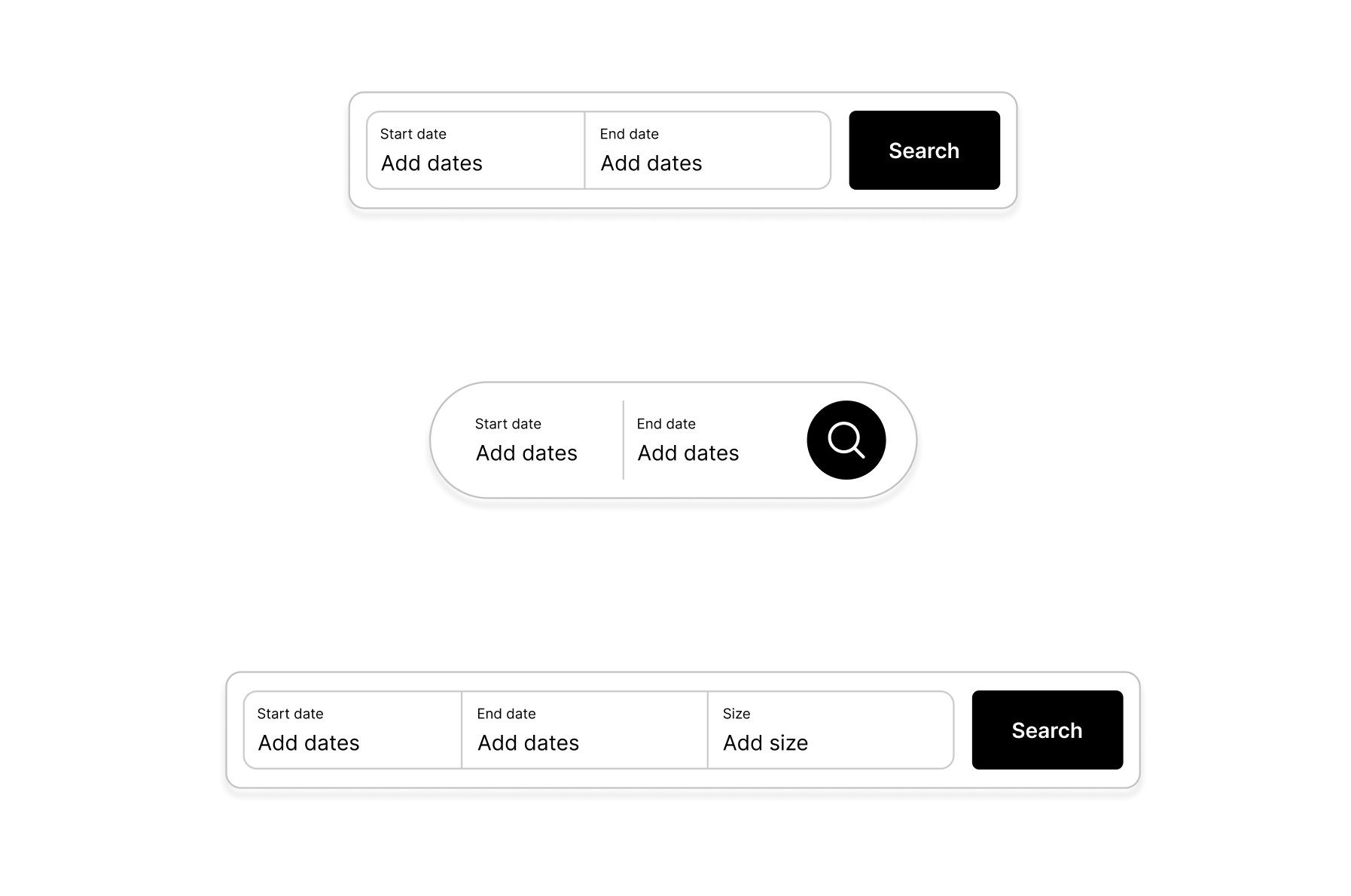
The block's three layouts: a Search button, a round search icon, and an extra Size field
How it works
The block writes its state to session storage and re-renders the collection section from it. Your own code can read and write the same keys, so a date picker anywhere on the site can drive the filter.Session storage keys
string | null
The active filter. One of
"calendar", "membership", "subscription", or "resale". Set it to null to clear every filter and show all products.object | null
The selected date range for calendar mode. Only read when
filterMode is "calendar".Write filter state from your own code
Values are stored as JSON strings. Use this helper to write a key and notify the block. You can inspect the current values in your browser’s developer tools under Application > Session Storage.Set filter state
Set a date range
Calendar mode reads the range fromscaf-dates:
Set a date range
Read the current state
Read filter state
JavaScript hooks
function
Called each time the collection section re-renders after a filter is applied. Use it to re-initialize third-party scripts or sync a custom UI to the current state. Define it before the block initializes.
After each render
Metafields the filter reads
Supercycle sets these metafields automatically. You can inspect them under Custom data in the Shopify admin.supercycle.methods. The product’s methods:Calendar,Membership,Subscription, orResale. Filters products by method.supercycle.uncommitted_inventory. Set when a variant has stock not committed to an active rental. Used by the membership, subscription, and resale filters.supercycle.future_availability_inventory. Set when a variant has availability on future dates. Used by the calendar filter.
Drive the filter from a home page date picker
A date picker in a home page hero that sends customers to the collection page with calendar mode already active. The block on the collection page reads the saved session storage on load and applies the filter.Home page hero
Add the filter to a custom or legacy theme
If your theme doesn’t support app blocks on collection pages, add the filter to the collection template.1
Open the collection template
On Themes, open your theme’s … > Edit code menu, then open the file your theme uses for collections:
sections/main-collection.liquid, sections/collection-template.liquid, or templates/collection.liquid.2
Paste the filter component
Add the snippet wherever you want the filter to appear, usually above the product grid.
Collection template
3
Set the collection section ID
Paste your collection section’s ID into
collections_section_id. It lets the filter re-render the product grid without a full page reload. See Filter by availability for how to find it.4
Turn off methods you don't offer (optional)
Set any of
enable_calendar, enable_membership, enable_subscription, or enable_resale to false to hide that filter.5
Save and test
Save, then preview a collection that contains products with methods turned on to confirm the filter appears and filters the grid.