> ## Documentation Index
> Fetch the complete documentation index at: https://docs.supercycle.com/llms.txt
> Use this file to discover all available pages before exploring further.
# Theme setup
> Add Supercycle to your chosen theme
Supercycle works with Shopify Online Store 2.0. If you're using an older theme, you’ll likely need a developer to help set it up.
### Activate Supercycle in your theme
To activate Supercycle in your theme, you need to enable the app embed. This will add the Supercycle app embed to your theme, allowing you to add app blocks to your store.
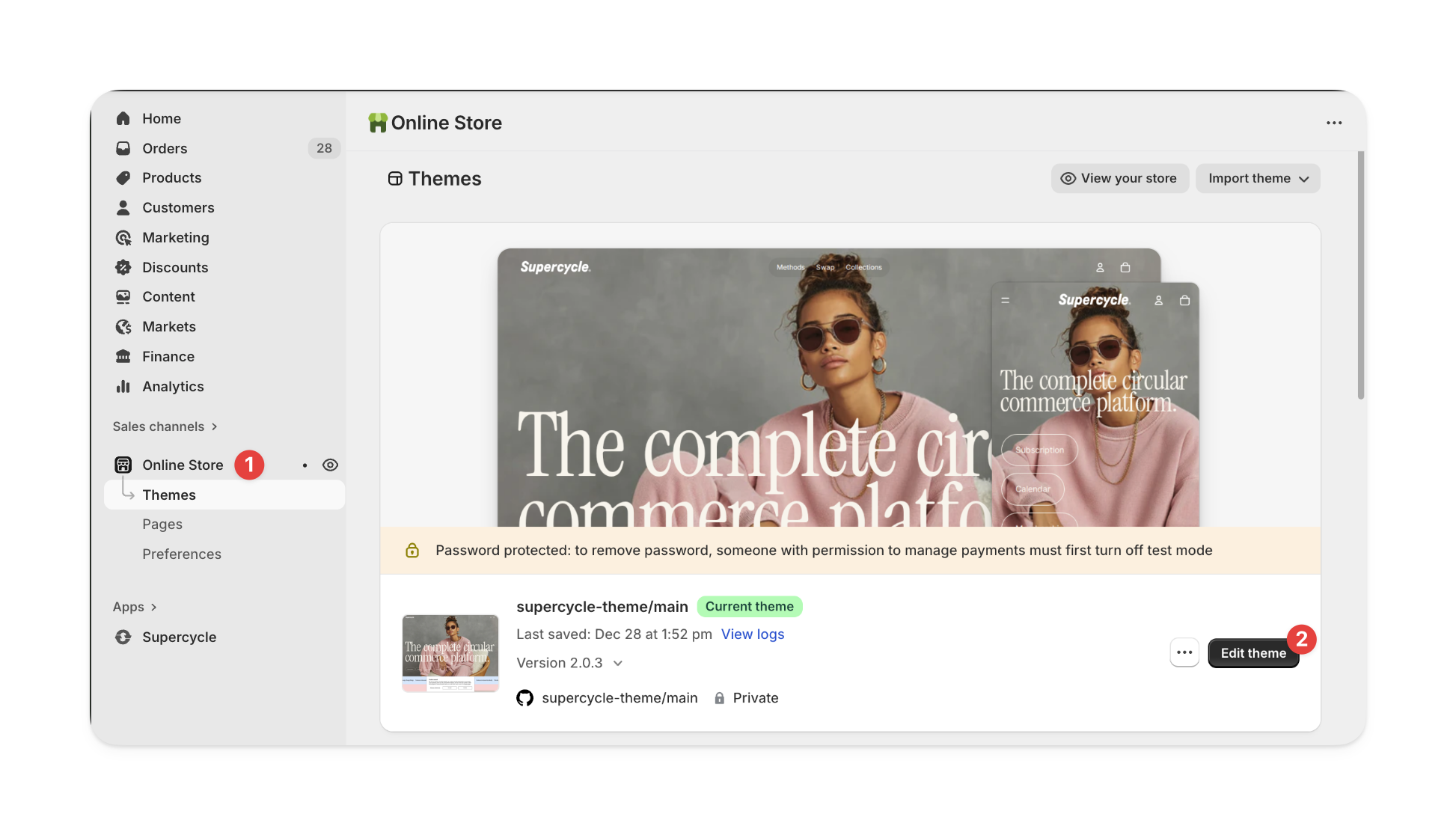
From your Shopify admin, go to **Online store** and click **Customize** on the theme you want to add Supercycle to.
 On the sidebar, click the **App embed** icon and click the **toggle** beside the Supercycle app embed to activate it.
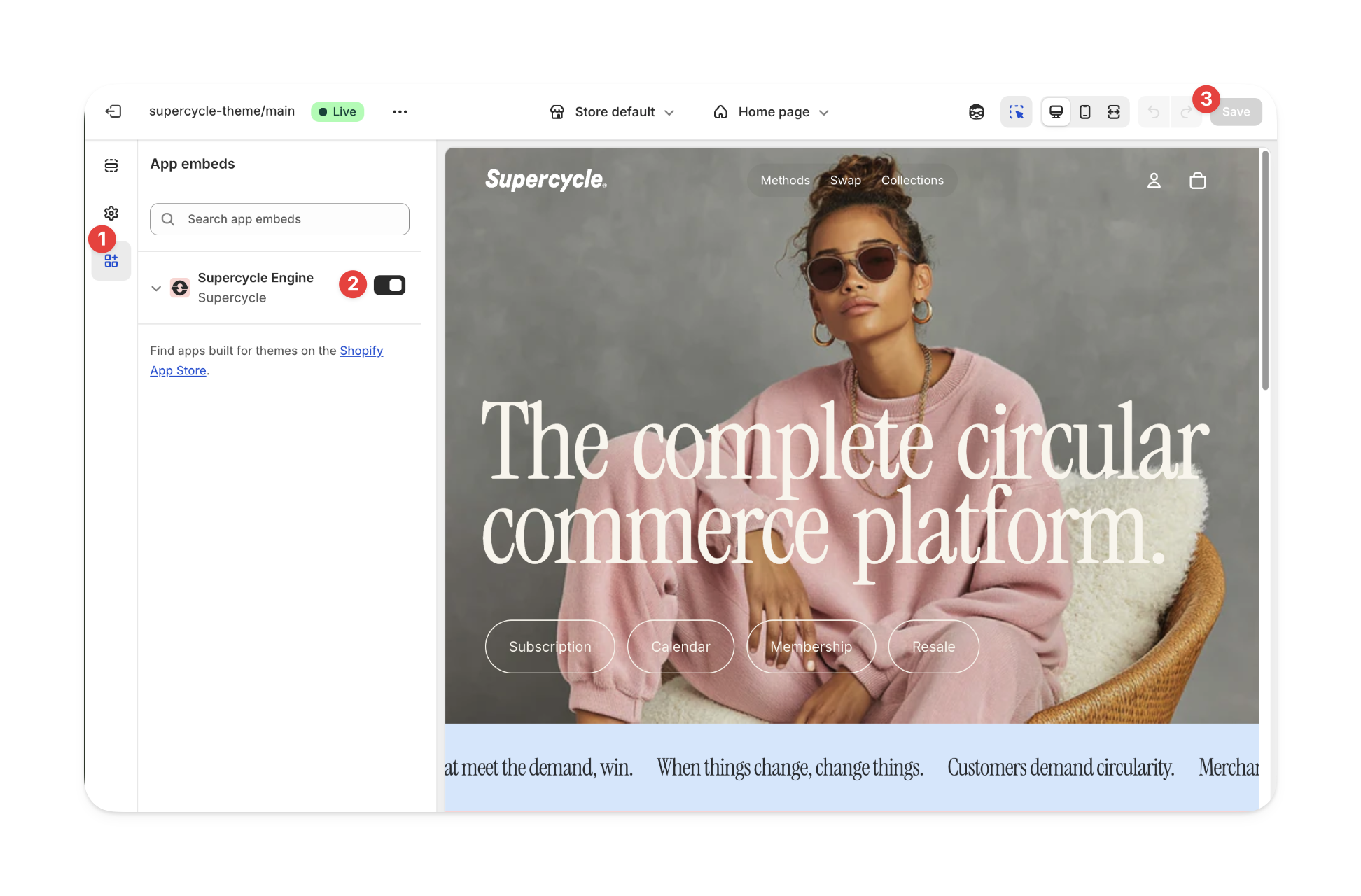 Don't forget to save your changes before leaving the theme customizer.
***
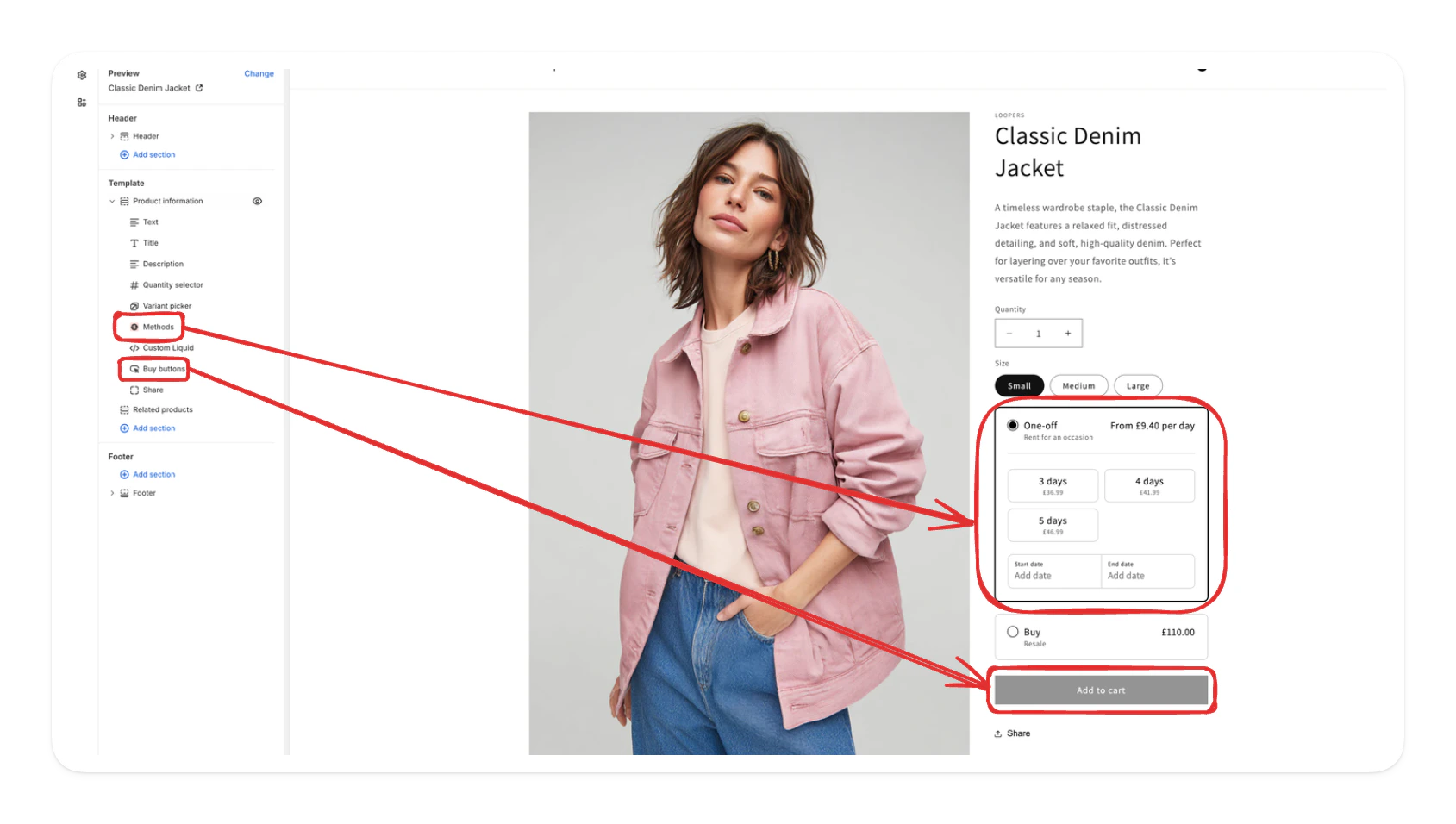
### Add the Methods app block to your theme
Supercycle's customer-facing functionality is added to your theme as app blocks, allowing you to add rental functionality exactly where you want to use it on your store.
At a minimum, you'll need to add **Methods** app block to your product page.
***
### Update style settings
If you want to change the style or theming of Supercycle blocks, you can do this in the theme editor.
In your Shopify admin, go to **Online store > Themes** and click **Customize** on the theme you want to edit.
In the left panel, select **App embeds**, then click **Supercycle Engine** to expand its settings.
Scroll down to the **Style** section. Here you’ll find all the controls for changing how Supercycle blocks look.
Select **Save** before leaving the theme editor.
***
## FAQs
Supercycle’s methods block uses your theme’s existing **add to cart** button. Make sure the button is present in your product template and remove any “buy now” dynamic checkout buttons.
Don't forget to save your changes before leaving the theme customizer.
***
### Add the Methods app block to your theme
Supercycle's customer-facing functionality is added to your theme as app blocks, allowing you to add rental functionality exactly where you want to use it on your store.
At a minimum, you'll need to add **Methods** app block to your product page.
***
### Update style settings
If you want to change the style or theming of Supercycle blocks, you can do this in the theme editor.
In your Shopify admin, go to **Online store > Themes** and click **Customize** on the theme you want to edit.
In the left panel, select **App embeds**, then click **Supercycle Engine** to expand its settings.
Scroll down to the **Style** section. Here you’ll find all the controls for changing how Supercycle blocks look.
Select **Save** before leaving the theme editor.
***
## FAQs
Supercycle’s methods block uses your theme’s existing **add to cart** button. Make sure the button is present in your product template and remove any “buy now” dynamic checkout buttons.
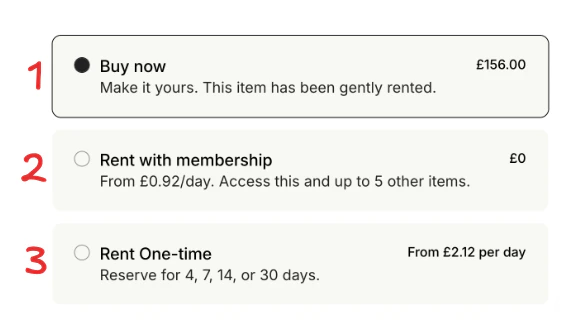
 Yes. You can control the display order of methods by applying custom CSS.\
Use the `order` property to rearrange elements:
```css theme={null}
.supercycle-method--resale {
order: 1;
}
.supercycle-method--calendar {
order: 2;
}
.supercycle-method--membership-join,
.supercycle-method--membership-overview {
order: 3;
}
```
Yes. You can control the display order of methods by applying custom CSS.\
Use the `order` property to rearrange elements:
```css theme={null}
.supercycle-method--resale {
order: 1;
}
.supercycle-method--calendar {
order: 2;
}
.supercycle-method--membership-join,
.supercycle-method--membership-overview {
order: 3;
}
```
 You can control whether Supercycle updates the add to cart button with a JavaScript variable:
* `window.supercycleStopSync = true` stops Supercycle from updating the add to cart button.
* `window.supercycleStopSync = false` re-enables it.
## Troubleshooting
Please reach out to support for assistance.
If the app blocks don't show up, check if the app embed is enabled. If the problem persists, the theme you are using might not be compatible with the app blocks out of the box. Contact support at [support@supercycle.com](mailto:support@supercycle.com) so we can fix it for you.
You can control whether Supercycle updates the add to cart button with a JavaScript variable:
* `window.supercycleStopSync = true` stops Supercycle from updating the add to cart button.
* `window.supercycleStopSync = false` re-enables it.
## Troubleshooting
Please reach out to support for assistance.
If the app blocks don't show up, check if the app embed is enabled. If the problem persists, the theme you are using might not be compatible with the app blocks out of the box. Contact support at [support@supercycle.com](mailto:support@supercycle.com) so we can fix it for you.