> ## Documentation Index
> Fetch the complete documentation index at: https://docs.supercycle.com/llms.txt
> Use this file to discover all available pages before exploring further.
# Importing products
> Import SKUs into Supercycle to create your rental inventory
To setup products with Supercycle, you'll need to import them from Shopify.
Once you import a product into Supercycle, inventory management is turned off in Shopify and Supercycle takes over responsibility for pricing and inventory management.
If you want Supercycle to automatically create serialized items on import, set quantities for your SKUs before importing.
Alternatively, skip this step and create inventory in Supercycle later.
From the Shopify products page, select the products you'd like to import.
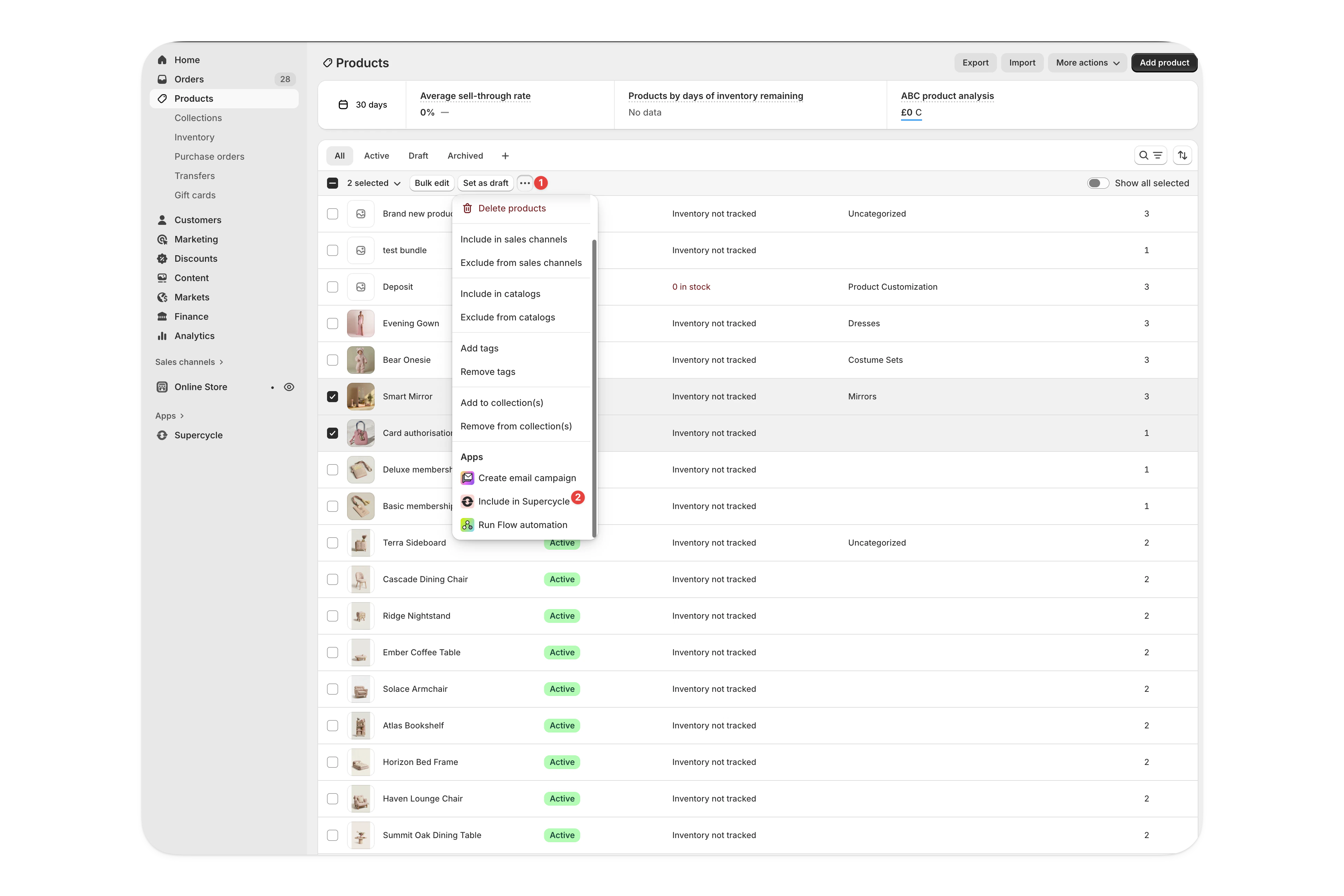
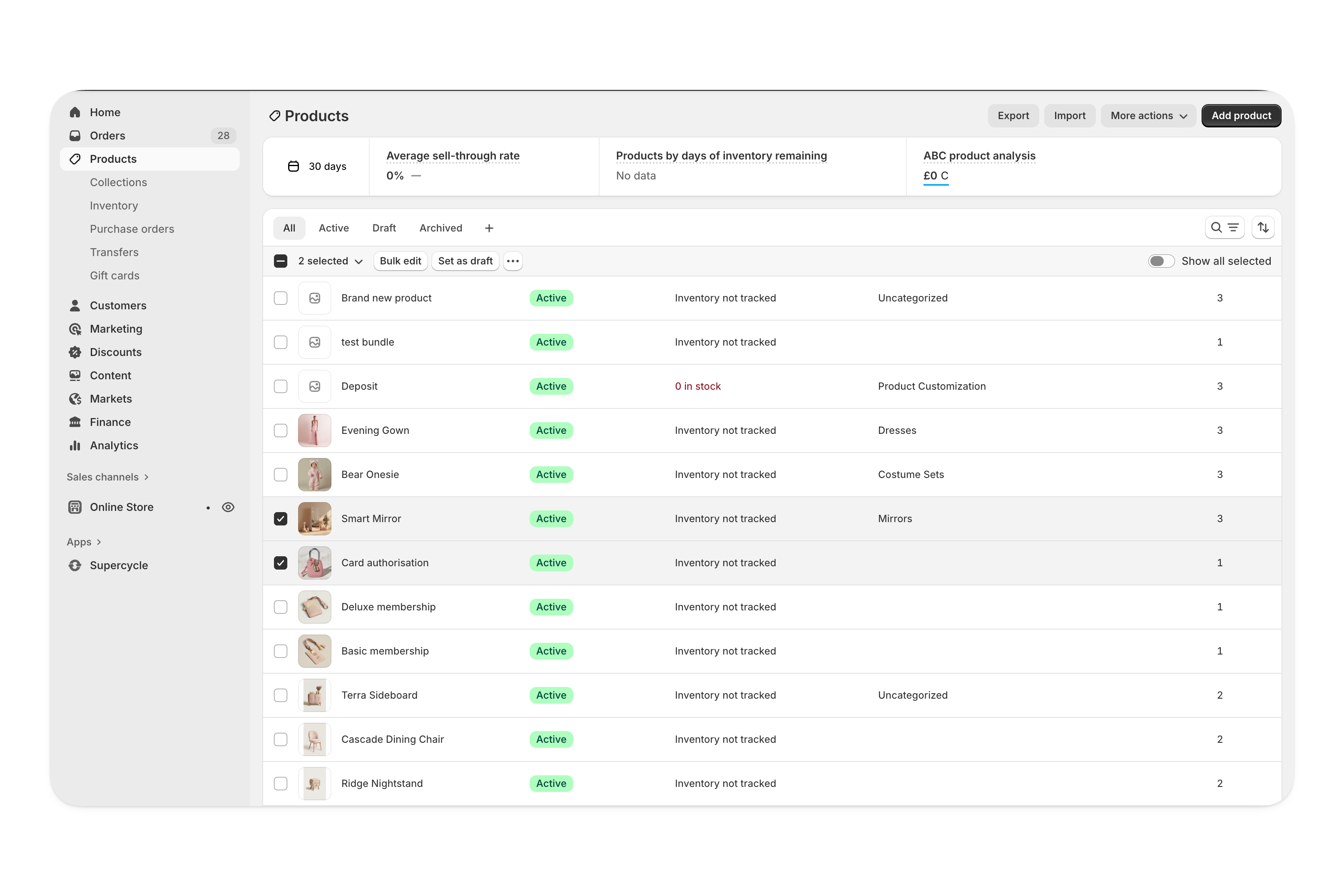 Under bulk actions, scroll down to the bottom and select **Include in Supercycle** under **APPS**.
In the next page, confirm your import.
Under bulk actions, scroll down to the bottom and select **Include in Supercycle** under **APPS**.
In the next page, confirm your import.
 You should still make changes to product information such as descriptions, SKUs, tags and images from the Shopify product.