> ## Documentation Index
> Fetch the complete documentation index at: https://docs.supercycle.com/llms.txt
> Use this file to discover all available pages before exploring further.
# Languages and translations
> Localize, personalize and translate terms
Languages in Shopify control two things:
* The **storefront language** your customers see (English, Italian, Arabic, etc.)
* The **wording** used for buttons, labels, and messages across your store
Supercycle has its own language settings for app blocks and features.
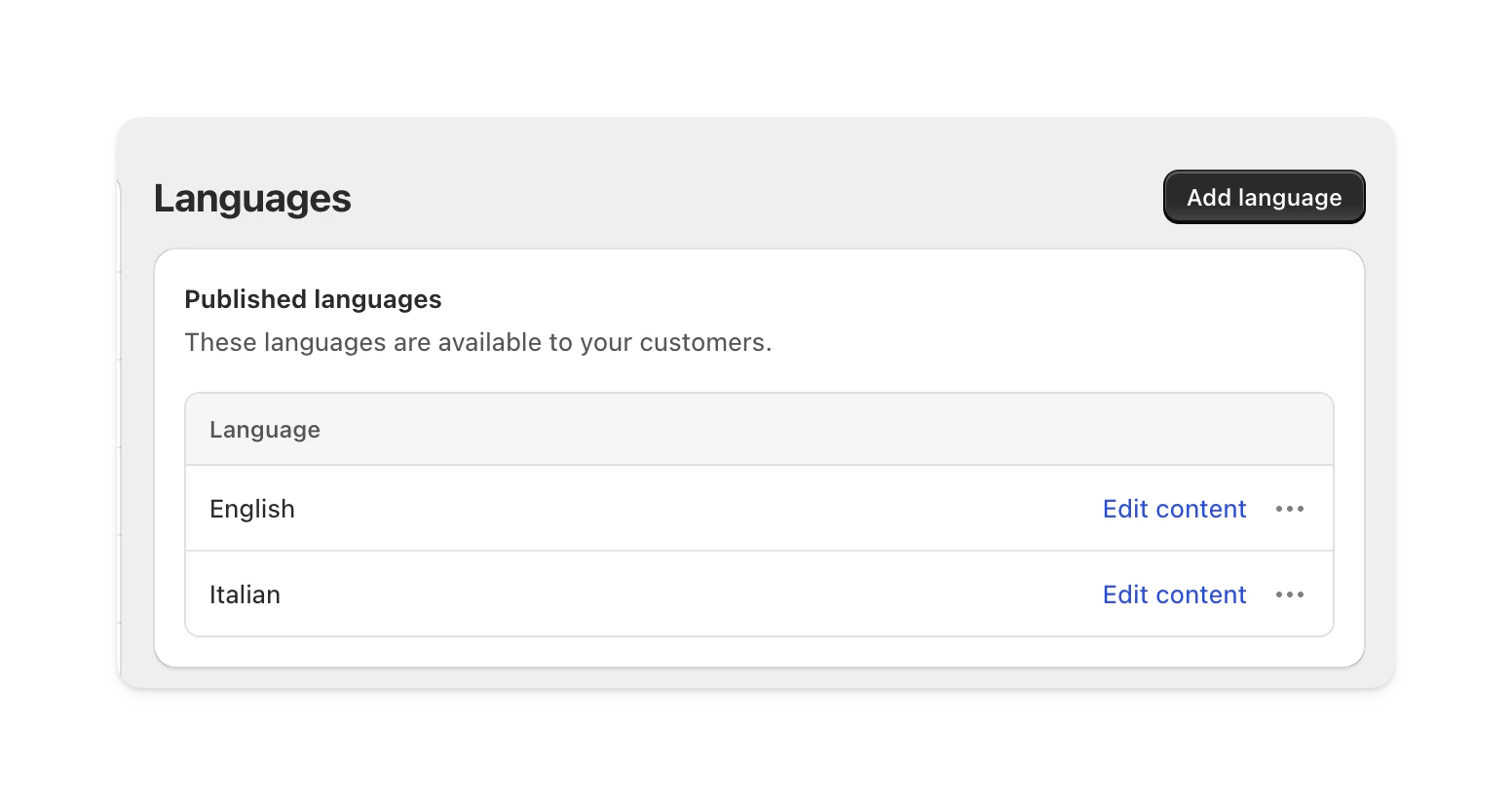 ***
## Add a new language
You can add languages separately in Shopify and Supercycle.
* Adding a language in **Shopify** makes it available for your storefront and theme content.
* Adding a language in **Supercycle** makes it available for Supercycle app blocks and methods.
For a customer to see a second language in Supercycle blocks, that language must be active in **both Shopify and Supercycle**.
1. In your Shopify admin, go to [**Settings > Languages**](https://admin.shopify.com/settings/languages).
2. Select **Add language**, then choose the language you want.
3. Follow [Shopify’s guide to managing languages](https://help.shopify.com/manual/markets/languages) to publish it to your storefront.
1. In your Shopify admin, go to **Supercycle > Settings > Languages**.
2. Add the language you want to use in Supercycle.
***
## Add a new language
You can add languages separately in Shopify and Supercycle.
* Adding a language in **Shopify** makes it available for your storefront and theme content.
* Adding a language in **Supercycle** makes it available for Supercycle app blocks and methods.
For a customer to see a second language in Supercycle blocks, that language must be active in **both Shopify and Supercycle**.
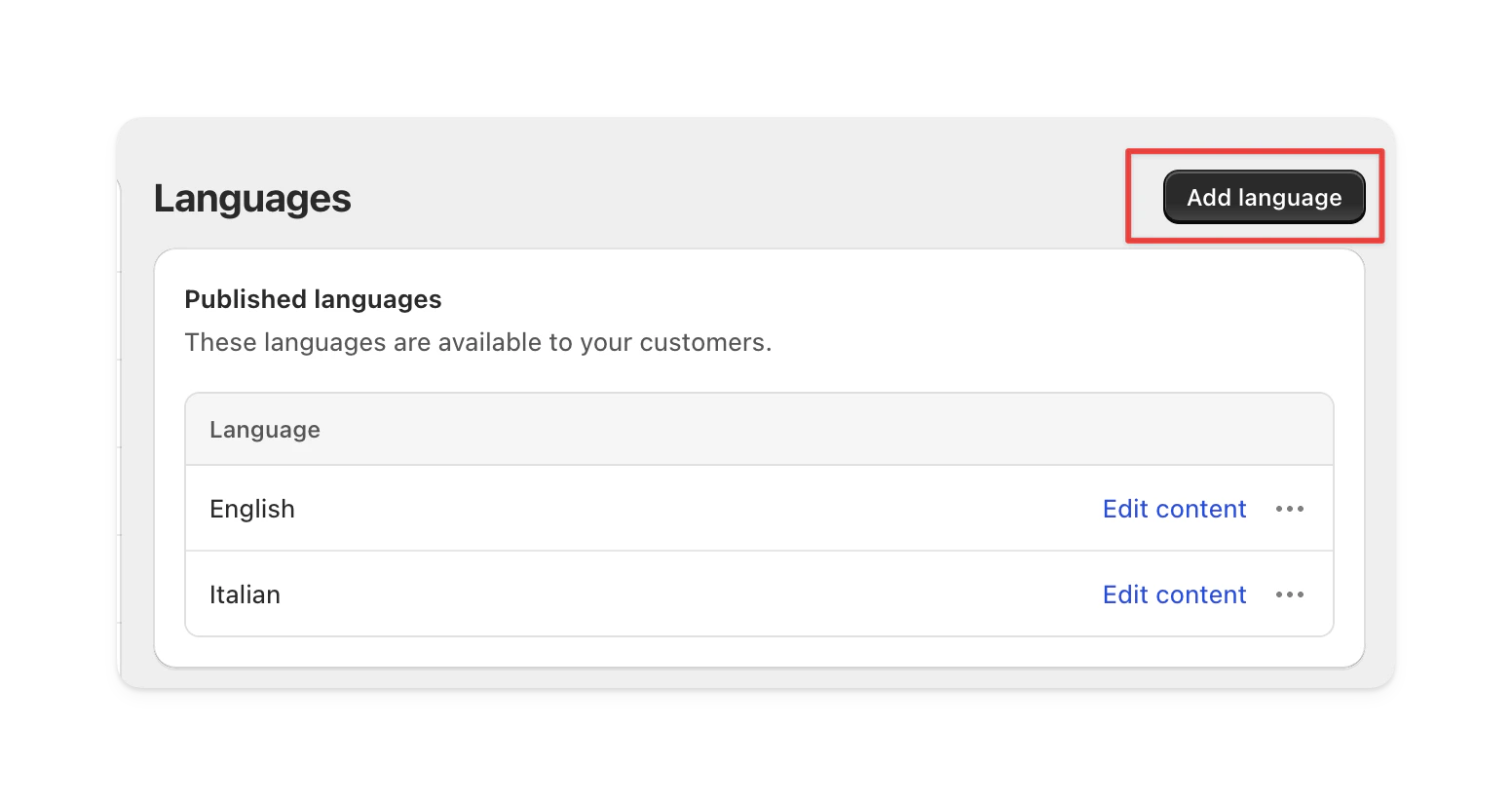
1. In your Shopify admin, go to [**Settings > Languages**](https://admin.shopify.com/settings/languages).
2. Select **Add language**, then choose the language you want.
3. Follow [Shopify’s guide to managing languages](https://help.shopify.com/manual/markets/languages) to publish it to your storefront.
1. In your Shopify admin, go to **Supercycle > Settings > Languages**.
2. Add the language you want to use in Supercycle.
 3. Save your changes.
If this language is also active in Shopify, customers will see Supercycle content in that language when browsing the translated storefront.
***
## Multiple languages by market
When you add a new language in Shopify, you can assign it to a specific **market** (store or country).
* If your store already has more than one published language, Shopify automatically displays a **language selector** in the storefront header.
* Customers can switch between languages from this dropdown.
* Supercycle respects this selection and shows its content in the chosen language if it’s been added to Supercycle.
***
## Edit wording
Both Shopify and Supercycle allow you to edit wording:
* In **Shopify**, wording changes apply to your storefront theme and general site content.
* In **Supercycle**, wording changes apply to Supercycle app blocks and features.
1. In your Shopify admin, go to [**Supercycle > Settings > Languages**](https://admin.shopify.com/apps/supercycle/settings/languages).
2. Select **Edit content** next to the language you want to update.
3. Save your changes.
If this language is also active in Shopify, customers will see Supercycle content in that language when browsing the translated storefront.
***
## Multiple languages by market
When you add a new language in Shopify, you can assign it to a specific **market** (store or country).
* If your store already has more than one published language, Shopify automatically displays a **language selector** in the storefront header.
* Customers can switch between languages from this dropdown.
* Supercycle respects this selection and shows its content in the chosen language if it’s been added to Supercycle.
***
## Edit wording
Both Shopify and Supercycle allow you to edit wording:
* In **Shopify**, wording changes apply to your storefront theme and general site content.
* In **Supercycle**, wording changes apply to Supercycle app blocks and features.
1. In your Shopify admin, go to [**Supercycle > Settings > Languages**](https://admin.shopify.com/apps/supercycle/settings/languages).
2. Select **Edit content** next to the language you want to update.  3. Change the text and save.
  ***
***