> ## Documentation Index
> Fetch the complete documentation index at: https://docs.supercycle.com/llms.txt
> Use this file to discover all available pages before exploring further.

# Product setup

> Enable products for subscription rental and create their pricing groups

## Turn on product for subscription rental

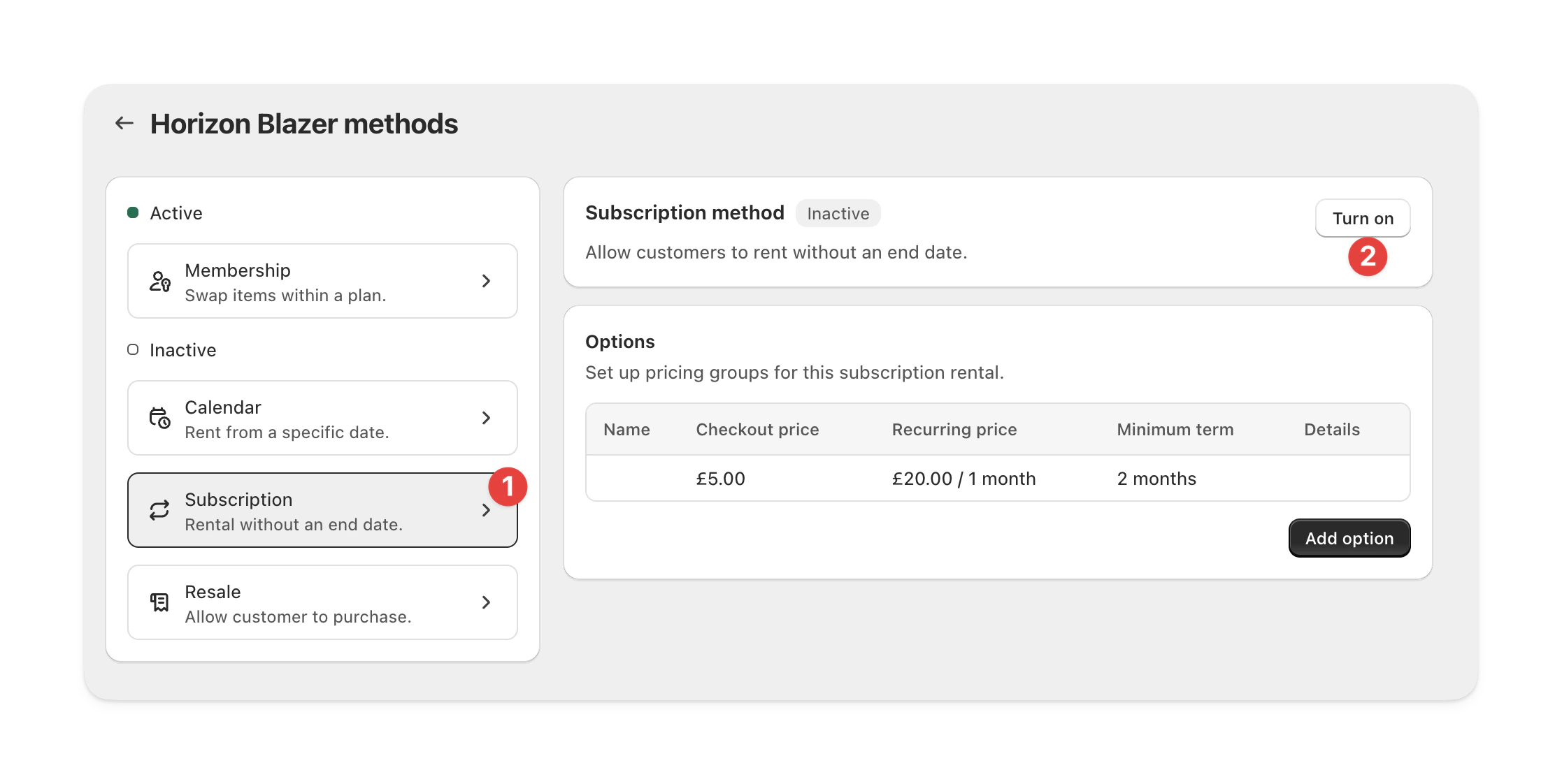
Once you've [imported a product](/documentation/setup/importing-products) into Supercycle, you'll need to enable it for subscription rental.

<Frame type="glass">
  <img src="https://mintcdn.com/supercycle/Omgmq0rsgqX1BZKa/images/screenshots/supercycle-admin/enable-subscription-rental.png?fit=max&auto=format&n=Omgmq0rsgqX1BZKa&q=85&s=aaa765d262e70110160526837877ce1a" width="2234" height="1122" data-path="images/screenshots/supercycle-admin/enable-subscription-rental.png" />
</Frame>

<Steps>
  <Step title="Navigate to product in Supercycle">
    In your Shopify admin, navigate to **Supercycle** > **Products**.

    Select the product you want to set up and then select the **Subscription** rental method.
  </Step>

  <Step title="Turn on and save">
    Turn the subscription rental method on and click save.
  </Step>
</Steps>

## Create pricing groups

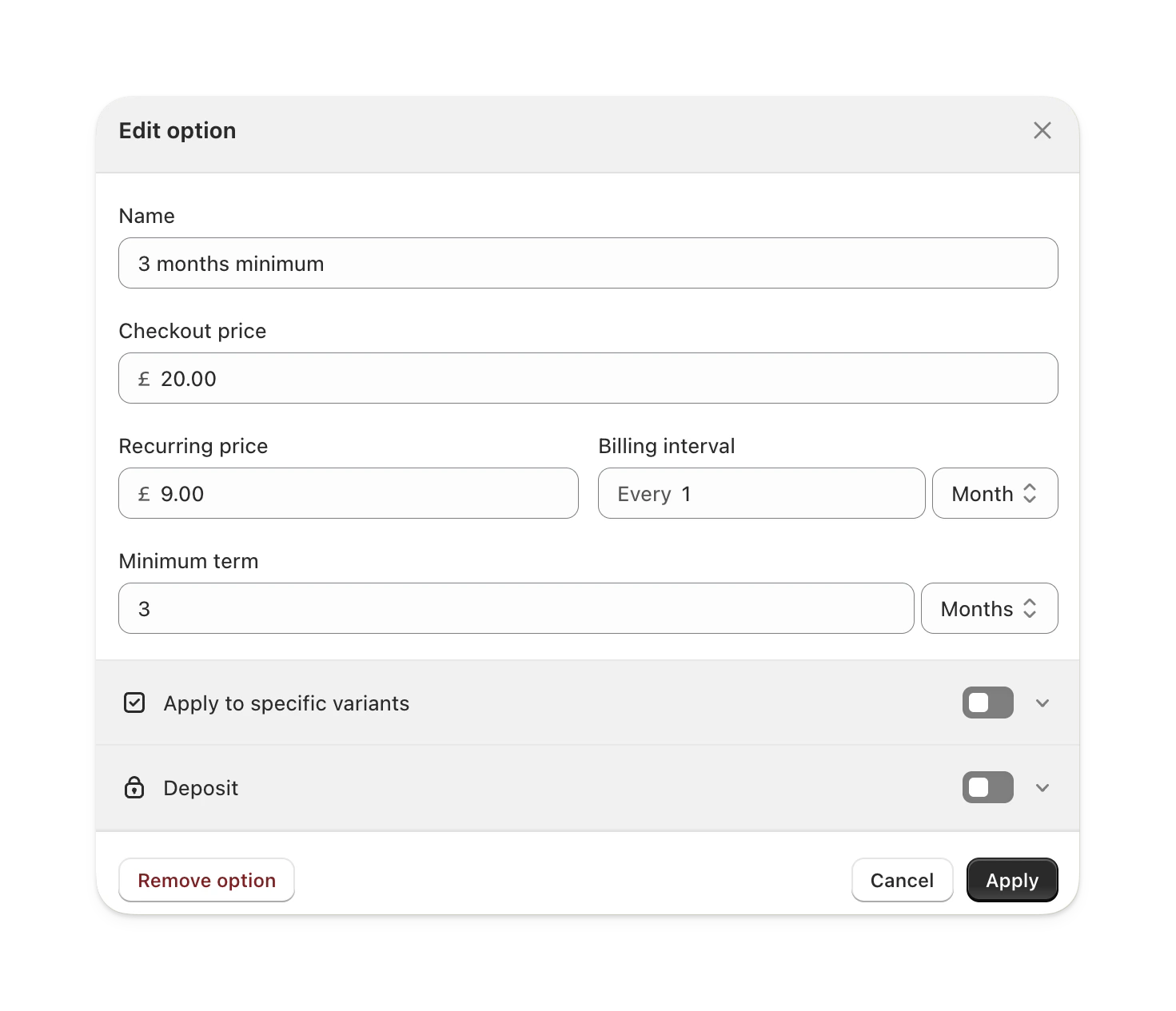
Pricing groups are prices (a combination of the recurring billing amount and initial charge) applied to variants for a given minimum term.

<Frame type="glass">
  <img src="https://mintcdn.com/supercycle/FB21qCJ7pWgA4GNp/images/screenshots/supercycle-admin/subscription-pricing-group-setup.png?fit=max&auto=format&n=FB21qCJ7pWgA4GNp&q=85&s=f285943458119eec988f83a914c8e210" width="1471" height="1265" data-path="images/screenshots/supercycle-admin/subscription-pricing-group-setup.png" />
</Frame>

<Steps>
  <Step title="Navigate to product in Supercycle">
    In your Shopify admin, navigate to **Supercycle** > **Products**.

    Select the product you want to set up and then select the **Subscription** rental method.
  </Step>

  <Step title="Create new pricing group">
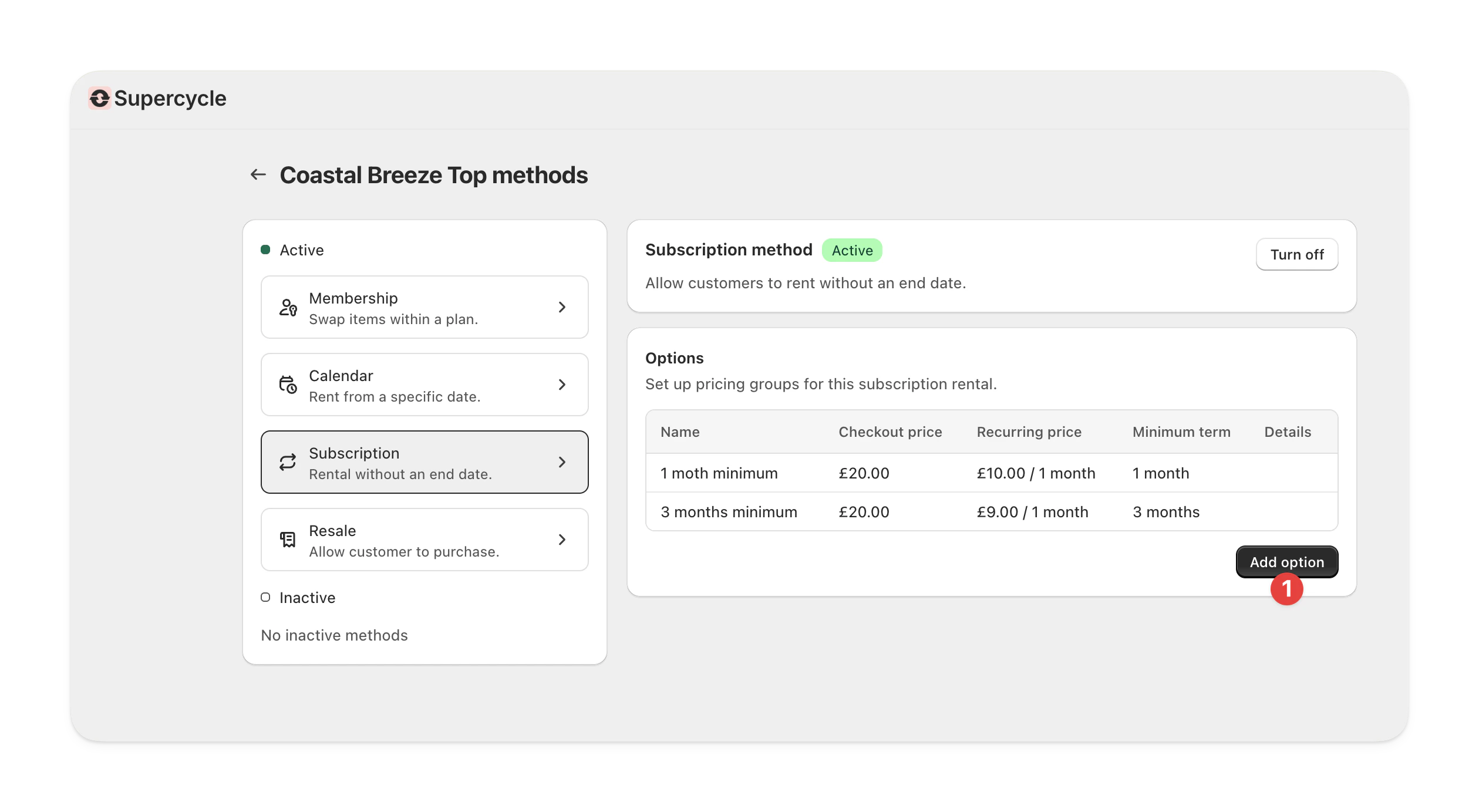
    Under **Options**, select **Add option**.

    <Frame type="glass">
      <img src="https://mintcdn.com/supercycle/FB21qCJ7pWgA4GNp/images/screenshots/supercycle-admin/subscription-add-new-pricing-group.png?fit=max&auto=format&n=FB21qCJ7pWgA4GNp&q=85&s=b73c62f780654a395b6c05a9eb5d9336" width="2519" height="1383" data-path="images/screenshots/supercycle-admin/subscription-add-new-pricing-group.png" />
    </Frame>
  </Step>

  <Step title="Configure the pricing group">
    <AccordionGroup>
      <Accordion title="Name">
        <p>The pricing group's is shown on the selector on the product page and on the line item properties in the cart and at checkout.</p>
      </Accordion>

      <Accordion title="Pricing">
        <p>The price is the recurring billing amount, starting from the rental start date. The initial charge is charged at checkout - other merchants use this as a joining or administration fee.</p>
        <Note>Currently an initial charge is mandatory but in future will be optional.</Note>
      </Accordion>

      <Accordion title="Deposit">
        <p>If you've [created deposit amounts](/documentation/configuration/risk/deposits), you can select one here to be added to the cart with the subscription.</p>
        <p>Supercycle will link the deposit and subscription together throughout the lifetime of the rental.</p>
      </Accordion>

      <Accordion title="Minimum term">
        <p>You can define the minimum term as any period. The minimum term begins from the rental start (usually the fulfillment time).</p>
        <p>Once a customer has rented the item for the minimum term, they will be able to initiate a return. As a merchant, the minimum term is displayed in Supercycle as advisory but you are able to override it.</p>
      </Accordion>

      <Accordion title="Apply to variants">
        <p>You can apply pricing groups to all or specific variants. This works well for different storage sizes on electronics or different conditions, for example.</p>
      </Accordion>

      <Accordion title="Apply to specific markets">
        <p>If you sell across multiple Shopify markets, you can target this pricing group to specific markets only — for example to charge different recurring amounts in different currencies or regions. Leave it set to all markets to show the group everywhere. See [Multi-market pricing](/documentation/manage/products/multi-market-pricing) for details.</p>
      </Accordion>
    </AccordionGroup>
  </Step>
</Steps>

***

## Troubleshooting

<AccordionGroup>
  <Accordion title="Can these options be added in bulk?">
    Yes, you can bulk create or update method options. Learn how in [Product actions](/documentation/manage/products/product-actions#bulk-update-method-options).
  </Accordion>
</AccordionGroup>
