> ## Documentation Index
> Fetch the complete documentation index at: https://docs.supercycle.com/llms.txt
> Use this file to discover all available pages before exploring further.

# Plans setup

> Create membership plans for your customers to subscribe to

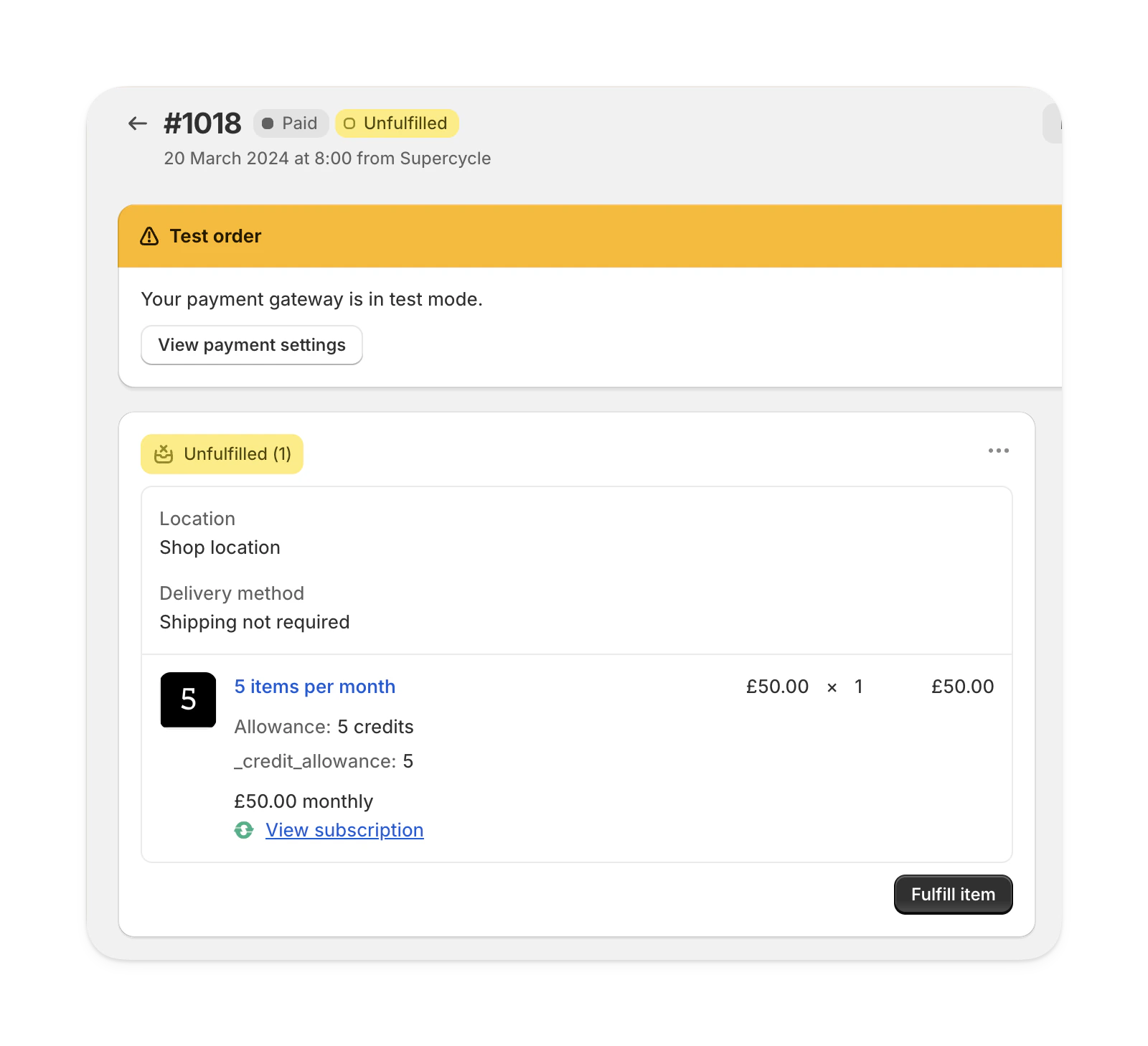
Plans are the foundation of memberships. When a customer takes out a plan, Supercycle bills them on the interval you specify using a Shopify product.

<Frame type="glass">
  <img src="https://mintcdn.com/supercycle/Omgmq0rsgqX1BZKa/images/screenshots/supercycle-admin/membership-product-in-order.png?fit=max&auto=format&n=Omgmq0rsgqX1BZKa&q=85&s=9ba3646233e9aedc8a2c8197e806a869" alt="Membership product displayed in a Shopify order showing billing through Supercycle" width="1600" height="1458" data-path="images/screenshots/supercycle-admin/membership-product-in-order.png" />
</Frame>

A plan defines how often the customer is billed and for how much, how many items they can rent at any one time, and how often they can swap items.

<Warning>
  **Critical: Plan products are technical placeholders**

  When you create a membership plan, Supercycle creates a "plan product" in Shopify. These are technical placeholders that should **never be sold directly** to customers.

  * Plan products are only used to attach selling plans and handle billing
  * Purchasing them directly (e.g., via direct URL) won't activate membership features
  * Customers won't be connected to Supercycle properly
  * Plan-management features won't work

  **The correct way**: Customers must enroll through the Supercycle membership block on your storefront. See the "Create a membership page" section below for setup instructions.

  **What if a customer buys a plan product directly?** If a customer somehow purchases a plan product directly (e.g., via URL), the order will process but the membership won't activate. The customer won't be connected to Supercycle, won't receive credits, and won't be able to use membership features. You'll need to refund the order and guide them to enroll properly through the membership block.
</Warning>

<Info>
  When creating a Supercycle membership plan, a product with the same name is created in Shopify.\
  To add a description to the plan, find the plan product in Shopify and add the description.\
  This will then automatically display on the storefront in the membership app block.
</Info>

<AccordionGroup>
  <Accordion title="Plan title">
    <p>
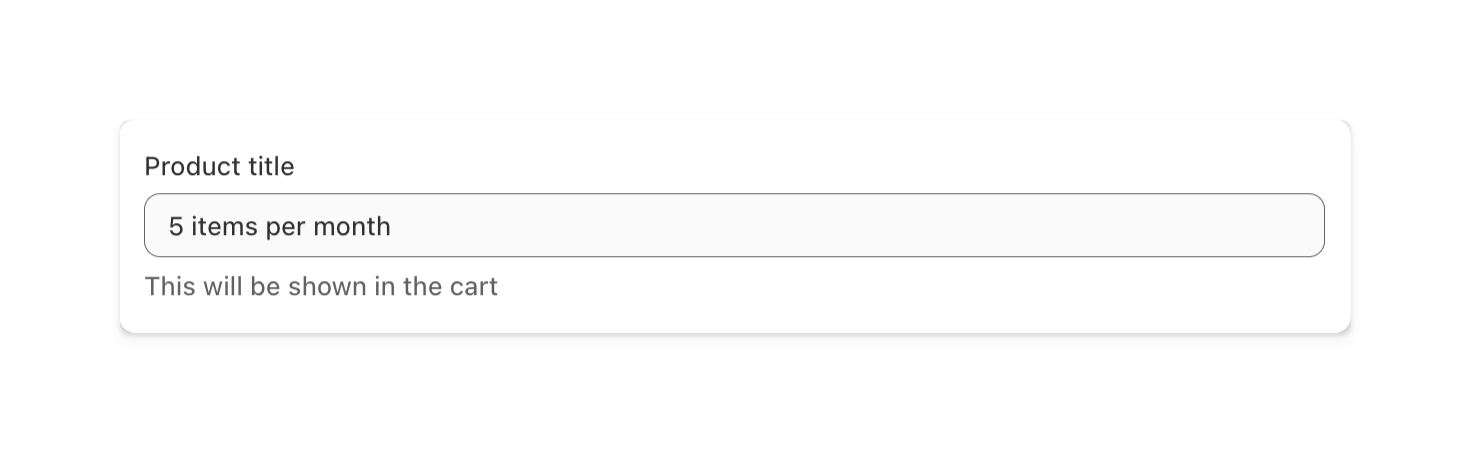
      We create a corresponding Shopify product when you create a membership plan in Supercycle to handle billing.
    </p>

    <p>
      The plan title is the Shopify product title and is displayed in the cart, checkout, transactional emails, and orders in Shopify admin.
    </p>

    <Frame type="glass">
      <img src="https://mintcdn.com/supercycle/Omgmq0rsgqX1BZKa/images/screenshots/supercycle-admin/plan-product-title.png?fit=max&auto=format&n=Omgmq0rsgqX1BZKa&q=85&s=db043648020347fec35a3934b2760dd3" alt="Shopify product title used as plan title in Supercycle" width="1471" height="453" data-path="images/screenshots/supercycle-admin/plan-product-title.png" />
    </Frame>
  </Accordion>

  <Accordion title="Credit allowance">
    <p>
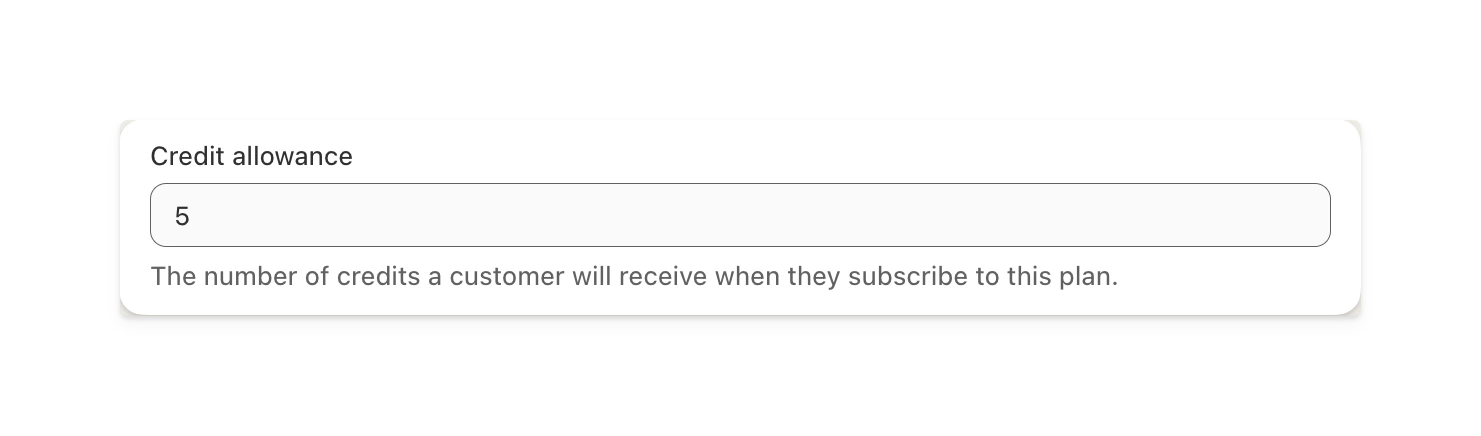
      The maximum number of credits (or items) that a customer can spend at any one time.
    </p>

    <Frame type="glass">
      <img src="https://mintcdn.com/supercycle/Omgmq0rsgqX1BZKa/images/screenshots/supercycle-admin/plan-credit-allowance.png?fit=max&auto=format&n=Omgmq0rsgqX1BZKa&q=85&s=a19fcafcc6a840be82171deec9512a67" alt="Credit allowance field in Supercycle membership plan settings" width="1481" height="436" data-path="images/screenshots/supercycle-admin/plan-credit-allowance.png" />
    </Frame>
  </Accordion>

  <Accordion title="Swap allowance">
    <p>
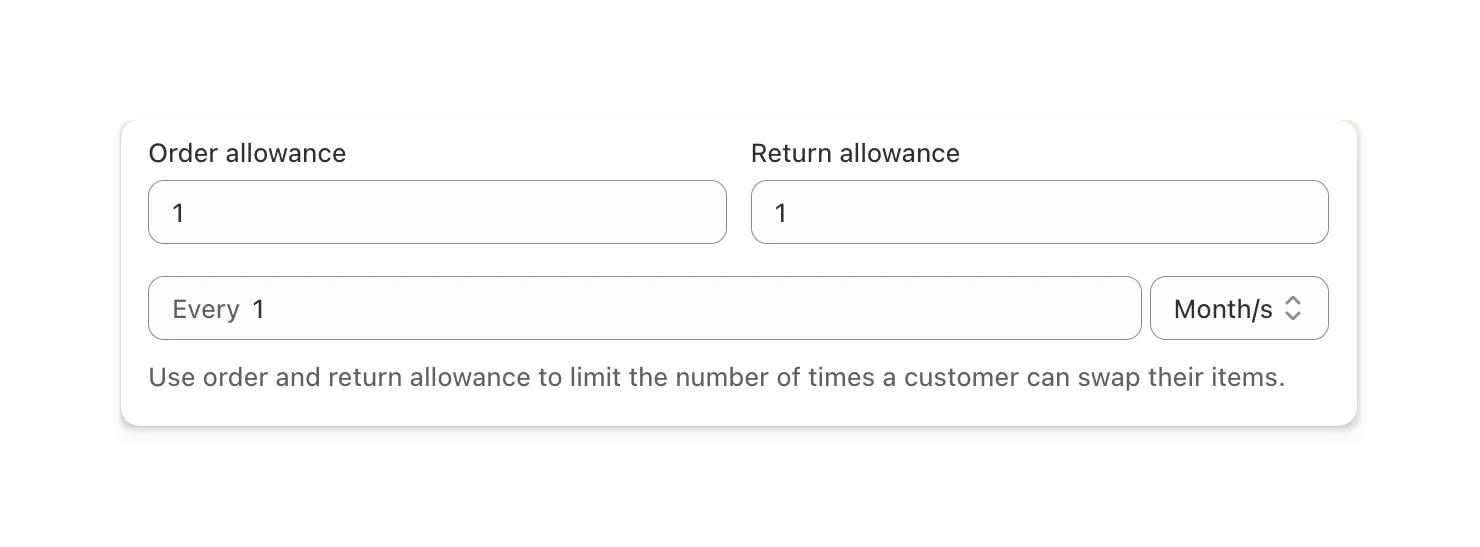
      The order and return allowances determine how often a customer can swap items on their membership.
    </p>

    <p>
      Allowances are aligned with the billing anniversary but you can set a different cadence.
    </p>

    <p>
      For example, a customer is on a plan that is billed monthly and they took the membership out on 1 January.\
      You’ve set the swap allowance so they are allowed 1 order and 1 return every 3 months.\
      They take 3 items out on 1 January and can return them anytime, but their order allowance won’t reset until 1 April,\
      meaning they can’t rent new items until then. They’ll continue to be billed monthly on 1 February and 1 March.
    </p>

    <Frame type="glass">
      <img src="https://mintcdn.com/supercycle/Omgmq0rsgqX1BZKa/images/screenshots/supercycle-admin/plan-swap-allowance.png?fit=max&auto=format&n=Omgmq0rsgqX1BZKa&q=85&s=5ca64c4115a77eb73b105040068c1960" alt="Swap allowance settings in Supercycle membership plan configuration" width="1480" height="547" data-path="images/screenshots/supercycle-admin/plan-swap-allowance.png" />
    </Frame>

    <p>
      Swap allowances protect your margins. The majority of rental costs are in logistics, so it’s best to balance customer flexibility with cost control.\
      In an ideal membership, the customer keeps the same item indefinitely.
    </p>
  </Accordion>

  <Accordion title="Purchase options">
    <p>
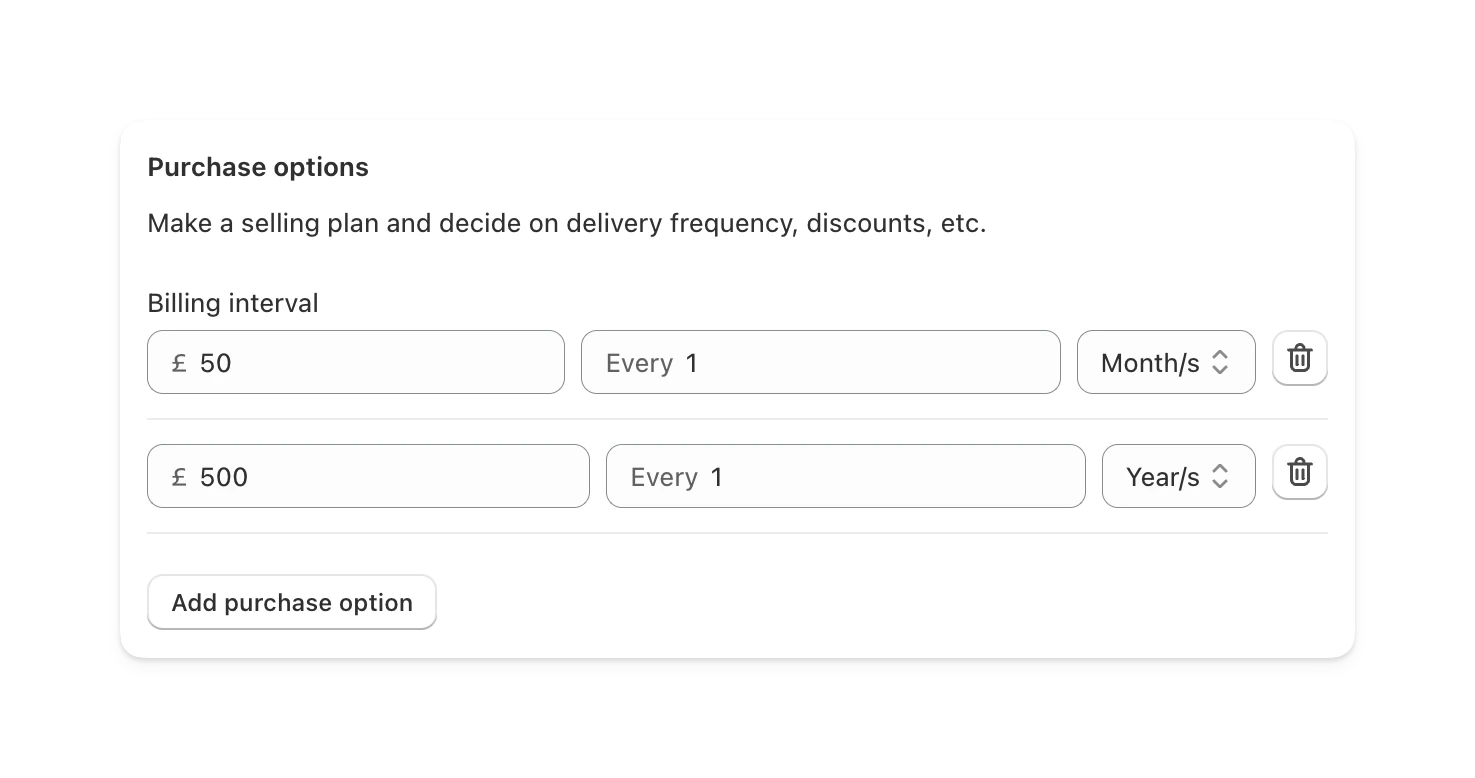
      Purchase options define the different billing cycles you want to offer your customers.
    </p>

    <p>
      A plan can have multiple purchase options.
    </p>

    <p>
      For example, you may offer a plan on a £50 monthly payment or a £500 yearly payment,\
      giving customers the equivalent of 2 months free in exchange for a 12-month commitment.
    </p>

    <Frame type="glass">
      <img src="https://mintcdn.com/supercycle/Omgmq0rsgqX1BZKa/images/screenshots/supercycle-admin/plan-purchase-options.png?fit=max&auto=format&n=Omgmq0rsgqX1BZKa&q=85&s=c4f89c91a0ba7bf28521d0c7638d5307" alt="Purchase options section in Supercycle membership plan" width="1475" height="778" data-path="images/screenshots/supercycle-admin/plan-purchase-options.png" />
    </Frame>

    <p>
      The billing cycle a customer chooses doesn’t affect how regularly they can swap items.
    </p>
  </Accordion>
</AccordionGroup>

***

## Add or update a membership plan

<Steps>
  <Step title="Navigate to the plan in Supercycle">
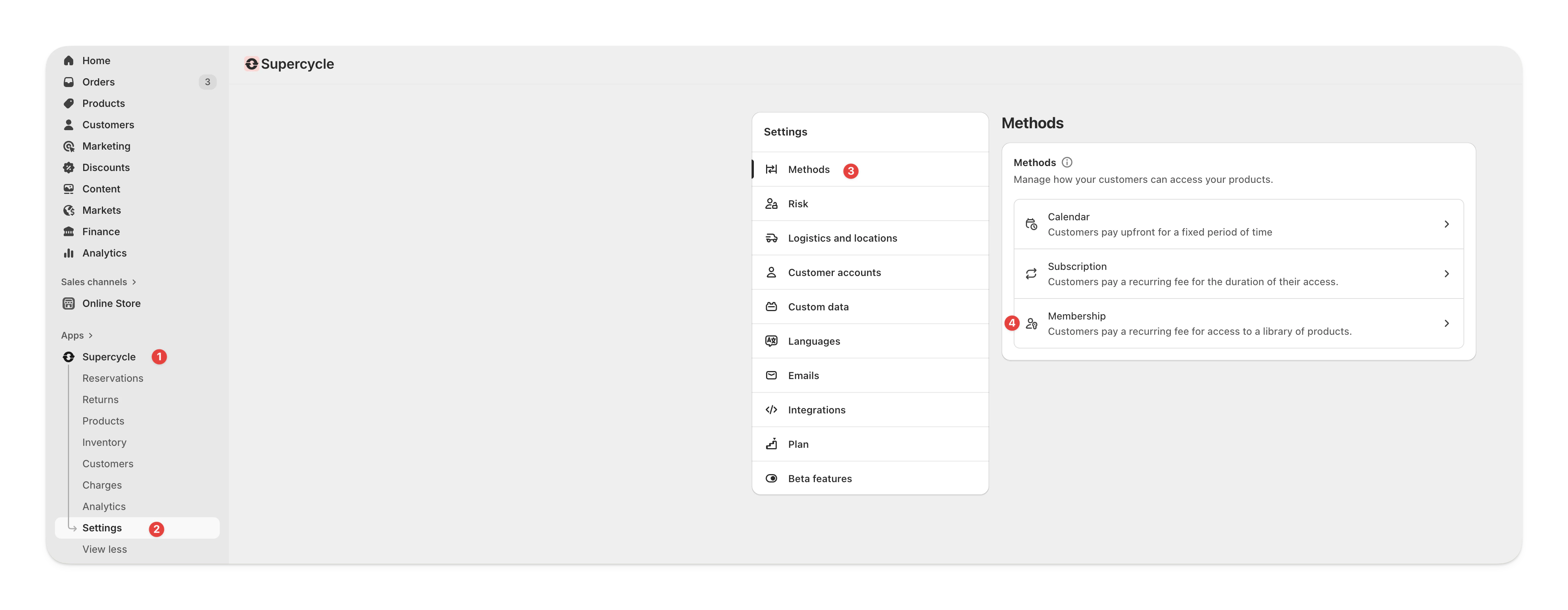
    In your Shopify admin, navigate to **Supercycle > Settings > Methods > Membership**.

    <Frame type="glass">
      <img src="https://mintcdn.com/supercycle/Omgmq0rsgqX1BZKa/images/screenshots/supercycle-admin/navigate-to-plan.png?fit=max&auto=format&n=Omgmq0rsgqX1BZKa&q=85&s=2d2dbdccc2c6bbfe2971de84b307c10f" alt="Supercycle settings page showing navigation to membership plan section" width="4110" height="1598" data-path="images/screenshots/supercycle-admin/navigate-to-plan.png" />
    </Frame>

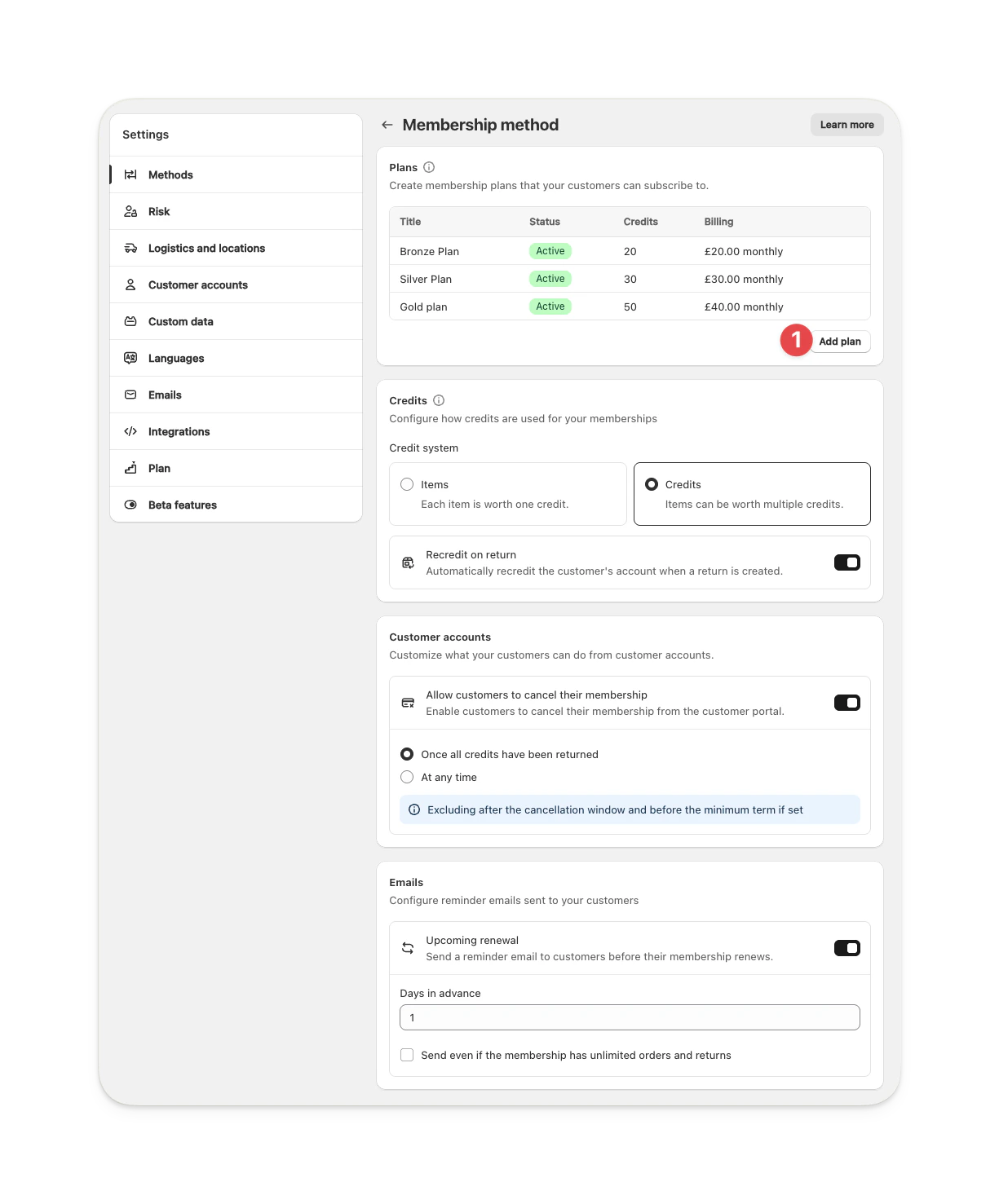
    From the **Membership** page, click **Add plan** or select an existing plan to edit it.
    <Frame type="glass">
      <img src="https://mintcdn.com/supercycle/XbKBsdX_PulItpyX/images/screenshots/supercycle-admin/add-membership-plan.png?fit=max&auto=format&n=XbKBsdX_PulItpyX&q=85&s=f029361d0984cb0a2c6e5cefac2e605b" alt="Add or edit membership plan button in Supercycle admin" width="1225" height="1477" data-path="images/screenshots/supercycle-admin/add-membership-plan.png" />
    </Frame>
  </Step>

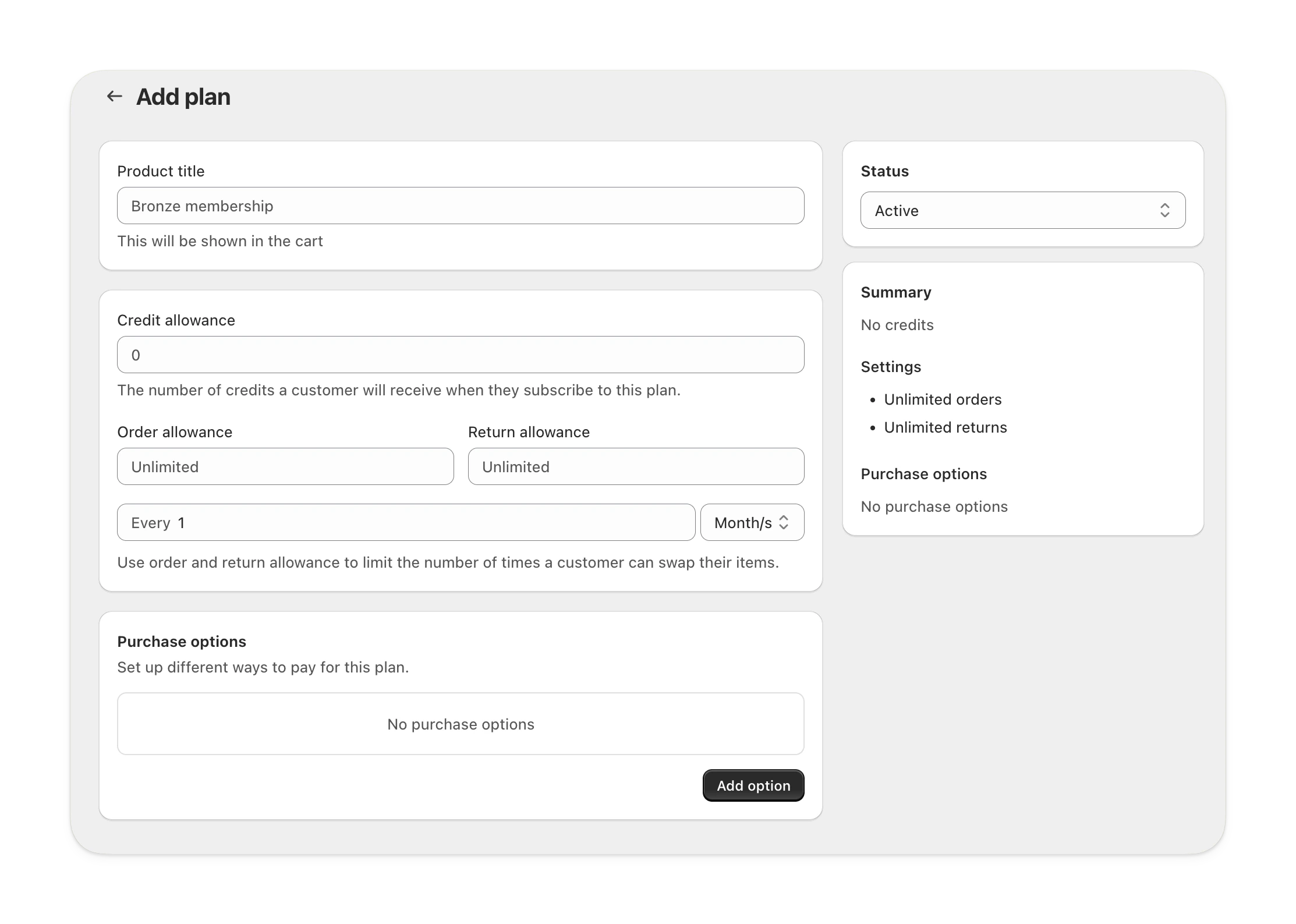
  <Step title="Add plan settings">
    Enter a title for your plan along with additional membership details.

    <Frame type="glass">
      <img src="https://mintcdn.com/supercycle/Omgmq0rsgqX1BZKa/images/screenshots/supercycle-admin/plan-settings.png?fit=max&auto=format&n=Omgmq0rsgqX1BZKa&q=85&s=3593f023348f598b51f72ef27a5a843e" alt="Membership plan settings fields in Supercycle admin" width="2226" height="1587" data-path="images/screenshots/supercycle-admin/plan-settings.png" />
    </Frame>

    Click **Save**.
  </Step>
</Steps>

***

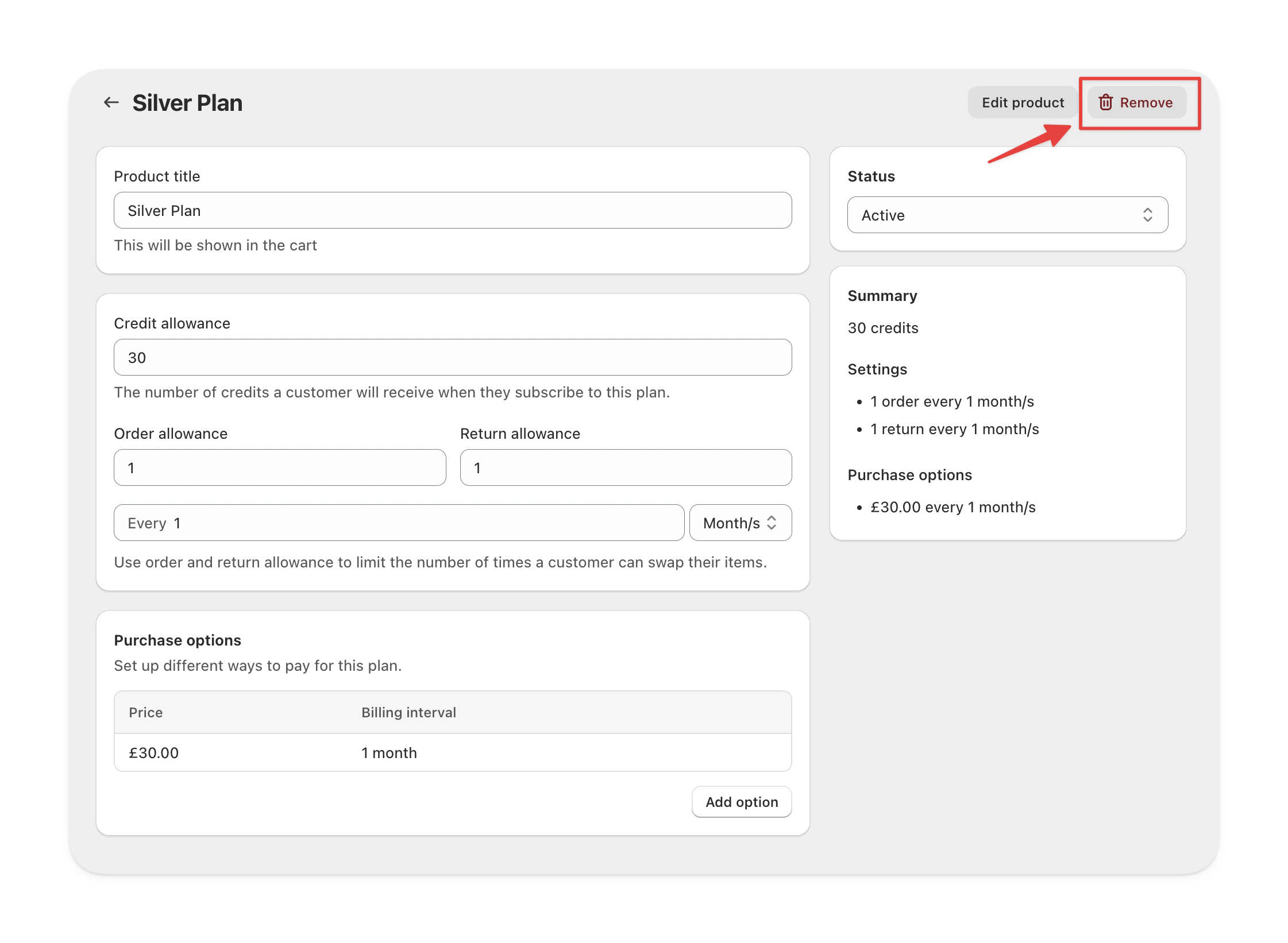
## Delete a membership plan

When you delete a membership plan, it’s permanently removed from Supercycle and cannot be restored.\
A plan can only be deleted if no customers are currently subscribed to it.

<Frame type="glass">
  <img src="https://mintcdn.com/supercycle/Omgmq0rsgqX1BZKa/images/screenshots/supercycle-admin/remove-plan.png?fit=max&auto=format&n=Omgmq0rsgqX1BZKa&q=85&s=938919b9f495c67122ab13b178efb6b0" alt="Remove membership plan option in Supercycle admin" width="2242" height="1642" data-path="images/screenshots/supercycle-admin/remove-plan.png" />
</Frame>

***

<Info>
  **Limitation: Plan products in membership collections**

  Currently, Shopify does not allow a product to be hidden from the main storefront while still being visible in a specific collection (like your membership plans collection). This means plan products will appear in the "all" collection.

  **Workaround for developers**: If you have a developer, they can modify your theme to filter out products with specific plan names from rendering in collection pages, while still allowing them to display in the membership block.
</Info>

## What if a customer purchases a plan product directly?

If a customer somehow purchases a plan product directly (e.g., by accessing the product URL directly), the membership will not activate properly. The customer will complete the purchase, but:

* Supercycle won't recognize it as a membership enrollment
* The customer won't be connected to Supercycle
* Credits won't be assigned to their account
* Swap and plan-management features won't work

This is why it's critical to ensure customers enroll through the membership block. If this happens, you'll need to manually refund the customer and guide them to enroll through the proper membership page.

***

## Create a membership page

<Steps>
  <Step title="Create a membership collection">
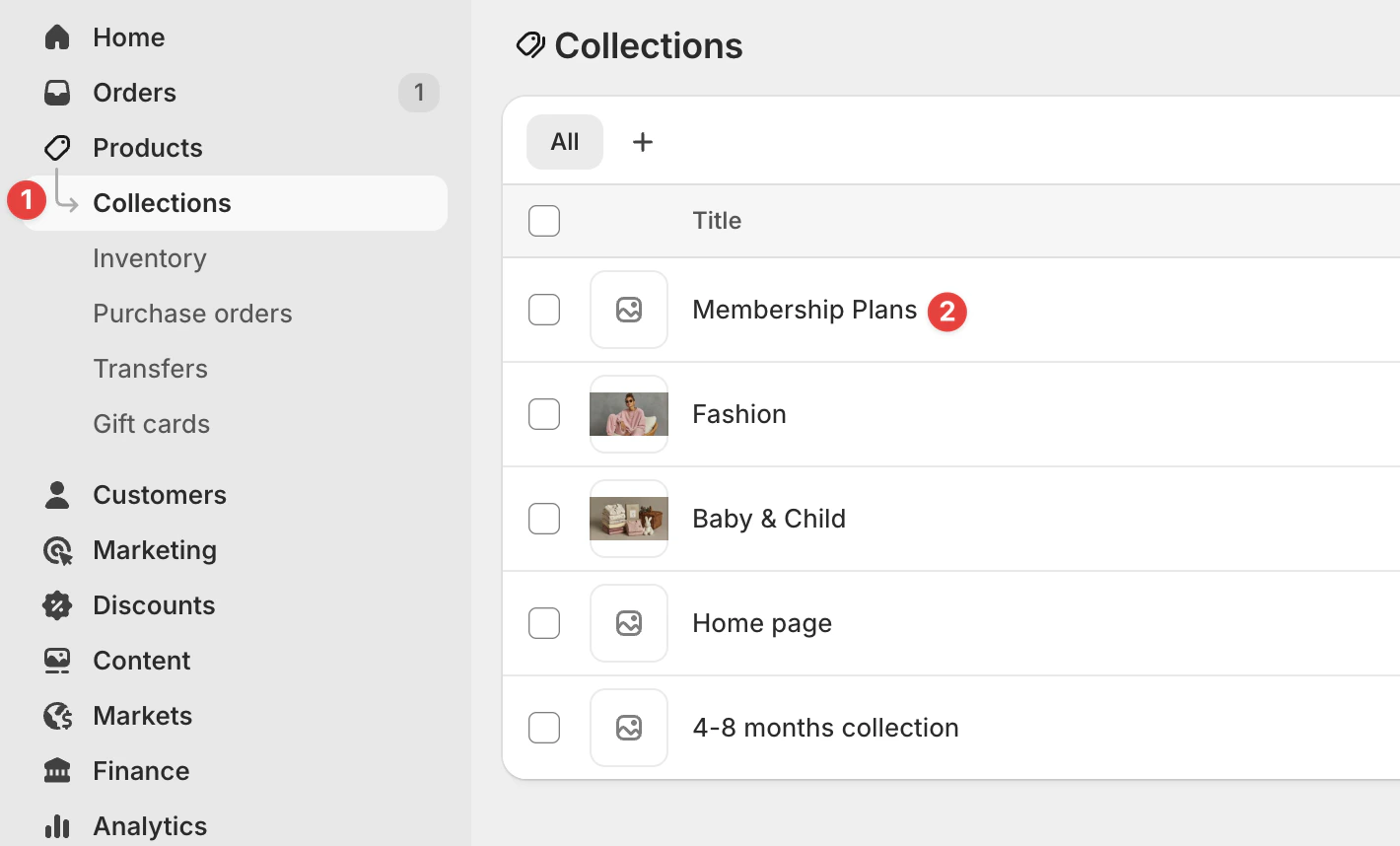
    Create a collection in Shopify (for example, **Membership plans**) and add each plan product to it.\
    This collection controls which plans appear on the storefront and is required for the membership block to display plans.

    <Info>
      **Multiple collections for different audiences**

      You can create multiple collections to display different plans to different audiences. For example:

      * Create a "Customer plans" collection with 3 plans for individual customers
      * Create a "Business plans" collection with 3 plans for businesses
      * Display them on different pages or in different blocks on the same page

      Each membership block can be connected to a different collection, giving you full control over which plans appear where.
    </Info>
  </Step>

  <Step title="Create a new page">
    In Shopify admin, go to **Sales channels > Online store > Pages** and create a new page for memberships (e.g., "Become a member").
  </Step>

  <Step title="Add membership app block">
    Go to **Sales channels > Online store > Themes > Customize**.\
    Open the membership page you created, add the **Supercycle app block** called **Membership plans**,\
    and select the collection you created earlier.

    See the [Membership plans app block](/developers/app-blocks/membership-plans) documentation for detailed setup instructions.
  </Step>
</Steps>

***

## FAQs

<AccordionGroup>
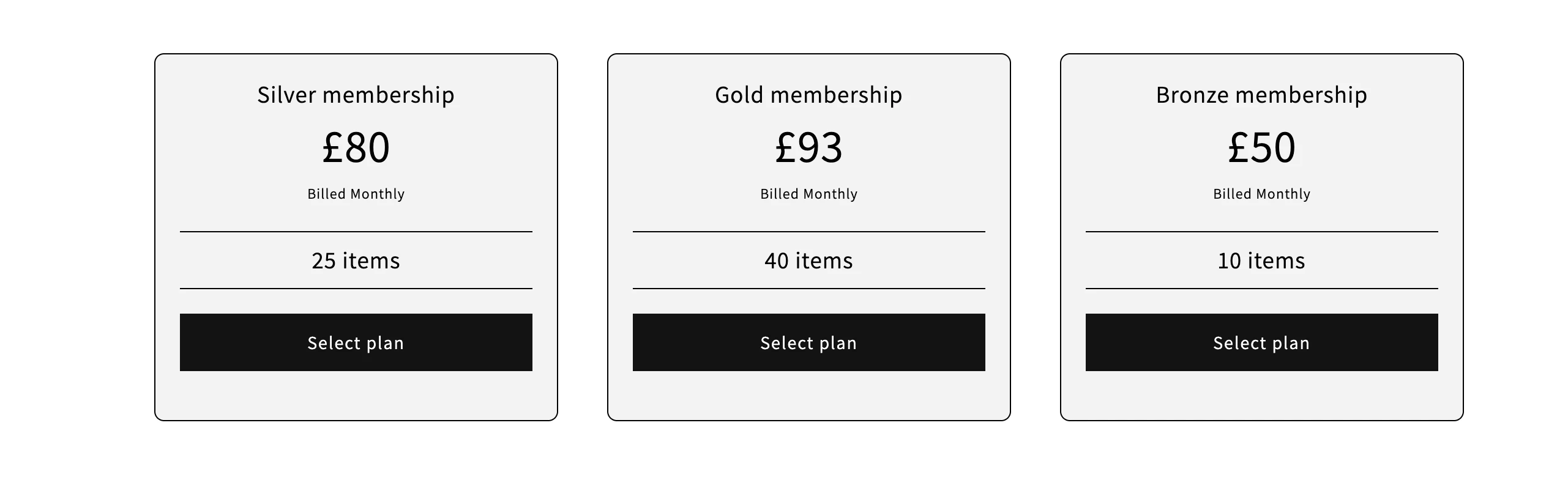
  <Accordion title="How do I show memberships in order from least expensive to most expensive?">
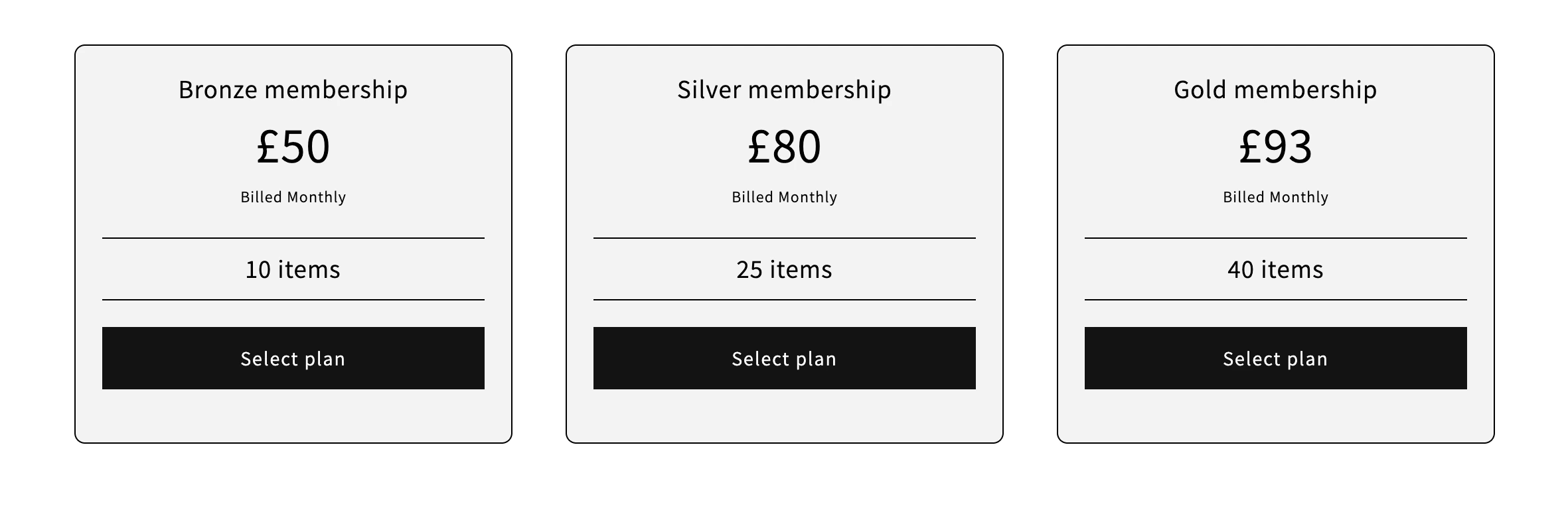
    By default, your membership tiers might not display in price order.

    <Frame type="glass" alt="Membership tiers displayed out of order">
      <img src="https://mintcdn.com/supercycle/XbKBsdX_PulItpyX/images/membership/membership-tiers-before-sort.png?fit=max&auto=format&n=XbKBsdX_PulItpyX&q=85&s=df86461307ad107d70906c0bdc6cf9b5" width="2562" height="790" data-path="images/membership/membership-tiers-before-sort.png" />
    </Frame>

    To reorder them, update the collection settings in Shopify so the tiers appear from lowest to highest price:
    <Frame type="glass" alt="Membership tiers displayed in price order">
      <img src="https://mintcdn.com/supercycle/XbKBsdX_PulItpyX/images/membership/membership-tiers-after-sort.png?fit=max&auto=format&n=XbKBsdX_PulItpyX&q=85&s=1491b30ff5eeb6f08d712a348e85c410" width="2362" height="784" data-path="images/membership/membership-tiers-after-sort.png" />
    </Frame>

    <Steps>
      <Step title="Open your membership collection">
        In your Shopify admin, go to **Products** > **Collections**, and select the membership collection you created.

        <Frame type="glass" alt="Membership collection in Shopify admin">
          <img src="https://mintcdn.com/supercycle/XbKBsdX_PulItpyX/images/membership/membership-collection.png?fit=max&auto=format&n=XbKBsdX_PulItpyX&q=85&s=13dc5171dc659fe9dcd3268490559721" width="1420" height="858" data-path="images/membership/membership-collection.png" />
        </Frame>
      </Step>

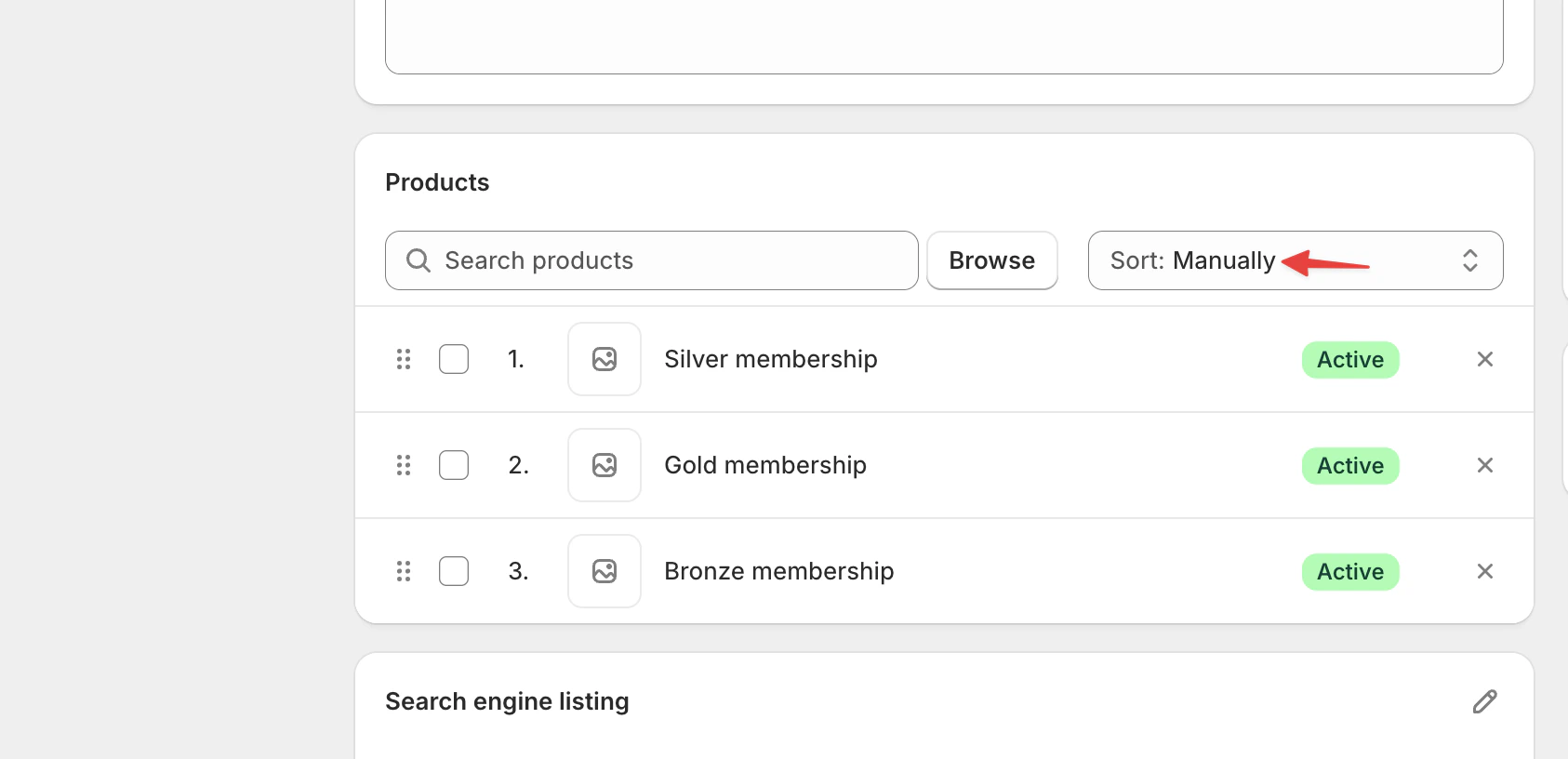
      <Step title="Sort memberships manually">
        In the collection, choose **Sort** > **Manually**. Then drag and drop the membership tiers into the order you want.

        <Frame type="glass" alt="Manual sort option in membership collection">
          <img src="https://mintcdn.com/supercycle/XbKBsdX_PulItpyX/images/membership/membership-collection-manual-sort.png?fit=max&auto=format&n=XbKBsdX_PulItpyX&q=85&s=d363ab3ba12f0a9139e6d928a08131cb" width="1686" height="816" data-path="images/membership/membership-collection-manual-sort.png" />
        </Frame>
      </Step>
    </Steps>
  </Accordion>
</AccordionGroup>

<AccordionGroup>
  <Accordion title="What happens if a customer buys a plan product directly?">
    If a customer purchases a plan product directly (e.g., via direct URL or if they find it in search), the order will process in Shopify, but the membership won't activate properly.

    **What won't work:**

    * The customer won't be connected to Supercycle
    * They won't receive membership credits
    * They won't be able to use any membership features (swapping, plan management, etc.)

    **How to fix it:**

    1. Refund the order in Shopify
    2. Guide the customer to enroll properly through the membership block on your storefront
    3. Consider hiding plan products by setting them to "unlisted" status (see "Hide membership plan products" section above)
  </Accordion>

  <Accordion title="I accidentally deleted my membership products from Shopify. What should I do?">
    If you delete a membership product from Shopify, it breaks the link between your store and the Supercycle plan.\
    To fix it:

    <Steps>
      <Step title="Delete the plan in Supercycle">
        In your Shopify admin, go to **Supercycle > Memberships > Plans** and delete the affected plan.
      </Step>

      <Step title="Recreate the plan in Supercycle">
        Create a new plan with the same settings.\
        Supercycle will automatically recreate the Shopify product linked to the plan.
      </Step>

      <Step title="Add the plan product to your storefront collection">
        Go to **Shopify > Products**, find the new plan product, and add it to the collection displayed in your membership app block on the storefront.
      </Step>
    </Steps>
  </Accordion>
</AccordionGroup>