> ## Documentation Index
> Fetch the complete documentation index at: https://docs.supercycle.com/llms.txt
> Use this file to discover all available pages before exploring further.
# Product setup
> Allow customers to rent a product one-off
Once you've [imported a product](/documentation/setup/importing-products) into Supercycle, setting it up for calendar rental is a simple process.
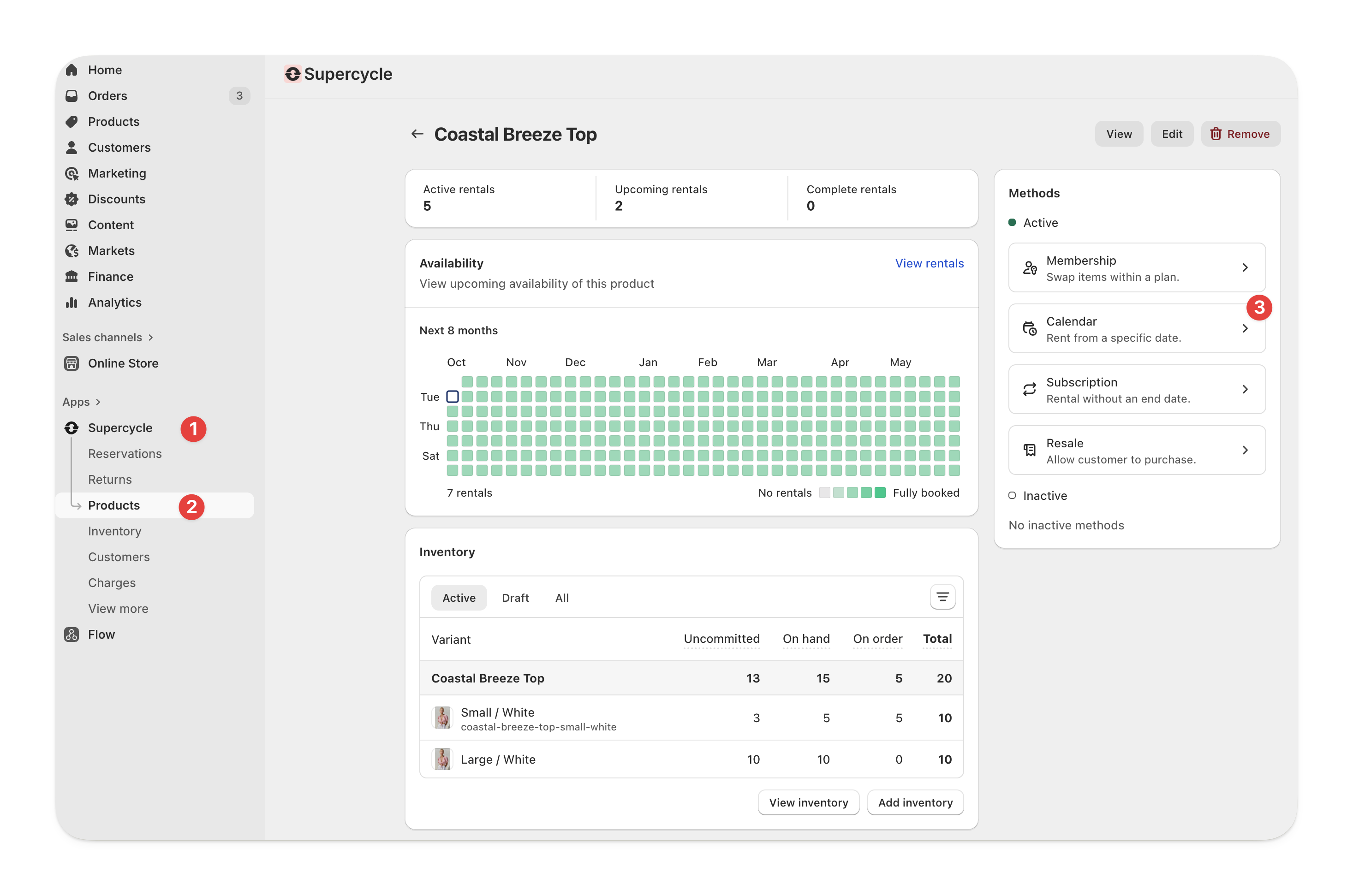
In your Shopify admin, navigate to **Supercycle** > **Products**.
Select the product you want to set up and then select the **Calendar** rental method.
 Under **Rental periods and pricing**, click **Add rental period** and add a price and period.
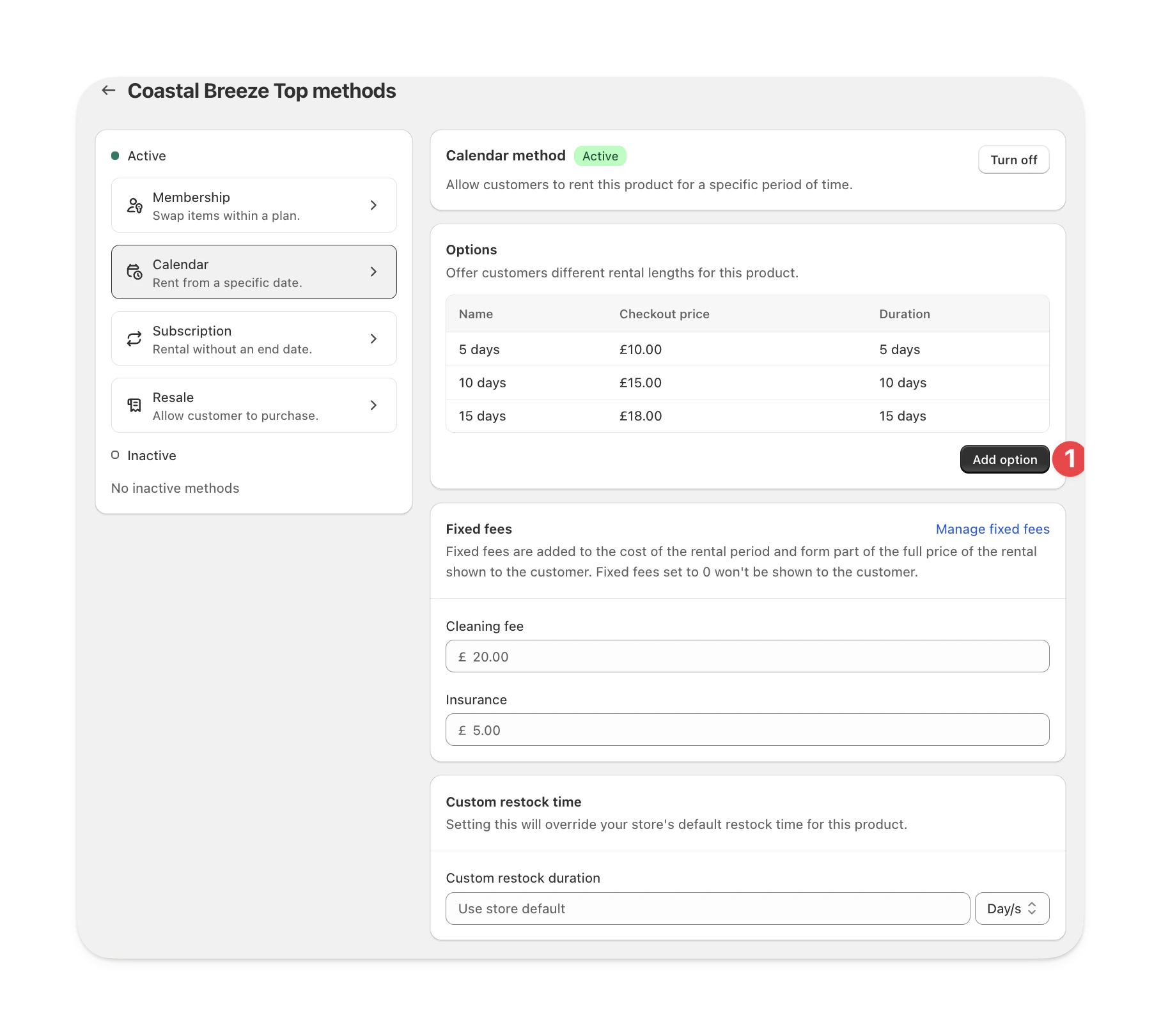 Repeat this step for different periods. We recommend no more than 4 rental periods to maintain a good UX.
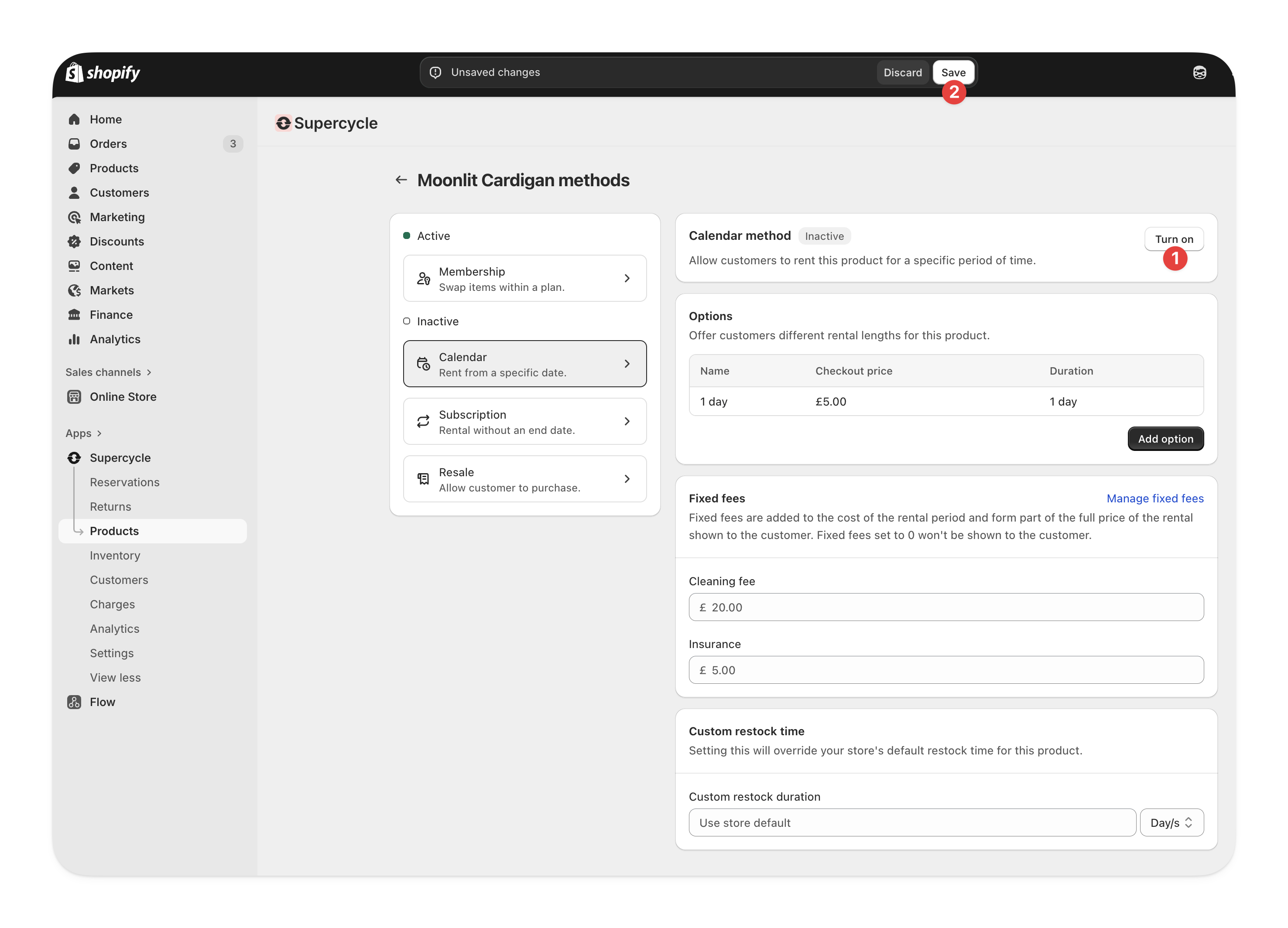
Turn the calendar rental method on and click save.
Repeat this step for different periods. We recommend no more than 4 rental periods to maintain a good UX.
Turn the calendar rental method on and click save.
 Next, you'll learn about the fixed fees settings you saw on this page.
Each rental period can be targeted to specific Shopify markets — useful for charging different prices per region or currency. Open a rental period and use **Apply to specific markets**. See [Multi-market pricing](/documentation/manage/products/multi-market-pricing).
***
## Troubleshooting
Yes, you can bulk create or update method options. Learn how in [Product actions](/documentation/manage/products/product-actions#bulk-update-method-options).
Next, you'll learn about the fixed fees settings you saw on this page.
Each rental period can be targeted to specific Shopify markets — useful for charging different prices per region or currency. Open a rental period and use **Apply to specific markets**. See [Multi-market pricing](/documentation/manage/products/multi-market-pricing).
***
## Troubleshooting
Yes, you can bulk create or update method options. Learn how in [Product actions](/documentation/manage/products/product-actions#bulk-update-method-options).