> ## Documentation Index
> Fetch the complete documentation index at: https://docs.supercycle.com/llms.txt
> Use this file to discover all available pages before exploring further.
# Managing method options
> You can manage method pricing options in bulk
Method options control how each rental method is priced and offered on a product. Once you have a lot of options across many products, Supercycle gives you tools to update them in bulk rather than editing one product at a time.
## Bulk actions
Open the options table for any method (Calendar, Membership, Subscription, or Resale), tick the options you want to update, and choose an action from the bulk menu.
Update the name shown on the product page selector and on line item properties. Liquid is supported, so you can reference option fields like `{{ resale_option.product.title }}`.
Enable or disable options in bulk. Disabled options are hidden from the storefront but preserved in your data so you can re-enable them later.
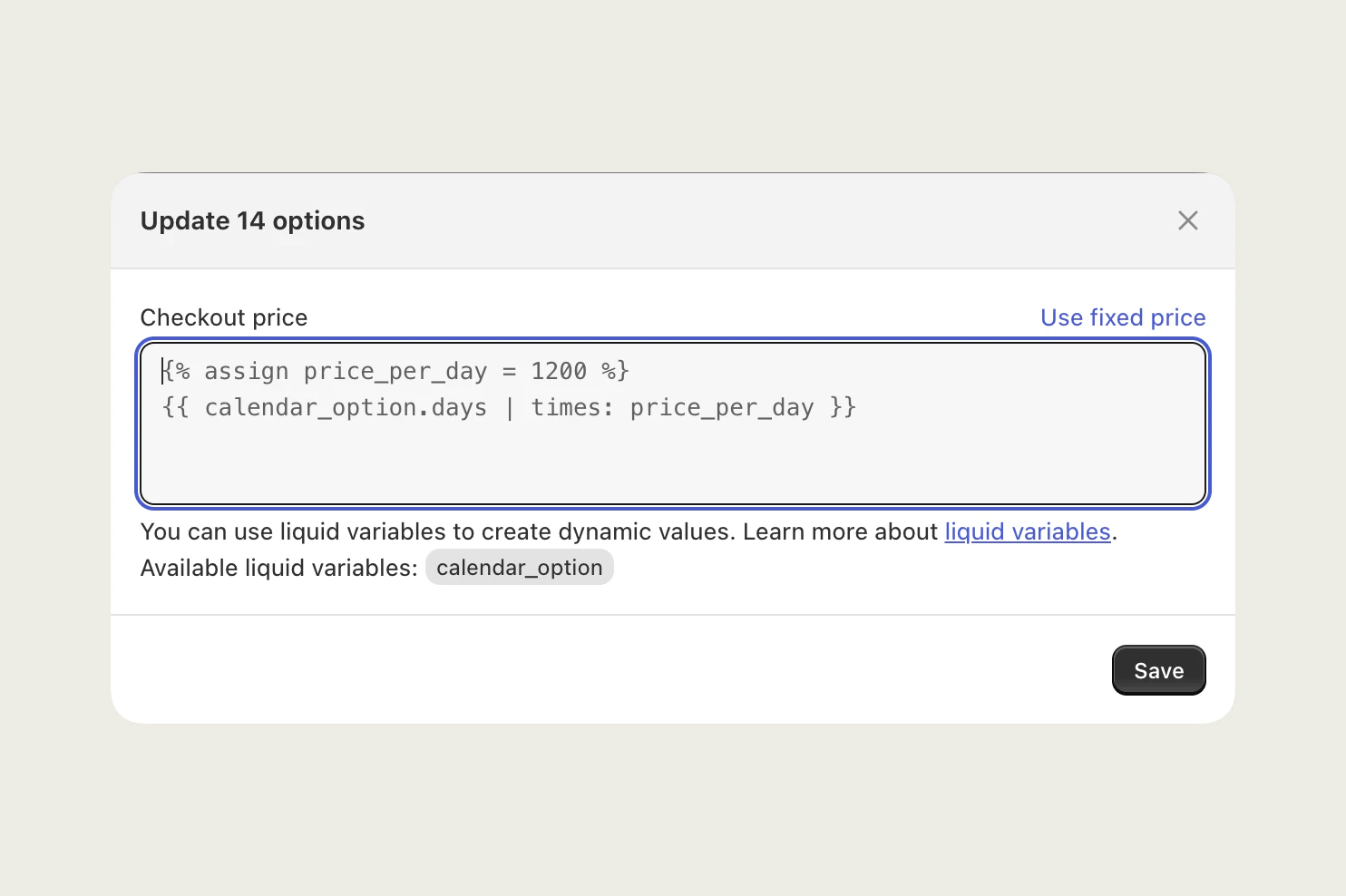
Recalculate prices using a Liquid formula (see below). Useful for percentage-based price changes, currency adjustments, or recalculating against the variant price.
Target the selected options at specific Shopify [markets](/documentation/manage/products/multi-market-pricing). Leave the market selection empty to apply to **all markets**.
Resale only. Target the selected options at specific item conditions (new, good, fair, poor) or all conditions.
Require [identity verification](/documentation/configuration/risk/identity-verification) on the selected options. Customers checking out with these options will be prompted to verify their identity before fulfilment. Only available when identity verification is enabled on your store.
Attach one or more [add-ons](/documentation/manage/products/add-ons) to the selected options. The set you pick replaces each option's current add-ons wholesale — leave everything unchecked to remove all add-ons from the selected options.
Attach one or more [contract templates](/documentation/configuration/risk/esignatures) to the selected options. Customers will be required to sign the templates after checkout. Leave the template selection empty to remove all contract templates from the selected options. Only available when e-signatures are enabled and at least one contract template exists.
Remove the selected options. This is destructive and cannot be undone.
## Using formulas to update method options
You can use formulas to update method options in bulk. This is useful when you want to apply a consistent change across multiple options, such as increasing prices by a certain percentage.
 #### Liquid references for method options
The product associated with the option
The title of the product
The title of the variant
The price of the variant in cents
The name of the option
The checkout price of the option in cents
The product associated with the option
The title of the product
The title of the variant
The price of the variant in cents
The name of the option
The product associated with the option
The title of the product
The title of the variant
The price of the variant in cents
The name of the option
The product associated with the option
The title of the product
The title of the variant
The price of the variant in cents
The name of the option
The number of days for the calendar option
The checkout price of the option in cents
More information on using Liquid can be found [on Shopify's developer documentation](https://shopify.dev/docs/api/liquid).
## Targeting options across markets, variants, and conditions
Each option can be scoped so it only appears in certain contexts on the storefront:
* **[Markets](/documentation/manage/products/multi-market-pricing)** — show the option only in selected Shopify markets (e.g. region- or currency-specific pricing).
* **Variants** — apply to all variants or only a subset (e.g. one storage size on an electronics product).
* **Conditions** — resale only. Apply to all item conditions or only a subset (e.g. new vs. refurbished).
These filters combine: an option applies on the storefront when the current market, variant, and condition all match. Use this to model multi-market, multi-variant pricing matrices without duplicating products.
#### Liquid references for method options
The product associated with the option
The title of the product
The title of the variant
The price of the variant in cents
The name of the option
The checkout price of the option in cents
The product associated with the option
The title of the product
The title of the variant
The price of the variant in cents
The name of the option
The product associated with the option
The title of the product
The title of the variant
The price of the variant in cents
The name of the option
The product associated with the option
The title of the product
The title of the variant
The price of the variant in cents
The name of the option
The number of days for the calendar option
The checkout price of the option in cents
More information on using Liquid can be found [on Shopify's developer documentation](https://shopify.dev/docs/api/liquid).
## Targeting options across markets, variants, and conditions
Each option can be scoped so it only appears in certain contexts on the storefront:
* **[Markets](/documentation/manage/products/multi-market-pricing)** — show the option only in selected Shopify markets (e.g. region- or currency-specific pricing).
* **Variants** — apply to all variants or only a subset (e.g. one storage size on an electronics product).
* **Conditions** — resale only. Apply to all item conditions or only a subset (e.g. new vs. refurbished).
These filters combine: an option applies on the storefront when the current market, variant, and condition all match. Use this to model multi-market, multi-variant pricing matrices without duplicating products.