> ## Documentation Index
> Fetch the complete documentation index at: https://docs.supercycle.com/llms.txt
> Use this file to discover all available pages before exploring further.

# Serializing items

> How and why to track items with unique serial numbers

Serialising items means giving each product a unique identifier, a digital fingerprint.

This transforms your inventory from generic stock into a traceable network of assets you can measure, automate, and monetise.

***

## Benefits of serializing items

* **Item-level reporting** such as item utilisation, lifecycle, and revenue attribution.
* **Consignment tracking** for accurate payouts and settlements on consigned stock.
* **Operational speed and accuracy** by quickly scanning items without the need to search or touch the app admin.
* **Automated workflows** can be triggered to update item status, send reminders, or prompt actions based on specific item data.

***

## Supported tag types

Supercycle supports **QR codes**, **barcodes**, and **RFID tags**, depending on your scale and use case.

***

### QR codes

QR codes are 2D scannable codes readable by smartphones and tablets.

| **Advantages**                                    | **Limitations**                                  |
| ------------------------------------------------- | ------------------------------------------------ |
| Simple and inexpensive to produce.                | Slower for large-scale scanning.                 |
| Can be scanned using any camera or mobile device. | Requires line-of-sight and clean label surfaces. |
| Can encode more data than a traditional barcode.  | Can degrade with abrasion or moisture.           |

QR codes are well suited to industries where staff scan items with phones rather than warehouse hardware.

* Fashion rental and resale
* Consumer electronics rental
* Baby gear and lifestyle equipment rental

#### Recommended setup

* Print on standard adhesive or vinyl labels.
* Works with consumer-grade thermal or inkjet printers.
* For label printing: [Avery Weatherproof QR Code Labels](https://www.avery.com/products/labels/5523)
* For thermal printers: [Zebra ZD421](https://www.zebra.com/us/en/products/printers/desktop/zd421.html)
* For apparel labels: [Dutch Label Shop](https://www.dutchlabelshop.com/)

***

### Barcodes

Barcodes are one-dimensional codes and widely used in retail and logistics. They can be scanned using standard barcode scanners or compatible mobile devices.

| **Advantages**                                         | **Limitations**                                           |
| ------------------------------------------------------ | --------------------------------------------------------- |
| Fast scanning speed, especially for bulk handling.     | Requires dedicated scanner hardware for best performance. |
| Compatible with existing retail and warehouse systems. | Can only encode a small amount of data.                   |
| Integrates easily with POS and logistics software.     | Must be aligned and visible to be scanned.                |

<Info>Bluetooth barcode scanners can also be used directly in the Supercycle admin in any search field.</Info>

Barcodes are best suited to high-throughput or hardware-driven operations where dedicated scanners are already in use.

#### Recommended setup

* Use **thermal transfer** or **direct thermal** label printers.
* Choose **polypropylene or vinyl** labels for durability.
* For printer hardware: [Zebra ZT230](https://www.zebra.com/us/en/products/printers/industrial/zt230.html)
* For labels: [Avery Durable Barcode Labels](https://www.avery.com/products/labels/61525)

***

### RFID tags

RFID (radio frequency identification) tags use embedded chips to transmit data wirelessly. They can be scanned in bulk, even without direct line-of-sight.

<Tip>This is our recommended route for most merchants where scale is a key consideration.</Tip>

| **Advantages**                                           | **Limitations**                                  |
| -------------------------------------------------------- | ------------------------------------------------ |
| Enables instant bulk scanning of many items at once.     | Higher setup cost (readers, tags, and printers). |
| Works through packaging and without visual contact.      | Requires compatible RFID readers and printers.   |
| Extremely durable and ideal for industrial environments. | More complex setup and integration process.      |

RFID is best suited to high-volume environments that require automation, rapid throughput or full asset traceability.

#### Recommended setup

* Use UHF RFID tags for long-range scanning (3–10 meters).
* For printers: [Zebra ZT411 RFID Printer](https://www.zebra.com/us/en/products/printers/industrial/zt411.html)
* For readers: [Impinj R700 RFID Reader](https://www.impinj.com/products/readers/impinj-r700)
* For tags: [Omni-ID IQ 600 RFID Label](https://www.omni-id.com/products/iq-600/)

***

## Adding serials

To add a serial, you'll first need to create an item, then add a unique serial number to that item.

### Create items

You should create inventory inside your Supercycle product, not your Shopify product, as Supercycle is responsible for inventory management after import.

<AccordionGroup>
  <Accordion title="In bulk, from a Product">
    <Steps>
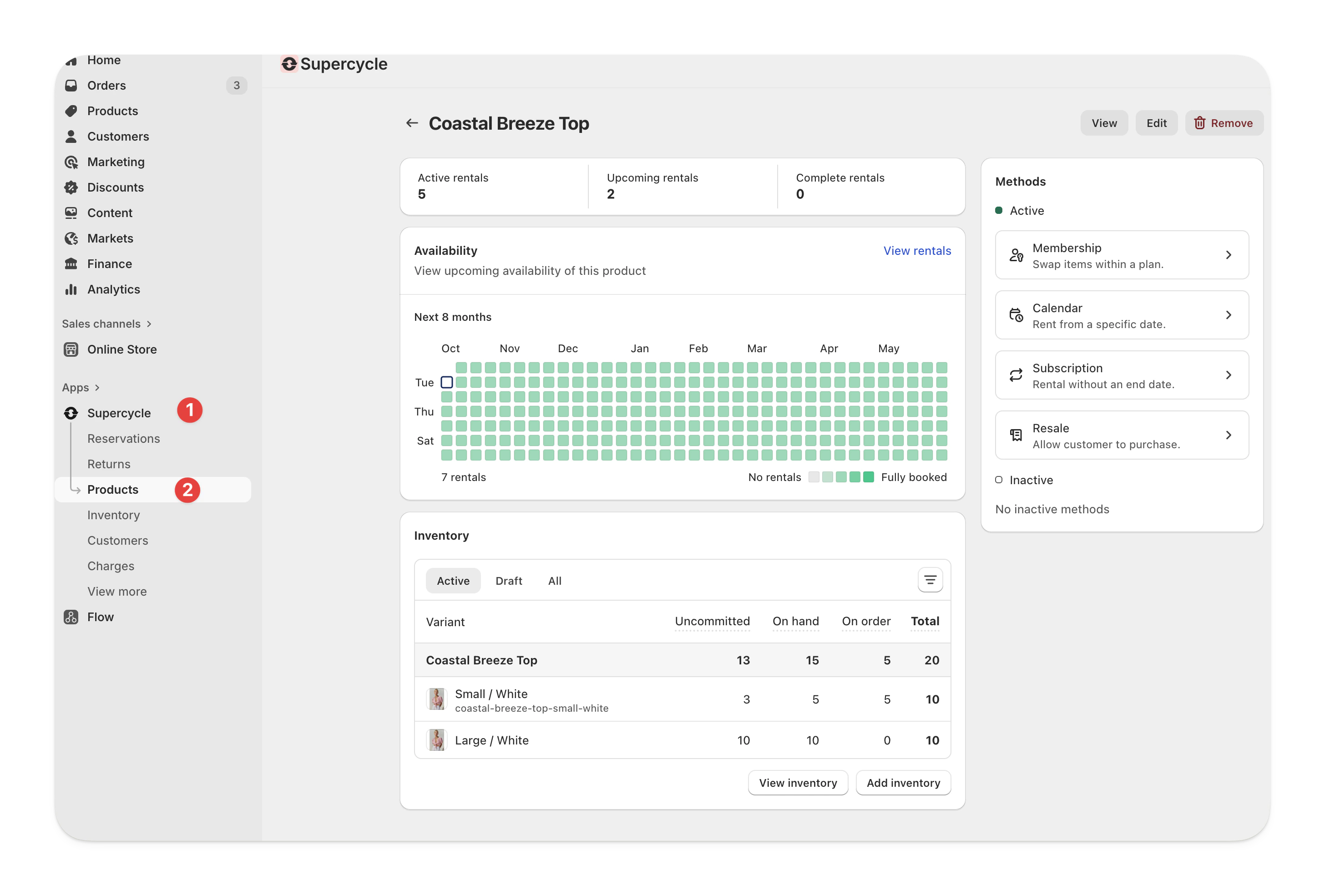
      <Step title="Navigate to the product">
        In Shopify Admin, head to **Supercycle** > <Icon icon="shopify" iconType="solid" /> [**Products**](https://admin.shopify.com/apps/supercycle/products/) > **Product**.

        <Frame type="glass">
          <img src="https://mintcdn.com/supercycle/Omgmq0rsgqX1BZKa/images/screenshots/supercycle-admin/product-navigation.png?fit=max&auto=format&n=Omgmq0rsgqX1BZKa&q=85&s=0998e29f789664706446e296336ff856" width="2912" height="1969" data-path="images/screenshots/supercycle-admin/product-navigation.png" />
        </Frame>
      </Step>

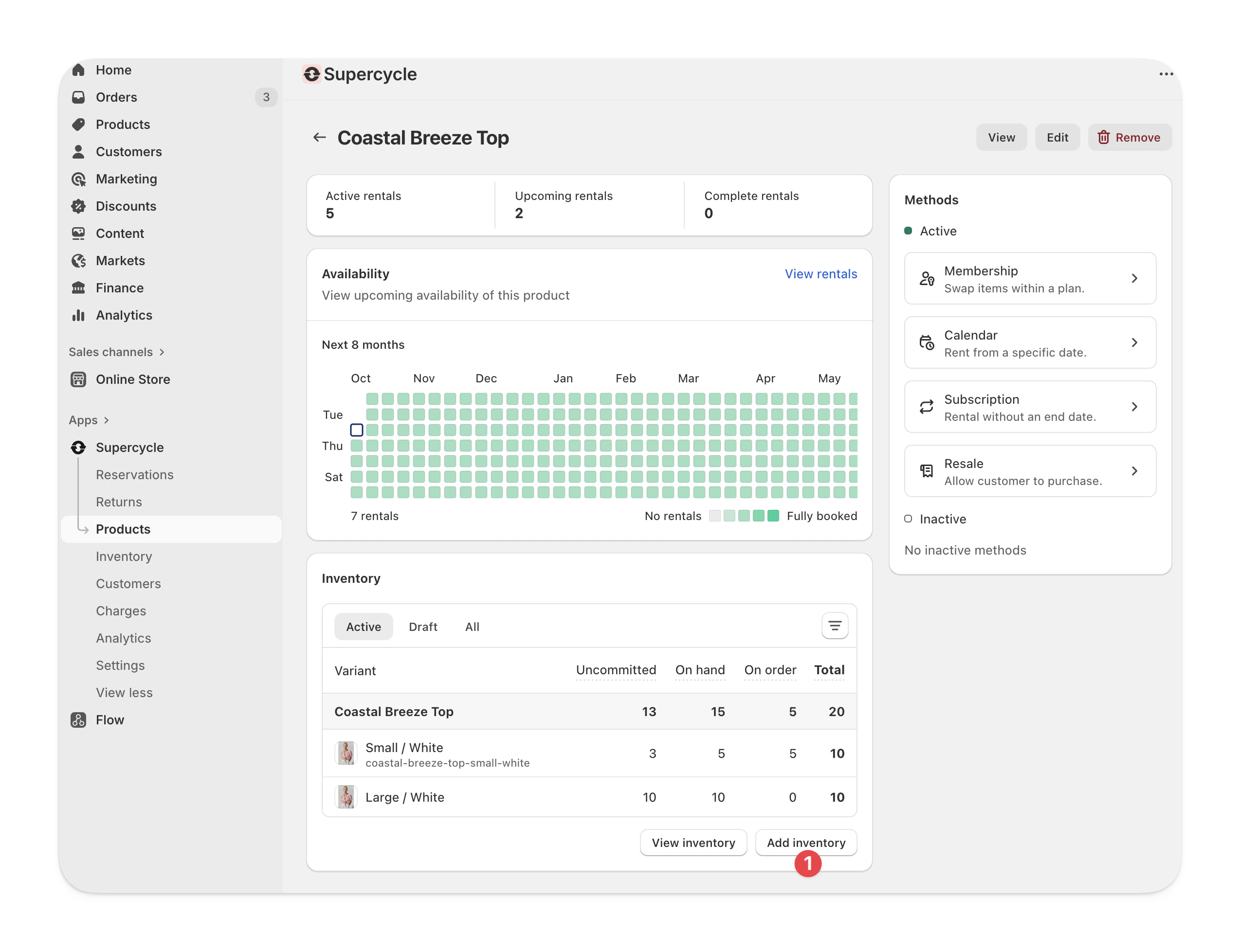
      <Step title="Add inventory">
        In the variants table, under the status you want to add a product, select the current quantity dropdown followed by **Add inventory**.

        <Frame type="glass">
          <img src="https://mintcdn.com/supercycle/Omgmq0rsgqX1BZKa/images/screenshots/supercycle-admin/product-add-inventory.png?fit=max&auto=format&n=Omgmq0rsgqX1BZKa&q=85&s=88f9674459bfe76cddf82d0b8f9d78e0" width="2548" height="1957" data-path="images/screenshots/supercycle-admin/product-add-inventory.png" />
        </Frame>
      </Step>

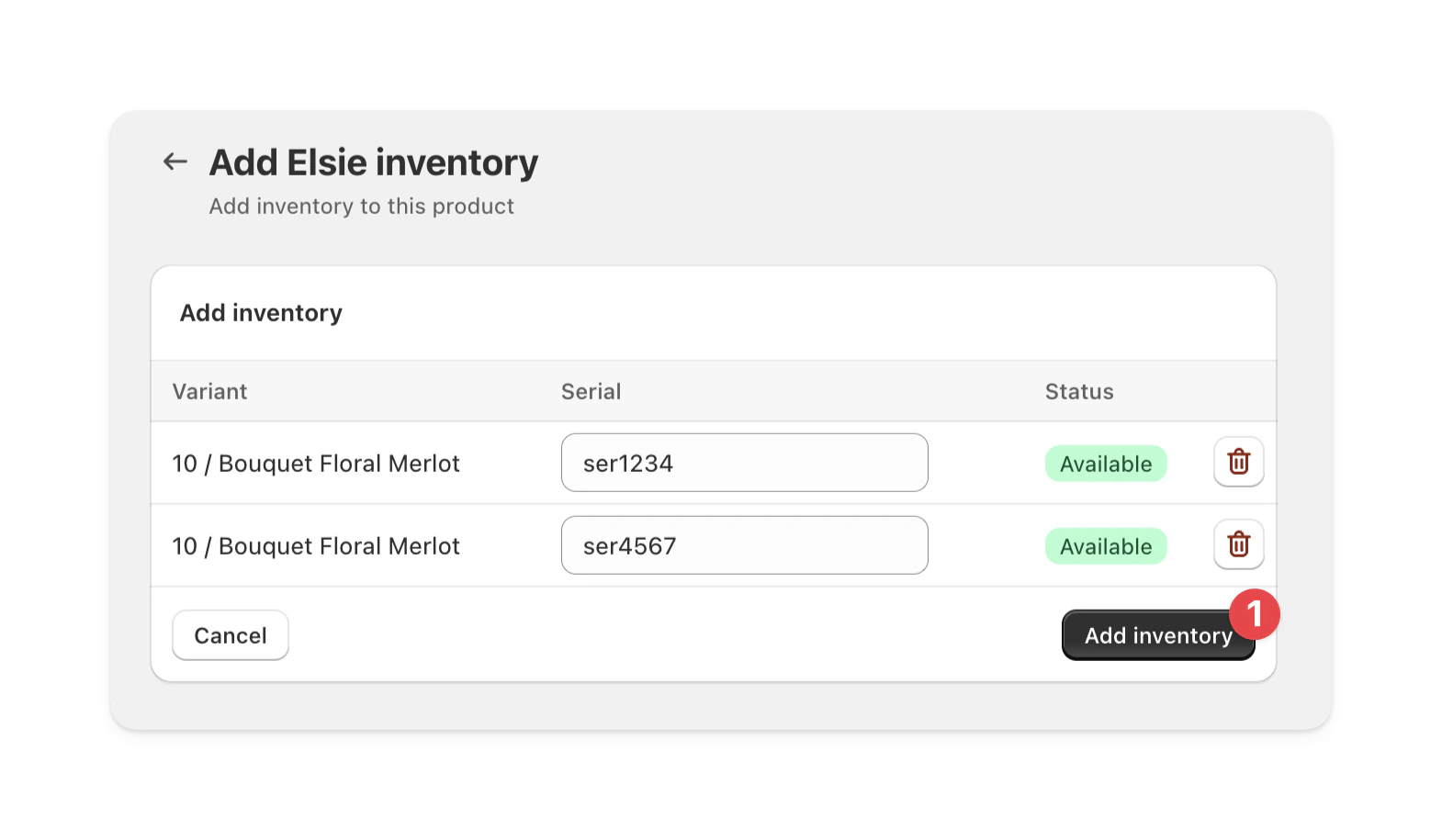
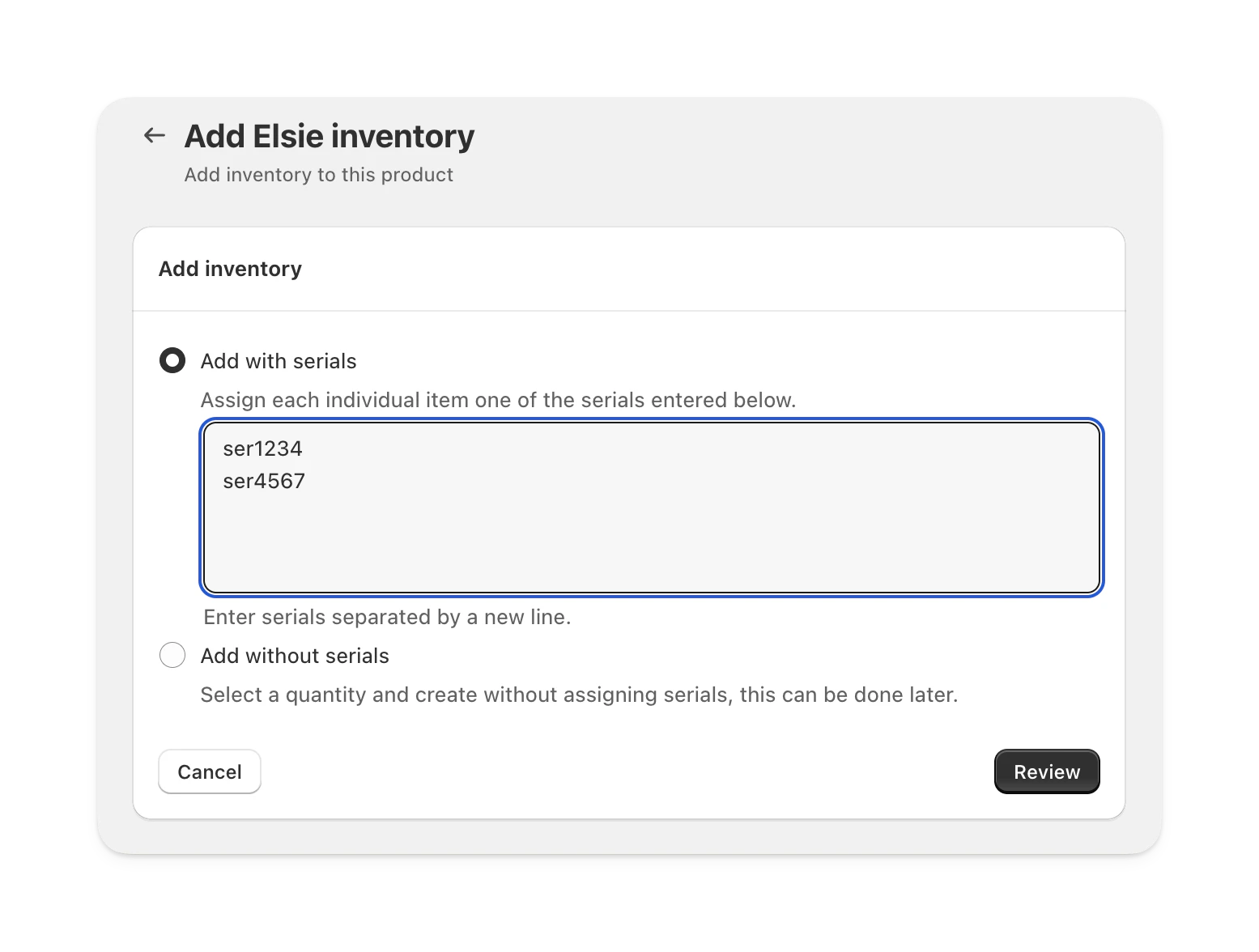
      <Step title="Add serials">
        On the next page, add a serial number on a new line for each item you'd like to create.

        Alternatively, select **Add without serials** and enter a number of items. You can add serials to the newly created items later from their item page.

        <Frame type="glass" caption="In this example, we are creating two new items with serials ser1234 and ser4567">
          <img src="https://mintcdn.com/supercycle/Omgmq0rsgqX1BZKa/images/screenshots/supercycle-admin/product-add-inventory-serials.png?fit=max&auto=format&n=Omgmq0rsgqX1BZKa&q=85&s=96aa59de2616a40b0d2213d7a1b78c49" width="1555" height="1176" data-path="images/screenshots/supercycle-admin/product-add-inventory-serials.png" />
        </Frame>

        Click **Review** to continue.
      </Step>

      <Step title="Review new items">
        Review the items you're about to add and click **Add inventory** to save your changes.

        <Frame type="glass">
          <img src="https://mintcdn.com/supercycle/Omgmq0rsgqX1BZKa/images/screenshots/supercycle-admin/product-add-inventory-review.png?fit=max&auto=format&n=Omgmq0rsgqX1BZKa&q=85&s=32aa6532eb40530a5b8ce62998f8d477" width="1570" height="915" data-path="images/screenshots/supercycle-admin/product-add-inventory-review.png" />
        </Frame>
      </Step>
    </Steps>
  </Accordion>

  <Accordion title="In bulk, from a CSV import">
    <Steps>
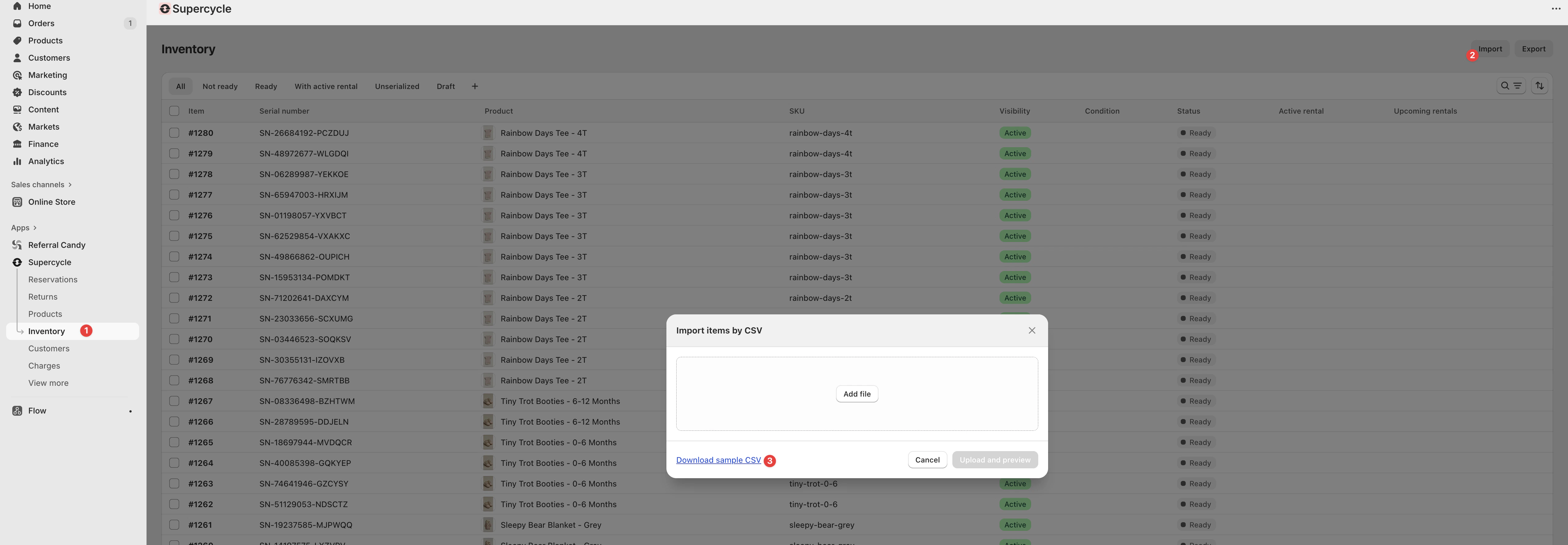
      <Step title="Download the import template">
        Always use the provided template (Sample CSV). Exports often contain extra columns that imports ignore.

        <Frame type="glass">
          <img src="https://mintcdn.com/supercycle/XbKBsdX_PulItpyX/images/items/items-import-steps.png?fit=max&auto=format&n=XbKBsdX_PulItpyX&q=85&s=17199d8cc0e9609b9fa7fe82741fced8" alt="Download example CSV" width="5094" height="1770" data-path="images/items/items-import-steps.png" />
        </Frame>
      </Step>

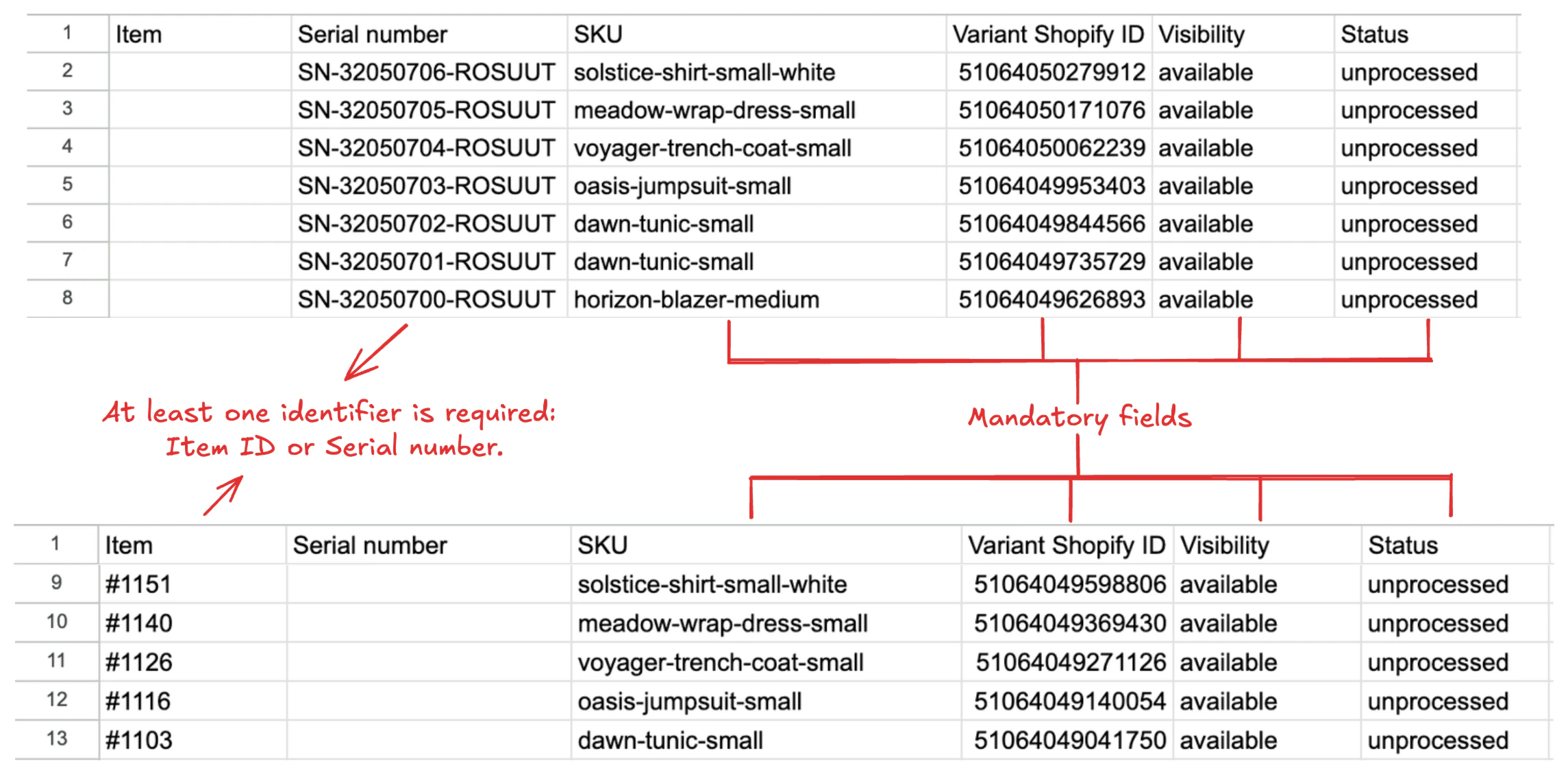
      <Step title="Fill in required columns">
        Every row represents one item. Include these columns:

        <br />

        <table>
          <thead>
            <tr><th>Column</th><th>Purpose</th></tr>
          </thead>

          <tbody>
            <tr><td><b>Item</b></td><td>Unique ID for the item (for example, #2001). New ID = new item. Existing ID = update that item.</td></tr>
            <tr><td><b>Variant Shopify ID</b></td><td>Links the item to its Shopify product variant.</td></tr>
            <tr><td><b>SKU</b></td><td>Stock keeping unit. Recommended even if Variant ID is included.</td></tr>
            <tr><td><b>Visibility</b></td><td>Sets whether the item is <code>available</code> or <code>unavailable</code>.</td></tr>
            <tr><td><b>Status</b></td><td>Workflow state, such as <code>processed</code>, <code>unprocessed</code>, or <code>retired</code>.</td></tr>
          </tbody>
        </table>

        Optional columns include <b>Condition</b>.

        <Frame type="glass">
          <img src="https://mintcdn.com/supercycle/XbKBsdX_PulItpyX/images/items/import-fields.png?fit=max&auto=format&n=XbKBsdX_PulItpyX&q=85&s=7663c5a44d372542bd49e288fcf386b2" alt="Mandatory fields for the import" width="2289" height="1130" data-path="images/items/import-fields.png" />
        </Frame>
      </Step>

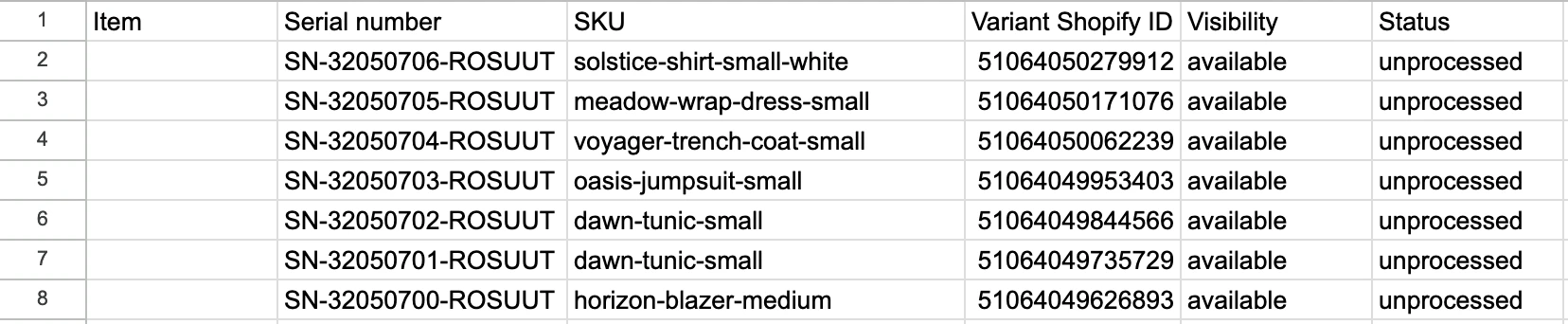
      <Step title="Add new items">
        Use a **new Item ID** or **Serial number** and provide the correct Variant Shopify ID and SKU.\
        Example:

        <Frame type="glass">
          <img src="https://mintcdn.com/supercycle/XbKBsdX_PulItpyX/images/items/import-new-items-with-serial-numbers.png?fit=max&auto=format&n=XbKBsdX_PulItpyX&q=85&s=3f68f1ac962fa99f3dd0a0e2128f5034" alt="Example CSV row for new items" width="1656" height="342" data-path="images/items/import-new-items-with-serial-numbers.png" />
        </Frame>
      </Step>

      <Step title="Update existing items">
        Keep the **same Item ID** but change values like condition, visibility, or status.\
        Example:

        <Frame type="glass">
          <img src="https://mintcdn.com/supercycle/XbKBsdX_PulItpyX/images/items/update-item-import.png?fit=max&auto=format&n=XbKBsdX_PulItpyX&q=85&s=c05e712391b4be530e0a7d5e39003cde" alt="Example CSV row for updating existing items" width="1654" height="296" data-path="images/items/update-item-import.png" />
        </Frame>
      </Step>

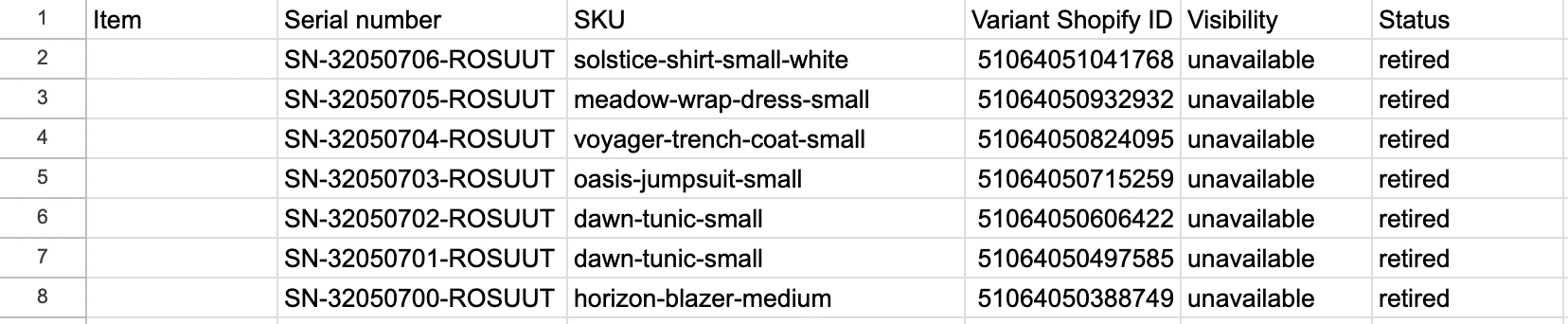
      <Step title="Deactivate items">
        The importer cannot delete items. To remove an item from circulation, set:

        <ul>
          <li>Visibility = <code>unavailable</code></li>
          <li>Status = <code>retired</code></li>
        </ul>

        Example:

        <Frame type="glass">
          <img src="https://mintcdn.com/supercycle/XbKBsdX_PulItpyX/images/items/retire-item-import.png?fit=max&auto=format&n=XbKBsdX_PulItpyX&q=85&s=edb7751fdbac3cc3cf63db0e72e274f1" alt="Example CSV row for deactivating items" width="1656" height="342" data-path="images/items/retire-item-import.png" />
        </Frame>
      </Step>

      <Step title="Upload the file">
        Import the completed CSV into Supercycle. Changes are applied immediately, and the store owner receives an email report showing how many items were added, how many were updated, and any failures.
      </Step>
    </Steps>

    ## Common mistakes

    * Leaving **Variant Shopify ID** and **SKU** blank → item cannot be linked.
    * Reusing an **Item ID** for a new unit → overwrites instead of creating.
  </Accordion>

  <Accordion title="Individually or in bulk, via Supercycle Scanner">
    You can create a new item by scanning a serial number with the [Supercycle Scanner](/documentation/manage/scanner/scanner).

    <AccordionGroup>
      <Accordion title="Single item">
        <Steps>
          <Step title="Scan a barcode, QR code or RFID tag">
            If the scanned serial number doesn't already exist in Supercycle, the **Create item** modal opens automatically.
          </Step>

          <Step title="Select a product">
            Press **Select a product** to load the full product list. Scroll or search to find the product and variant for the item you've scanned.
          </Step>

          <Step title="Select a status">
            Confirm the status for the new item (`Active`, `Draft`, `Retired`, `Sold`).
          </Step>

          <Step title="Create the item">
            Press **Create item** to finish adding the new item to your inventory.
          </Step>
        </Steps>

        After the item is created, Supercycle opens the item details page. From there, you can review and update additional info, such as the pick location.
      </Accordion>

      <Accordion title="In bulk, from a multi-scan session">
        When you're in a [multi-scan session](/documentation/manage/scanner/scanner#scan-modes) with a Zebra scanner, any unknown serials show as **Unknown tag** rows. You can turn them into items in one step:

        <Steps>
          <Step title="Press Create item in the bulk action bar">
            The count next to **Create item** shows how many unknown serials will be created.
          </Step>

          <Step title="Pick a product and status">
            The same product and status applies to every serial in the batch. The serials are listed read-only so you can confirm what you're creating.
          </Step>

          <Step title="Create the items">
            Press **Create items** to create them in one call. The multi-scan list automatically re-resolves the serials, so the rows flip from **Unknown** to **Matched** and become eligible for the other bulk actions.
          </Step>
        </Steps>
      </Accordion>
    </AccordionGroup>
  </Accordion>
</AccordionGroup>

***

### Create serials

To create a serial, you can either generate your own unique code and program it onto a tag, or use pre-coded tags with unique IDs and assign those to items in Supercycle.

<AccordionGroup>
  <Accordion title="From a Product">
    In progess.
  </Accordion>

  <Accordion title="From the Scanner">
    In progress.
  </Accordion>

  <Accordion title="In bulk, from a CSV import">
    In progress.
  </Accordion>
</AccordionGroup>