> ## Documentation Index
> Fetch the complete documentation index at: https://docs.supercycle.com/llms.txt
> Use this file to discover all available pages before exploring further.
# Cycle actions
> Step-by-step guides for processing, updating, and managing cycles from the admin
### Create rentals
You can create a rental on behalf of a customer via the Shopify admin.
Go to Supercycle > Cycles.
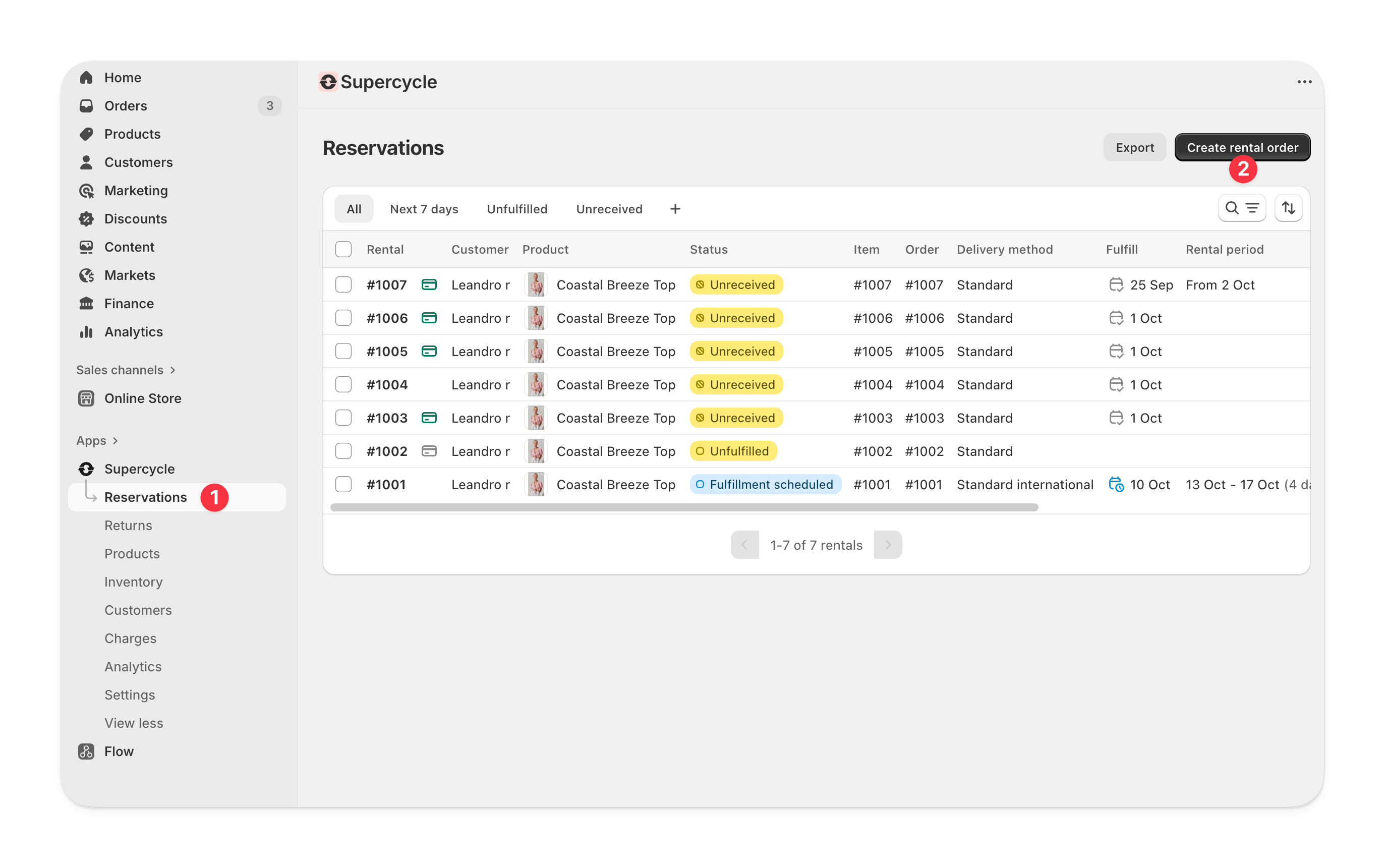 Supercycle now asks who the order is for before opening the Shopify draft order. Search for an existing Shopify customer by name or email in the customer picker and select them.
If the customer doesn't exist yet, click **Add new customer** and enter their first name, last name, and email. Supercycle creates them in Shopify on the fly and selects them for the order. Email is required; first and last name are optional.
The customer picker searches every customer in your Shopify store, not just customers already synced to Supercycle.
Click **Continue**. Supercycle creates a Shopify draft order pre-filled with the customer you just selected.
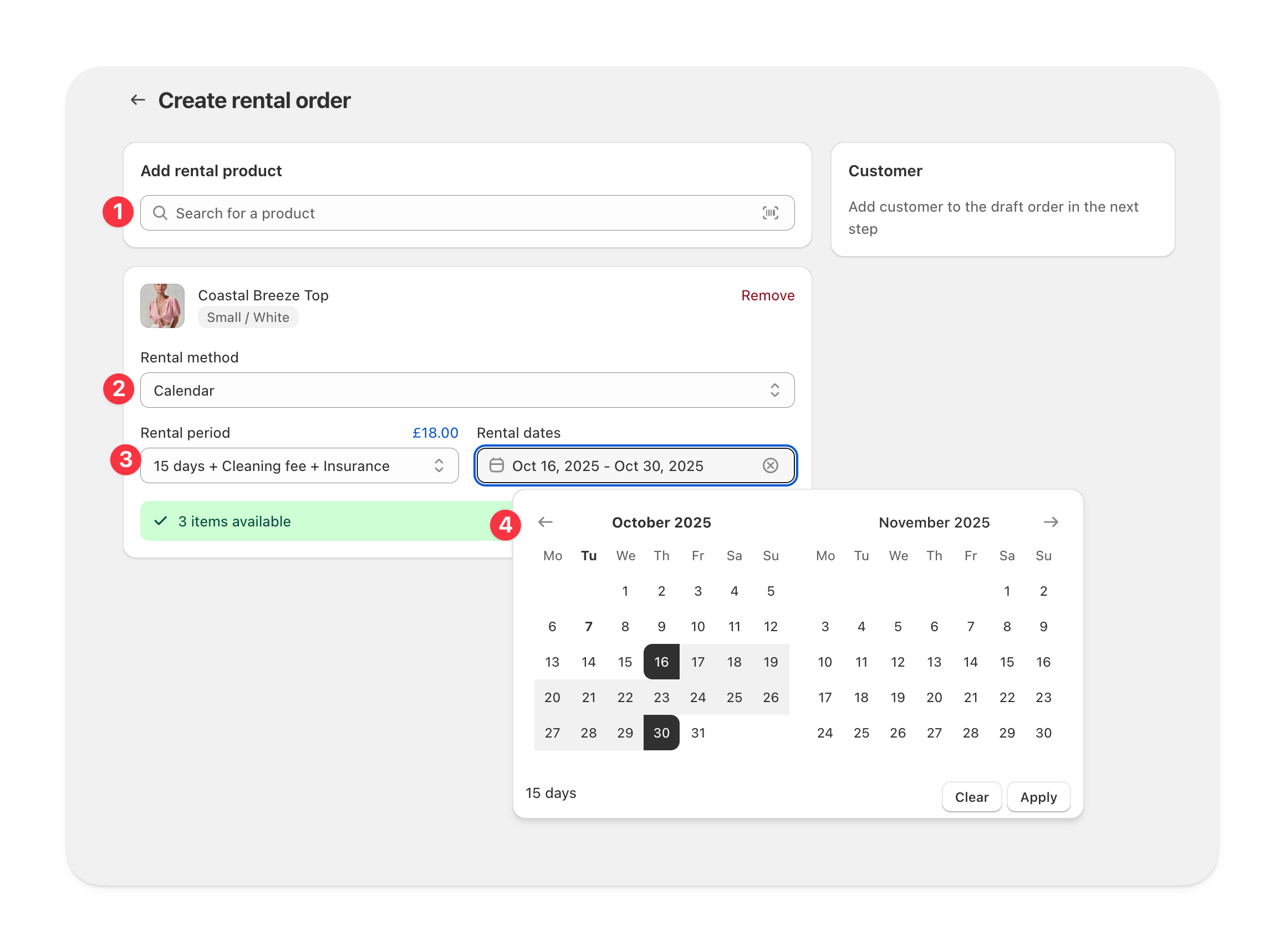
Select the rental method. For the calendar select the Rental period and Rental dates.
Add another product if needed.
Supercycle now asks who the order is for before opening the Shopify draft order. Search for an existing Shopify customer by name or email in the customer picker and select them.
If the customer doesn't exist yet, click **Add new customer** and enter their first name, last name, and email. Supercycle creates them in Shopify on the fly and selects them for the order. Email is required; first and last name are optional.
The customer picker searches every customer in your Shopify store, not just customers already synced to Supercycle.
Click **Continue**. Supercycle creates a Shopify draft order pre-filled with the customer you just selected.
Select the rental method. For the calendar select the Rental period and Rental dates.
Add another product if needed.
 Click save.
* Apply discounts
* Add Shipping
* Add tags or a note
Click save.
* Apply discounts
* Add Shipping
* Add tags or a note
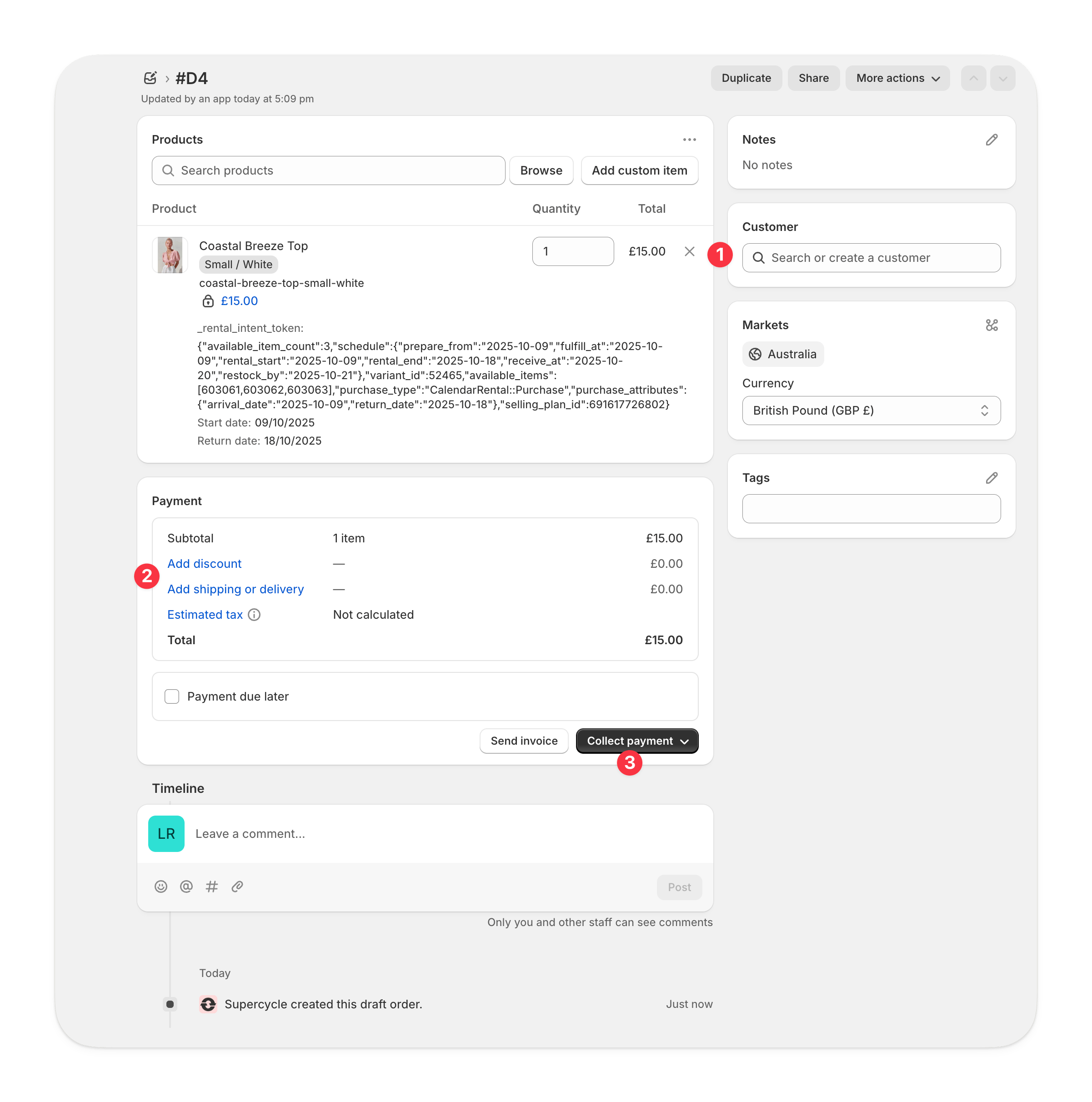 Please note, that adding a product to the draft order will not create a rental order for that product, they must be added via Supercycle.
* Accept payment from the customer by marking the order as paid or entering card details. Then Create an order.
* Set payment to due later. Then Create an order.
You will now have a Shopify order for that customer with rentals that can be seen in Supercycle cycles.
An in-app create order flow is available in beta. Enable **Create draft orders** under [Settings > Beta features](https://admin.shopify.com/apps/supercycle/settings/beta_features) to pick the customer, add variants, and configure calendar, membership, or subscription intents directly inside Supercycle before the Shopify draft order is created.
***
### Filtering which orders to fulfil
You can find rental orders in both Shopify and Supercycle.
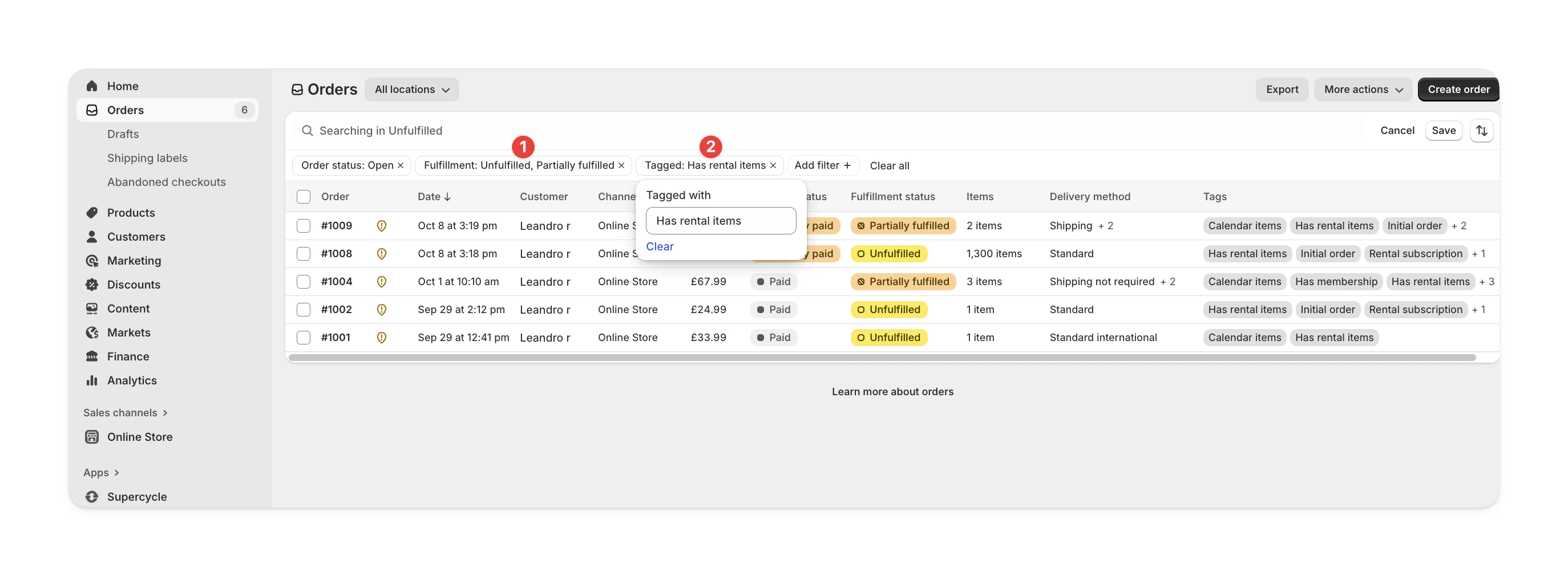
From Shopify.
* **Unfulfilled** status
* Tagged with **Has rental items**
Please note, that adding a product to the draft order will not create a rental order for that product, they must be added via Supercycle.
* Accept payment from the customer by marking the order as paid or entering card details. Then Create an order.
* Set payment to due later. Then Create an order.
You will now have a Shopify order for that customer with rentals that can be seen in Supercycle cycles.
An in-app create order flow is available in beta. Enable **Create draft orders** under [Settings > Beta features](https://admin.shopify.com/apps/supercycle/settings/beta_features) to pick the customer, add variants, and configure calendar, membership, or subscription intents directly inside Supercycle before the Shopify draft order is created.
***
### Filtering which orders to fulfil
You can find rental orders in both Shopify and Supercycle.
From Shopify.
* **Unfulfilled** status
* Tagged with **Has rental items**
 From Supercycle.
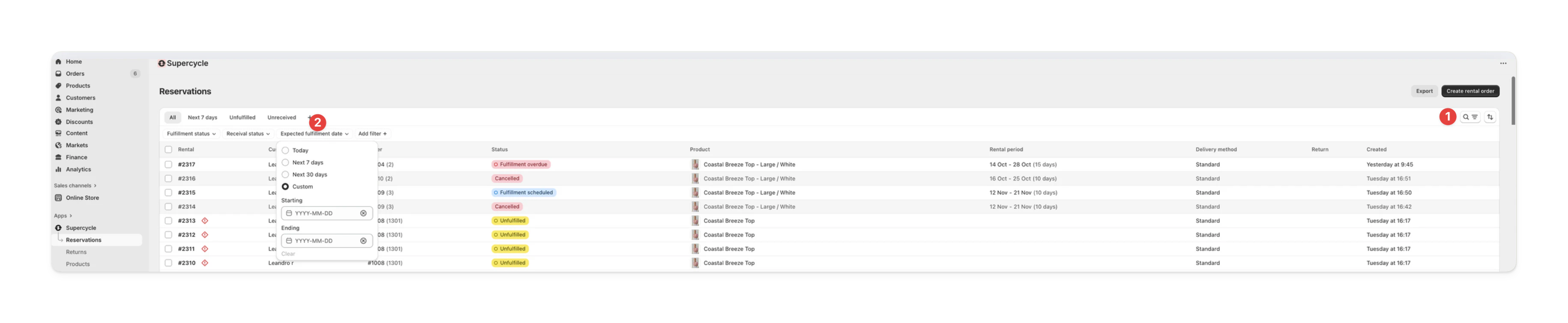
Use the **Expected fulfilment date** filter and set it to **Today**.
From Supercycle.
Use the **Expected fulfilment date** filter and set it to **Today**.
 Use the [`list_cycles`](/ai/operators-mcp/tools#cycles) tool with:
* `status` - `to_fulfill`
* `packing_status` - `pending`, `printed`, or `packed`
Use the [List all cycles](/api-reference/admin/rentals/list-all-rentals) endpoint with status and packing filters.
***
### Fulfil the order
You can fulfil the order from Shopify, from Supercycle, or through the API.
When you fulfil the order in Shopify, Supercycle automatically updates the rental status to **Fulfilled**.
In your Shopify admin, go to **Orders**, then select the order you want to fulfil.
In the **Unfulfilled** section, click **Fulfil item(s)**.\
Add a tracking number and select a carrier if needed.
Select **Send shipment details to your customer now** to email tracking info.
Shopify updates the status to **Fulfilled**, and Supercycle marks rentals as fulfilled.
You can also fulfil directly in the **Cycles** view in Supercycle.
We don't recomened this at the moment. As you will still need fulfil orders directly in Shopify. We're working on fixing this, and it will be available in an upcoming update.
Use the [`list_cycles`](/ai/operators-mcp/tools#cycles) tool with:
* `status` - `to_fulfill`
* `packing_status` - `pending`, `printed`, or `packed`
Use the [List all cycles](/api-reference/admin/rentals/list-all-rentals) endpoint with status and packing filters.
***
### Fulfil the order
You can fulfil the order from Shopify, from Supercycle, or through the API.
When you fulfil the order in Shopify, Supercycle automatically updates the rental status to **Fulfilled**.
In your Shopify admin, go to **Orders**, then select the order you want to fulfil.
In the **Unfulfilled** section, click **Fulfil item(s)**.\
Add a tracking number and select a carrier if needed.
Select **Send shipment details to your customer now** to email tracking info.
Shopify updates the status to **Fulfilled**, and Supercycle marks rentals as fulfilled.
You can also fulfil directly in the **Cycles** view in Supercycle.
We don't recomened this at the moment. As you will still need fulfil orders directly in Shopify. We're working on fixing this, and it will be available in an upcoming update.
 Use the [`update_cycle`](/ai/operators-mcp/tools#cycles) tool with:
* `id` - Cycle ID (e.g. `SC-1234`)
* `fulfilled_at` - Fulfilment date in `YYYY-MM-DD` format
Use the [Update a cycle](/api-reference/admin/rentals/update-a-rental) endpoint with the `fulfilledAt` parameter.
***
### Change product/variant
You can change the item associated with a rental to any item from any product.
Changing the product on a rental does not change the product on the Shopify order. If this is important, you should refund the line item in Shopify in order to cancel the existing rental and then create a new rental for the new product.
Changing the product will not charge/refund the difference to the customer. You should do this manually by partially refunding the original order, creating a draft order with a custom line item to charge the extra amount.
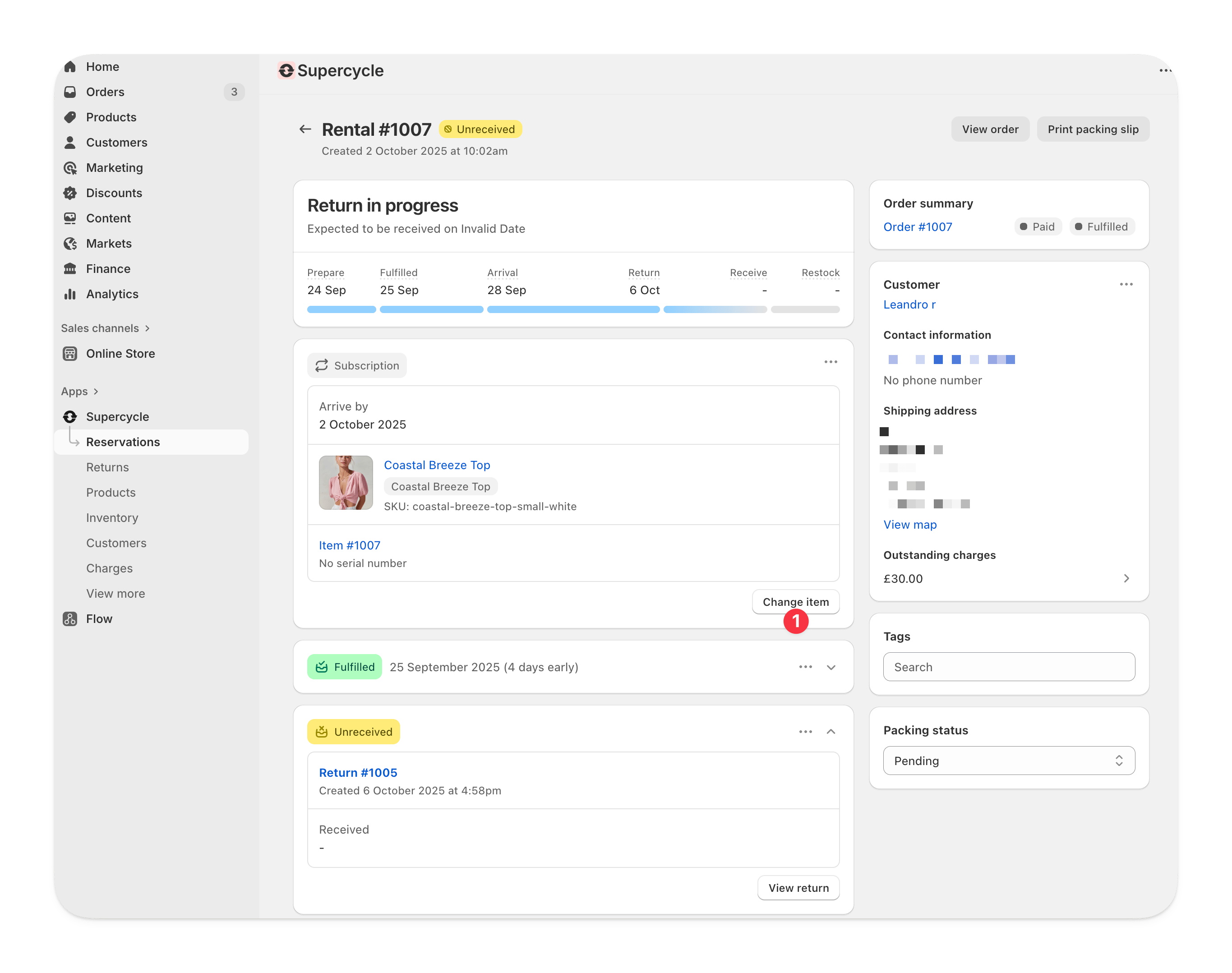
From the rental's page, on the item card, select **Change item**.
Use the [`update_cycle`](/ai/operators-mcp/tools#cycles) tool with:
* `id` - Cycle ID (e.g. `SC-1234`)
* `fulfilled_at` - Fulfilment date in `YYYY-MM-DD` format
Use the [Update a cycle](/api-reference/admin/rentals/update-a-rental) endpoint with the `fulfilledAt` parameter.
***
### Change product/variant
You can change the item associated with a rental to any item from any product.
Changing the product on a rental does not change the product on the Shopify order. If this is important, you should refund the line item in Shopify in order to cancel the existing rental and then create a new rental for the new product.
Changing the product will not charge/refund the difference to the customer. You should do this manually by partially refunding the original order, creating a draft order with a custom line item to charge the extra amount.
From the rental's page, on the item card, select **Change item**.
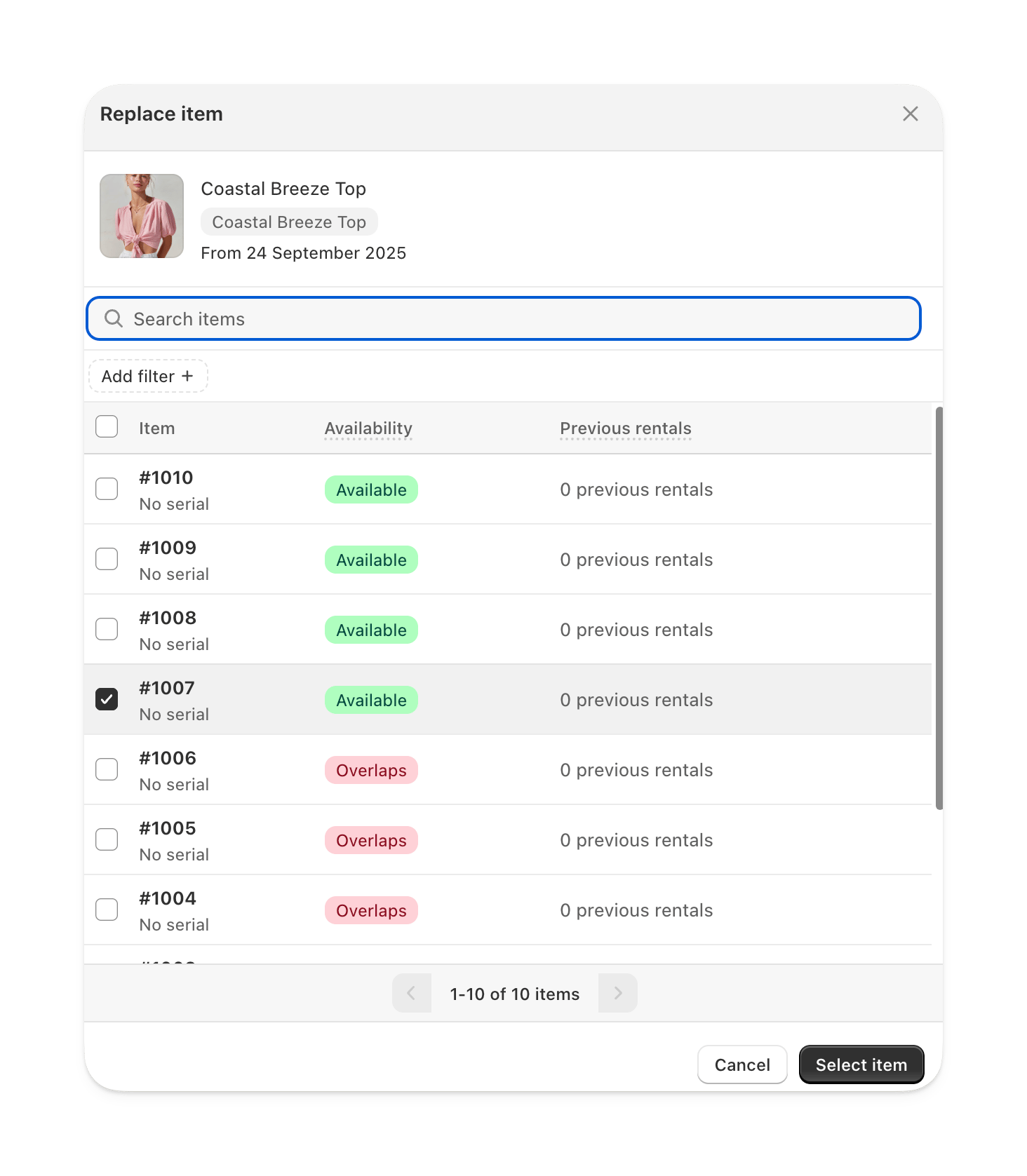
 Under **Change item**, search and select an item by its product/variant name or its item id/serial.
Supercycle limits the number of items that are returned on the search dropdown. If the item you're looking for doesn't show, try adding more detail to the search.
Under **Change item**, search and select an item by its product/variant name or its item id/serial.
Supercycle limits the number of items that are returned on the search dropdown. If the item you're looking for doesn't show, try adding more detail to the search.
 Save your changes at the top of the page.
***
### Change item
From the rental's page, on the item card, select **Change item**.
Under **Change item**, search and select an item by its product/variant name or its item id/serial.
Supercycle limits the number of items that are returned on the search dropdown. If the item you're looking for doesn't show, try adding more detail to the search.
Save your changes at the top of the page.
Change which item is allocated to a rental, either from the rental, or by scanning an item which has a rental for the same product/variant (that currently has a different item allocated to it).
Use the [`update_cycle`](/ai/operators-mcp/tools#cycles) tool with:
* `id` - Cycle ID (e.g. `SC-1234`)
* `item_id` - The new item ID to assign
Use the [Update a cycle](/api-reference/admin/rentals/update-a-rental) endpoint with the `itemId` parameter.
***
### Change rental period
The rental dates can be changed to any dates and we recommend checking the availability of the item before selecting new dates.
Changing the rental period does not automatically adjust charges to the customer.\
You will need to handle any additional charges or refunds separately.
From the rental's page, under **Logistics**, select **Edit**.
Save your changes at the top of the page.
***
### Change item
From the rental's page, on the item card, select **Change item**.
Under **Change item**, search and select an item by its product/variant name or its item id/serial.
Supercycle limits the number of items that are returned on the search dropdown. If the item you're looking for doesn't show, try adding more detail to the search.
Save your changes at the top of the page.
Change which item is allocated to a rental, either from the rental, or by scanning an item which has a rental for the same product/variant (that currently has a different item allocated to it).
Use the [`update_cycle`](/ai/operators-mcp/tools#cycles) tool with:
* `id` - Cycle ID (e.g. `SC-1234`)
* `item_id` - The new item ID to assign
Use the [Update a cycle](/api-reference/admin/rentals/update-a-rental) endpoint with the `itemId` parameter.
***
### Change rental period
The rental dates can be changed to any dates and we recommend checking the availability of the item before selecting new dates.
Changing the rental period does not automatically adjust charges to the customer.\
You will need to handle any additional charges or refunds separately.
From the rental's page, under **Logistics**, select **Edit**.
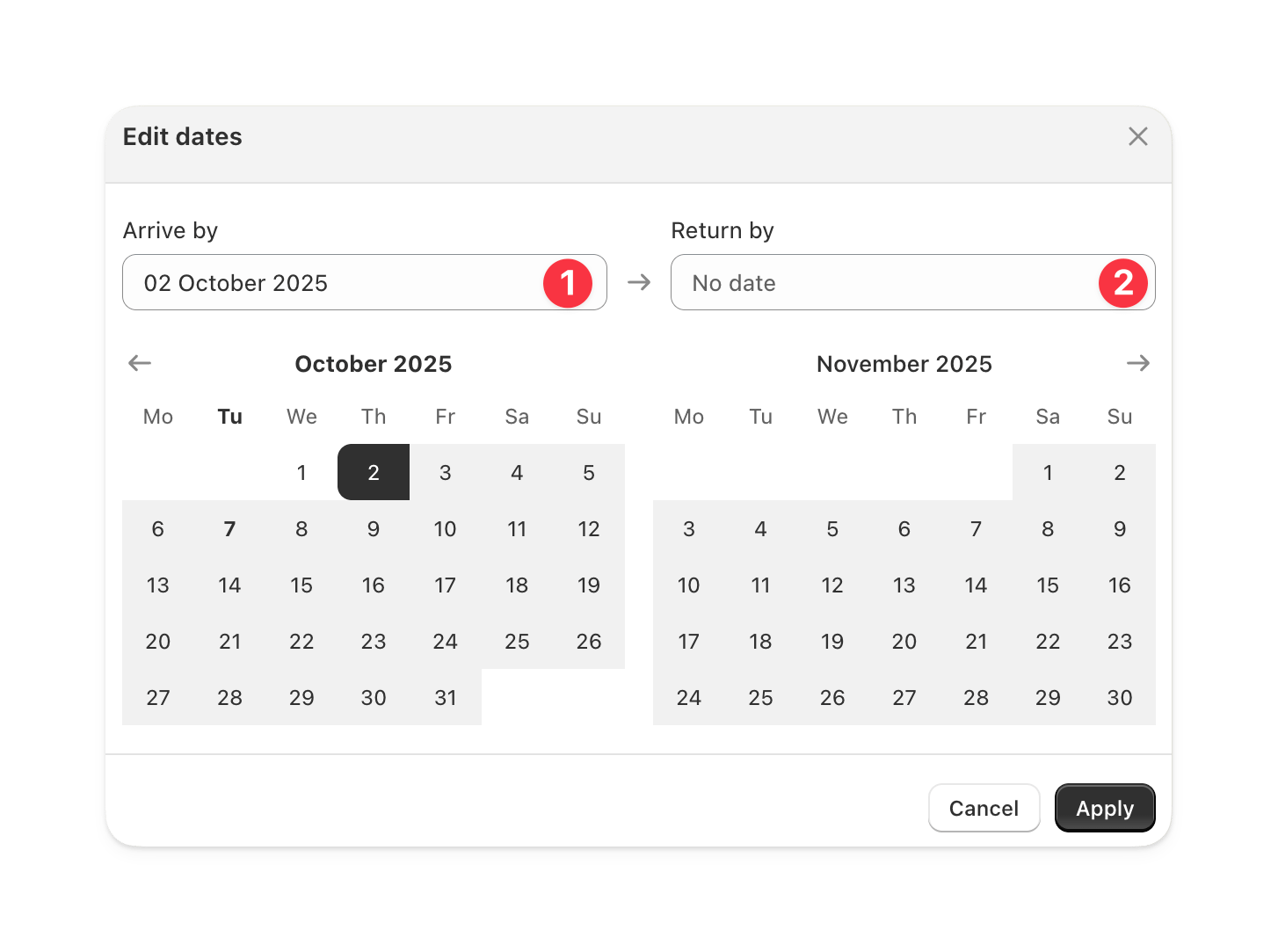
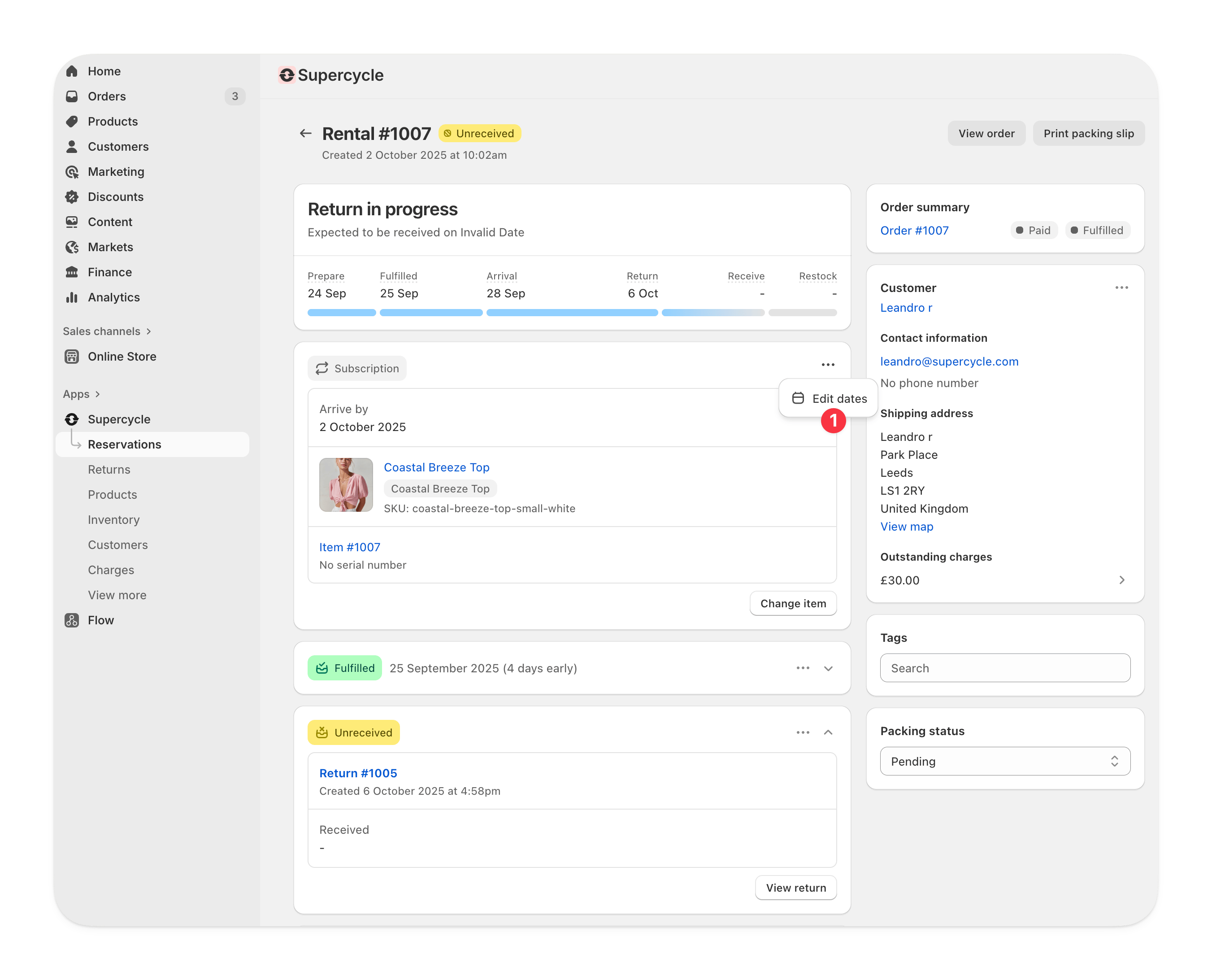 Under **Rental start** and **Rental end**, select new dates for either or both.
You'll have to charge or refund the customer separately if changing the rental period.
Under **Rental start** and **Rental end**, select new dates for either or both.
You'll have to charge or refund the customer separately if changing the rental period.
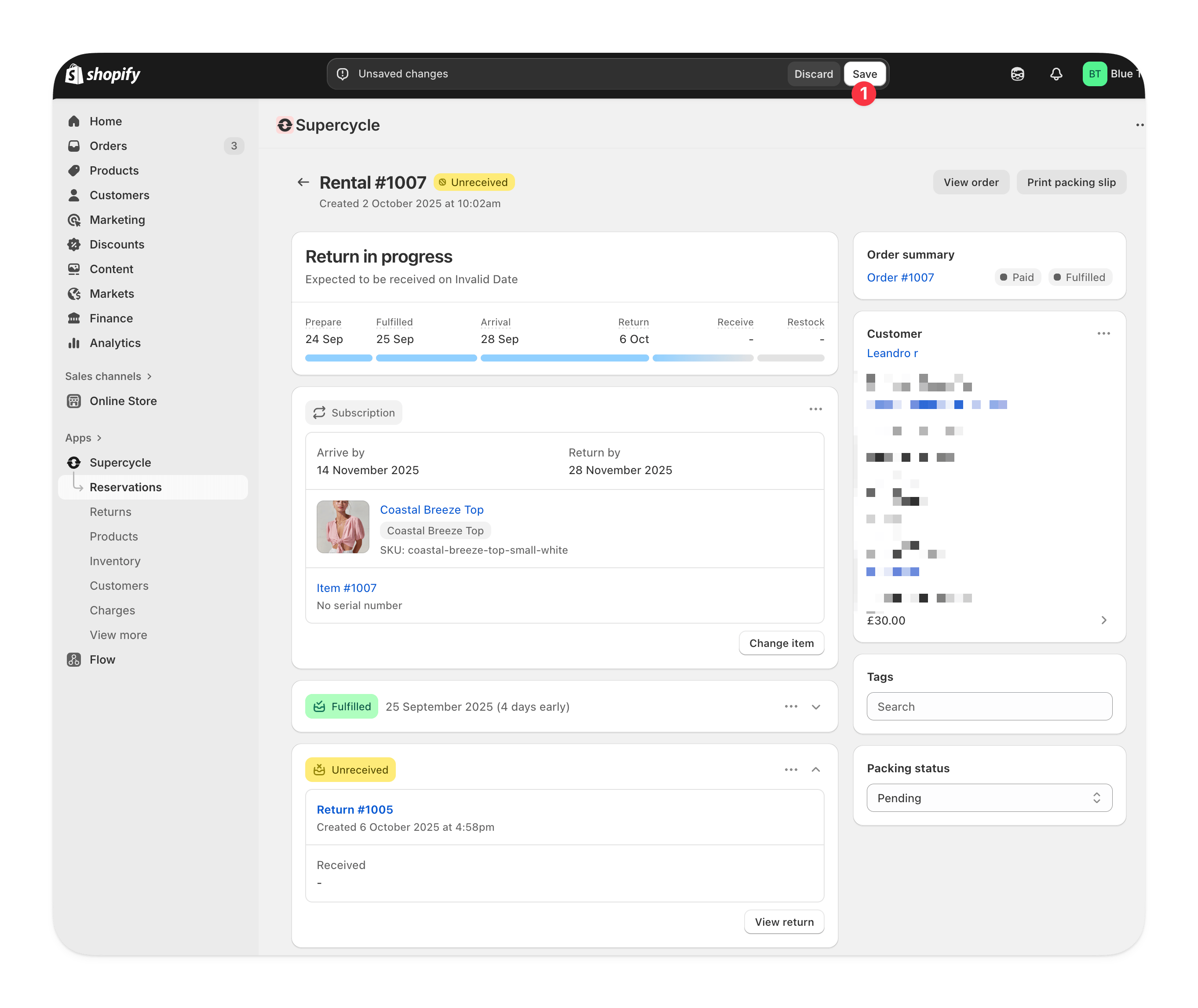
 You'll still need to do this, even if you close the edit rental view.
 Use the [`update_cycle`](/ai/operators-mcp/tools#cycles) tool with:
* `id` - Cycle ID (e.g. `SC-1234`)
* `rental_start` / `rental_end` - New dates in `YYYY-MM-DD` format
Use the [Update a cycle](/api-reference/admin/rentals/update-a-rental) endpoint with the `rentalStart` and/or `rentalEnd` parameters.
***
### Change fulfillment date/time
From the rental's page, under **Logistics**, select **Edit**.
Use the [`update_cycle`](/ai/operators-mcp/tools#cycles) tool with:
* `id` - Cycle ID (e.g. `SC-1234`)
* `rental_start` / `rental_end` - New dates in `YYYY-MM-DD` format
Use the [Update a cycle](/api-reference/admin/rentals/update-a-rental) endpoint with the `rentalStart` and/or `rentalEnd` parameters.
***
### Change fulfillment date/time
From the rental's page, under **Logistics**, select **Edit**.
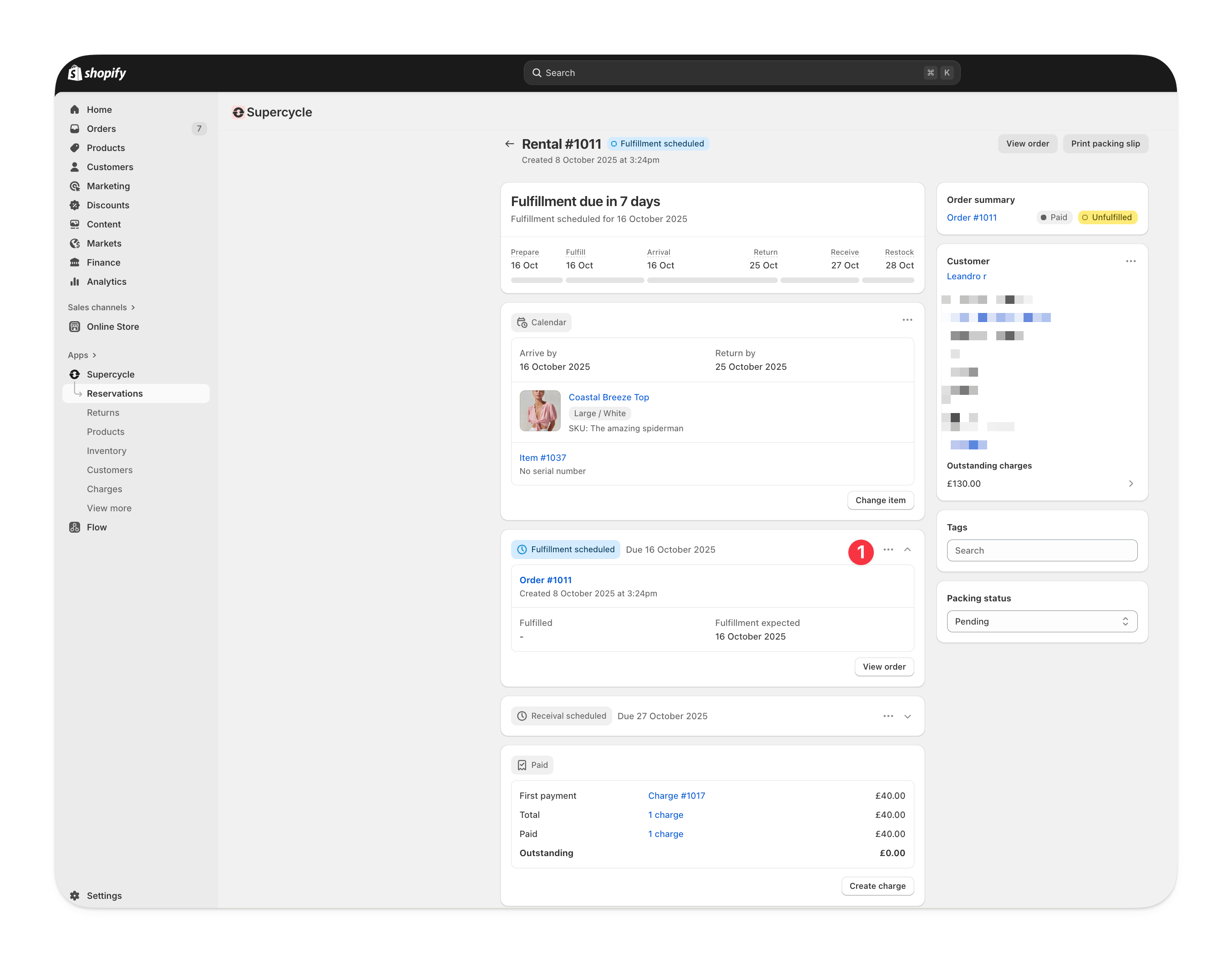 Under **Fulfilled at**, select new dates.
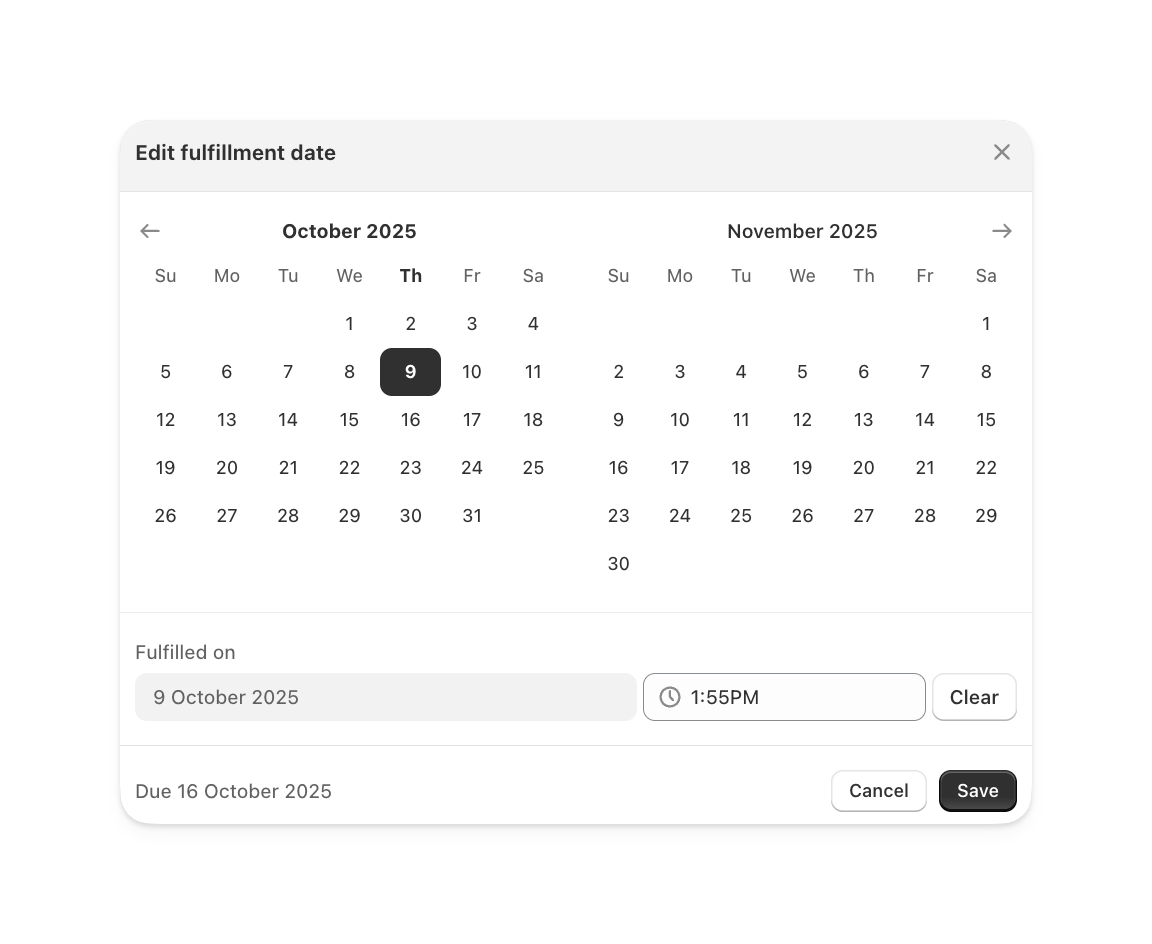 You'll still need to do this, even if you close the edit rental view.
When an Order in Shopify is marked as fulfilled with an associated rental, the rental's **Fulfilled at** will also be updated.
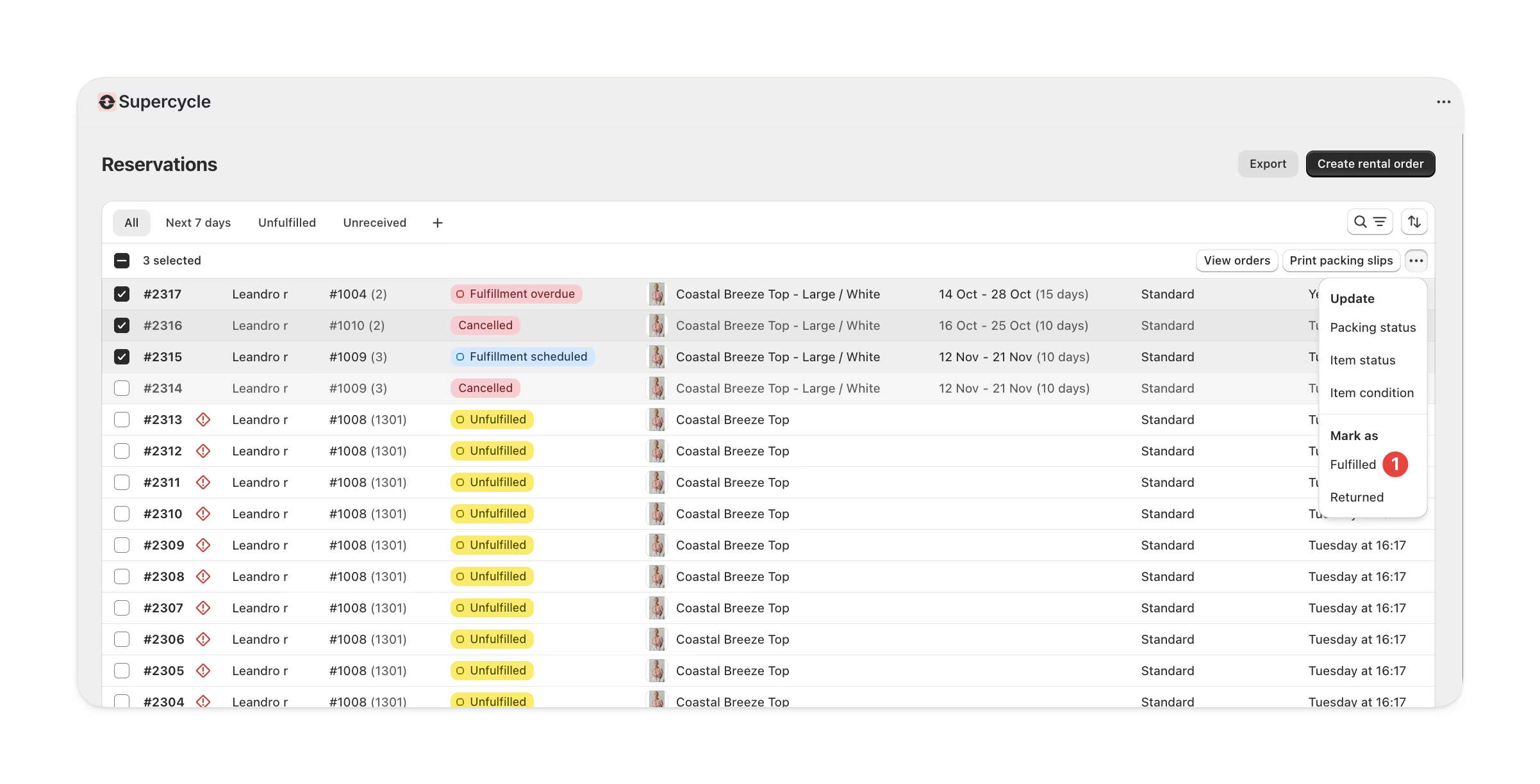
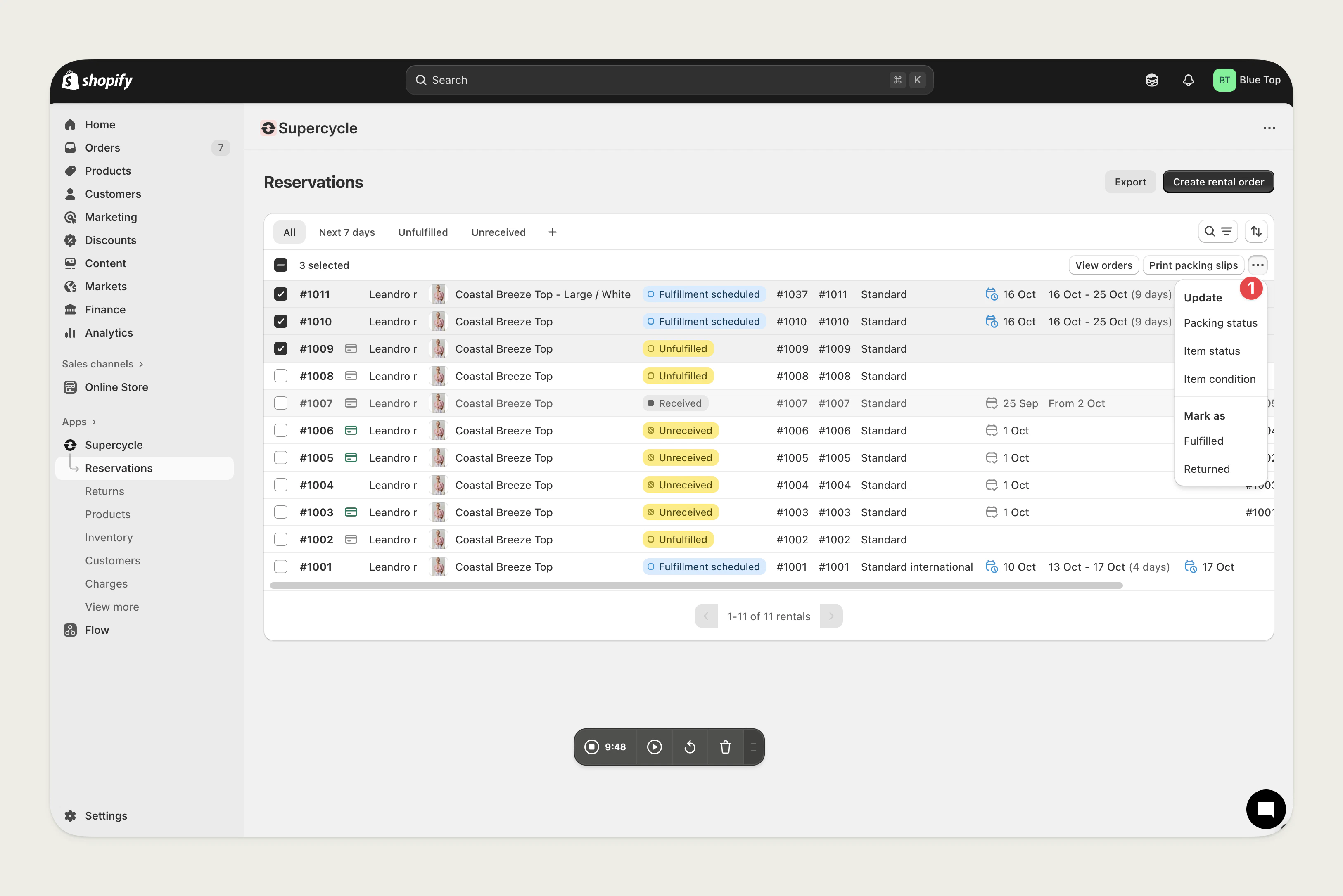
**Mark as Fulfilled** action from the **Actions** options on the [Cycles](https://admin.shopify.com/apps/supercycle/rentals) table.
You'll still need to do this, even if you close the edit rental view.
When an Order in Shopify is marked as fulfilled with an associated rental, the rental's **Fulfilled at** will also be updated.
**Mark as Fulfilled** action from the **Actions** options on the [Cycles](https://admin.shopify.com/apps/supercycle/rentals) table.
 Use the [`update_cycle`](/ai/operators-mcp/tools#cycles) tool with:
* `id` - Cycle ID (e.g. `SC-1234`)
* `fulfilled_at` - Fulfilment date in `YYYY-MM-DD` format
Use the [Update a cycle](/api-reference/admin/rentals/update-a-rental) endpoint with the `fulfilledAt` parameter.
***
### Change receival date/time
From the rental's page, select **Edit**.
Use the [`update_cycle`](/ai/operators-mcp/tools#cycles) tool with:
* `id` - Cycle ID (e.g. `SC-1234`)
* `fulfilled_at` - Fulfilment date in `YYYY-MM-DD` format
Use the [Update a cycle](/api-reference/admin/rentals/update-a-rental) endpoint with the `fulfilledAt` parameter.
***
### Change receival date/time
From the rental's page, select **Edit**.
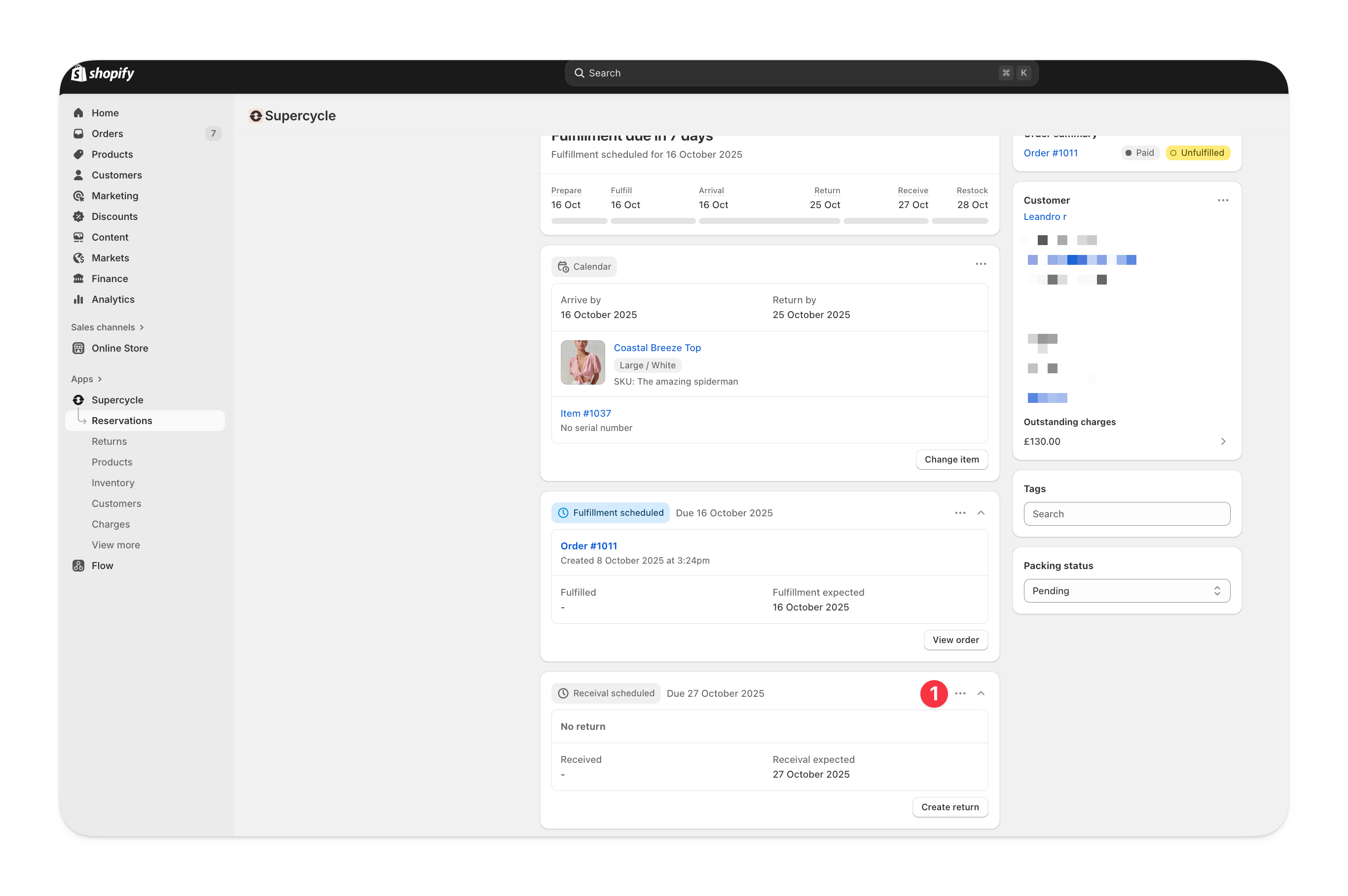 Under **Received at**, select new dates.
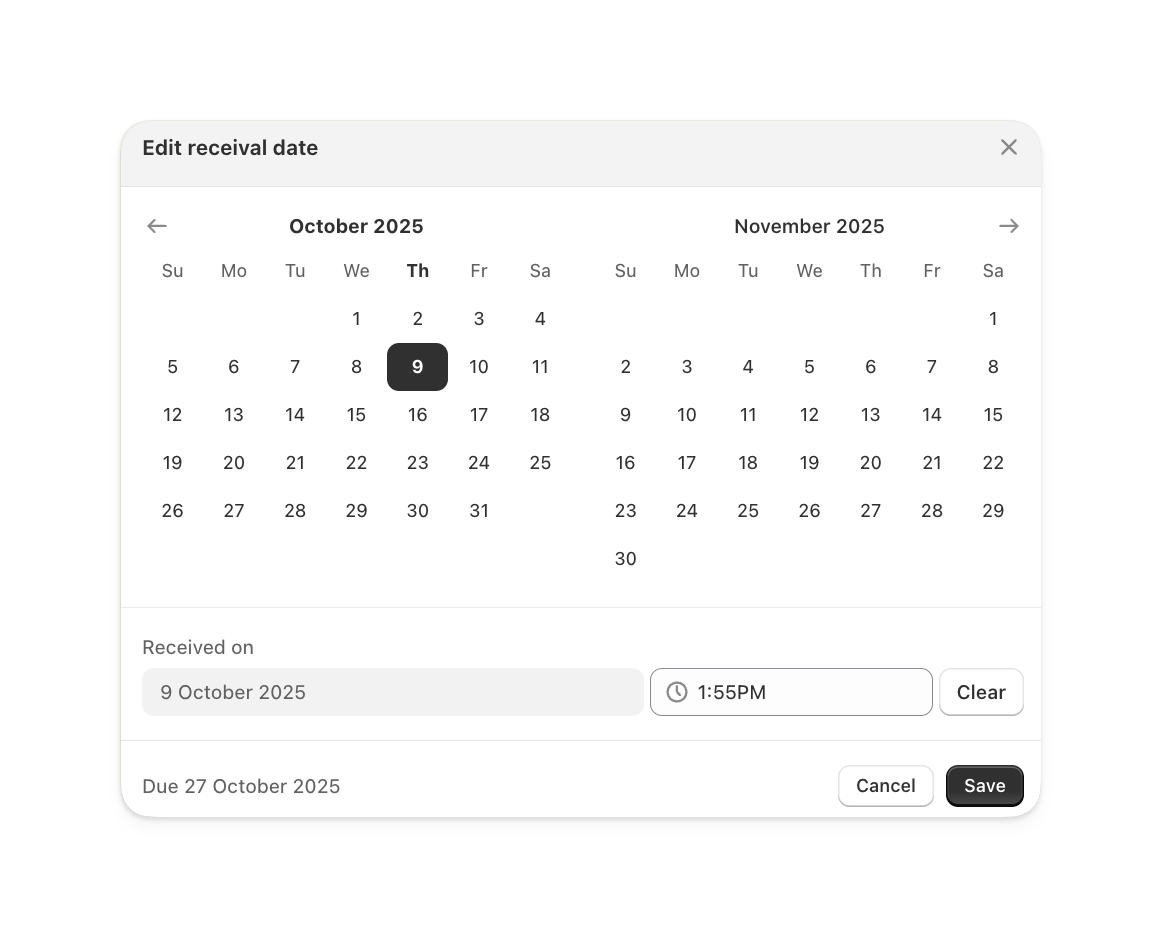 You'll still need to do this, even if you close the edit rental view.
When a Return is marked as received with an associated rental, the rental's receival will also be updated.
**Mark as Returned** action from the **Actions** options on the [Cycles](https://admin.shopify.com/apps/supercycle/rentals) table.
Use the [`update_cycle`](/ai/operators-mcp/tools#cycles) tool with:
* `id` - Cycle ID (e.g. `SC-1234`)
* `received_at` - Receival date in `YYYY-MM-DD` format
Use the [Update a cycle](/api-reference/admin/rentals/update-a-rental) endpoint with the `receivedAt` parameter.
***
### Cancel rental
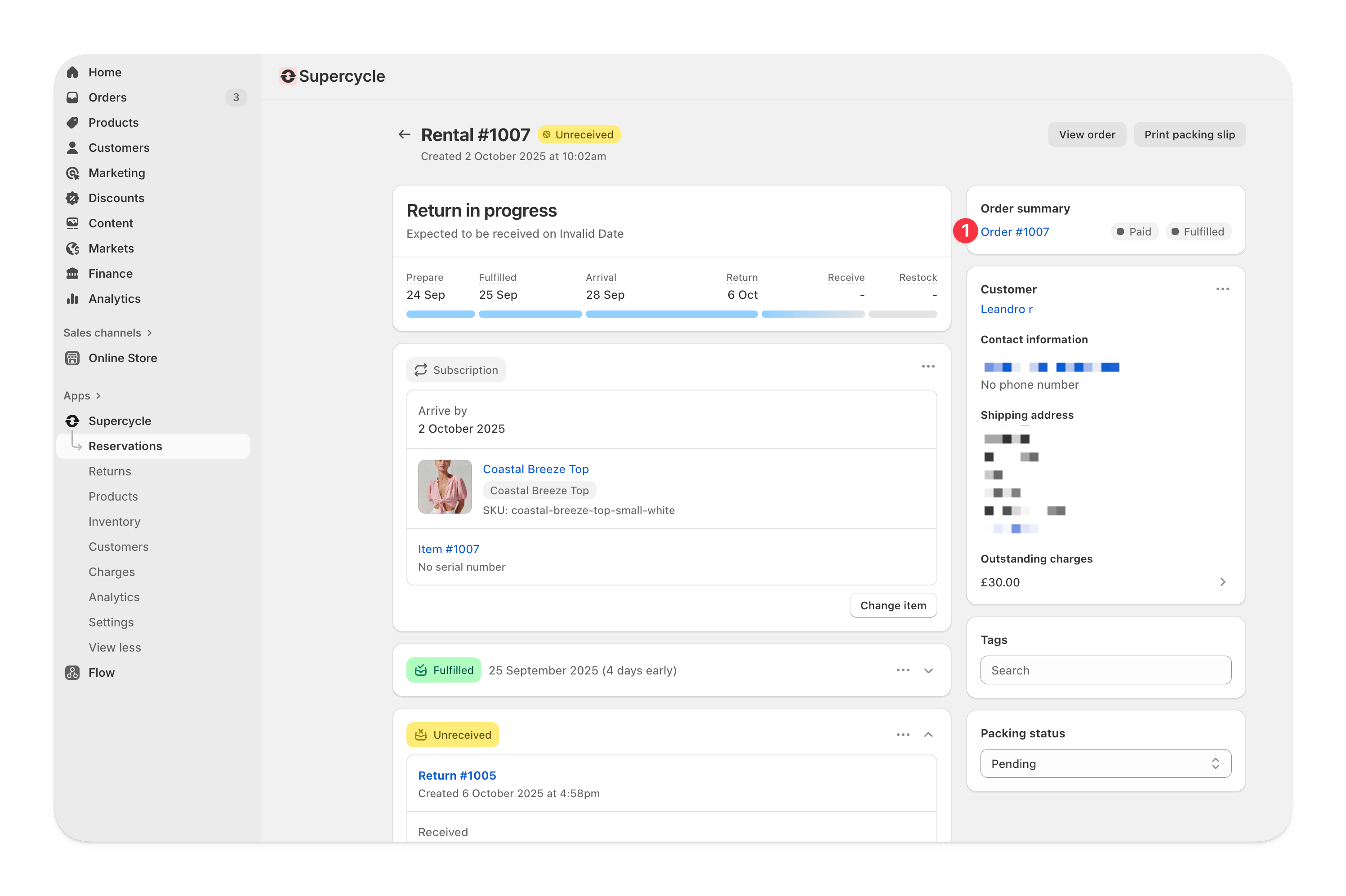
Rentals can be canceled by removing the line item from the Shopify order.
You can also navigate to the order via the rental in Supercycle.
You'll still need to do this, even if you close the edit rental view.
When a Return is marked as received with an associated rental, the rental's receival will also be updated.
**Mark as Returned** action from the **Actions** options on the [Cycles](https://admin.shopify.com/apps/supercycle/rentals) table.
Use the [`update_cycle`](/ai/operators-mcp/tools#cycles) tool with:
* `id` - Cycle ID (e.g. `SC-1234`)
* `received_at` - Receival date in `YYYY-MM-DD` format
Use the [Update a cycle](/api-reference/admin/rentals/update-a-rental) endpoint with the `receivedAt` parameter.
***
### Cancel rental
Rentals can be canceled by removing the line item from the Shopify order.
You can also navigate to the order via the rental in Supercycle.
 From the Shopify order, click **Refund**.
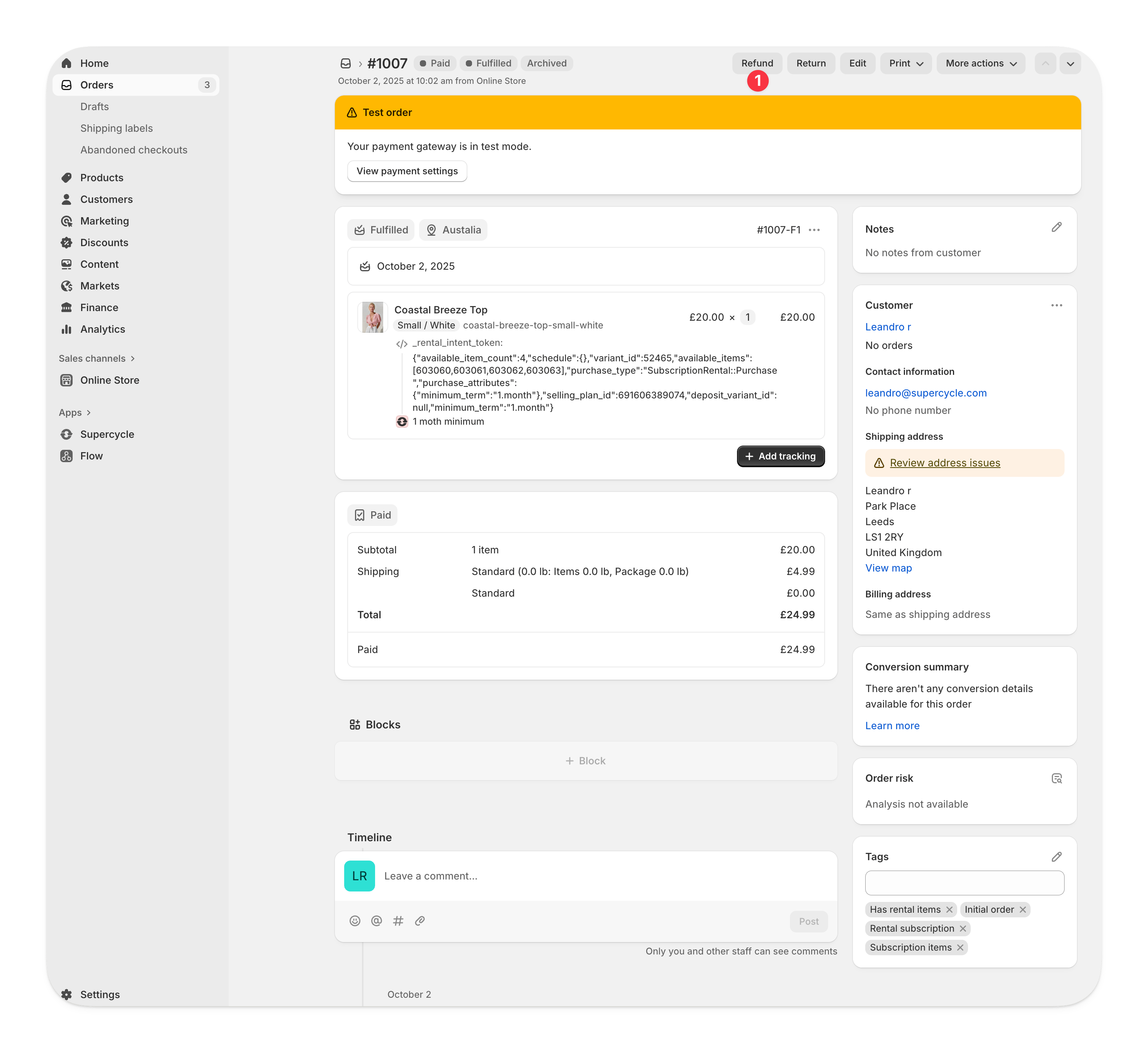 You should process a refund against any line items you want to cancel rentals for.
Shopify allows you to set the refund amount, regardless of the value of the line items. Changing the refund amount won't affect whether rentals are canceled in Supercycle.
You should process a refund against any line items you want to cancel rentals for.
Shopify allows you to set the refund amount, regardless of the value of the line items. Changing the refund amount won't affect whether rentals are canceled in Supercycle.
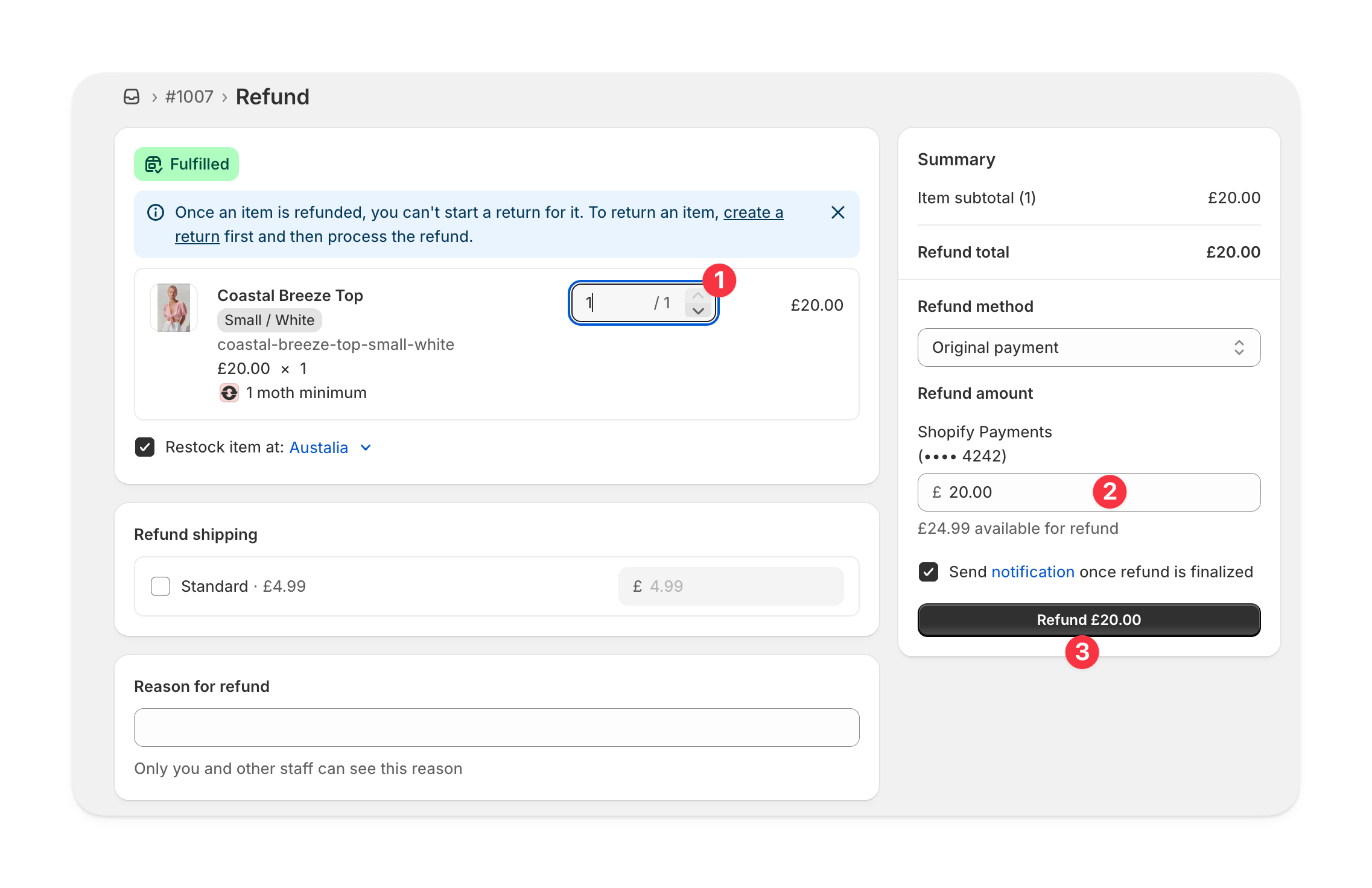 Select **Refund** to continue.
Refunding a line item in Shopify will cancel a rental in Supercycle regardless of its fulfillment status.
***
Select **Refund** to continue.
Refunding a line item in Shopify will cancel a rental in Supercycle regardless of its fulfillment status.
***