> ## Documentation Index
> Fetch the complete documentation index at: https://docs.supercycle.com/llms.txt
> Use this file to discover all available pages before exploring further.
# Fulfilling cycles
> Find, ship, and return cycle orders using Supercycle.
All rentals are connected to a Shopify order, and a Shopify order can include multiple rentals.
Fulfilling a rental, requires fulfilling the associated Shopify order.
When you fulfil a rental order, Supercycle automatically updates the rental status.
To fulfil a rental order, you need to know which orders to fulfil, creating shipments and prepare for receiving the items back.
***
### Filtering which orders to fulfil
You can find rental orders in both Shopify and Supercycle.
From Shopify.
* **Unfulfilled** status
* Tagged with **Has rental items**
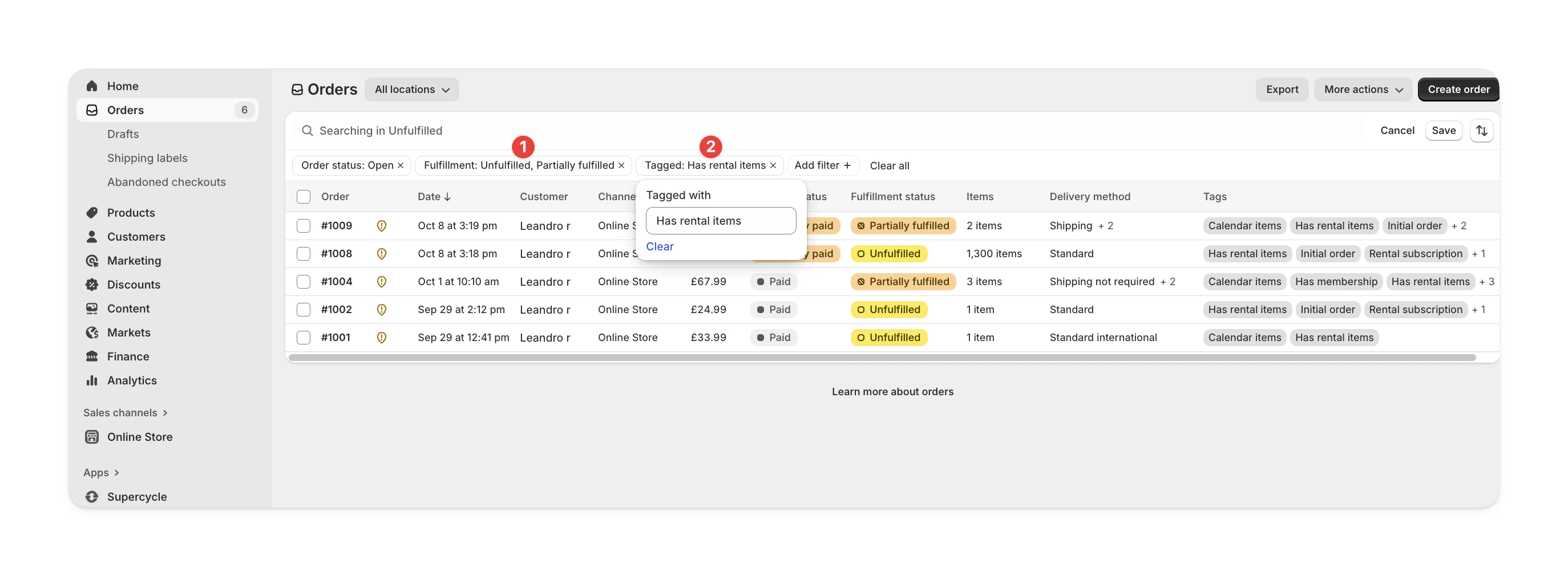 From Supercycle.
Use the **Expected fulfilment date** filter and set it to **Today**.
From Supercycle.
Use the **Expected fulfilment date** filter and set it to **Today**.
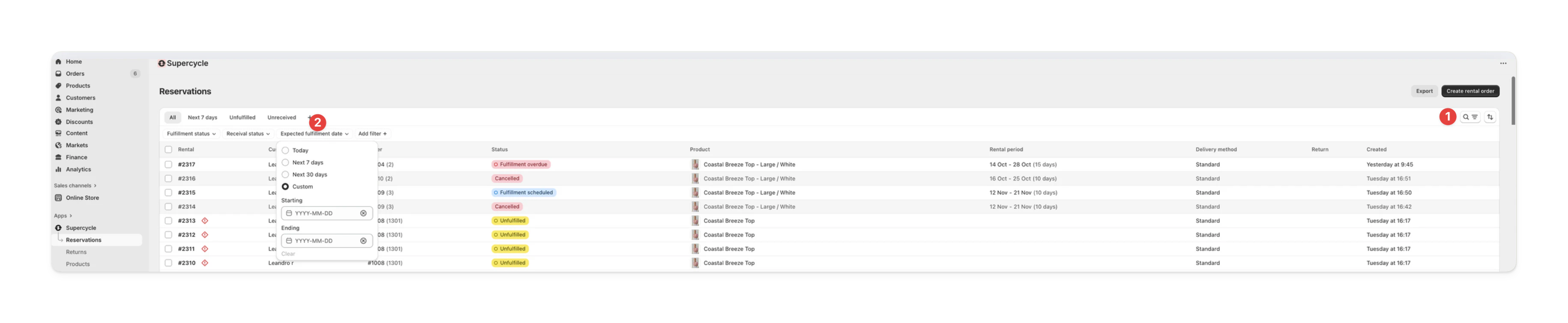 Use the [`list_cycles`](/ai/operators-mcp/tools#cycles) tool with:
* `status` - `to_fulfill`
* `packing_status` - `pending`, `printed`, or `packed`
Use the [List all cycles](/api-reference/admin/rentals/list-all-rentals) endpoint with status and packing filters.
### Print a shipping label
You can create a shipping label in Shopify:
In Supercycle, click the **Shopify order link** in the cycle to open the order in Shopify.
Use the [`list_cycles`](/ai/operators-mcp/tools#cycles) tool with:
* `status` - `to_fulfill`
* `packing_status` - `pending`, `printed`, or `packed`
Use the [List all cycles](/api-reference/admin/rentals/list-all-rentals) endpoint with status and packing filters.
### Print a shipping label
You can create a shipping label in Shopify:
In Supercycle, click the **Shopify order link** in the cycle to open the order in Shopify.
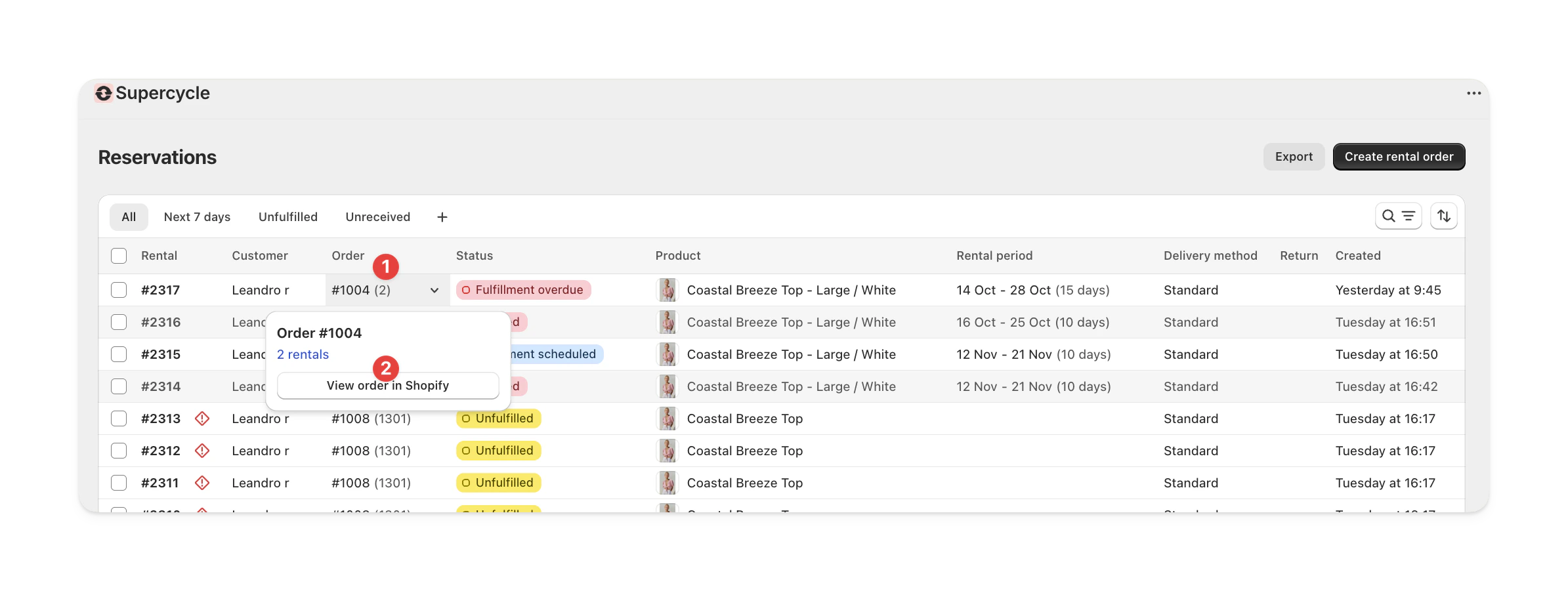 In Shopify, click **Create shipping label**.
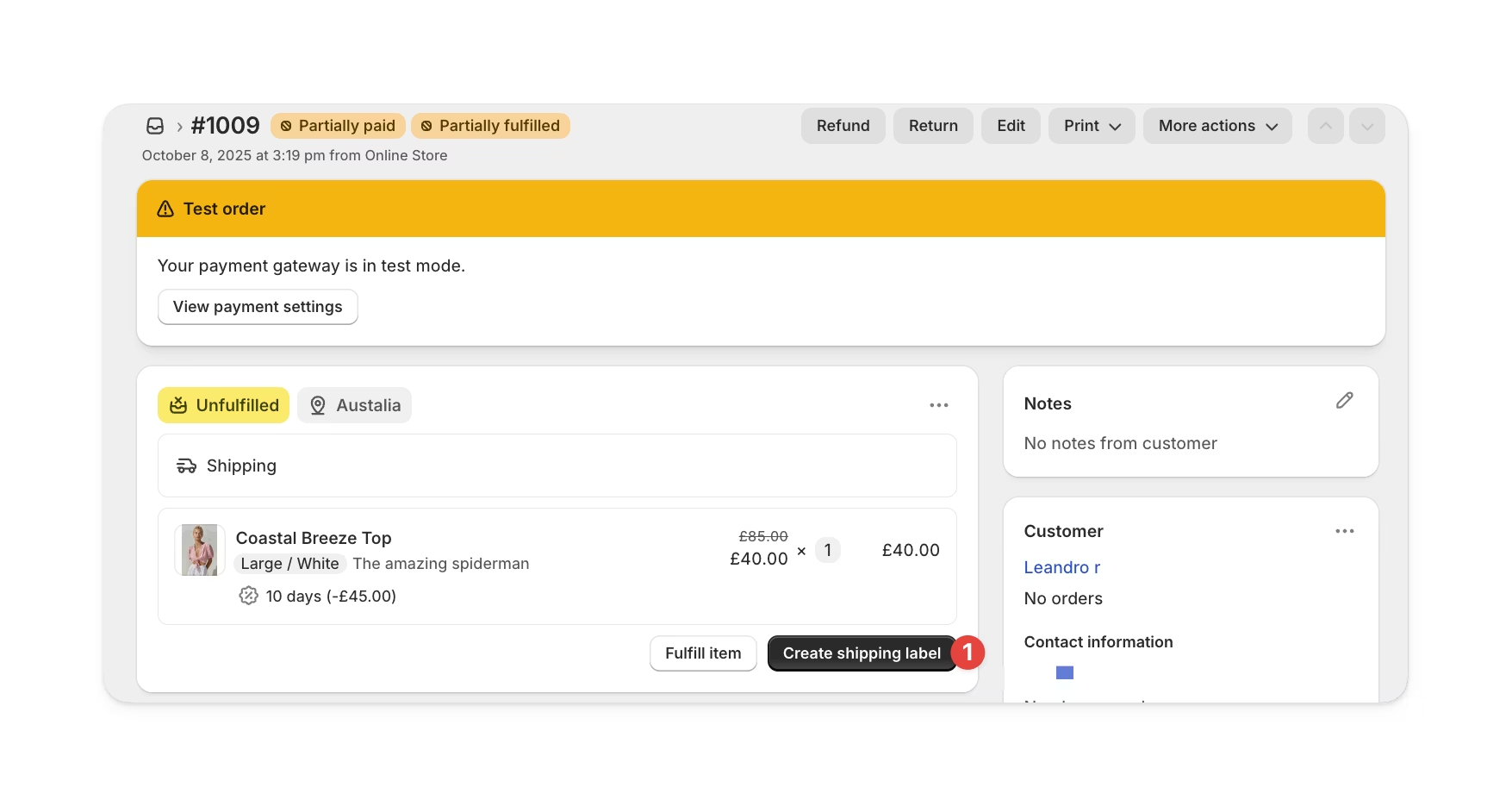 If you use a third-party shipping tool like **ShipStation**, you can print the label there and add the tracking number in Shopify.
### Fulfil the order
You can fulfil the order from Shopify, from Supercycle, or through the API.
When you fulfil the order in Shopify, Supercycle automatically updates the rental status to **Fulfilled**.
In your Shopify admin, go to **Orders**, then select the order you want to fulfil.
In the **Unfulfilled** section, click **Fulfil item(s)**.\
Add a tracking number and select a carrier if needed.
Select **Send shipment details to your customer now** to email tracking info.
Shopify updates the status to **Fulfilled**, and Supercycle marks rentals as fulfilled.
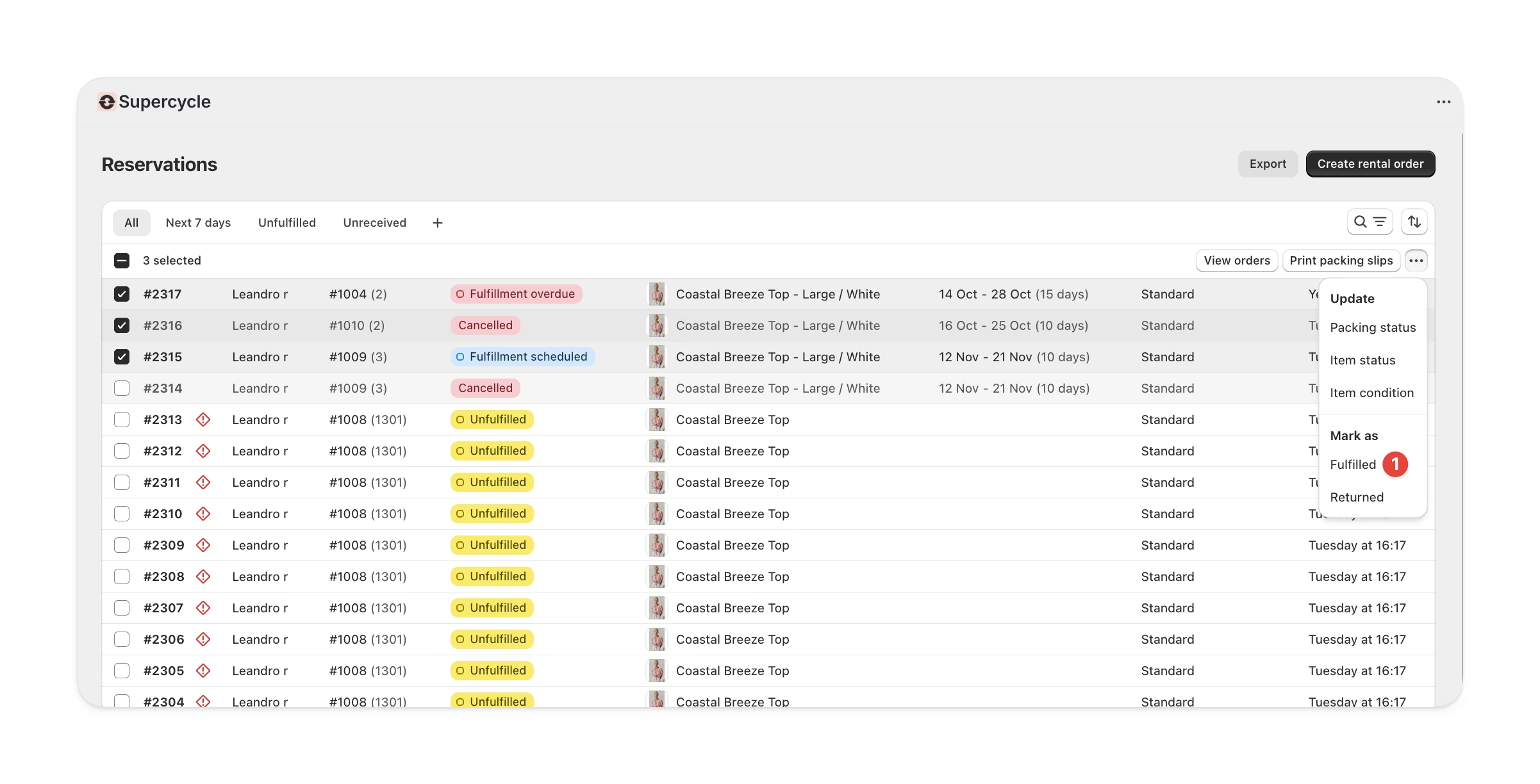
You can also fulfil directly in the **Cycles** view in Supercycle.
We don't recomened this at the moment. As you will still need fulfil orders directly in Shopify. We're working on fixing this, and it will be available in an upcoming update.
If you use a third-party shipping tool like **ShipStation**, you can print the label there and add the tracking number in Shopify.
### Fulfil the order
You can fulfil the order from Shopify, from Supercycle, or through the API.
When you fulfil the order in Shopify, Supercycle automatically updates the rental status to **Fulfilled**.
In your Shopify admin, go to **Orders**, then select the order you want to fulfil.
In the **Unfulfilled** section, click **Fulfil item(s)**.\
Add a tracking number and select a carrier if needed.
Select **Send shipment details to your customer now** to email tracking info.
Shopify updates the status to **Fulfilled**, and Supercycle marks rentals as fulfilled.
You can also fulfil directly in the **Cycles** view in Supercycle.
We don't recomened this at the moment. As you will still need fulfil orders directly in Shopify. We're working on fixing this, and it will be available in an upcoming update.
 Use the [`update_cycle`](/ai/operators-mcp/tools#cycles) tool with:
* `id` - Cycle ID (e.g. `SC-1234`)
* `fulfilled_at` - Fulfilment date in `YYYY-MM-DD` format
Use the [Update a cycle](/api-reference/admin/rentals/update-a-rental) endpoint with the `fulfilledAt` parameter.
Use the [`update_cycle`](/ai/operators-mcp/tools#cycles) tool with:
* `id` - Cycle ID (e.g. `SC-1234`)
* `fulfilled_at` - Fulfilment date in `YYYY-MM-DD` format
Use the [Update a cycle](/api-reference/admin/rentals/update-a-rental) endpoint with the `fulfilledAt` parameter.