> ## Documentation Index
> Fetch the complete documentation index at: https://docs.supercycle.com/llms.txt
> Use this file to discover all available pages before exploring further.
# Edit cycles on order
> Change an existing cycle order directly from Shopify
You can edit an existing rental order directly from Shopify without needing to create a new one. You can remove or add rentals, charge any difference, or issue refunds.
***
## Removing a rental from an order
In your Shopify admin, go to **Orders** and open the specific order you want to edit.
Select **Edit**.
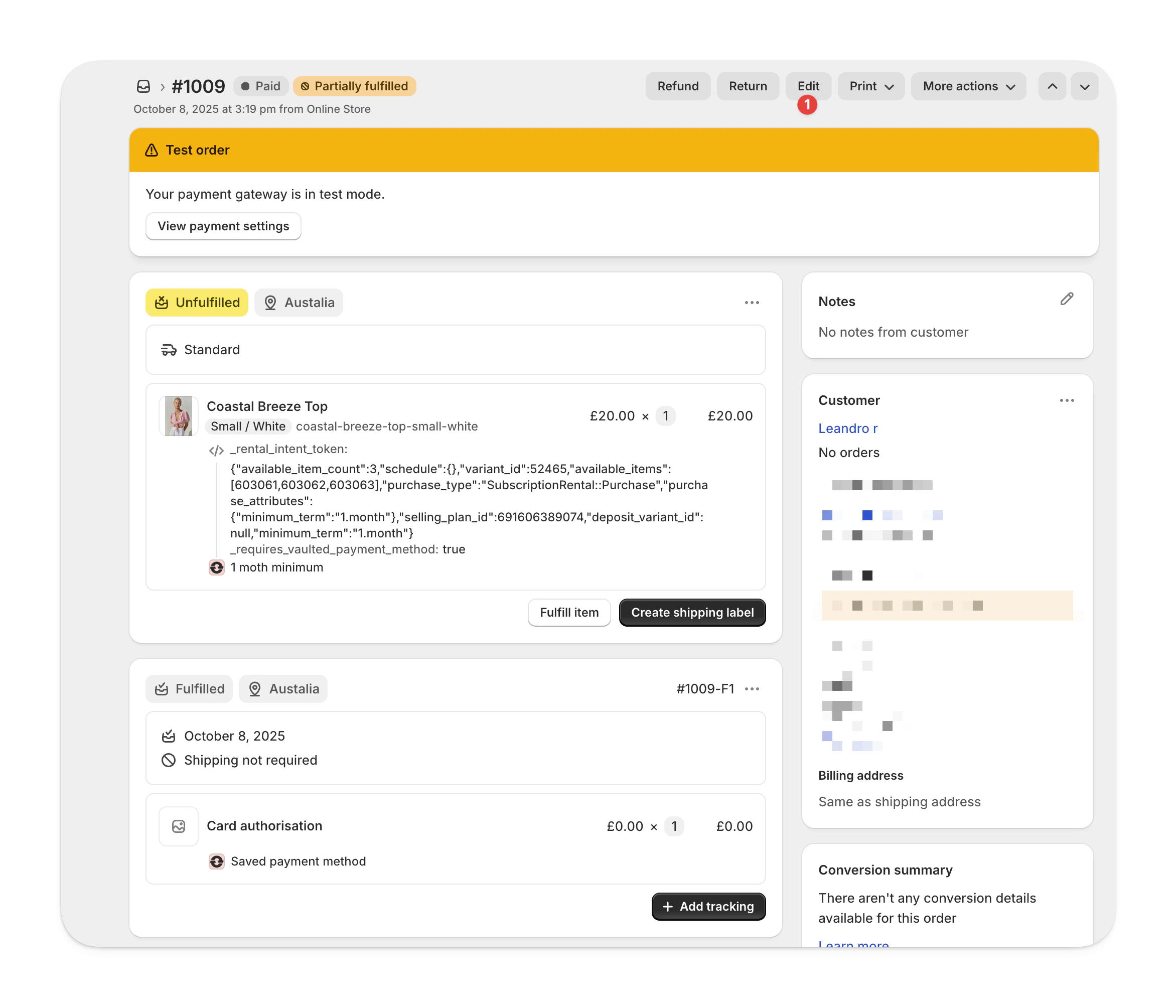 Hover over the rental item you want to remove.\
Select the **X** that appears, or set the **quantity** to 0.
Hover over the rental item you want to remove.\
Select the **X** that appears, or set the **quantity** to 0.
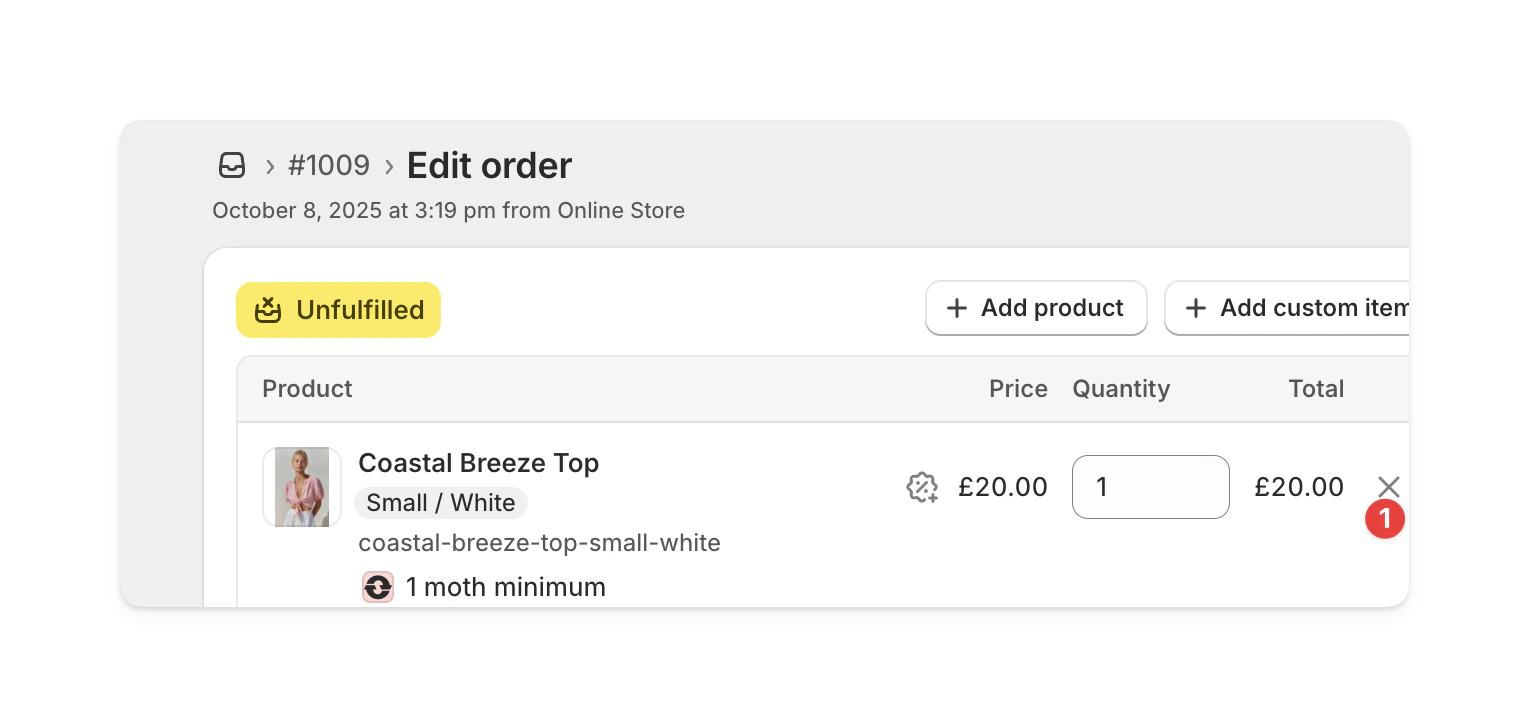 Click **Save** to confirm the change.
***
## Adding a rental to an order
**Setting up your Shopify product price for the Add rental flow**
When you add a rental to an existing order, Supercycle automatically applies a discount to bring the Shopify product price down to your configured rental price.
This means your Shopify product price must be set higher than your most expensive rental option in Supercycle. If the product price is lower than a rental option, that rental price cannot be applied correctly on the order edit.
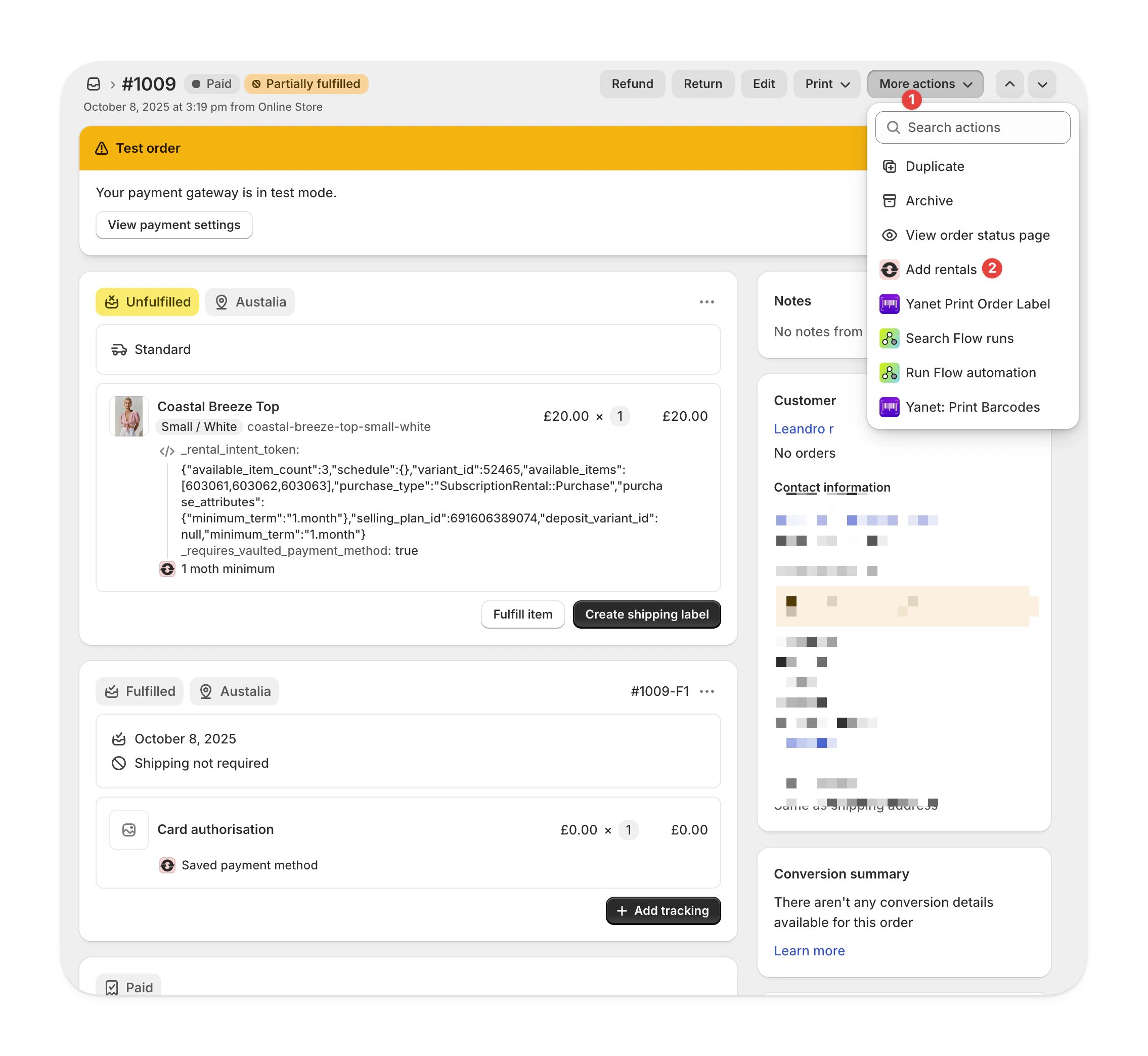
In your Shopify admin, go to **Orders** and open the specific order.
Select **More actions** > **Add rentals**.
Click **Save** to confirm the change.
***
## Adding a rental to an order
**Setting up your Shopify product price for the Add rental flow**
When you add a rental to an existing order, Supercycle automatically applies a discount to bring the Shopify product price down to your configured rental price.
This means your Shopify product price must be set higher than your most expensive rental option in Supercycle. If the product price is lower than a rental option, that rental price cannot be applied correctly on the order edit.
In your Shopify admin, go to **Orders** and open the specific order.
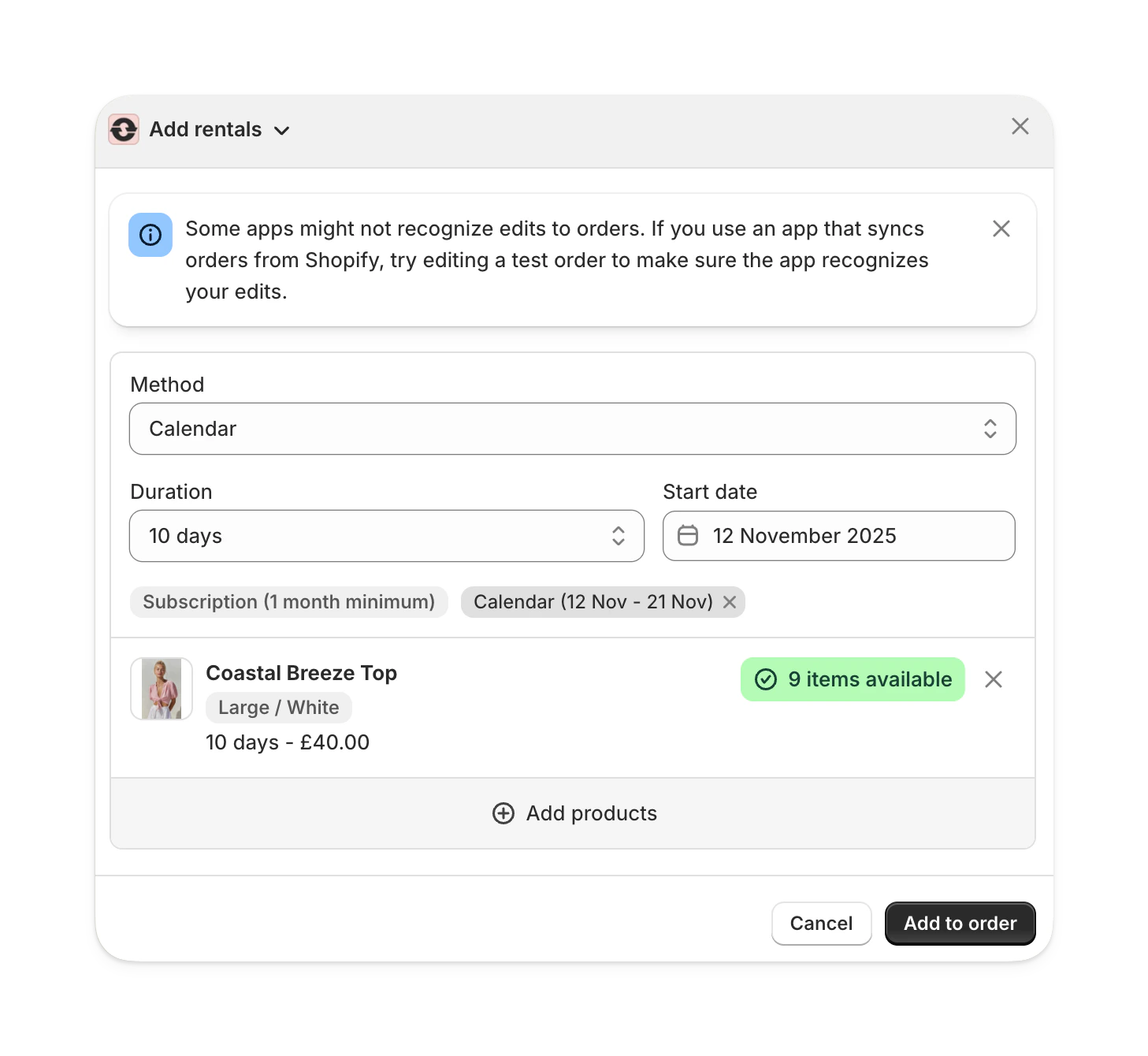
Select **More actions** > **Add rentals**.
 You can:
* Manually choose a **rental method** and **start date**, or
* Select from one of the **presets** shown.
Presets are based on the existing rentals in the order.\
For example, if the order includes a subscription and a calendar rental from **October 10–21**, you'll see both a *Subscription* preset and a *Calendar (Oct 10–21)* preset.
You can:
* Manually choose a **rental method** and **start date**, or
* Select from one of the **presets** shown.
Presets are based on the existing rentals in the order.\
For example, if the order includes a subscription and a calendar rental from **October 10–21**, you'll see both a *Subscription* preset and a *Calendar (Oct 10–21)* preset.
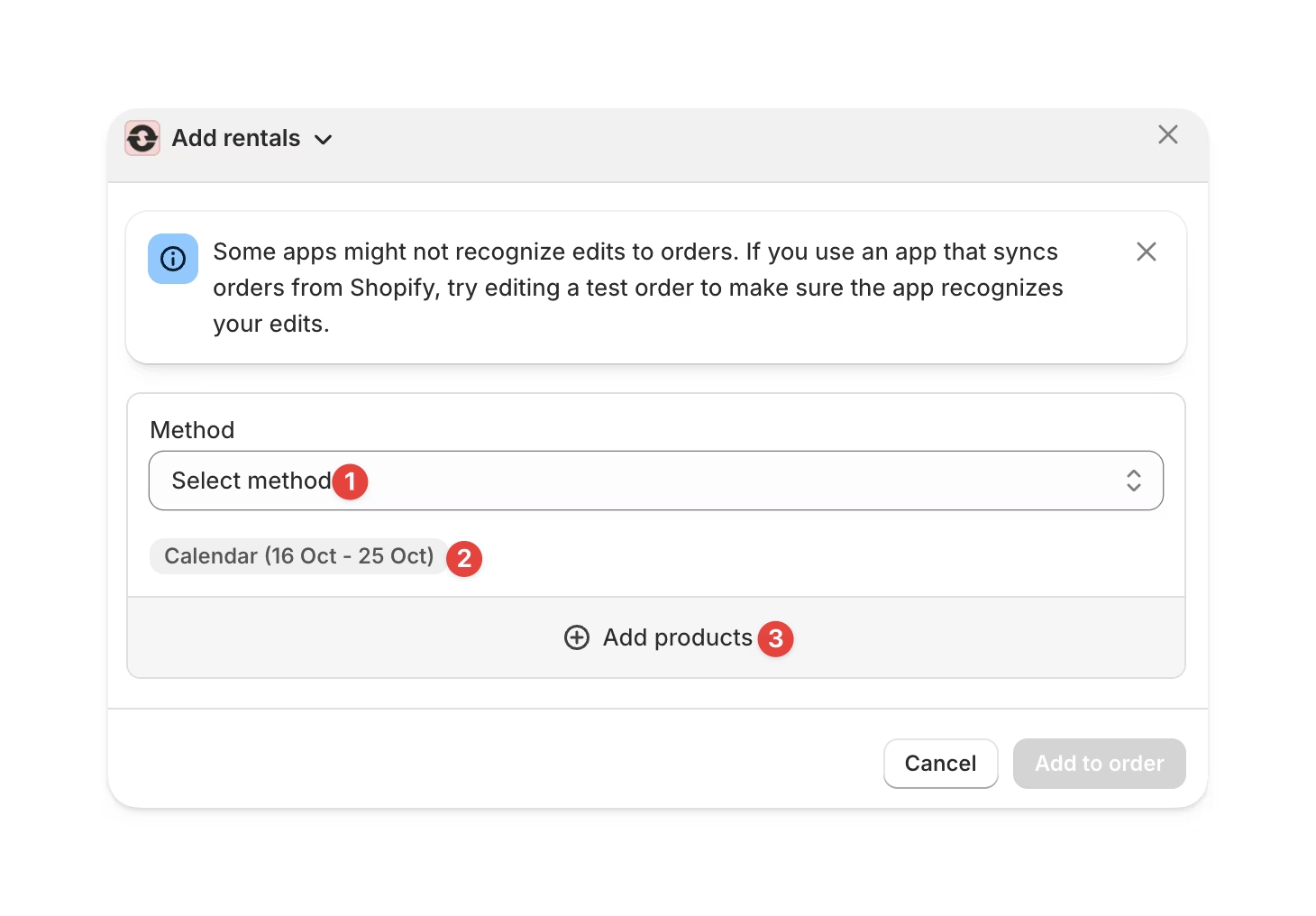 Choose the product you want to add.\
Supercycle will check the item’s availability.\
Once ready, click **Add to order**.
Choose the product you want to add.\
Supercycle will check the item’s availability.\
Once ready, click **Add to order**.
 ***
## Charging the difference
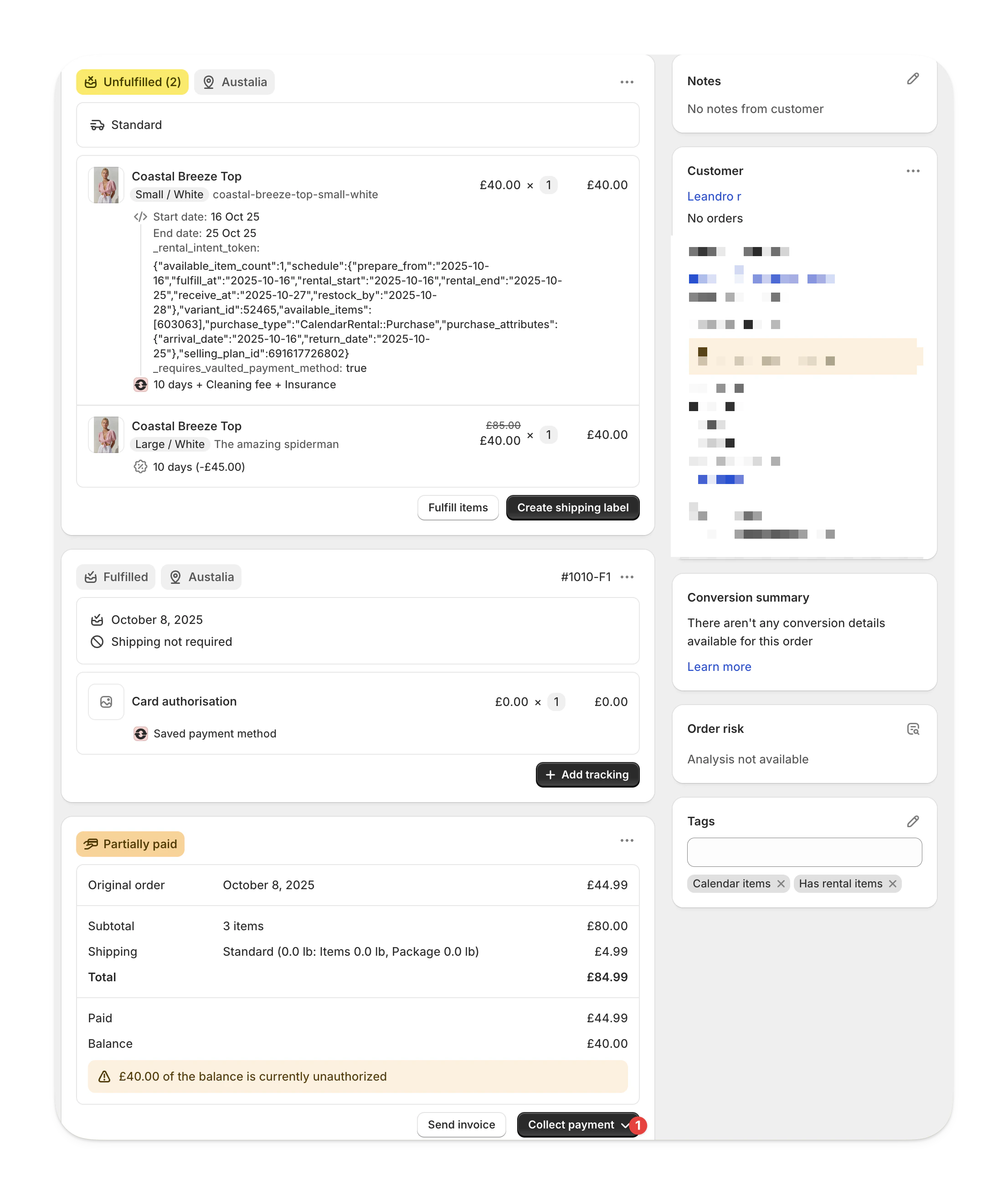
If adding rentals increases the total order value, Shopify will show the **outstanding balance**.
After adding all new rentals, check the summary for the amount due.
You can either:
* **Send an invoice** to the customer, or
* **Charge a saved card** directly.
***
## Charging the difference
If adding rentals increases the total order value, Shopify will show the **outstanding balance**.
After adding all new rentals, check the summary for the amount due.
You can either:
* **Send an invoice** to the customer, or
* **Charge a saved card** directly.
 ***
## Refunding the difference
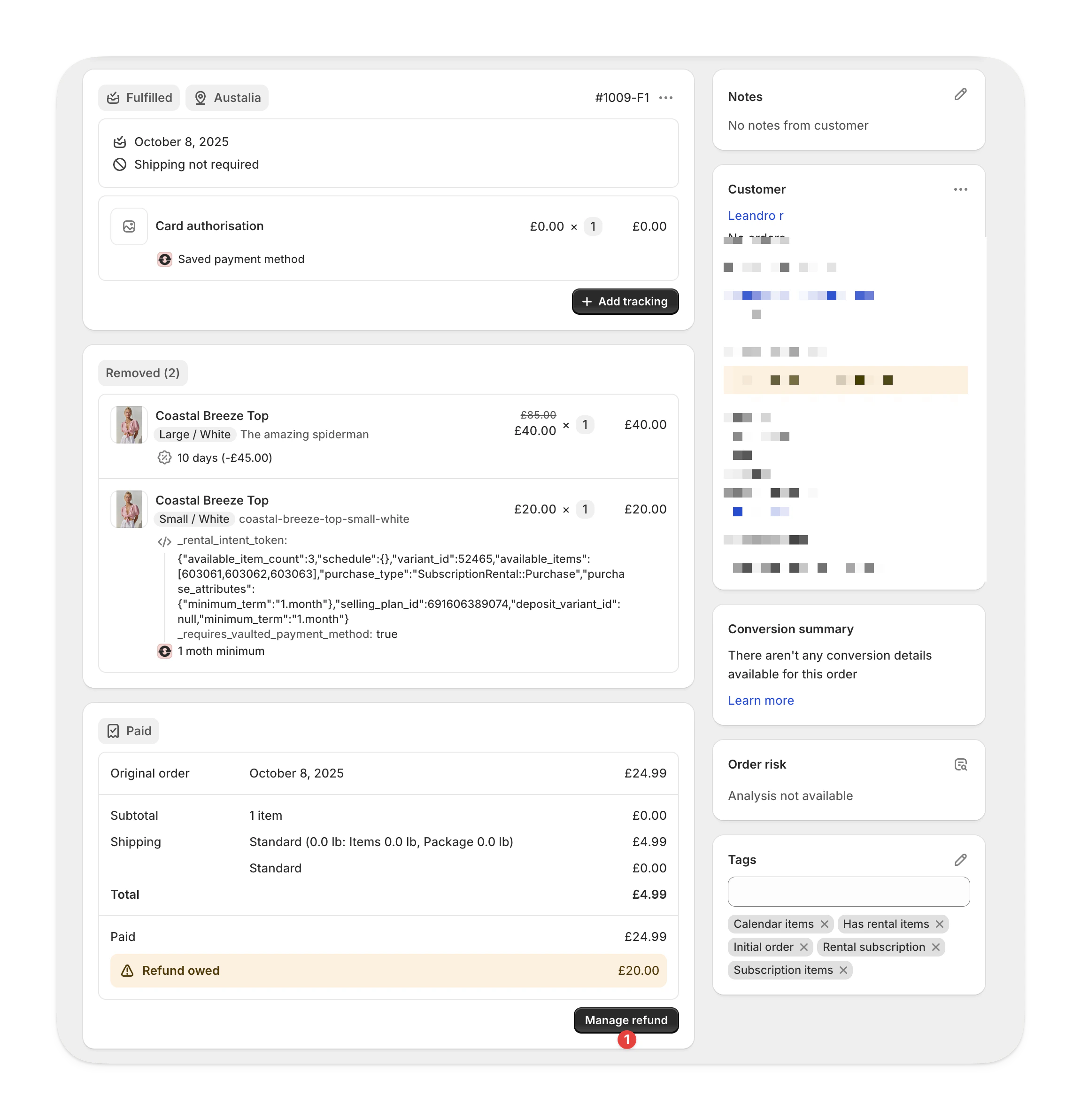
If removing rentals lowers the total order value, you’ll see a **Manage refund** button.
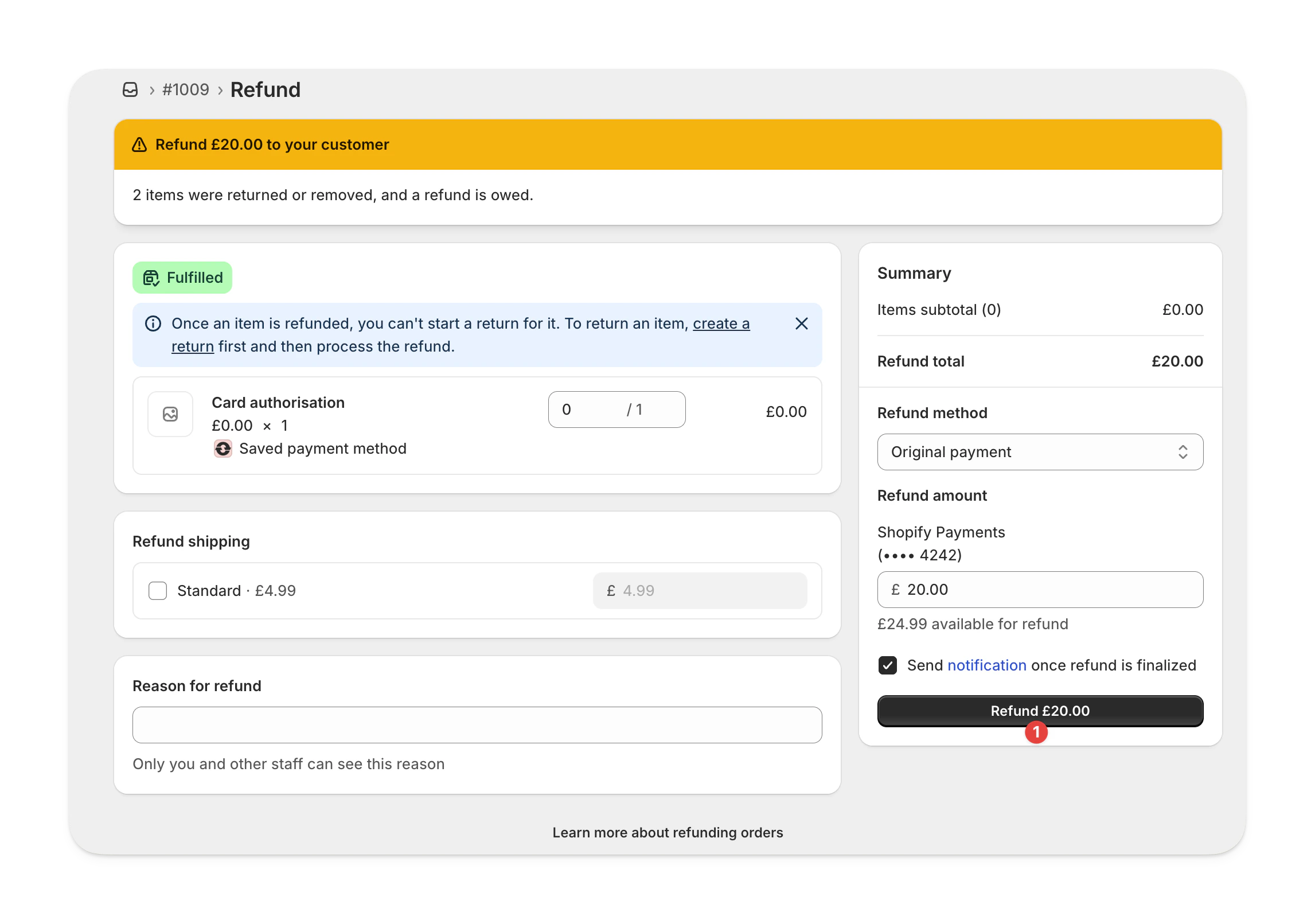
Select **Manage refund**. This opens Shopify’s refund page.
***
## Refunding the difference
If removing rentals lowers the total order value, you’ll see a **Manage refund** button.
Select **Manage refund**. This opens Shopify’s refund page.
 Review the refund details and confirm to process it directly in Shopify.
 ***
## FAQs
***
## FAQs
To change the shipping address for an existing order, go to the order in Shopify.\
Click the **three dots** next to the customer’s name, then select **Edit address**.\
Any changes you make will automatically be reflected in Supercycle.