> ## Documentation Index
> Fetch the complete documentation index at: https://docs.supercycle.com/llms.txt
> Use this file to discover all available pages before exploring further.
# Create cycle order
> Create a cycle order on behalf of a customer from the Supercycle admin
You can create cycles for a customer by starting a brand new cycle order from the Supercycle admin. To add a cycle to an existing Shopify order instead, see [Edit cycles on order](/documentation/manage/cycles/edit-an-order#adding-a-rental-to-an-order).
***
## Create a new cycle order
An in-app create order flow is available in beta. Enable **New create order flow** under [Settings > Beta features](https://admin.shopify.com/apps/supercycle/settings/features) to pick the customer, add variants, and configure calendar, membership, or subscription intents directly inside Supercycle before the Shopify draft order is created. See [Create cycle order (beta)](/documentation/manage/cycles/create-cycles-order-beta).
You can create a cycle on behalf of a customer via the Shopify admin.
Go to Supercycle > Cycles.
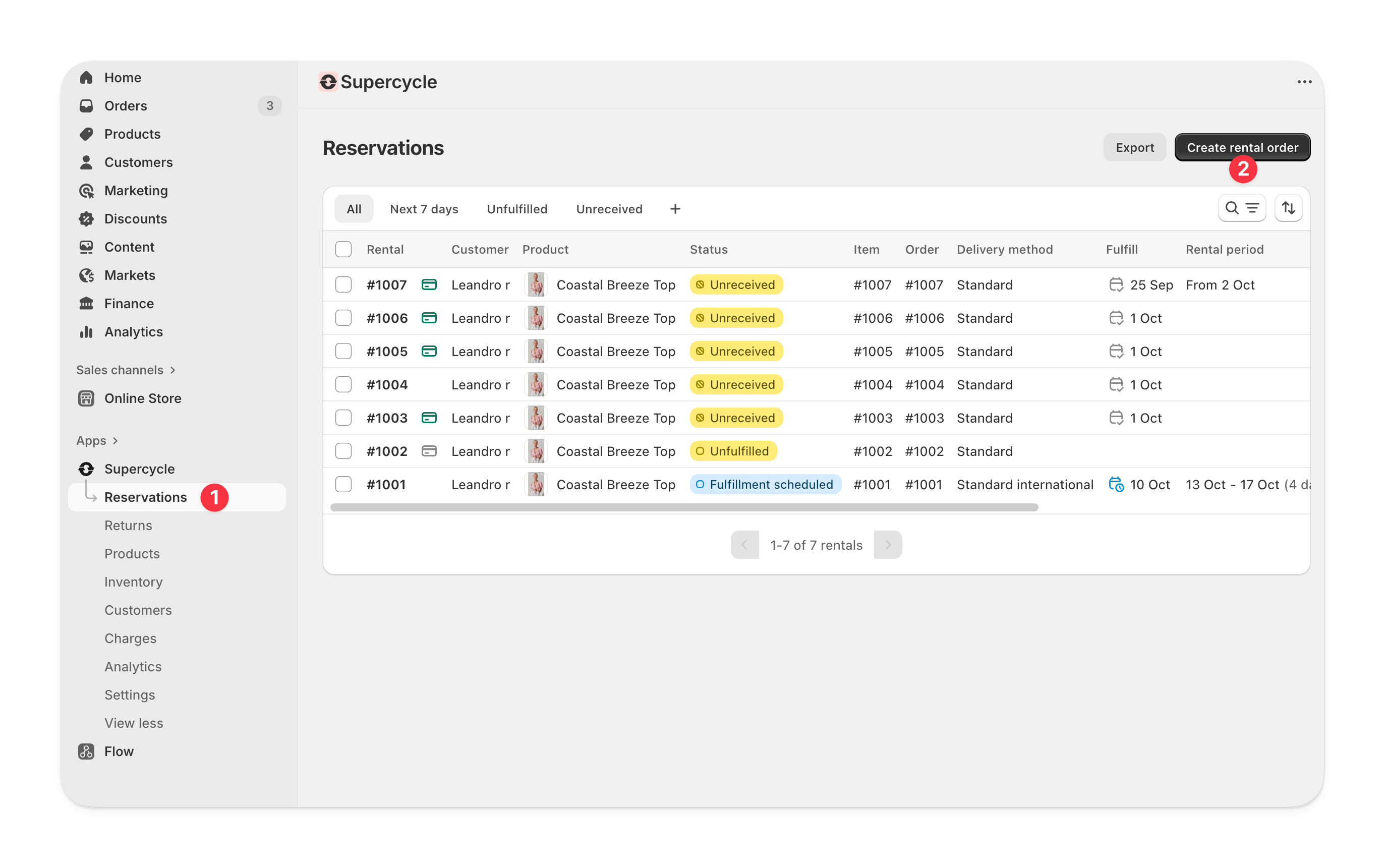 Supercycle asks who the order is for before opening the Shopify draft order. Search for an existing Shopify customer by name or email in the customer picker and select them.
If the customer doesn't exist yet, click **Add new customer** and enter their first name, last name, and email. Supercycle creates them in Shopify on the fly and selects them for the order. Email is required; first and last name are optional.
The customer picker searches every customer in your Shopify store, not just customers already synced to Supercycle.
Click **Continue**. Supercycle creates a Shopify draft order pre-filled with the customer you just selected.
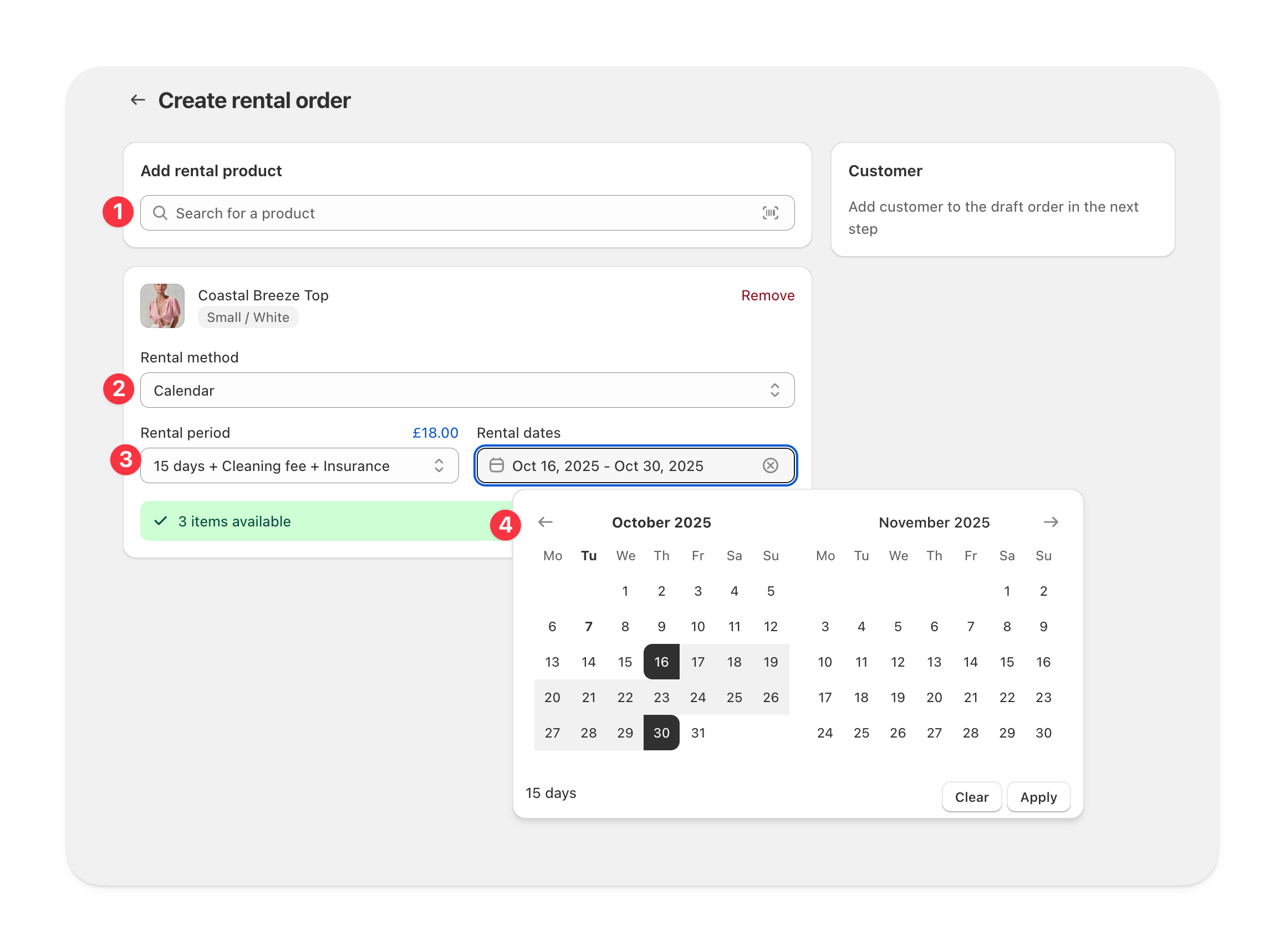
Select the cycle method. For the calendar, select the period and dates.
Add another product if needed.
Supercycle asks who the order is for before opening the Shopify draft order. Search for an existing Shopify customer by name or email in the customer picker and select them.
If the customer doesn't exist yet, click **Add new customer** and enter their first name, last name, and email. Supercycle creates them in Shopify on the fly and selects them for the order. Email is required; first and last name are optional.
The customer picker searches every customer in your Shopify store, not just customers already synced to Supercycle.
Click **Continue**. Supercycle creates a Shopify draft order pre-filled with the customer you just selected.
Select the cycle method. For the calendar, select the period and dates.
Add another product if needed.
 Click save.
* Apply discounts
* Add shipping
* Add tags or a note
Click save.
* Apply discounts
* Add shipping
* Add tags or a note
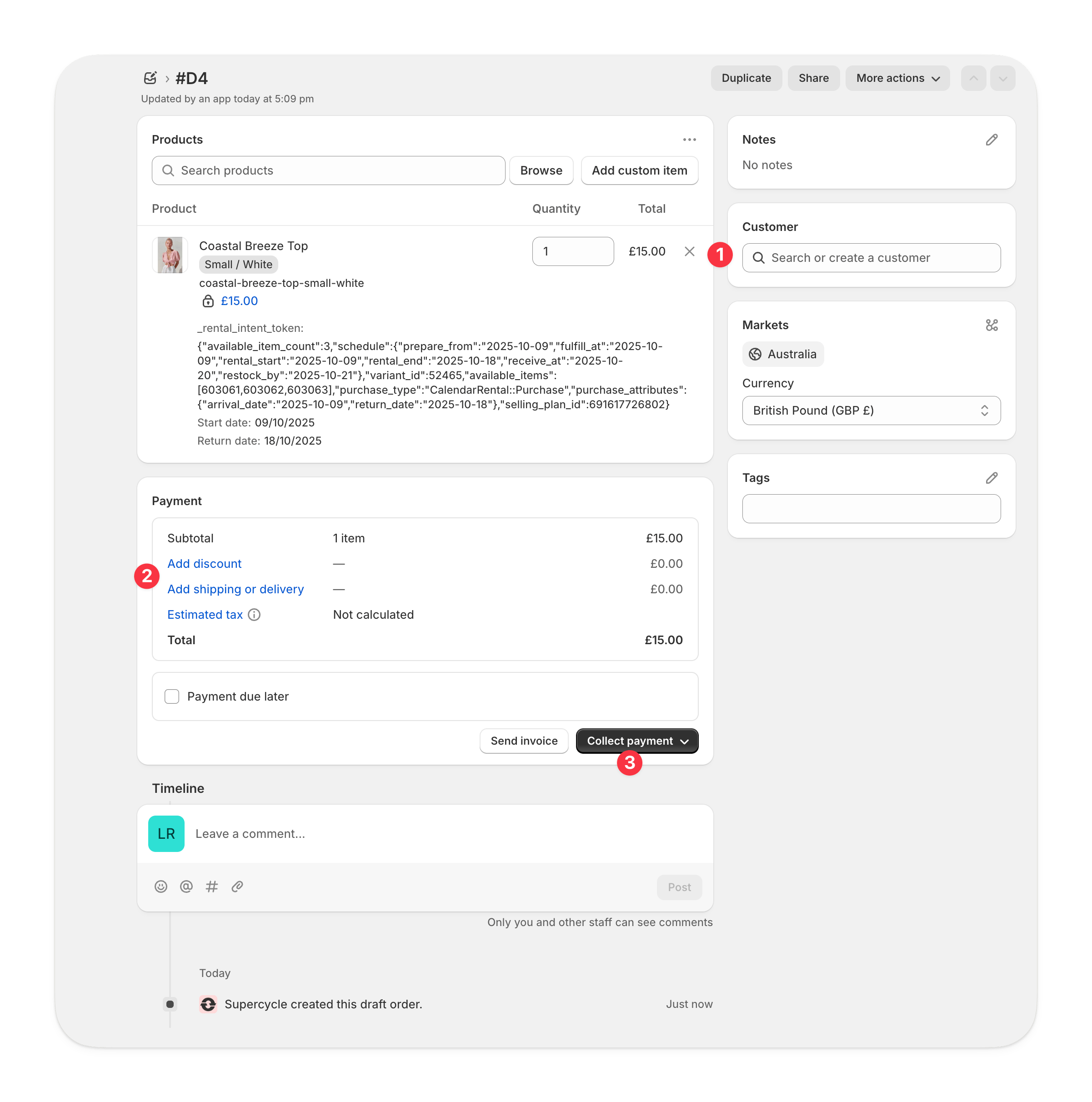 Adding a product to the draft order will not create a cycle for that product — cycles must be added via Supercycle.
* Accept payment from the customer by marking the order as paid or entering card details. Then create an order.
* Set payment to due later. Then create an order.
You will now have a Shopify order for that customer with cycles that can be seen in Supercycle Cycles.
***
## Reserving cycle inventory on a draft order
When you build an order with cycles as a Shopify draft order, the customer hasn't paid yet, so the units on the draft aren't held unless you reserve them.
### Reserve inventory automatically
By default, Supercycle **reserves inventory automatically** whenever cycles are added to a draft order, so a unit can't be double-booked while the draft is still unpaid. No manual step is required, and Shopify shows **Reserve items** as active on the draft. The reserve lasts for a set duration (7 days by default) from when the draft is created.
Control this under [Settings > Channels > Draft orders](https://admin.shopify.com/apps/supercycle/settings/channels/draft-orders):
* **Reserve inventory automatically** — toggle the behavior on or off.
* **Reserve inventory for** — how long inventory stays reserved after the draft order is created.
### Reserve manually
You can also reserve items on a draft directly with Shopify's **Reserve items**, which is useful when auto-reserve is off or you want to set a specific expiry:
In your Shopify admin, go to **Draft orders** and open the draft containing the cycle.
In the **Reserve items** card, set an expiry date and time and save. Shopify shows the reserve as active on the draft.
While a reserve is active, the unit is held with an internal block spanning the cycle's pick-up and return dates, and no other cycle can book it in that window.
The reserve is released automatically when any of the following happens:
* You turn **Reserve items** off on the draft.
* The customer pays and the draft becomes an order (the cycle picks an available unit as normal).
* The draft is cancelled or deleted.
* You remove the cycle line from the draft.
* The reserve expiry time passes.
Changing the cycle dates on the draft updates the reserve window automatically.
Adding a product to the draft order will not create a cycle for that product — cycles must be added via Supercycle.
* Accept payment from the customer by marking the order as paid or entering card details. Then create an order.
* Set payment to due later. Then create an order.
You will now have a Shopify order for that customer with cycles that can be seen in Supercycle Cycles.
***
## Reserving cycle inventory on a draft order
When you build an order with cycles as a Shopify draft order, the customer hasn't paid yet, so the units on the draft aren't held unless you reserve them.
### Reserve inventory automatically
By default, Supercycle **reserves inventory automatically** whenever cycles are added to a draft order, so a unit can't be double-booked while the draft is still unpaid. No manual step is required, and Shopify shows **Reserve items** as active on the draft. The reserve lasts for a set duration (7 days by default) from when the draft is created.
Control this under [Settings > Channels > Draft orders](https://admin.shopify.com/apps/supercycle/settings/channels/draft-orders):
* **Reserve inventory automatically** — toggle the behavior on or off.
* **Reserve inventory for** — how long inventory stays reserved after the draft order is created.
### Reserve manually
You can also reserve items on a draft directly with Shopify's **Reserve items**, which is useful when auto-reserve is off or you want to set a specific expiry:
In your Shopify admin, go to **Draft orders** and open the draft containing the cycle.
In the **Reserve items** card, set an expiry date and time and save. Shopify shows the reserve as active on the draft.
While a reserve is active, the unit is held with an internal block spanning the cycle's pick-up and return dates, and no other cycle can book it in that window.
The reserve is released automatically when any of the following happens:
* You turn **Reserve items** off on the draft.
* The customer pays and the draft becomes an order (the cycle picks an available unit as normal).
* The draft is cancelled or deleted.
* You remove the cycle line from the draft.
* The reserve expiry time passes.
Changing the cycle dates on the draft updates the reserve window automatically.