> ## Documentation Index
> Fetch the complete documentation index at: https://docs.supercycle.com/llms.txt
> Use this file to discover all available pages before exploring further.
# Consignor portal
> What consignors see about their balance, earnings, and payouts.
Consignors can follow their own performance without you sending updates. When a consignor is linked to a customer, a **Consignment** section appears in that customer's Shopify customer account, showing their balance, recent activity, payouts, and items.
The portal is read-only. Consignors can see their numbers but can't change anything.
***
## Giving a consignor access
On the [consignor's page](/documentation/manage/consignment/consignors), link the consignor to the Shopify **Customer** account they'll log in with.
The consignor logs in to your store's customer account. The **Consignment** section appears on their profile automatically.
The consignor portal relies on Shopify [customer accounts](/documentation/online-store/portal). The consignor only sees their details while they're linked to an active consignor. Archiving the consignor hides them, and a customer who isn't a consignor sees *"Consignment isn't set up for this account yet."*
***
## What the consignor sees
The portal has two surfaces, mirroring how membership appears in the customer account:
* A **summary card** on the account profile, for an at-a-glance update.
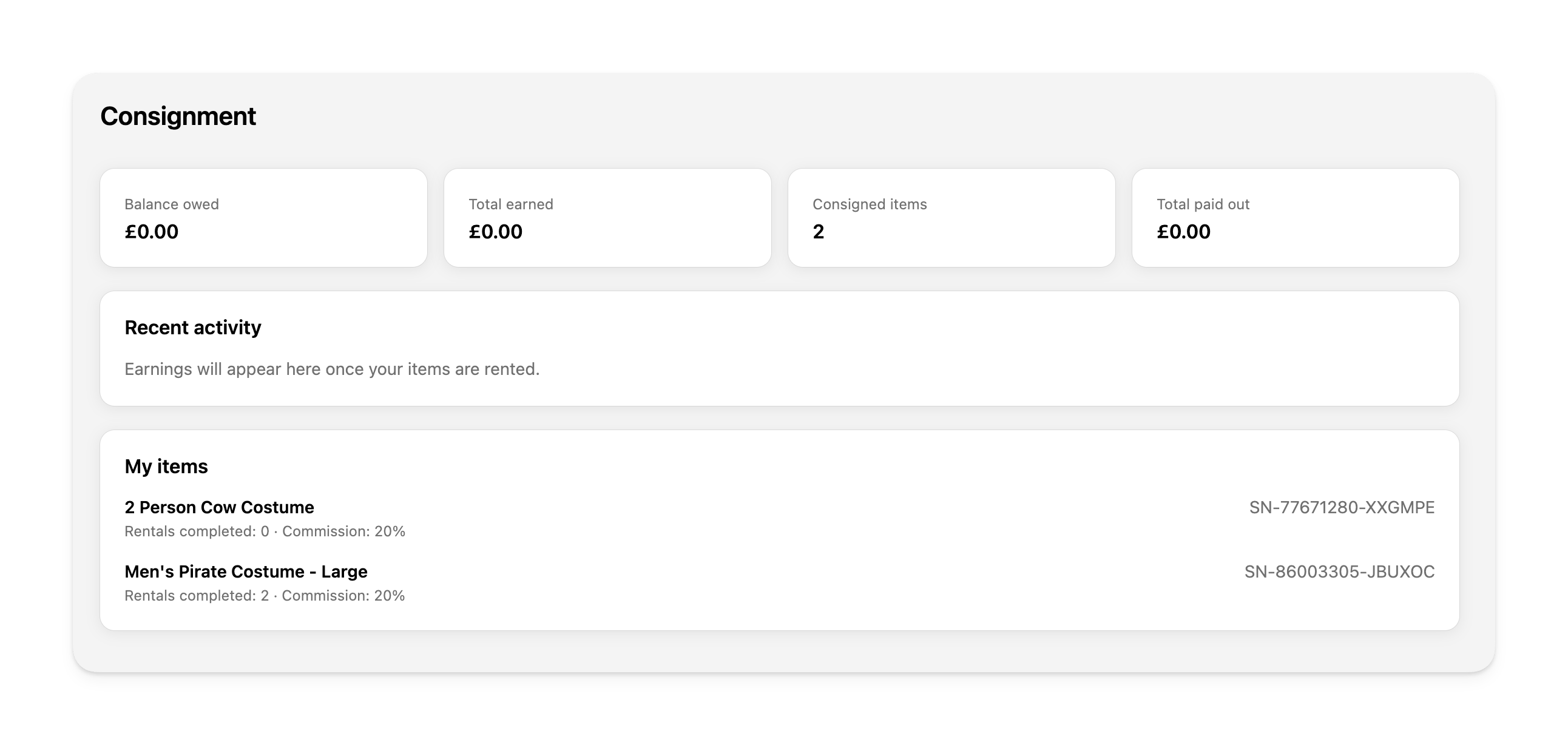
* A fuller **Consignment view** with stats, activity, and items.
### Summary card
On their profile, the consignor sees a compact card:
* **Balance owed**: *"\[amount] owed to you"*, or *"You're all settled up"* when nothing is outstanding.
* A line summarizing their items and earnings: *"Your \[n] consigned items have generated \[amount] in rentals to date"*.
* **Total paid out**: *"\[amount] paid out to date"*.
* **Recent payouts**: the latest payouts you've recorded, each with its date and amount.
### Stats
The fuller view leads with four figures: **Balance owed**, **Total earned**, **Consigned items**, and **Total paid out**.
 ### Recent activity
A reverse-chronological feed of everything affecting their balance:
* **Earnings** from rentals, shown with the cycle and item, as a positive (green) amount.
* **Refunds**, shown as a negative (red) amount.
* **Payouts** you've recorded, shown as a negative amount.
Before any items have been rented, the consignor sees *"Earnings will appear here once your items are rented."*
### My items
The consignor's items, each showing its title, serial number, and a summary: *"Rentals completed: \[n] · Commission: \[rate]%"*. If they have more items than fit, the list shows the first batch with a *"Showing \[n] of \[total] items"* note.
***
Everything in the portal mirrors what you manage in the admin. Recording a payout or assigning an item updates the consignor's view the next time they open it, with nothing extra to publish or send.
### Recent activity
A reverse-chronological feed of everything affecting their balance:
* **Earnings** from rentals, shown with the cycle and item, as a positive (green) amount.
* **Refunds**, shown as a negative (red) amount.
* **Payouts** you've recorded, shown as a negative amount.
Before any items have been rented, the consignor sees *"Earnings will appear here once your items are rented."*
### My items
The consignor's items, each showing its title, serial number, and a summary: *"Rentals completed: \[n] · Commission: \[rate]%"*. If they have more items than fit, the list shows the first batch with a *"Showing \[n] of \[total] items"* note.
***
Everything in the portal mirrors what you manage in the admin. Recording a payout or assigning an item updates the consignor's view the next time they open it, with nothing extra to publish or send.