> ## Documentation Index
> Fetch the complete documentation index at: https://docs.supercycle.com/llms.txt
> Use this file to discover all available pages before exploring further.
# Charge actions
> Step-by-step guides for creating charges and processing payments against a cycle
### Create charge
**Fields:**
* **Customer** – The customer to charge (use a variable like `customer.id`).
* **Chargeable ID** – The object to charge.
* **Description** – The message included in the charge.
* **Amount cents** – The charge amount in cents (for example, `1234` for \$12.34).
***
#### Create payment
Payment attempts can be initiated from **Create payment** .
***
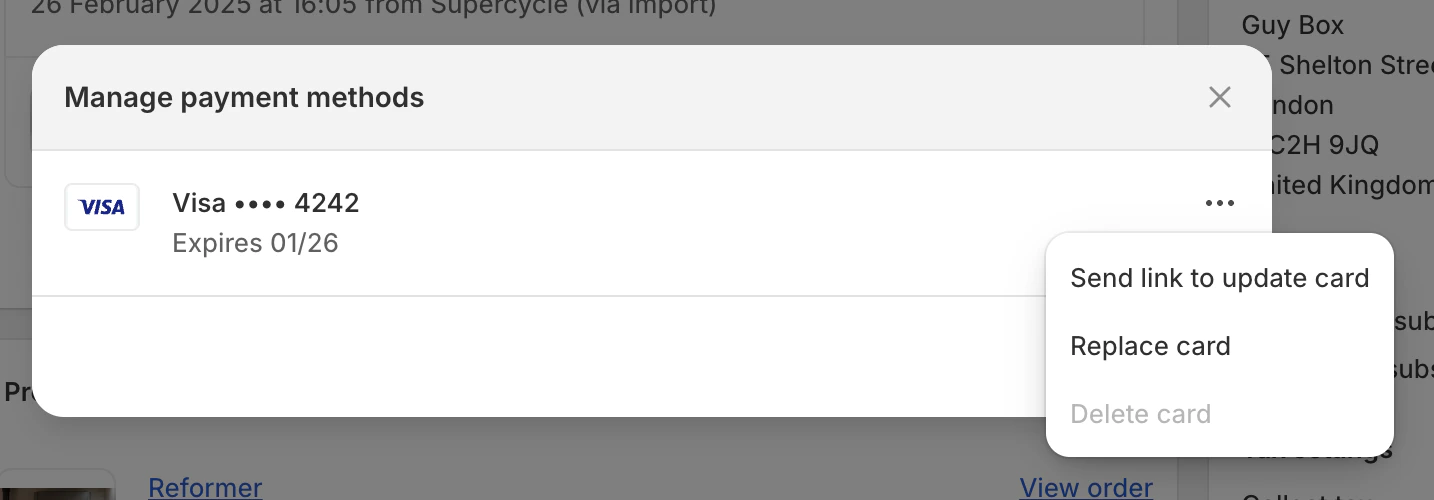
#### Update payment card
 ***
#### Change payment card
In your Shopify admin, navigate to **Supercycle > Cycles**. Select the rental you want.
Click 3 dots on the top right of the billing information, followed by **Change payment method** .
***
#### Change payment card
In your Shopify admin, navigate to **Supercycle > Cycles**. Select the rental you want.
Click 3 dots on the top right of the billing information, followed by **Change payment method** .
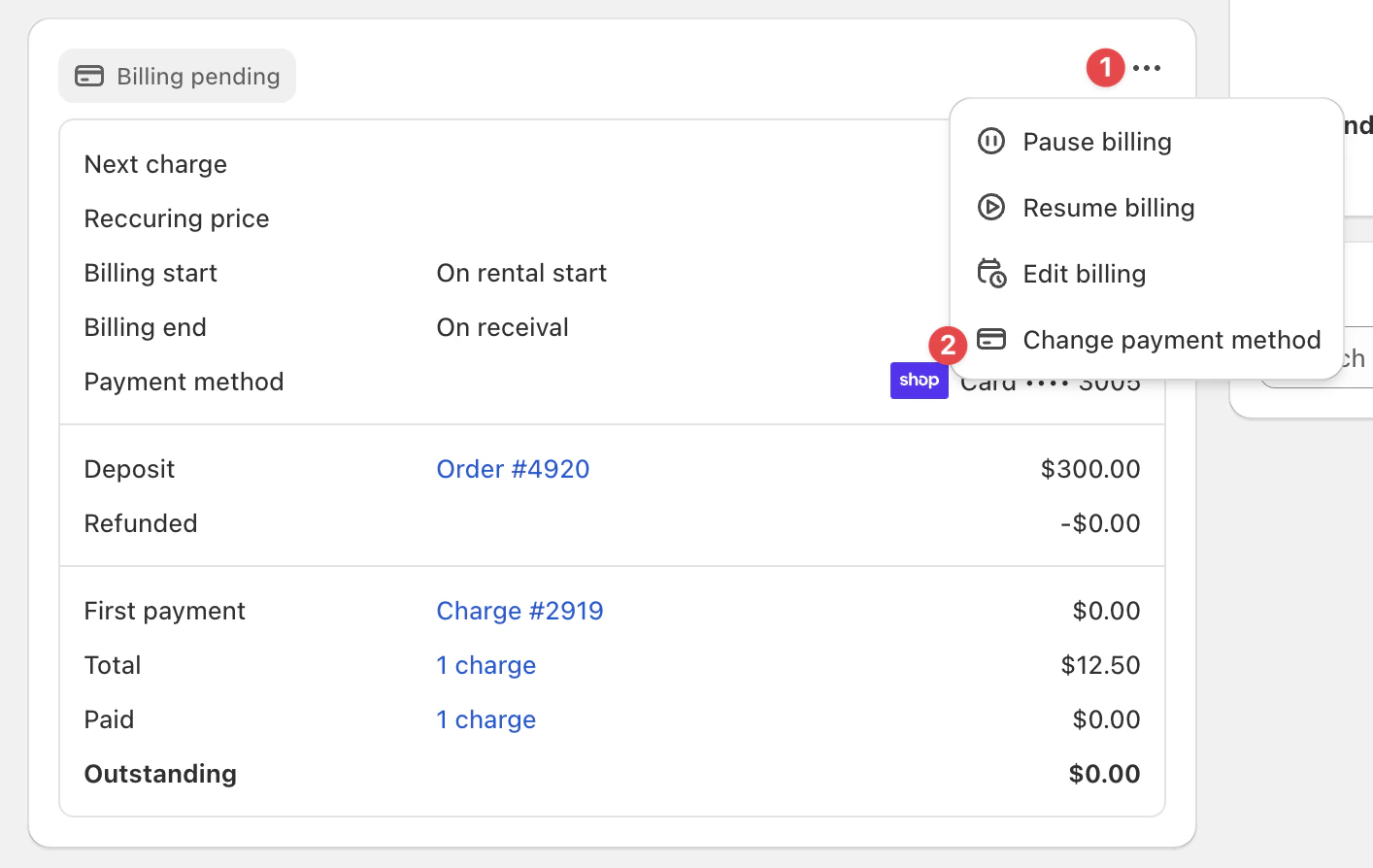 Select the payment card you want to use for future payments and click **Save**.