> ## Documentation Index
> Fetch the complete documentation index at: https://docs.supercycle.com/llms.txt
> Use this file to discover all available pages before exploring further.
# Identity verification
> Verify your customers' identities with face-matching liveness checks against government-issued IDs
Identity verification is currently a **request access** feature. [Join the waitlist](https://admin.shopify.com/apps/supercycle) from your Supercycle home page to enable it on your store.
This page covers the new identity verification flow. The previous Stripe Identity integration (configured under **Settings > Risk**) is being retired — stores on the new flow no longer use it. If you're still on Stripe Identity, contact support to migrate.
Merchants choose which products require an ID check, and within each product can narrow further to specific **method options** — for example, a product where only the 7-day rental period (Calendar) or the Pro plan (Membership) needs verification while shorter periods or the Basic plan don't. Once a flagged option is in a customer's cart, they're prompted to verify on the thank you page and from their customer account. Approval is tracked at the customer level — a single approved verification fulfils every outstanding request that customer has.
## Setup
In your Shopify admin, go to **Supercycle > Products** and open the product you want to gate behind ID verification. Select the **Calendar**, **Membership**, or **Subscription** method tab — verification is configured at the option level on each method, so a product with multiple methods needs the flag turned on per method.
Each method has a list of options (rental periods on Calendar, plans on Membership and Subscription). Click an option to open its modal, find the **Require ID verification** checkbox, tick it, and save.
The option list shows an **ID verification** column with a **Required** / **Not required** badge so you can see at a glance which options will trigger a check.
To flag many options at once, select them in the option list and run the **Apply ID verification required** bulk action.
Go to [Settings > Checkout](https://admin.shopify.com/settings/checkout), customize the checkout, switch to the **Thank you** page, and add the **Identity Verification Required** app block. Save.
The block reads the order's cart-line intent data and renders one of: a "verify your identity" CTA (link opens the Persona embed at `/identity_verification`), or nothing if the customer is already verified or no flagged cycle was purchased.
Go to [Settings > Language](https://admin.shopify.com/apps/supercycle/settings/language) and edit the strings for the identity verification block, customer account section, and verification page.
## How customers verify
When a customer checks out with a flagged cycle, Supercycle creates an **identity verification request** against their account. Customers can complete the check from any of these surfaces:
* **Thank you page** — the Supercycle Identity verification block shows immediately after checkout with a button to start verification.
* **Customer account** — the Identity verification section on their account page shows the current status and lets them resume an in-progress verification or retry a failed one.
The verification page lives at `/identity_verification` on your store.
## Request verification manually
You can ask a customer to verify their identity even if they haven't bought a flagged cycle — useful when you need an extra check before fulfilling a rental, or when a previous request expired.
In Supercycle, open the customer's profile.
In the **Risk** section, find **Identity verification not requested**.
Select **Request ID verification**.
Supercycle creates an outstanding verification request, tags the customer in Shopify with **ID Verification Required**, and surfaces the verification prompt on their customer account page the next time they sign in. If the customer already has an open request, selecting the button refreshes the tag without creating a duplicate.
### Request verification from POS
Store staff can start ID verification directly from Shopify POS using the **Verify ID** action on the order details and post-purchase screens. POS displays a QR code and a shareable link that customers can use to verify on their own phone, and the screen updates automatically once they're done.
See [Verify a customer's ID on POS](/documentation/point-of-sale/pos-overview#verify-a-customers-id-on-pos) for the staff-facing steps.
## Check customer verification status
The button is hidden once the customer has an outstanding request or an approved verification.
## Check verification status
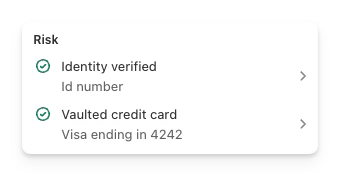
A customer's verification status is shown on their profile in Supercycle. From there you can:
* See the current status (pending, submitted, in review, completed, on hold, expired) and result (approved, rejected, inconclusive).
* Open **View details** to inspect the full verification record, including the documents and reports returned.
* Filter the Customers and Rentals pages by Identity status (see below).
 ## Filter by Identity status
The **Identity status** filter on the Customers and Rentals pages narrows the list to customers whose verification has reached a particular outcome. Approval is a customer-level property: one approved verification clears every outstanding request that customer has, so a customer is matched against the most favourable outcome they've reached.
| Filter value | Matches customers who… |
| ------------ | --------------------------------------------------------------------------------------------------------------------------------------------- |
| Verified | Have at least one **approved** verification. Earlier rejections don't disqualify them. |
| Failed | Have a **rejected** verification and have not since reached an approval. |
| Unverified | Have a verification request but no resolved verification yet (still pending or in review). Customers who never had a request are not matched. |
Use **Verified** to find customers who can rent without further checks, **Failed** to follow up with customers whose verification didn't pass, and **Unverified** to chase customers who started but haven't completed a check.
## Statuses
| Status | Meaning |
| --------- | --------------------------------------------------------------------- |
| Pending | Request created, customer has not started yet. |
| Submitted | Customer has completed the flow; awaiting a decision. |
| In review | The submission is being manually reviewed. |
| Completed | A final result has been returned. |
| On hold | Verification paused — contact support. |
| Expired | The verification link expired; the customer needs to start a new one. |
| Result | Meaning |
| ------------ | ---------------------------------------------------------------------------- |
| Approved | Identity verified. All outstanding requests for this customer are fulfilled. |
| Rejected | Identity could not be verified. The customer can retry. |
| Inconclusive | The provider couldn't determine a result. The customer can retry. |
## FAQs
Supercycle currently uses [Persona](https://withpersona.com) to run identity verification. We may swap providers in the future — we'll always select the solution that best serves our merchants, and any change will be transparent to your customers.
The new integration offers stronger document support, manual review, and richer status reporting. The provider-agnostic data model also means we can swap or add providers in the future without changing your setup.
The previous Stripe Identity flow was configured globally under **Settings > Risk** (verification type, document types, live capture, matching selfie). The new flow has no global configuration — you turn on **Require ID verification** per method option, and Persona handles the document/selfie logic. **Settings > Risk** still has an **ID verification** section, but it only summarizes the feature and links to **Products** so you can manage which options require a check.
Approval is a customer-level property. One approved verification fulfils every outstanding request that customer has, regardless of how many cycles triggered them.
Supercycle ships with a single built-in provider. There are also third-party Shopify apps such as [RealID](https://apps.shopify.com/real-id), [iDenfy](https://apps.shopify.com/idenfy-id-verification) and [Engage Message](https://apps.shopify.com/em-id-and-age-verification) that you can run alongside Supercycle.
## Filter by Identity status
The **Identity status** filter on the Customers and Rentals pages narrows the list to customers whose verification has reached a particular outcome. Approval is a customer-level property: one approved verification clears every outstanding request that customer has, so a customer is matched against the most favourable outcome they've reached.
| Filter value | Matches customers who… |
| ------------ | --------------------------------------------------------------------------------------------------------------------------------------------- |
| Verified | Have at least one **approved** verification. Earlier rejections don't disqualify them. |
| Failed | Have a **rejected** verification and have not since reached an approval. |
| Unverified | Have a verification request but no resolved verification yet (still pending or in review). Customers who never had a request are not matched. |
Use **Verified** to find customers who can rent without further checks, **Failed** to follow up with customers whose verification didn't pass, and **Unverified** to chase customers who started but haven't completed a check.
## Statuses
| Status | Meaning |
| --------- | --------------------------------------------------------------------- |
| Pending | Request created, customer has not started yet. |
| Submitted | Customer has completed the flow; awaiting a decision. |
| In review | The submission is being manually reviewed. |
| Completed | A final result has been returned. |
| On hold | Verification paused — contact support. |
| Expired | The verification link expired; the customer needs to start a new one. |
| Result | Meaning |
| ------------ | ---------------------------------------------------------------------------- |
| Approved | Identity verified. All outstanding requests for this customer are fulfilled. |
| Rejected | Identity could not be verified. The customer can retry. |
| Inconclusive | The provider couldn't determine a result. The customer can retry. |
## FAQs
Supercycle currently uses [Persona](https://withpersona.com) to run identity verification. We may swap providers in the future — we'll always select the solution that best serves our merchants, and any change will be transparent to your customers.
The new integration offers stronger document support, manual review, and richer status reporting. The provider-agnostic data model also means we can swap or add providers in the future without changing your setup.
The previous Stripe Identity flow was configured globally under **Settings > Risk** (verification type, document types, live capture, matching selfie). The new flow has no global configuration — you turn on **Require ID verification** per method option, and Persona handles the document/selfie logic. **Settings > Risk** still has an **ID verification** section, but it only summarizes the feature and links to **Products** so you can manage which options require a check.
Approval is a customer-level property. One approved verification fulfils every outstanding request that customer has, regardless of how many cycles triggered them.
Supercycle ships with a single built-in provider. There are also third-party Shopify apps such as [RealID](https://apps.shopify.com/real-id), [iDenfy](https://apps.shopify.com/idenfy-id-verification) and [Engage Message](https://apps.shopify.com/em-id-and-age-verification) that you can run alongside Supercycle.