> ## Documentation Index
> Fetch the complete documentation index at: https://docs.supercycle.com/llms.txt
> Use this file to discover all available pages before exploring further.
# Card vaulting
> Capture customers' credit card using Shopify's subscription system to reduce risk and fraud by being able to charge the card.
## How it works
Supercycle creates a Shopify subscription product that customers add to their cart to authorize payment method storage. When they complete the checkout process, their payment method is securely vaulted and can be used for future charges. For example, if a customer rents an item and comes back damaged, you are able to charge them.
You don't need card vaulting if using Subscription or Membership methods, as they store customer cards. But it is needed if you want a card on file for creating subscriptions on behalf of customers when they don't have active subscriptions.
## Enable card vaulting
Set up card vaulting by configuring risk settings in Supercycle.
Go to [Settings > Risk](https://admin.shopify.com/apps/supercycle/settings/risk) in Supercycle and enable credit card vaulting.
Configure the product title and selling plan name for the vaulting product. This is what customers will see when adding the product to their cart. You may also want to update the image on the product.
## How customers add their payment method
### Automatic cart addition
For rental orders that require a vaulted payment method, Supercycle automatically adds the vaulting product to the customer's cart if they don't already have one saved.
### Direct cart addition
Customers can add the vaulting product directly to their cart using the permalink URL. This automatically adds the product with the correct subscription configuration.
For example, if you are a merchant that creates orders on customers' behalf, you can send them the link to add their card details, and then you can create orders in Supercycle on behalf of the customer and charge their card.
### Manual addition
If needed it can be setup so customers can manually add the vaulting product from your store's product page.
## Vaulting actions
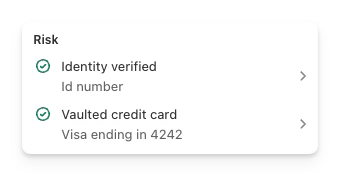
### Check customer verification status
Check a customer's vaulted payment method status directly on their profile page in Supercycle.
 ## Vaulting FAQs
Not at the moment. To vault a card, customers must have the vaulting product to their cart.
If a charge fails, Supercycle will retry the payment according to your configured retry settings. Failed charges remain in the system and can be retried manually or automatically.
Yes, you can create multiple charges and charge them all at once to the customer's vaulted payment method. Each charge will be processed as a single payment transaction.
The charging limits depend on your Shopify plan and the customer's payment method. Supercycle will process charges up to the maximum allowed by Shopify's subscription billing system.
## Best practices
* **Clear Communication**: Let customers know that adding the vaulting product will save their payment method for future charges.
* **Transparent Pricing**: The vaulting product is free (\$0) but clearly explains its purpose.
* **Regular Review**: Periodically review vaulted payment methods to ensure they're still valid.
## Vaulting FAQs
Not at the moment. To vault a card, customers must have the vaulting product to their cart.
If a charge fails, Supercycle will retry the payment according to your configured retry settings. Failed charges remain in the system and can be retried manually or automatically.
Yes, you can create multiple charges and charge them all at once to the customer's vaulted payment method. Each charge will be processed as a single payment transaction.
The charging limits depend on your Shopify plan and the customer's payment method. Supercycle will process charges up to the maximum allowed by Shopify's subscription billing system.
## Best practices
* **Clear Communication**: Let customers know that adding the vaulting product will save their payment method for future charges.
* **Transparent Pricing**: The vaulting product is free (\$0) but clearly explains its purpose.
* **Regular Review**: Periodically review vaulted payment methods to ensure they're still valid.