> ## Documentation Index
> Fetch the complete documentation index at: https://docs.supercycle.com/llms.txt
> Use this file to discover all available pages before exploring further.
# Locations
> Enable when items are stored at multiple physical locations
Locations represent the physical warehouses or store locations where your inventory items are stored. This feature is essential for businesses that operate multiple warehouses, have retail stores that serve as pickup points, or need to track which specific location an item is stored at.
Supercycle uses Shopify's native location system, so your existing Shopify locations will be available in Supercycle for inventory management.
## Setting up locations
Ensure you have set up your locations in Shopify admin:
In your Shopify admin, navigate to **Settings** > **Locations**.
Add new locations or edit existing ones as needed. Each location should represent a physical place where inventory is stored.
For each location, set up:
* Location name
* Address details
* Whether the location fulfills online orders
* Local delivery settings (if applicable)
Enable the locations feature in Supercycle:
In Shopify Admin, head to **Supercycle** > **Settings** > **Locations**.
Click the **Enable locations** toggle to activate location tracking for your inventory.
For each location, you can control:
* **Fulfills online orders**: Managed by Shopify (read-only)
* **Fulfills rental orders**: Toggle to control which locations can fulfill rental orders
Enable **Require location** to force customers to select a location before adding items to their cart. This restricts inventory and shipping methods to those available at the selected location.
When "Require location" is enabled, items without assigned locations will become unavailable for rent. Supercycle will display a warning banner showing how many items are affected.
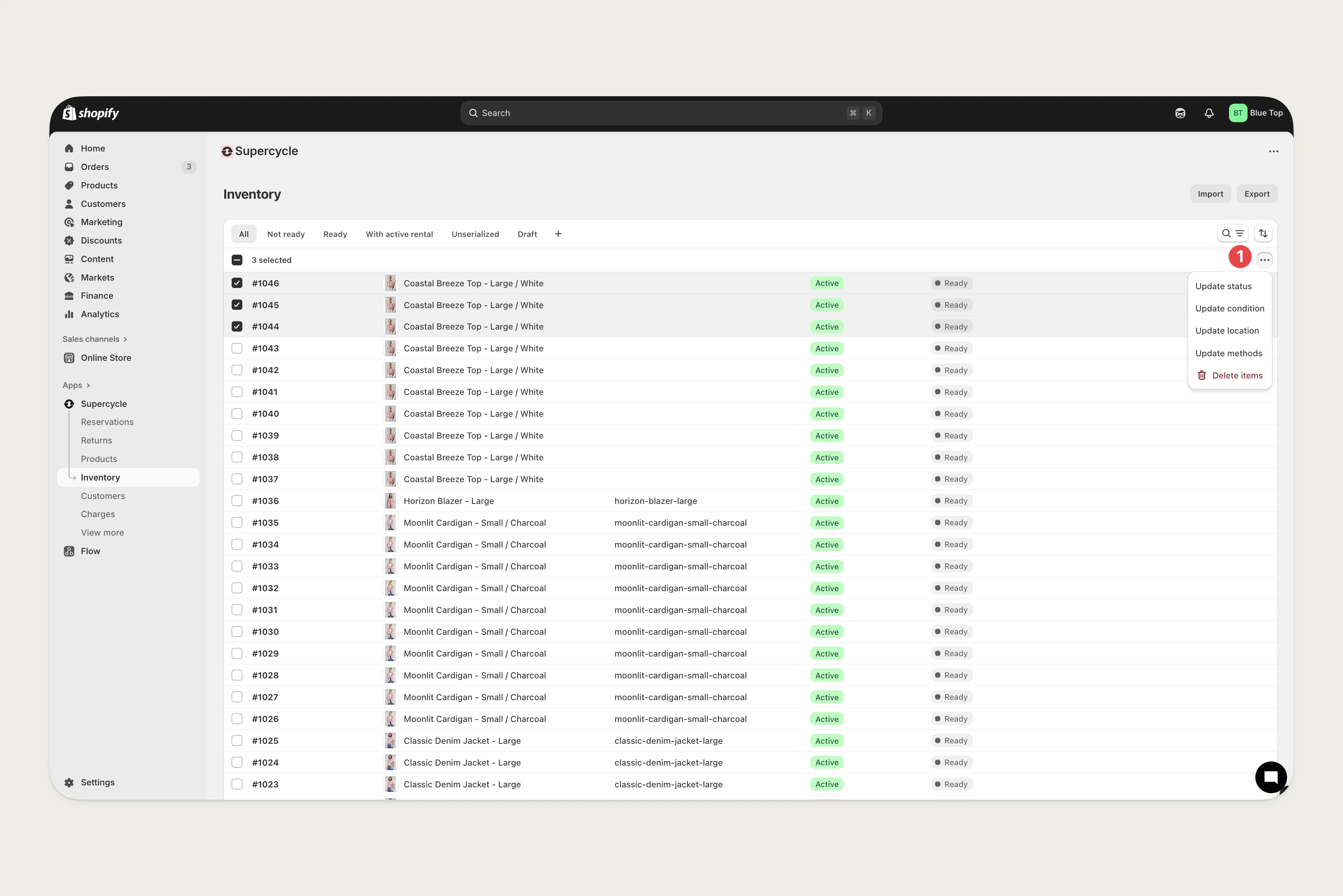
Assign inventory items to specific locations in Supercycle:
Update location from the [Location](/documentation/manage/inventory/items#location) field on the item page.
Use the **Update location** action from the **Actions** options on the [Inventory](https://admin.shopify.com/apps/supercycle/items) table.
 ## Location-based customer experience
When locations are enabled and required, customers will need to select a location before adding items to their cart. This provides several benefits:
* **Accurate availability**: Only shows items available at the selected location
* **Location-specific shipping**: Restricts shipping methods to those available from the selected location
* **Local inventory**: Displays real-time availability for the selected location
You can extend Supercycle to add location-based features such as:
* **Zip code locator**: Help customers find the nearest location
* **Delivery zones**: Configure different delivery options based on location
## Best practices
Use clear, consistent naming conventions for your locations (e.g., "NYC Warehouse", "LA Store", "Chicago Fulfillment Center").
Regularly review and balance inventory across locations to optimize availability and fulfillment efficiency. Use the inventory count links in the locations table to quickly view items per location.
Configure which locations fulfill rental orders vs. online orders. Some locations might be suitable for storage but not fulfillment.
Keep track of items without assigned locations using the "No location" row in the locations table. These items become unavailable when location selection is required.
## Related documentation
* [Items management](/documentation/manage/inventory/items) - Learn how to assign items to locations
* [Storefront API](/api-reference/storefront/introduction) - Technical details for location-based filtering
## Location-based customer experience
When locations are enabled and required, customers will need to select a location before adding items to their cart. This provides several benefits:
* **Accurate availability**: Only shows items available at the selected location
* **Location-specific shipping**: Restricts shipping methods to those available from the selected location
* **Local inventory**: Displays real-time availability for the selected location
You can extend Supercycle to add location-based features such as:
* **Zip code locator**: Help customers find the nearest location
* **Delivery zones**: Configure different delivery options based on location
## Best practices
Use clear, consistent naming conventions for your locations (e.g., "NYC Warehouse", "LA Store", "Chicago Fulfillment Center").
Regularly review and balance inventory across locations to optimize availability and fulfillment efficiency. Use the inventory count links in the locations table to quickly view items per location.
Configure which locations fulfill rental orders vs. online orders. Some locations might be suitable for storage but not fulfillment.
Keep track of items without assigned locations using the "No location" row in the locations table. These items become unavailable when location selection is required.
## Related documentation
* [Items management](/documentation/manage/inventory/items) - Learn how to assign items to locations
* [Storefront API](/api-reference/storefront/introduction) - Technical details for location-based filtering