> ## Documentation Index
> Fetch the complete documentation index at: https://docs.supercycle.com/llms.txt
> Use this file to discover all available pages before exploring further.
# Logistics buffers
> Add preparation, delivery, and restock time around rentals so items are ready before they can be booked again
Logistics buffers add time around rentals so your team can prepare, deliver, and restock items before they’re available again.\
The **rental period + logistics buffers = the cycle period**.
Your **preparation buffer** and **delivery buffer** make up *outbound logistics*.\
Your **reverse delivery buffer** and **restock buffer** make up *reverse logistics*.
## How Supercycle calculates availability
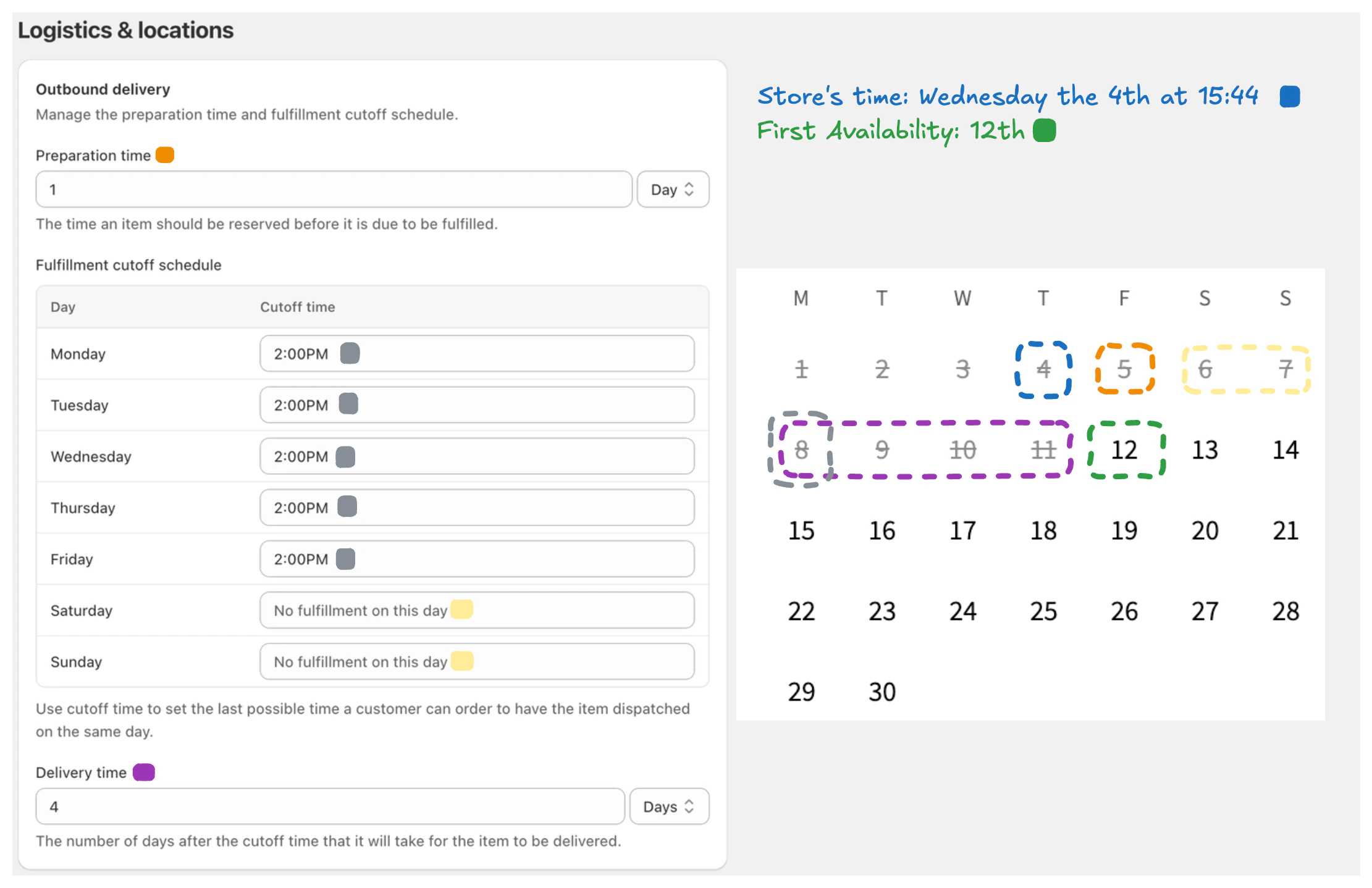
Supercycle calculates the soonest available rental as:\
**Current time in store’s timezone + preparation time → next available cutoff time + delivery time**
This ensures customers can only rent items when they’re ready to be fulfilled and restocked.
***
## Buffer types
Each buffer defines how much extra time is added before or after a rental.
| Buffer | Description |
| ------------------------- | ------------------------------------------------------------------------ |
| **Preparation time** | Time needed to prepare the item before it can be delivered or picked up. |
| **Cutoff time** | The last time of day orders can be placed for same-day fulfillment. |
| **Delivery time** | Number of days after the cutoff needed to deliver an item. |
| **Reverse delivery time** | Time it takes for an item to return after a customer sends it back. |
| **Restock time** | Time needed to process the returned item and make it available again. |
 ***
## Delivery methods
You can manage which delivery methods are available and how long they take under **Supercycle > Settings > Logistics and locations**.
### Shipping
Define your **cutoff times** and **delivery times** for each day of the week.\
Orders placed after the cutoff time are processed the next day.
### Pick up (beta)
Merchants can now offer **pick up** as a delivery method.\
Toggle pick up on and set a **cutoff schedule** for each day customers can collect orders. Pick up has no delivery time — the rental starts the day the order is fulfilled.
Pick up delivery is currently in **beta** and not available to all merchants.\
If you'd like to enable it, contact us at [support@supercycle.com](mailto:support@supercycle.com) and we'll set it up for your store.
For detailed setup instructions and information about pickup location behavior, see [Pickup in store](/documentation/configuration/logistics/pickup-in-store).
### Shipping is optional
You can turn shipping off entirely and operate as pick up only, as long as at least one delivery method remains enabled. The same applies to returns: shipping returns can be disabled if drop off is enabled.
If you try to disable the last enabled method on either side, the change is blocked with **"At least one delivery method must be enabled"** (or the equivalent for returns). Enable the alternative method first, then disable shipping.
When shipping is disabled, the storefront picker hides the shipping option and preselects the remaining method for new customers.
***
## Return methods
You can manage which return methods are available and how long they take under the **Return** section of **Supercycle > Settings > Logistics and locations**.
### Ship back
Set your **reverse delivery time**: how long it typically takes for an item to return after a customer sends it back, and your **restock time**, which is how long it takes to process and make it available again. Ship back is enabled by default and cannot be disabled.
### Drop off (beta)
Merchants can now offer **drop off** as a return method. Toggle drop off on and set a **restock time** for items returned in person. Drop off has no reverse delivery time — the item is received the moment the rental ends.
Drop off returns are currently in **beta** and not available to all merchants. If you'd like to enable it, contact us at [support@supercycle.com](mailto:support@supercycle.com) and we'll set it up for your store.
When more than one return method is enabled, customers see a **Return method** picker on the product page and the rental's availability adjusts based on their choice. For detailed setup instructions, see [Drop off returns](/documentation/configuration/logistics/drop-off-returns).
Drop off can be used in place of shipping returns. To run drop off only, enable drop off first, then disable shipping returns.
Products can override the global **restock time** when configured during [calendar product setup](/documentation/setup/importing-products).
***
## Considerations
### Effects on availability
When Supercycle calculates availability, the entire cycle period (rental + buffers) is treated as unavailable.\
Items become available for new rentals only after:
* The end of the cycle period, or
* The restock time has passed after the item’s return, whichever is sooner.
Customers always see availability based on the store’s timezone.
### Effects of restocking
When an item is restocked after return, it becomes immediately available for new rentals, even if the original cycle’s buffer period hasn’t ended.
### Overriding buffer dates on a single cycle
The preparation and restock buffers apply to every new cycle by default, but you can override the resulting **prepare from** and **restock by** dates on an individual cycle when a specific rental needs more or less turnaround. See [Edit restock by and prepare from dates](/documentation/manage/cycles/rental-actions#edit-restock-by-and-prepare-from-dates).
***
## Set up logistics buffers
In Shopify admin, go to **Supercycle > Settings > Logistics and locations**.
Under **Buffer times**, set your preparation and restock time.
Open **Shipping** to set cutoff times and delivery time, or open **Pick up** to toggle it on and set a cutoff schedule. You can disable shipping as long as at least one other delivery method remains enabled.
Under **Return**, set your reverse delivery and restock times.
Click **Save** before exiting.
***
## FAQs
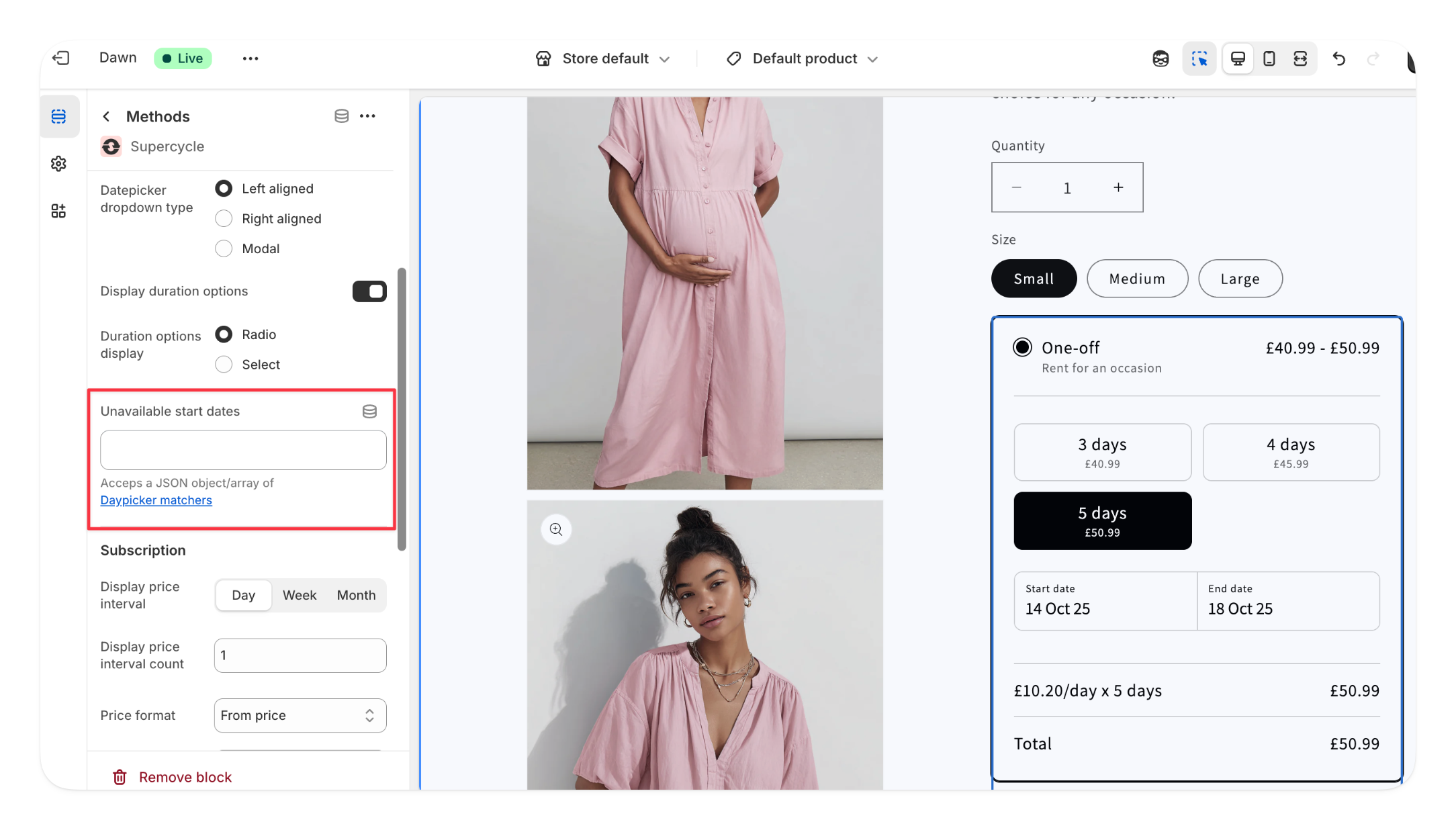
On your product page template, add the **Methods** app block.\
In the block settings, use:
* **Unavailable start dates** to block dates from being chosen as a rental *start* date.
* **Unavailable end dates** to block dates from being chosen as a rental *end* date.
Each field accepts the same JSON matcher format and is enforced independently.
***
## Delivery methods
You can manage which delivery methods are available and how long they take under **Supercycle > Settings > Logistics and locations**.
### Shipping
Define your **cutoff times** and **delivery times** for each day of the week.\
Orders placed after the cutoff time are processed the next day.
### Pick up (beta)
Merchants can now offer **pick up** as a delivery method.\
Toggle pick up on and set a **cutoff schedule** for each day customers can collect orders. Pick up has no delivery time — the rental starts the day the order is fulfilled.
Pick up delivery is currently in **beta** and not available to all merchants.\
If you'd like to enable it, contact us at [support@supercycle.com](mailto:support@supercycle.com) and we'll set it up for your store.
For detailed setup instructions and information about pickup location behavior, see [Pickup in store](/documentation/configuration/logistics/pickup-in-store).
### Shipping is optional
You can turn shipping off entirely and operate as pick up only, as long as at least one delivery method remains enabled. The same applies to returns: shipping returns can be disabled if drop off is enabled.
If you try to disable the last enabled method on either side, the change is blocked with **"At least one delivery method must be enabled"** (or the equivalent for returns). Enable the alternative method first, then disable shipping.
When shipping is disabled, the storefront picker hides the shipping option and preselects the remaining method for new customers.
***
## Return methods
You can manage which return methods are available and how long they take under the **Return** section of **Supercycle > Settings > Logistics and locations**.
### Ship back
Set your **reverse delivery time**: how long it typically takes for an item to return after a customer sends it back, and your **restock time**, which is how long it takes to process and make it available again. Ship back is enabled by default and cannot be disabled.
### Drop off (beta)
Merchants can now offer **drop off** as a return method. Toggle drop off on and set a **restock time** for items returned in person. Drop off has no reverse delivery time — the item is received the moment the rental ends.
Drop off returns are currently in **beta** and not available to all merchants. If you'd like to enable it, contact us at [support@supercycle.com](mailto:support@supercycle.com) and we'll set it up for your store.
When more than one return method is enabled, customers see a **Return method** picker on the product page and the rental's availability adjusts based on their choice. For detailed setup instructions, see [Drop off returns](/documentation/configuration/logistics/drop-off-returns).
Drop off can be used in place of shipping returns. To run drop off only, enable drop off first, then disable shipping returns.
Products can override the global **restock time** when configured during [calendar product setup](/documentation/setup/importing-products).
***
## Considerations
### Effects on availability
When Supercycle calculates availability, the entire cycle period (rental + buffers) is treated as unavailable.\
Items become available for new rentals only after:
* The end of the cycle period, or
* The restock time has passed after the item’s return, whichever is sooner.
Customers always see availability based on the store’s timezone.
### Effects of restocking
When an item is restocked after return, it becomes immediately available for new rentals, even if the original cycle’s buffer period hasn’t ended.
### Overriding buffer dates on a single cycle
The preparation and restock buffers apply to every new cycle by default, but you can override the resulting **prepare from** and **restock by** dates on an individual cycle when a specific rental needs more or less turnaround. See [Edit restock by and prepare from dates](/documentation/manage/cycles/rental-actions#edit-restock-by-and-prepare-from-dates).
***
## Set up logistics buffers
In Shopify admin, go to **Supercycle > Settings > Logistics and locations**.
Under **Buffer times**, set your preparation and restock time.
Open **Shipping** to set cutoff times and delivery time, or open **Pick up** to toggle it on and set a cutoff schedule. You can disable shipping as long as at least one other delivery method remains enabled.
Under **Return**, set your reverse delivery and restock times.
Click **Save** before exiting.
***
## FAQs
On your product page template, add the **Methods** app block.\
In the block settings, use:
* **Unavailable start dates** to block dates from being chosen as a rental *start* date.
* **Unavailable end dates** to block dates from being chosen as a rental *end* date.
Each field accepts the same JSON matcher format and is enforced independently.
 You can use single values, ranges, or arrays to control which dates are blocked.
##### Block All Mondays
```json theme={null}
{"dayOfWeek": [1]}
```
*Note: Day of week values are 0 = Sunday, 1 = Monday, 2 = Tuesday, ..., 6 = Saturday*
##### Block Saturdays and Sundays (Weekends)
```json theme={null}
{"dayOfWeek": [0, 6]}
```
##### Block a Specific Date (January 1, 2026)
```json theme={null}
{"from": "2026-01-01", "to": "2026-01-01"}
```
##### Block a Date Range (December 22-27, 2025)
```json theme={null}
{"from": "2025-12-22", "to": "2025-12-27"}
```
##### Combine Multiple Rules
You can combine multiple matchers in an array to block multiple conditions:
```json theme={null}
[
{"dayOfWeek": [1]},
{"dayOfWeek": [0, 6]},
{"from": "2026-01-01", "to": "2026-01-01"},
{"from": "2025-12-22", "to": "2025-12-27"}
]
```
The block out dates you enter apply to all products using the same template.\
If you only want certain products to share the same block out dates, create a new template for them before saving.
You can use single values, ranges, or arrays to control which dates are blocked.
##### Block All Mondays
```json theme={null}
{"dayOfWeek": [1]}
```
*Note: Day of week values are 0 = Sunday, 1 = Monday, 2 = Tuesday, ..., 6 = Saturday*
##### Block Saturdays and Sundays (Weekends)
```json theme={null}
{"dayOfWeek": [0, 6]}
```
##### Block a Specific Date (January 1, 2026)
```json theme={null}
{"from": "2026-01-01", "to": "2026-01-01"}
```
##### Block a Date Range (December 22-27, 2025)
```json theme={null}
{"from": "2025-12-22", "to": "2025-12-27"}
```
##### Combine Multiple Rules
You can combine multiple matchers in an array to block multiple conditions:
```json theme={null}
[
{"dayOfWeek": [1]},
{"dayOfWeek": [0, 6]},
{"from": "2026-01-01", "to": "2026-01-01"},
{"from": "2025-12-22", "to": "2025-12-27"}
]
```
The block out dates you enter apply to all products using the same template.\
If you only want certain products to share the same block out dates, create a new template for them before saving.