> ## Documentation Index
> Fetch the complete documentation index at: https://docs.supercycle.com/llms.txt
> Use this file to discover all available pages before exploring further.

# Link new and circular products

> Link between a new Shopify products and circular products on the same page

<Warning>
  This is a temporary solution while we implement a proper integration.
</Warning>

You can link a product from new, as well as offer circular methods like resale, rental, or subscription, on the same product page. To do this you'll need to create 2 separate Shopify products, one for the new product and one for the circular methods.

<Frame type="glass" caption="Example of new and resale product switcher on a product page">
  <iframe src="https://fast.wistia.net/embed/iframe/uidayfc09v?web_component=true&seo=true" title="Supercycle video" height="290" width="100%" allow="autoplay; fullscreen" frameborder="0" />
</Frame>

## Prerequisites

* A Shopify product for the new item (e.g `t-shirt`)
* A separate Shopify product setup with Supercycle with a suffix (e.g `t-shirt-circular`)

## How it works

The code uses product handle naming conventions to automatically link products:

* Base product: `t-shirt` (new product from Shopify)
* Linked product: `t-shirt-circular` (product with circular methods via Supercycle)

When a customer views either product, they see a switcher that lets them toggle between the new and circular versions.

## Add the code to your theme

<Steps>
  <Step title="Add the Liquid code">
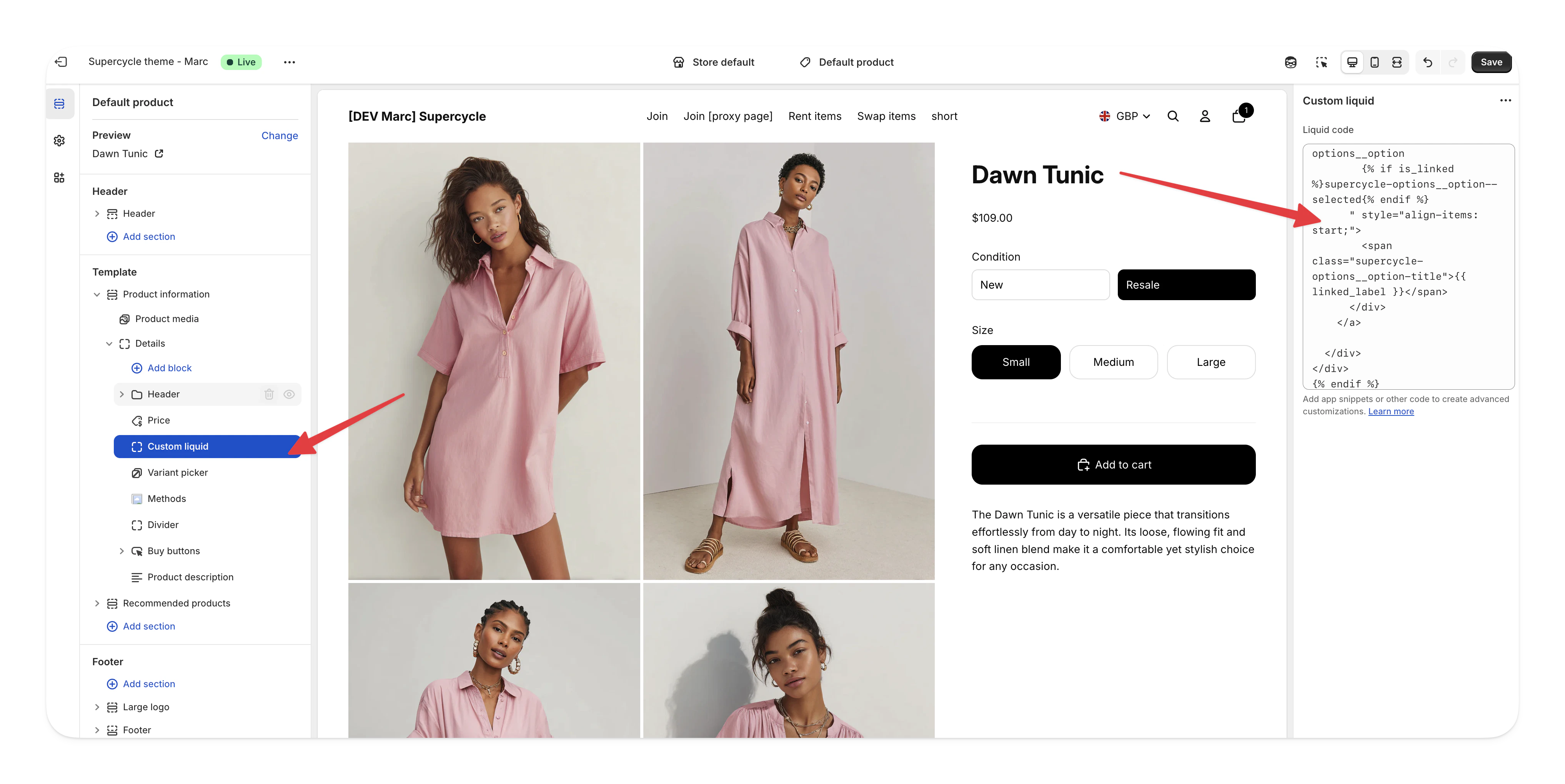
    Add a **Custom Liquid** block to your product page in the theme editor:

    1. Go to **Online Store > Themes** in your Shopify admin
    2. Click **Customize** on your active theme
    3. Navigate to a product page using the page selector dropdown
    4. In the left sidebar, click **Add block** in the product information section
    5. Select **Custom Liquid** from the block options

    <Frame>
      <img src="https://mintcdn.com/supercycle/Omgmq0rsgqX1BZKa/images/screenshots/supercycle-admin/new-and-supercycle.png?fit=max&auto=format&n=Omgmq0rsgqX1BZKa&q=85&s=6f6286fe14e6fea77958b177bb7ad91a" alt="Shopify theme editor showing Custom Liquid block option" width="4070" height="2040" data-path="images/screenshots/supercycle-admin/new-and-supercycle.png" />
    </Frame>

    6. Paste the following code into the Custom Liquid field:

    ```liquid theme={null}
    {%- comment -%} Configurable variables {%- endcomment -%}
    {% assign new_label = 'New' %}
    {% assign linked_label = 'Resale' %}
    {% assign linked_suffix = '-resale' %}

    {%- comment -%}
      Work out base / linked handles
    {%- endcomment -%}
    {% assign current = product.handle %}
    {% assign base = current | replace: linked_suffix, '' %}

    {% assign is_linked = false %}
    {% if base != current %}
      {% assign is_linked = true %}
    {% endif %}

    {% assign linked = base | append: linked_suffix %}

    {%- comment -%} Look up products {%- endcomment -%}
    {% assign base_product = all_products[base] %}
    {% assign linked_product = all_products[linked] %}

    {%- comment -%}
      Only show switcher when:
      - linked_suffix is not blank
      - base product exists
      - linked product exists and is a real product
    {%- endcomment -%}
    {% if linked_suffix != blank and base_product and linked_product and linked_product.title != blank %}
    <div class="supercycle-options">
      <label class="supercycle-options__label form__label">Condition</label>

      <div class="supercycle-options__container">

        {%- comment -%} Base option (no suffix) {%- endcomment -%}
        <a href="{{ base_product.url }}" class="supercycle-options__option-link">
          <div class="
            supercycle-options__option
            {% unless is_linked %}supercycle-options__option--selected{% endunless %}
          " style="align-items: start;">
            <span class="supercycle-options__option-title">{{ new_label }}</span>
          </div>
        </a>

        {%- comment -%} Linked option (with suffix) {%- endcomment -%}
        <a href="{{ linked_product.url }}" class="supercycle-options__option-link">
          <div class="
            supercycle-options__option
            {% if is_linked %}supercycle-options__option--selected{% endif %}
          " style="align-items: start;">
            <span class="supercycle-options__option-title">{{ linked_label }}</span>
          </div>
        </a>

      </div>
    </div>
    {% endif %}
    ```
  </Step>

  <Step title="Configure the variables">
    Update these variables to match your setup:

    ```liquid theme={null}
    {% assign new_label = 'New' %}
    {% assign linked_label = 'Resale' %}
    {% assign linked_suffix = '-circular' %}
    ```

    | Variable        | Description                                                                 | Examples                                          |
    | --------------- | --------------------------------------------------------------------------- | ------------------------------------------------- |
    | `new_label`     | Label shown for the new product option.                                     | `New`, `Buy New`                                  |
    | `linked_label`  | Label shown for the Supercycle product option.                              | `Resale`, `Rental`, `Circular`, `Buy refurbished` |
    | `linked_suffix` | Suffix added to the base product handle to identify the Supercycle version. | `-circular`, `-resale`, `-rental`                 |
  </Step>

  <Step title="Style the switcher">
    The switcher uses the same classes as the Supercycle methods app block.
  </Step>
</Steps>

<Note>
  The switcher only appears when both the base product and the linked Supercycle product exist. If either product is missing, the switcher won't display.
</Note>
